

Summary
In this guide, learn how to:
-
Set up a basic single-page, real-browser synthetic monitor
-
Error Tracking Configuration
-
Emulate network conditions with bandwidth and latency throttling
-
Set request Cookies or Headers
-
Set DNS overrides
-
Block domains or files from loading
-
Monitor mobile sites using device emulation
-
Enable screen shot and film strip capturing
-
Function Tracing
-
Advanced Configuration Options
How to set up a basic single-page, real-browser synthetic monitor
The synthetic monitors page is available through the Settings & Administration menu under Synthetic.
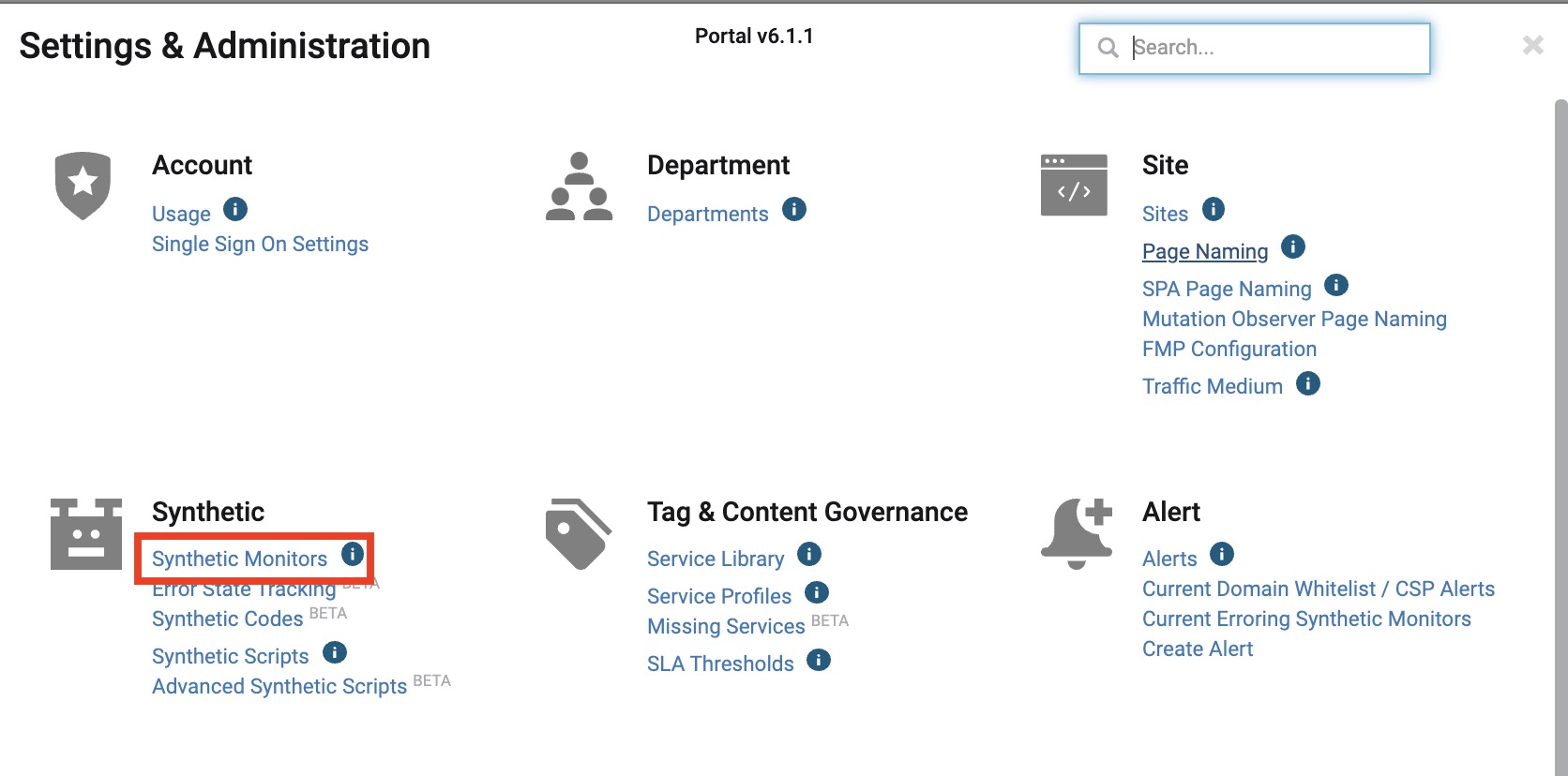
Click Create > Single-page Real Browser Monitor.

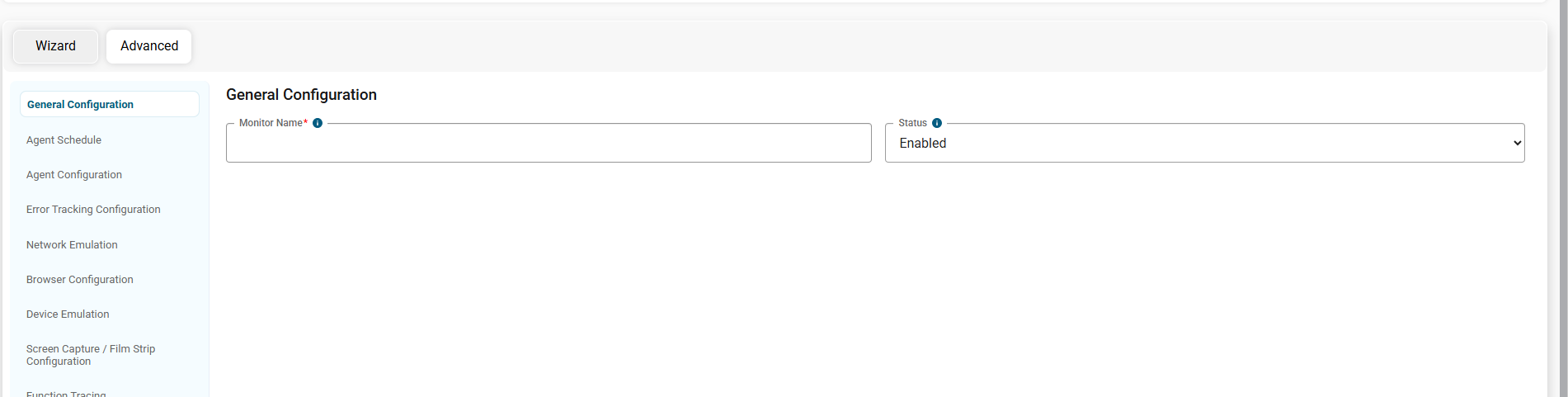
From this page you can either go through the normal configuration of a monitor or use the wizard tool in the top left. Now you can start to configure the monitor. You’ll notice required fields have a red asterisk. First, give the monitor a name in the Monitor Name field. If you don’t want the monitor running indefinitely, configure a Kickoff Time and End Time. Also, set any Maintenance Windows you want to apply to this monitor’s run schedule. What’s a maintenance Window?
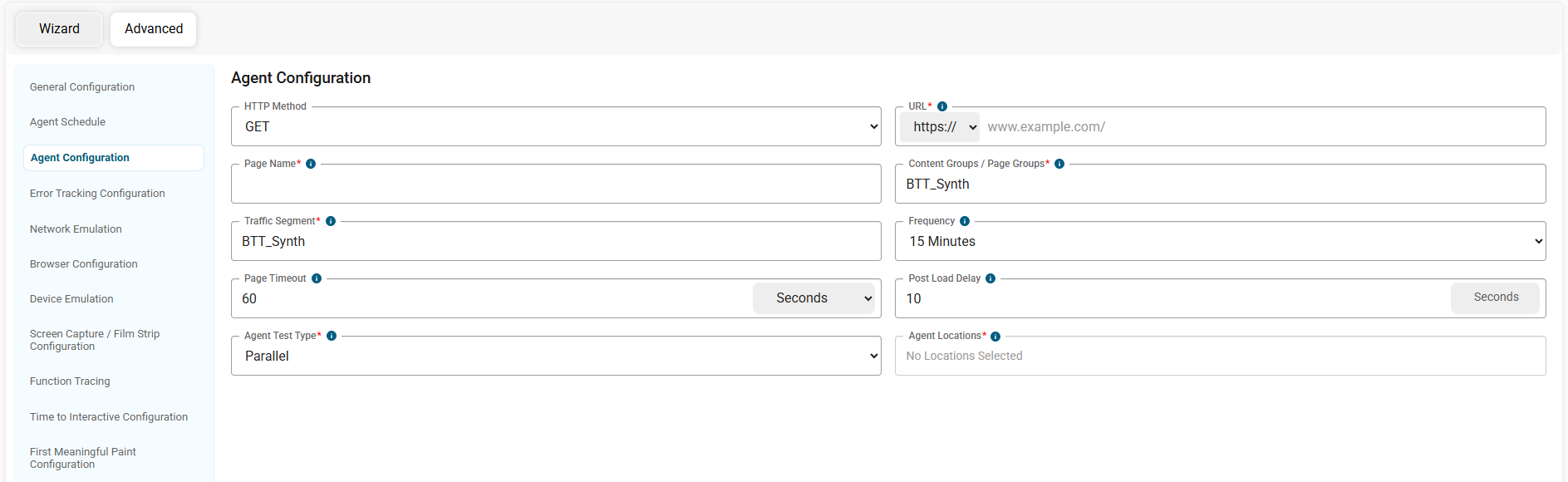
Next and most important, enter the URL you want to monitor, and the Page Name and Traffic Segmentation. Valid characters that can be used in the URL are alphanumerical as well as the following special characters: -._~:/?#[]@!$&'()*+,;=. Traffic Segmentation and Page Name are important fields because they are what appear in the filters when looking at the data in other areas of the portal. Here you can also control the frequency of the measurements, set a timeout for the URL, and control where the measurements are run. Be sure to select at least one Agent Location to run the monitor.
All required fields should be filled at this point, so to complete setting up this single-page monitor scroll to the bottom of the page and click Create. You’ll see your new measurement listed in the table, and you’ll be able to see data within an hour.
The rest of this article will walk you through the more advanced configuration options for a single-page synthetic monitor.
Error Tracking Configuration
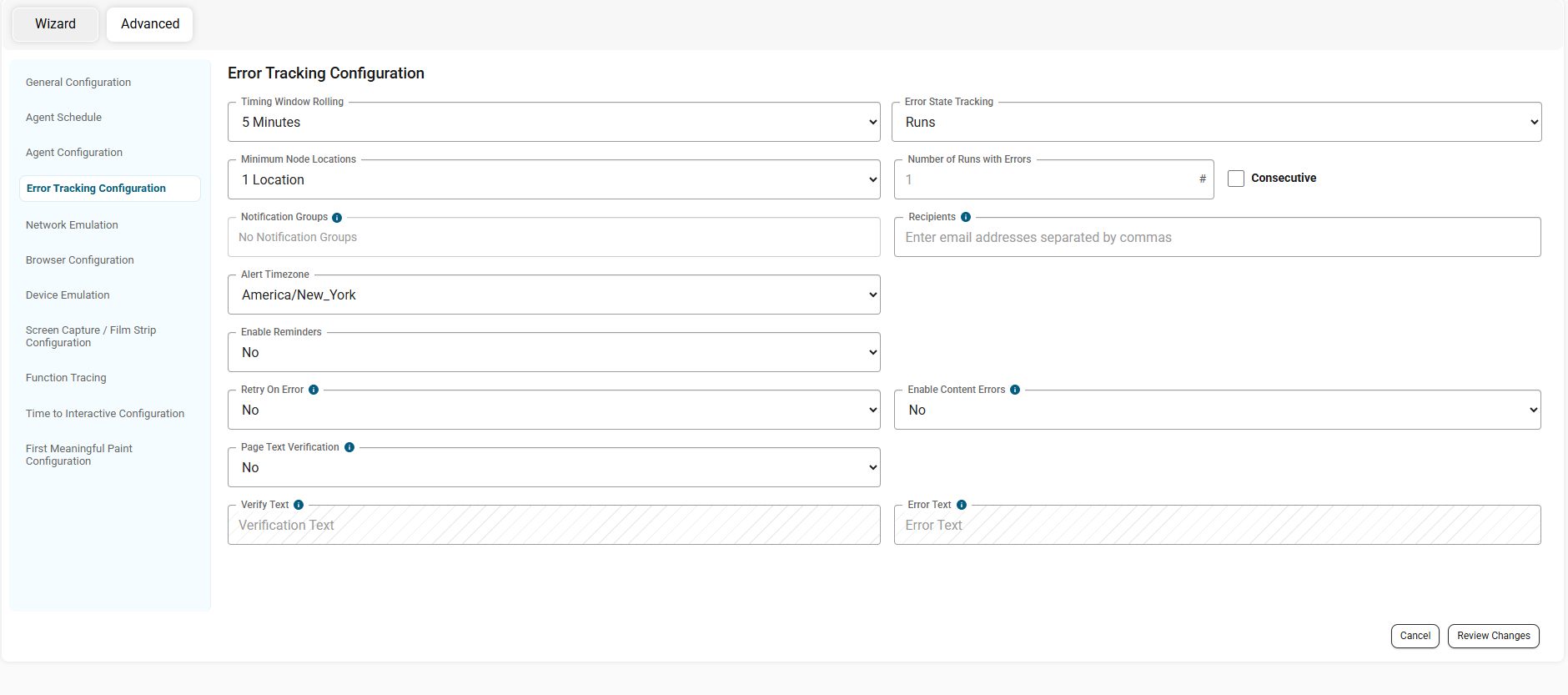
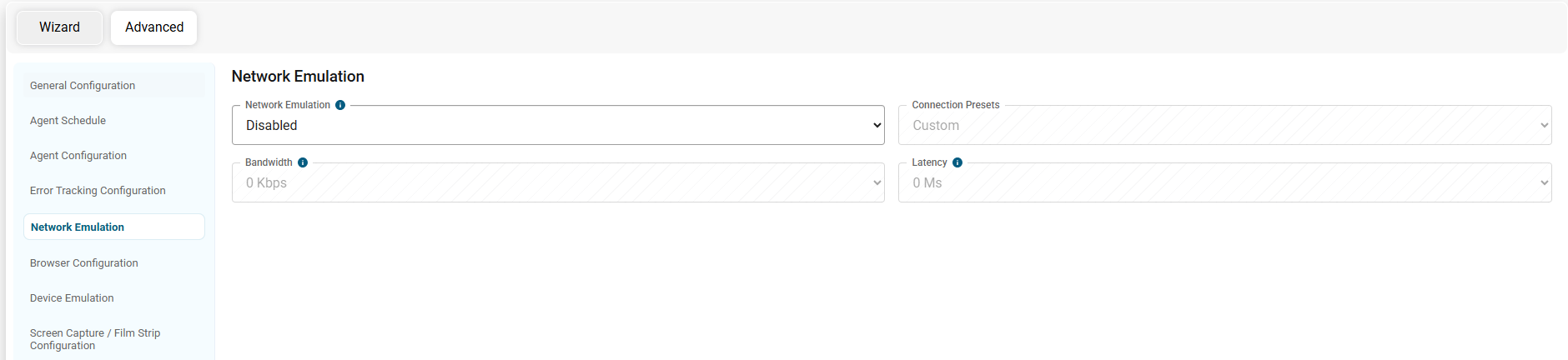
Emulate synthetic monitor’s network conditions with bandwidth and latency throttling
Once you have set the basic configuration for your synthetic monitor, scroll down to the Network Emulation section. Select “Enabled” from the Network Emulation drop down, then select from the given bandwidth and/or latency options. Bandwidth limits both upload and download throughput to the selected speeds, and Latency adds the specified delay to all network traffic.
Set request for Cookies or Headers
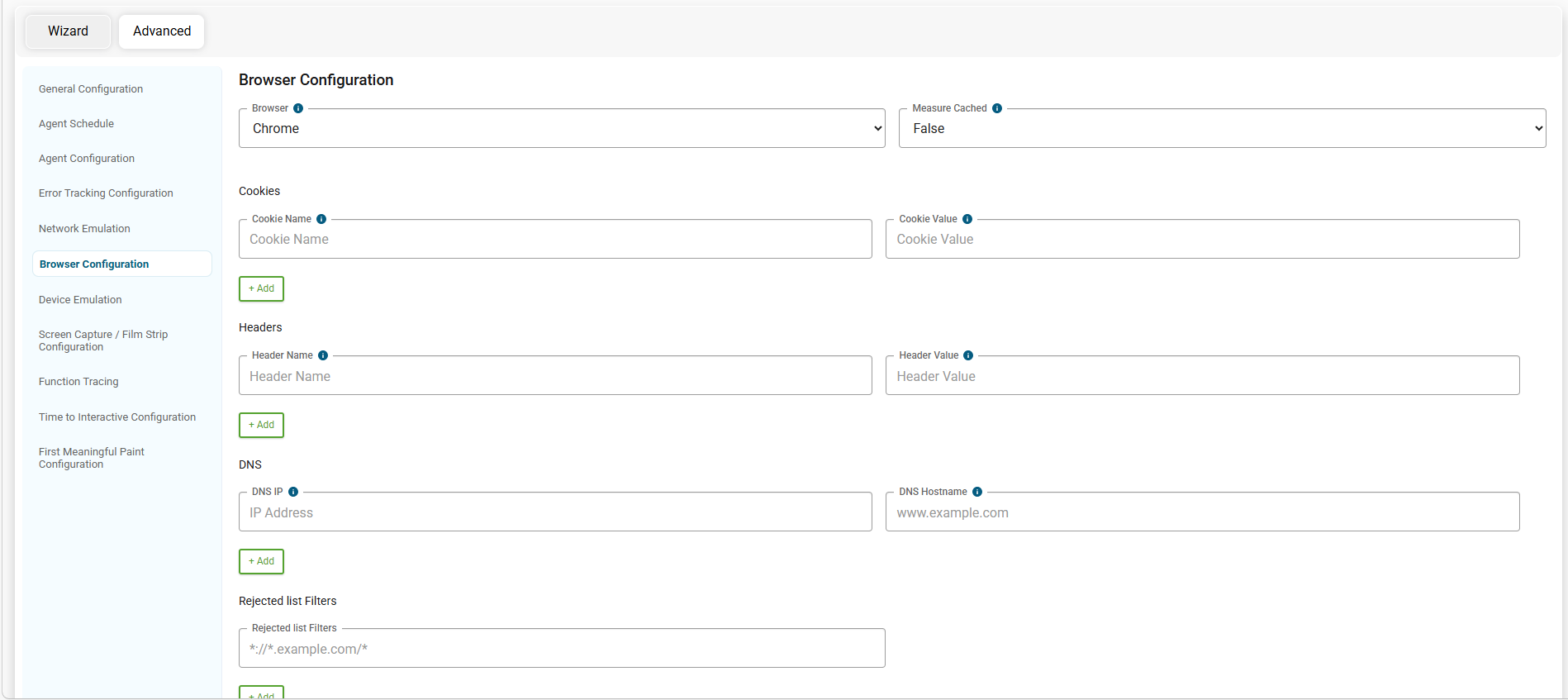
You are able to set request for cookies/headers on the configuration page for a single-page synthetic monitor, under the BROWSER CONFIGURATION section. Here you can input cookie name-value pairs as well as header name-values. To add multiple cookies or multiple headers, simply click the “+” icon and add more.
Set DNS overrides
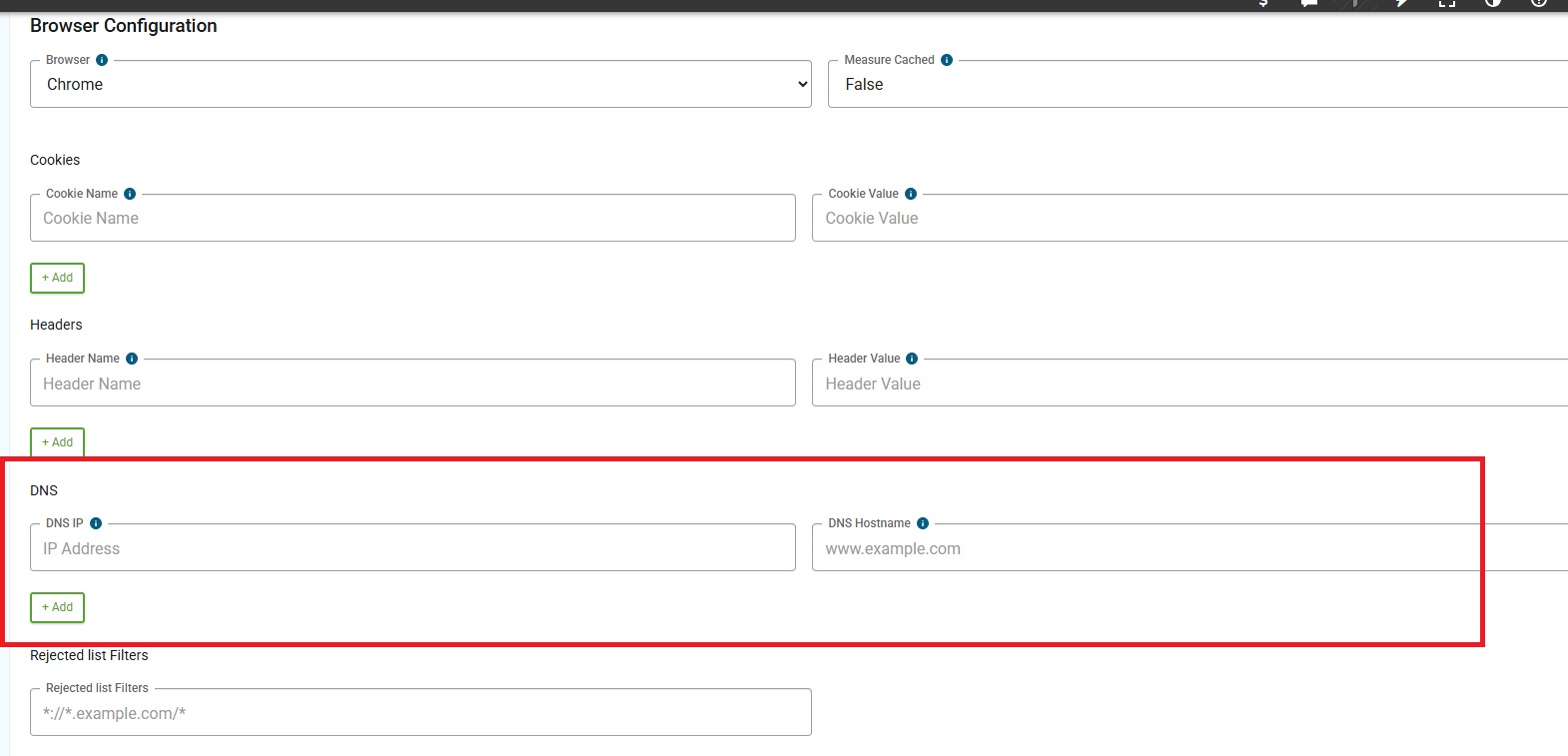
On the configuration page for a single-page synthetic monitor, under the BROWSER CONFIGURATION section you’ll find fields for DNS IP and DNS Hostname. Similar to adding request headers or request cookies, you can enter the IP and hostname here just like a hosts file entry.
Block domains or files from loading
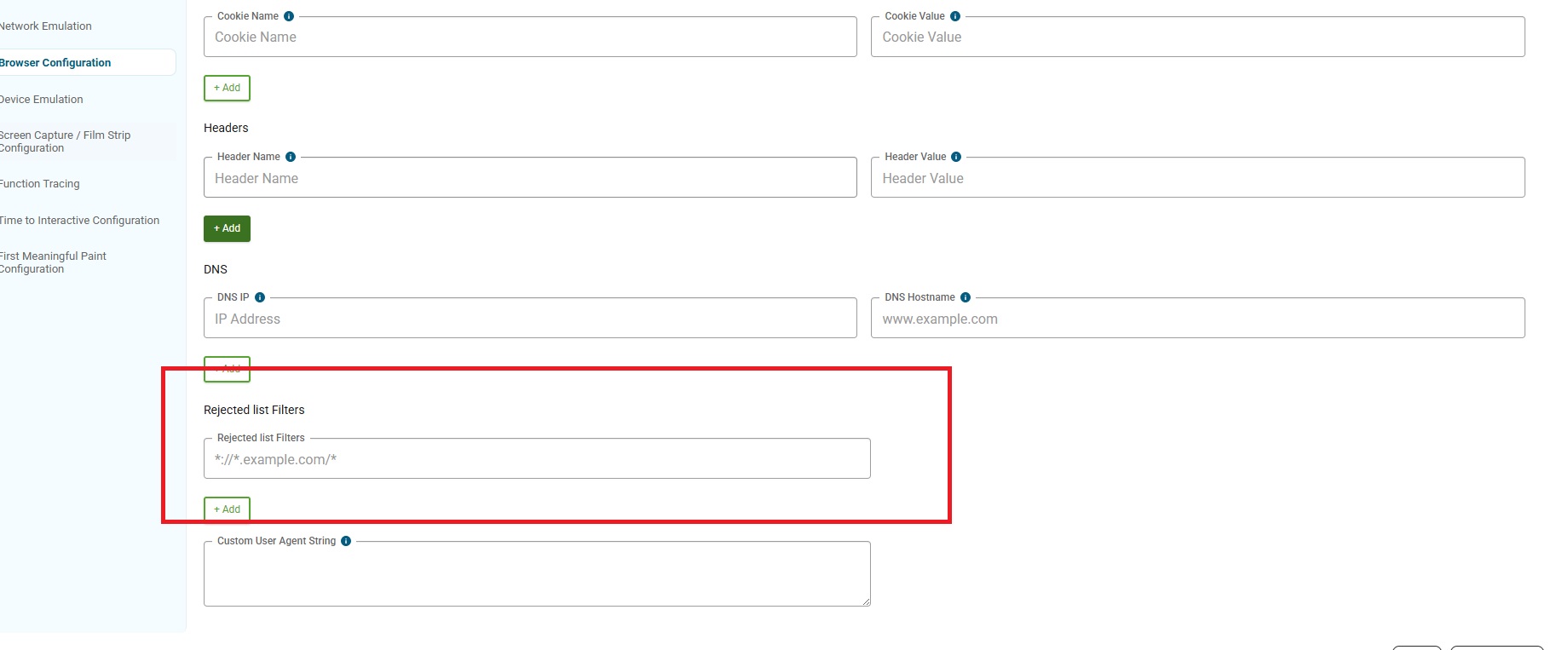
On the create page for a single-page synthetic monitor, locate the BROWSER CONFIGURATION section to input the domains or files you would like to block. Toward the bottom of the section you’ll see a Blacklist Filters field. Using the wildcarding you can block a URL pattern.
Note: Blocking network requests does not work if the request is an iframe. This is not to be confused with requests inside of an iframe, which are properly blocked. The issue is only for the main request for an iframe which is of type Document. We submitted an official bug to Chrome regarding this issue and you can check here for the status: https://bugs.chromium.org/p/chromium/issues/detail?id=1262163.
Monitor mobile sites using device emulation
When measuring a mobile site you’ll want to make sure you have device emulation enabled. On the create page for a synthetic monitor, find the DEVICE CONFIGURATION section. Click to select “Yes” under Use Mobile Emulation. The Emulation dropdown menu provides a list of mobile device options to choose from.

This uses Chrome’s mobile emulation feature in DevTools.
Enable Screenshot and Film Strip Capturing
To enable screenshot and/or film strip, locate the SCREEN CAPTURE/FILM STRIP CONFIGURATION section on the synthetic monitor configuration page.
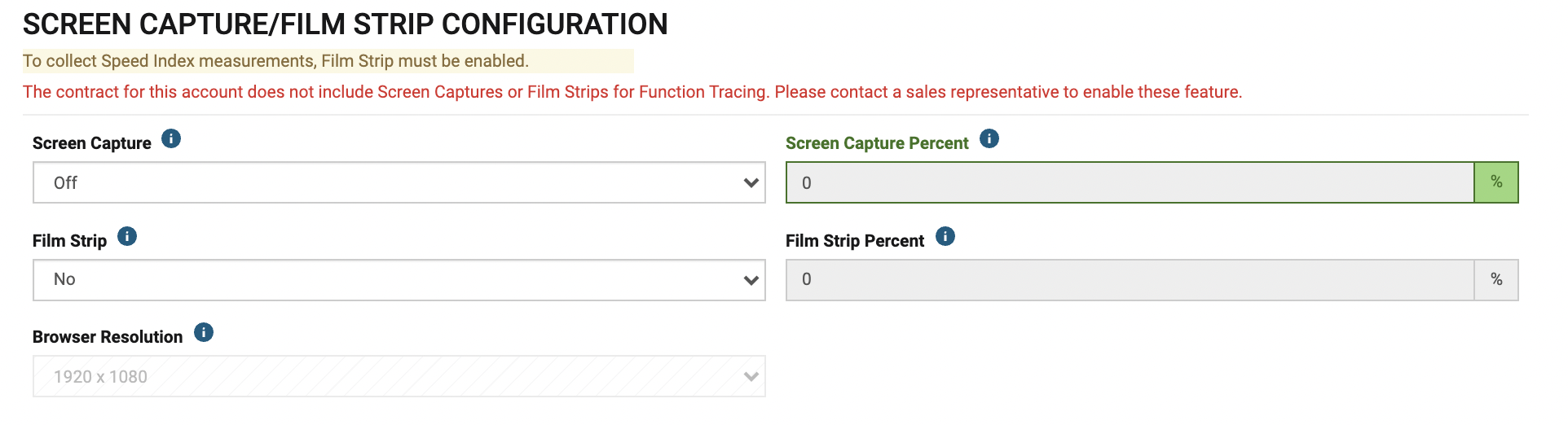
By default, Blue Triangle synthetic measurements will always capture a screenshot after the page has loaded. Select yes in the Film Strip drop down to enable a film strip – by default, the percentage of measurements that will capture a film strip is 25%. To increase this, please contact sales@bluetriangle.com.
Function Tracing

Advanced Configuration Options
By selecting the 'Advanced Configuration' button located below the FUNCTION TRACING section of the configuration page will reveal additional configuration options for Time to Interactive and First Meaningful Paint.
