

How to set up a multi-page, real-browser synthetic monitor
Before we get started, make sure you:
-
Navigate to wizard to create a Multi-Step Real Browser Monitor
-
Go to the Settings window by clicking the gear icon in the toolbar at the top of the page.

-
Click the Synthetic Monitors button under the Synthetic Configuration section of the Settings menu
-
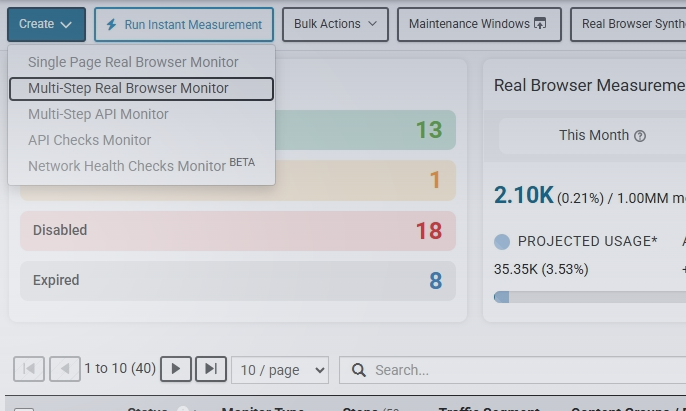
Click Create > Multi-Step Real Browser Monitor.
-
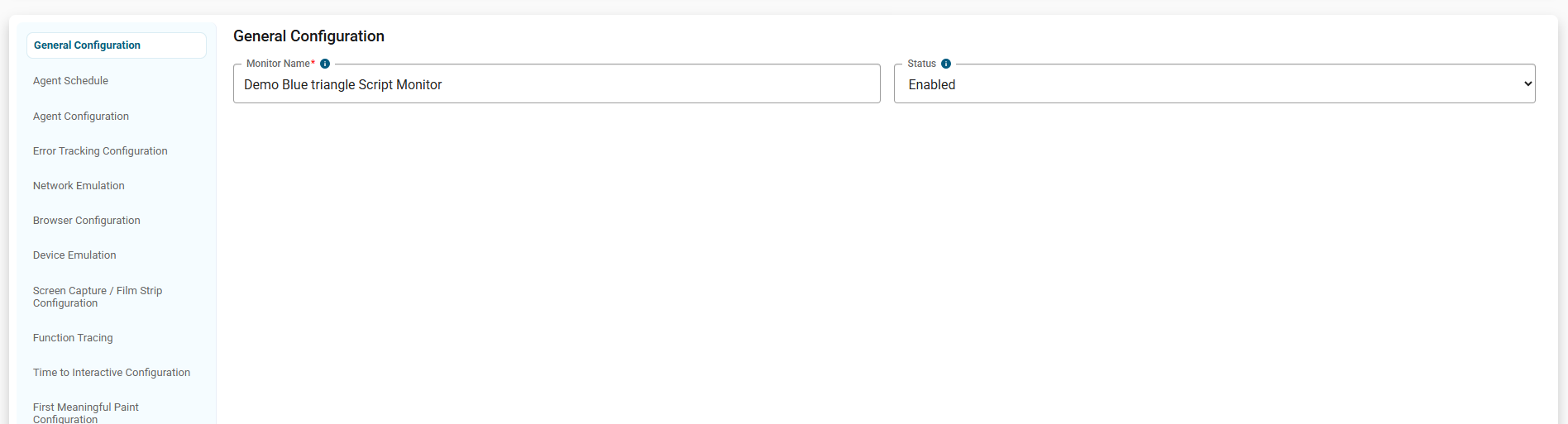
Now you can start to configure the monitor. You’ll notice required fields have a red asterisk. First, give the monitor a name in the Monitor Name field. If you don’t want the monitor running indefinitely, configure a Kickoff Time and End Time. Also, set any Maintenance Windows you want to apply to this monitor’s run schedule. What’s a maintenance Window?
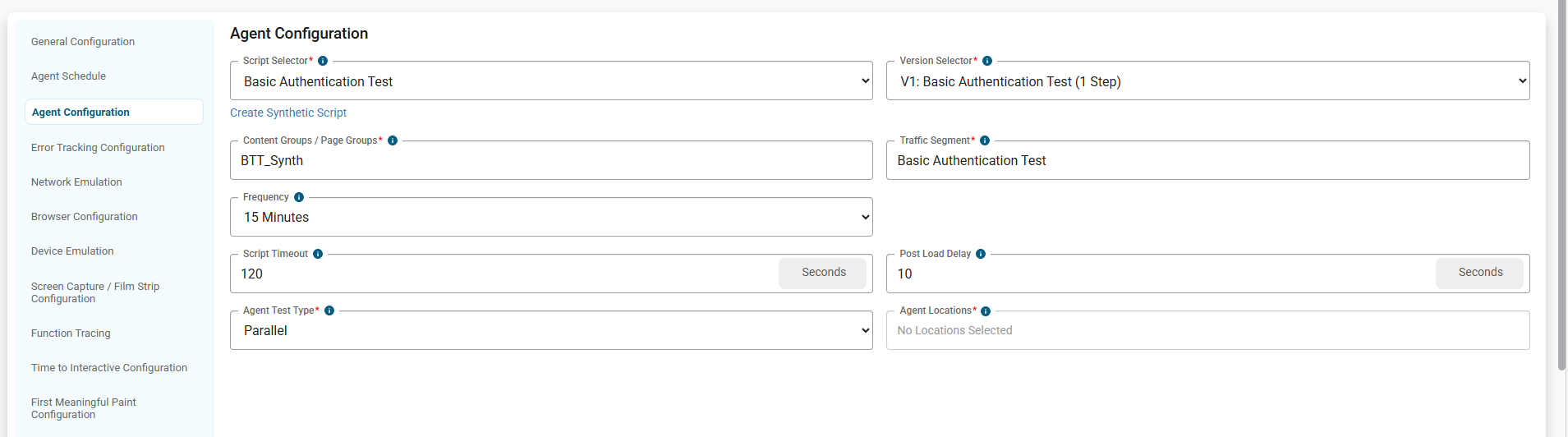
Select the script to monitor in the AGENT CONFIGURATION section. Configure the frequency and Script Timeout, as well as the Agent Location.
For basic set up, you’re ready to go. Scroll to the bottom of the page and click Review Changes then Create.
For advanced configuration, see How to Set Up a Single-Page Synthetic Monitor.