

Overview
Maintenance Windows are defined periods of time where alerts are muted. For example this could include a range of time where your site is down for scheduled maintenance, or overnight when site traffic may be significantly lower.
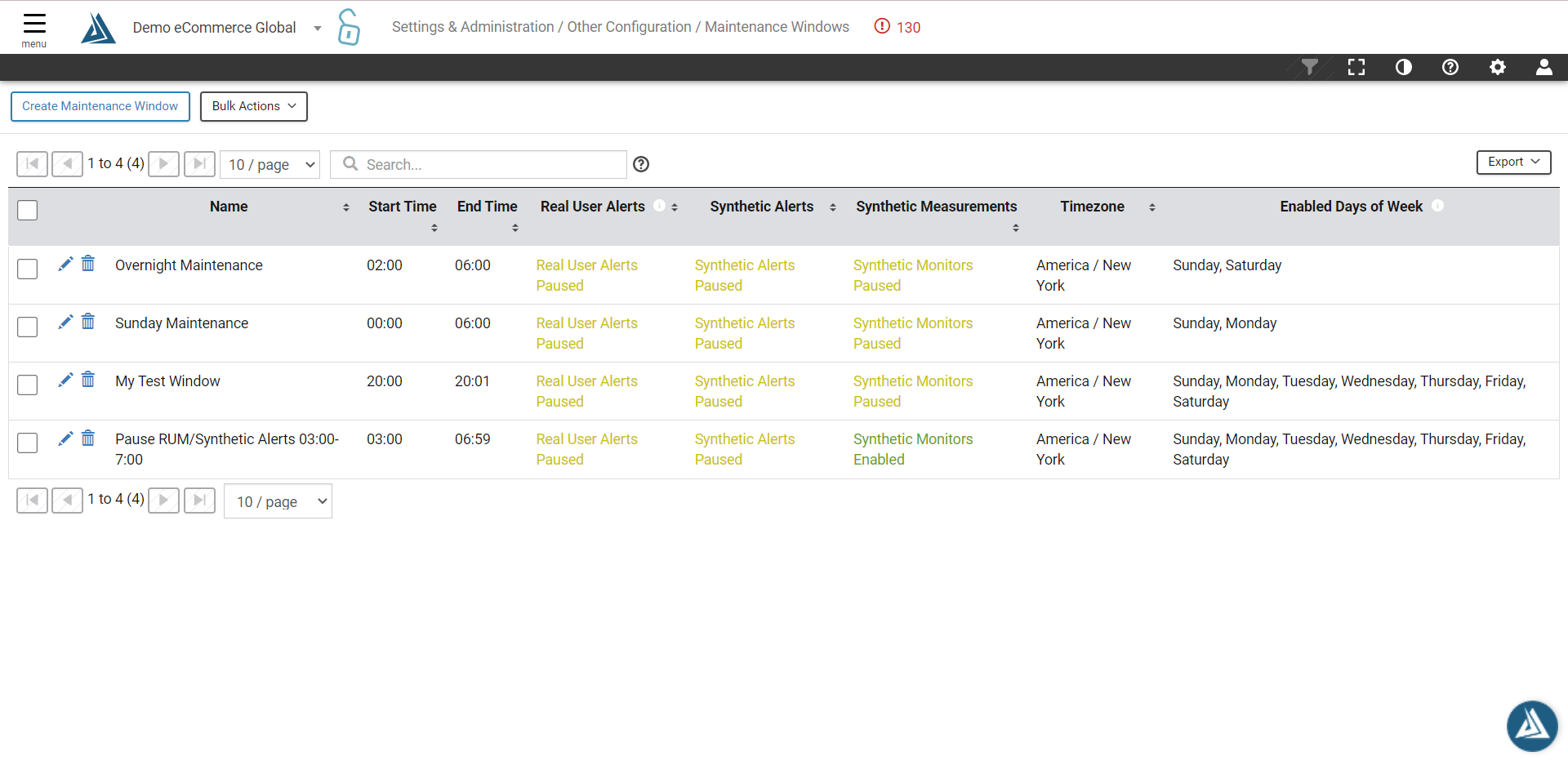
Note: To mute alerts during Maintenance Windows, the maintenance window must be applied in the individual Alert configurations.
How to Create a Maintenance Window
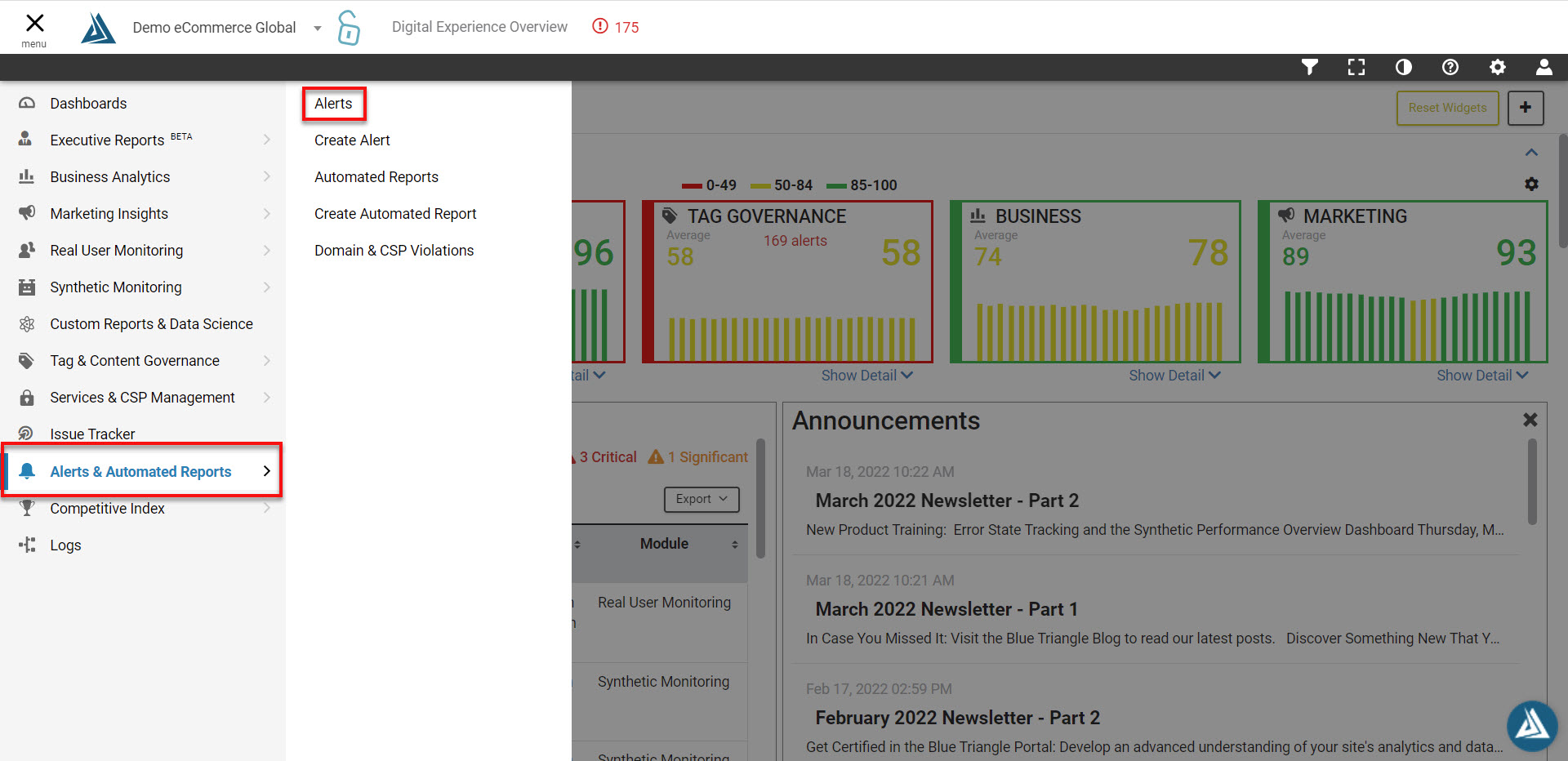
Click the hamburger menu at the left hand side of the page, followed by Alerts & Automated Reports. Then click Alerts.
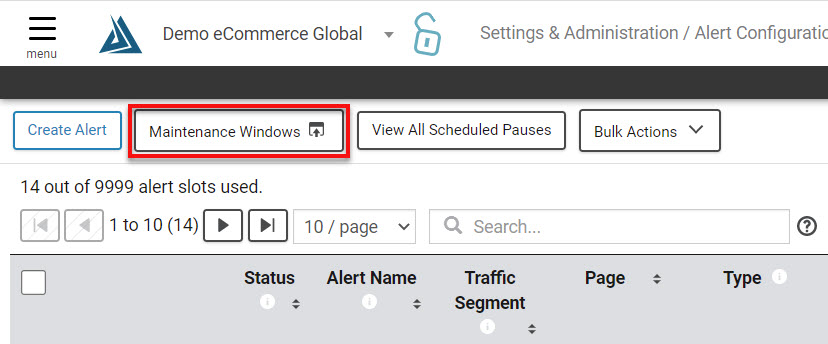
Click the Maintenance Windows button.
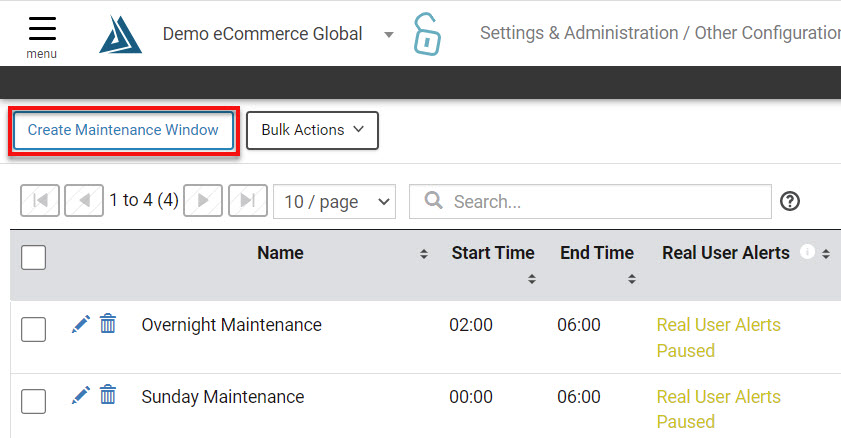
This will open a new page, where you can then click Create Maintenance Window.
Enter a name for the Maintenance Window, choose the days of the week it should be in effect, and set the time range. You can also modify the time zone for this window if necessary.
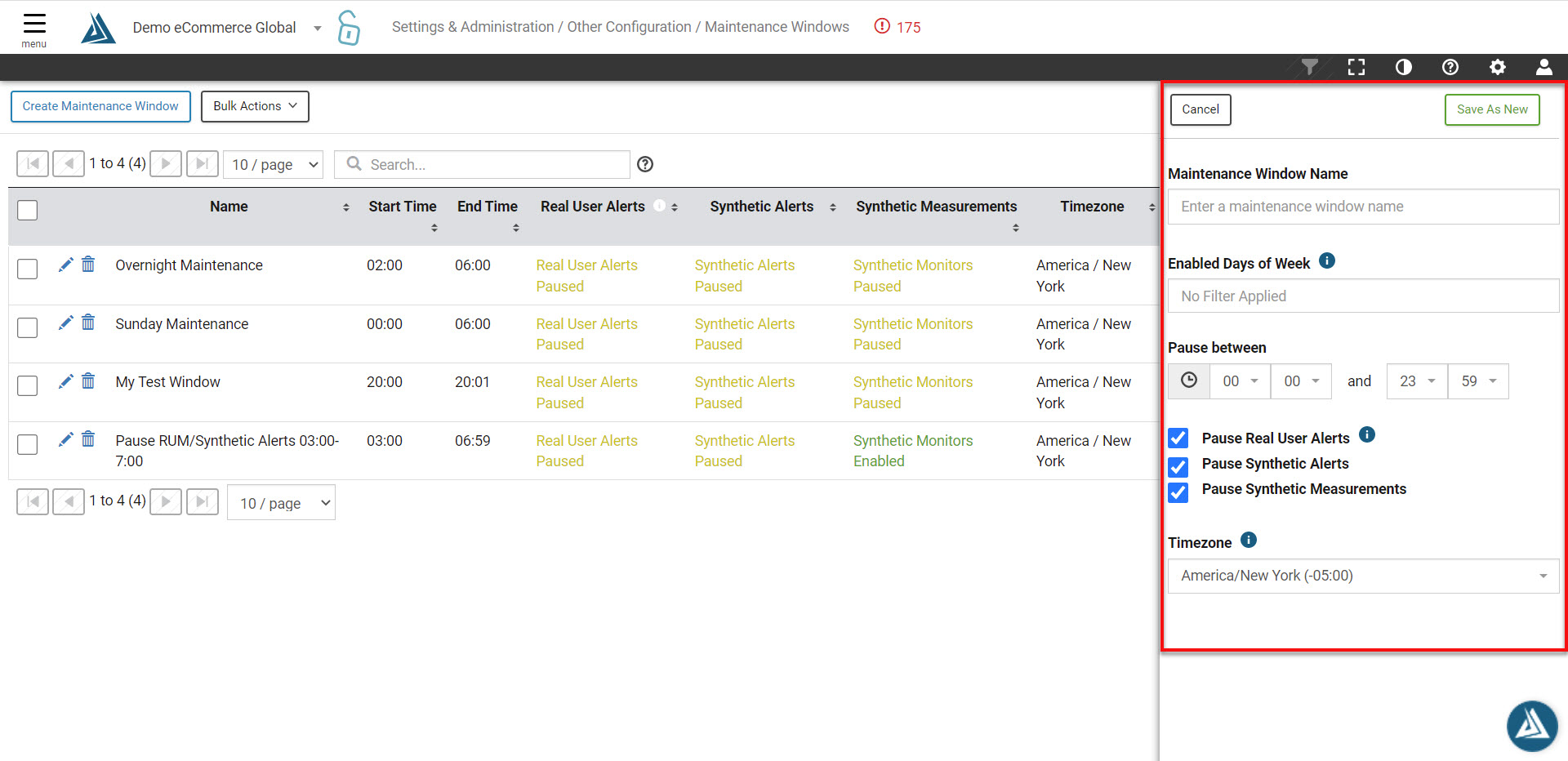
Select which alert types to pause during the Maintenance Window - Real User and/or Synthetic - and also choose whether to pause synthetic measurements during this time.
Finally, click Save as New to finish.
You have now created a maintenance window! Next you'll want to apply it to your alerts' configuration for it to go into effect.
How to Apply a Maintenance Window to an Alert
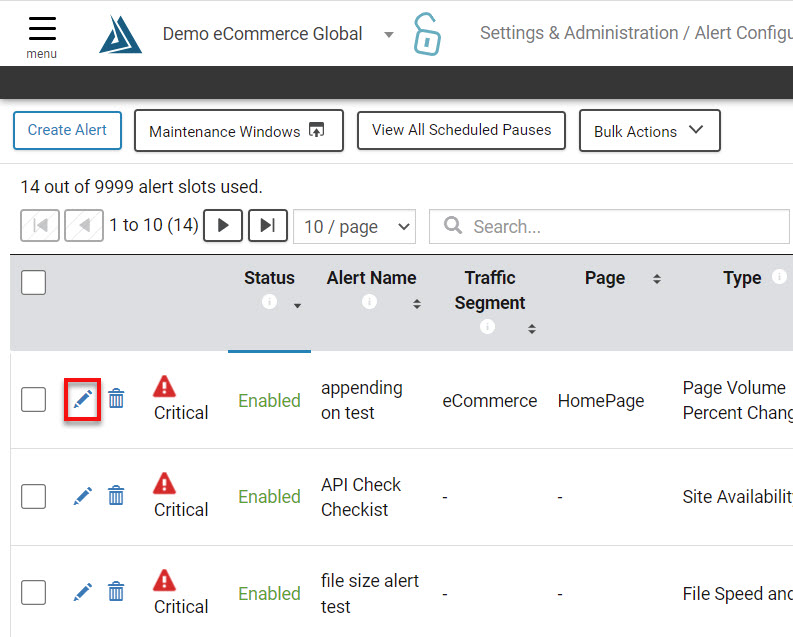
On the Alerts page, edit an alert by clicking the pencil icon.
Navigate to the Schedule section of the alert by clicking the Next button located on the bottom right the Edit Alert screen.
Select the Maintenance Window to apply to this alert from the drop-down menu. Multiple maintenance windows can be assigned.
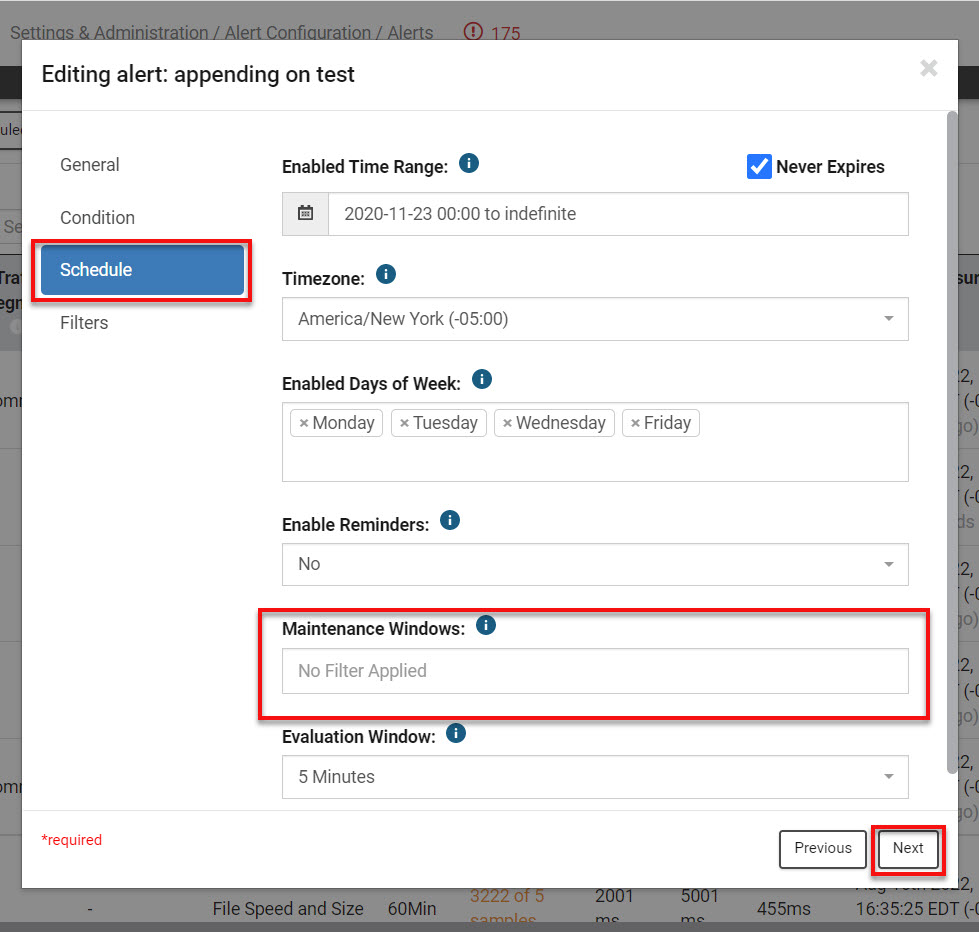
Last, click Next and then Finish to update the alert.
You're all set! This alert is now configured to remain muted during your maintenance window.