

Overview
Custom Variables can be used for tracking specific numbers or variables to associate them with sessions and page hits when viewing RUM data in the portal. The Custom Variables page provides an overview of all configured custom variables for a site. This is also where to create and edit new or existing variables.
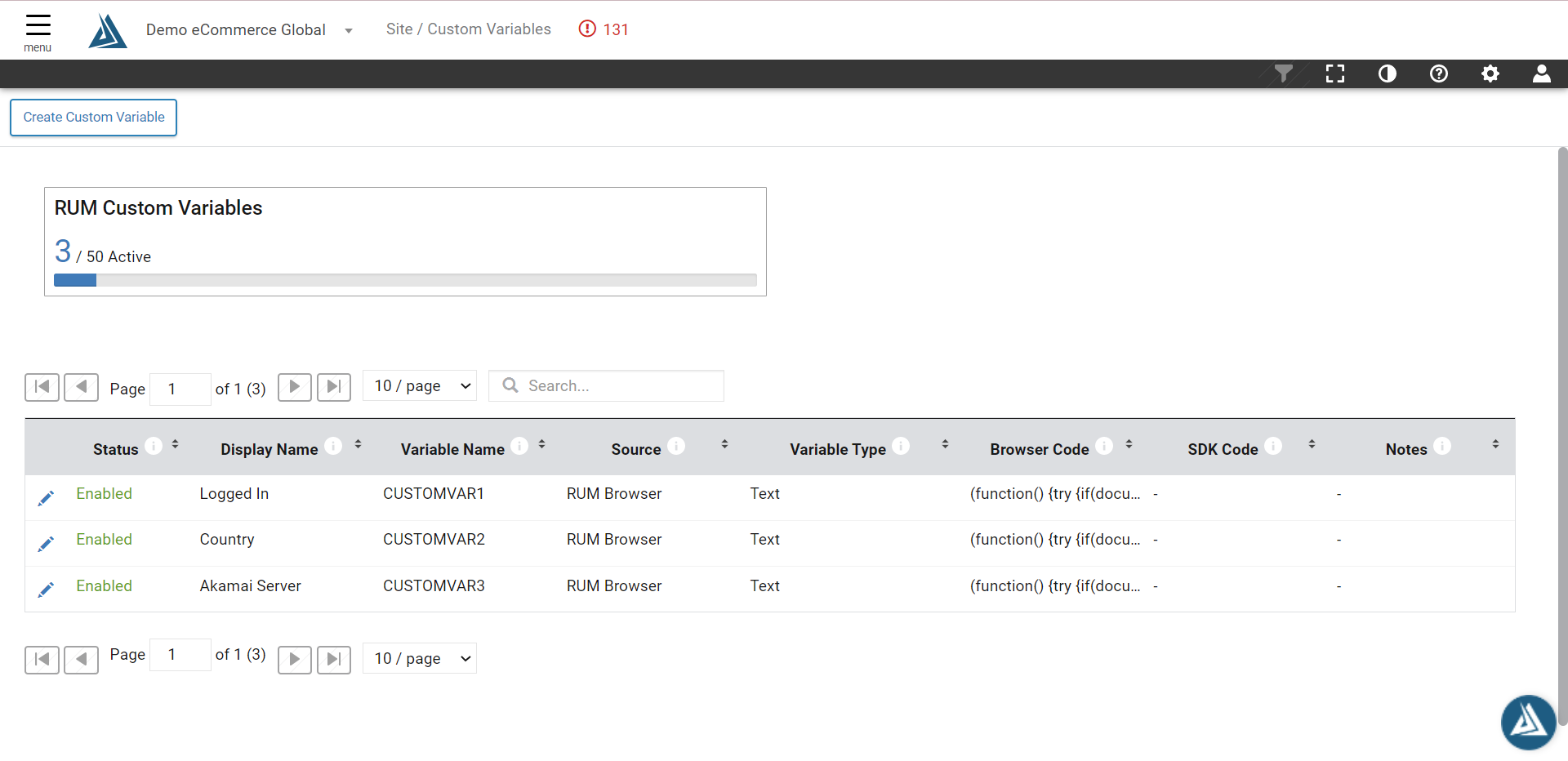
How to Find Custom Variables
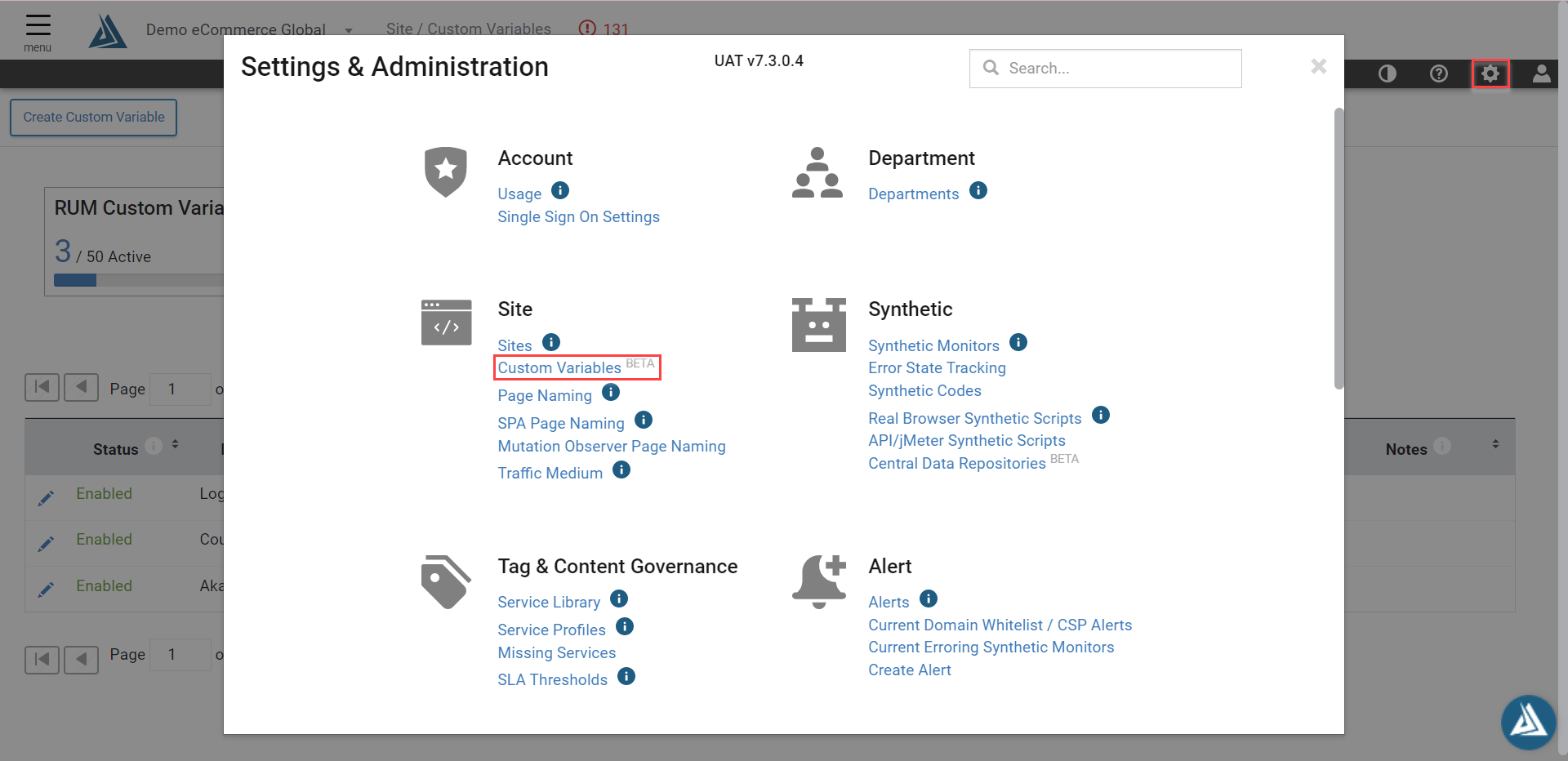
The Custom Variables page can be found in the Settings & Administration menu on the right-hand side of the portal, under Site.
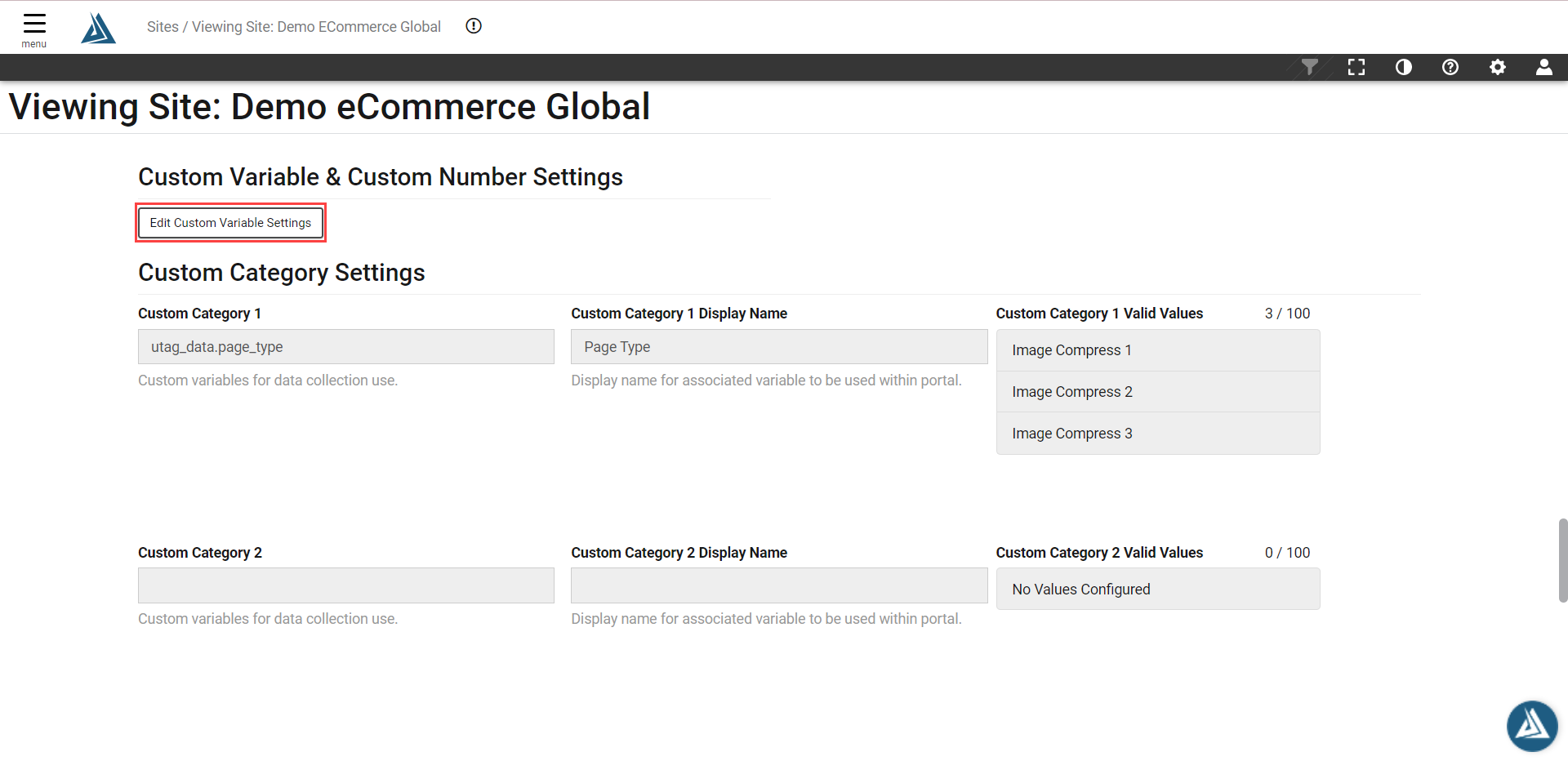
This configuration was formerly found on the Site configuration (Sites) page in the Settings & Administration menu. Now if you go to the Sites configuration page, there is a button linking to the Custom Variable page.
How to Create a Custom Variable
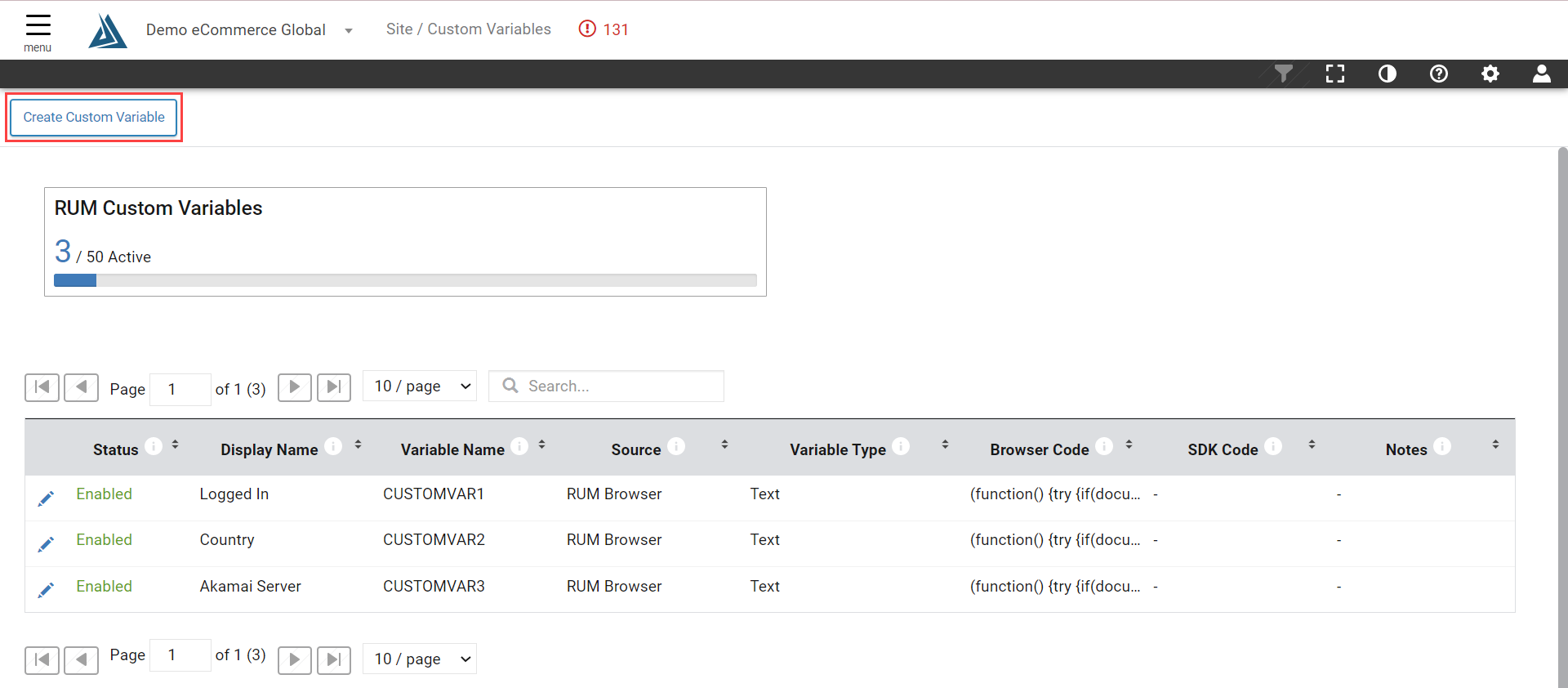
To set up a new Custom Variable, click the Create Custom Variable button at the top of the page. Note that once a Custom Variable is created it cannot be deleted, only edited or disabled.
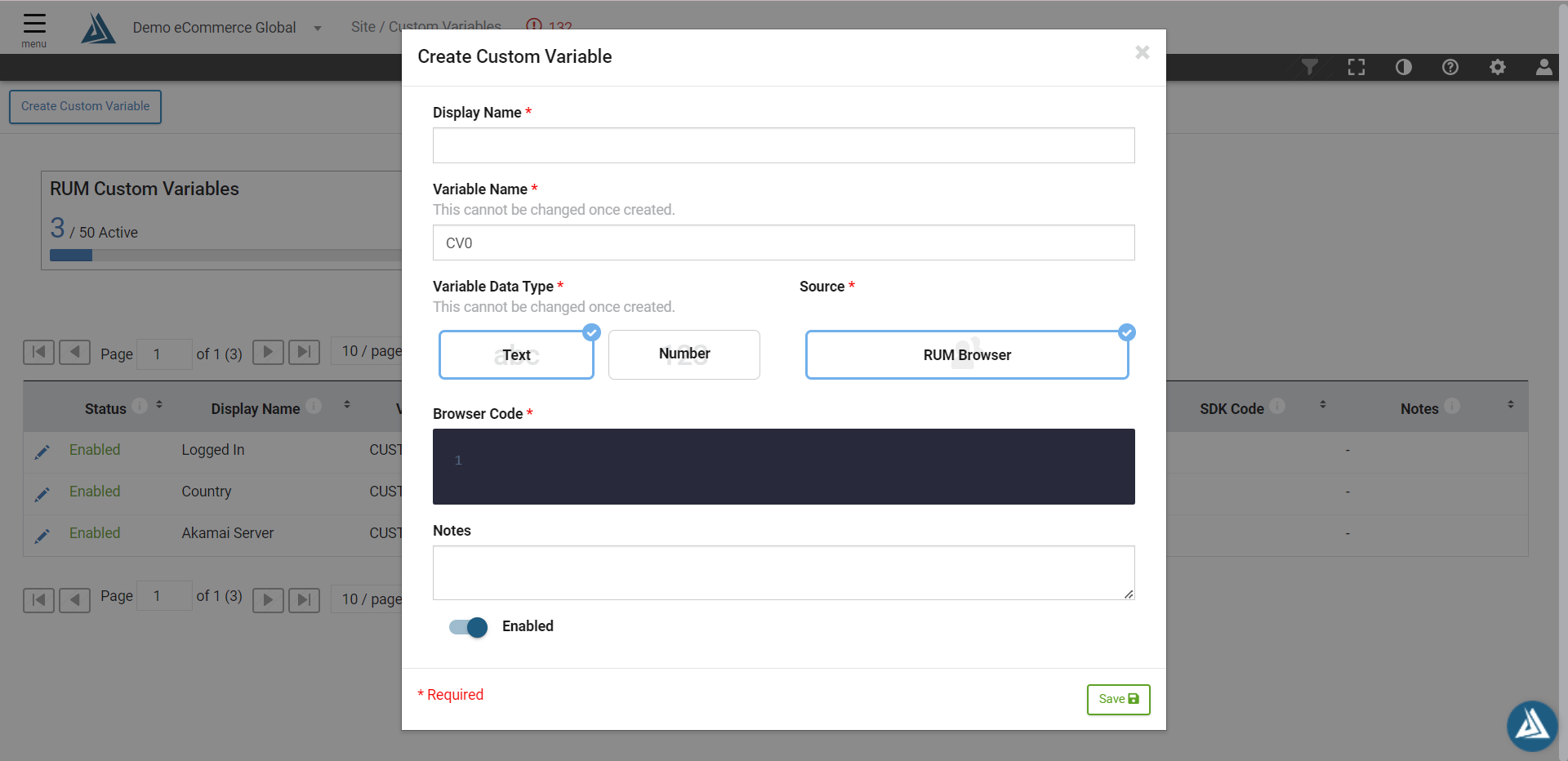
To configure the Custom Variable:
See the Character Restrictions section to view all illegal characters for this configuration.
-
Enter a Display Name. The name must be unique within the site, but can be edited later.
-
When configuring a new Custom Variable, a default Variable Name will be created. The Variable Name can be edited during the configuration process, but once the custom variable is saved the Variable Name is permanent. Display names are case sensitive
-
Choose a Variable Data Type: Text or Number. Once saved, this cannot be edited.
-
Choose a data Source. At this time, only Real User Monitoring is available.
-
Enter the Browser Code for the Variable.
-
Add more information to Notes if necessary.
-
Enable/Disable the Custom Variable using the switch at the bottom of the configuration page.
Please note that once a Custom Variable is configured, it may take up to an hour for data to appear in the portal.
How to Edit a Custom Variable
To edit a Custom Variable, click the pencil icon to the left of the Variable Status.
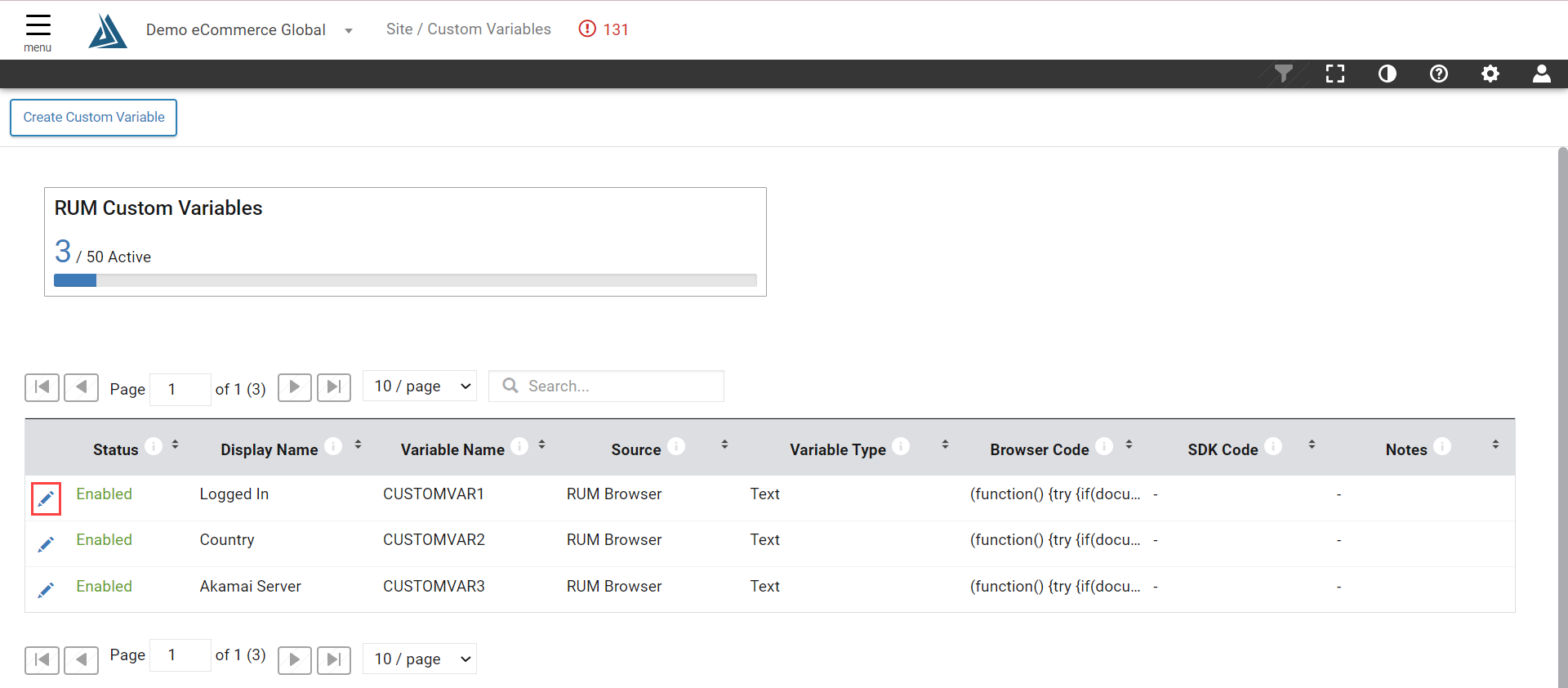
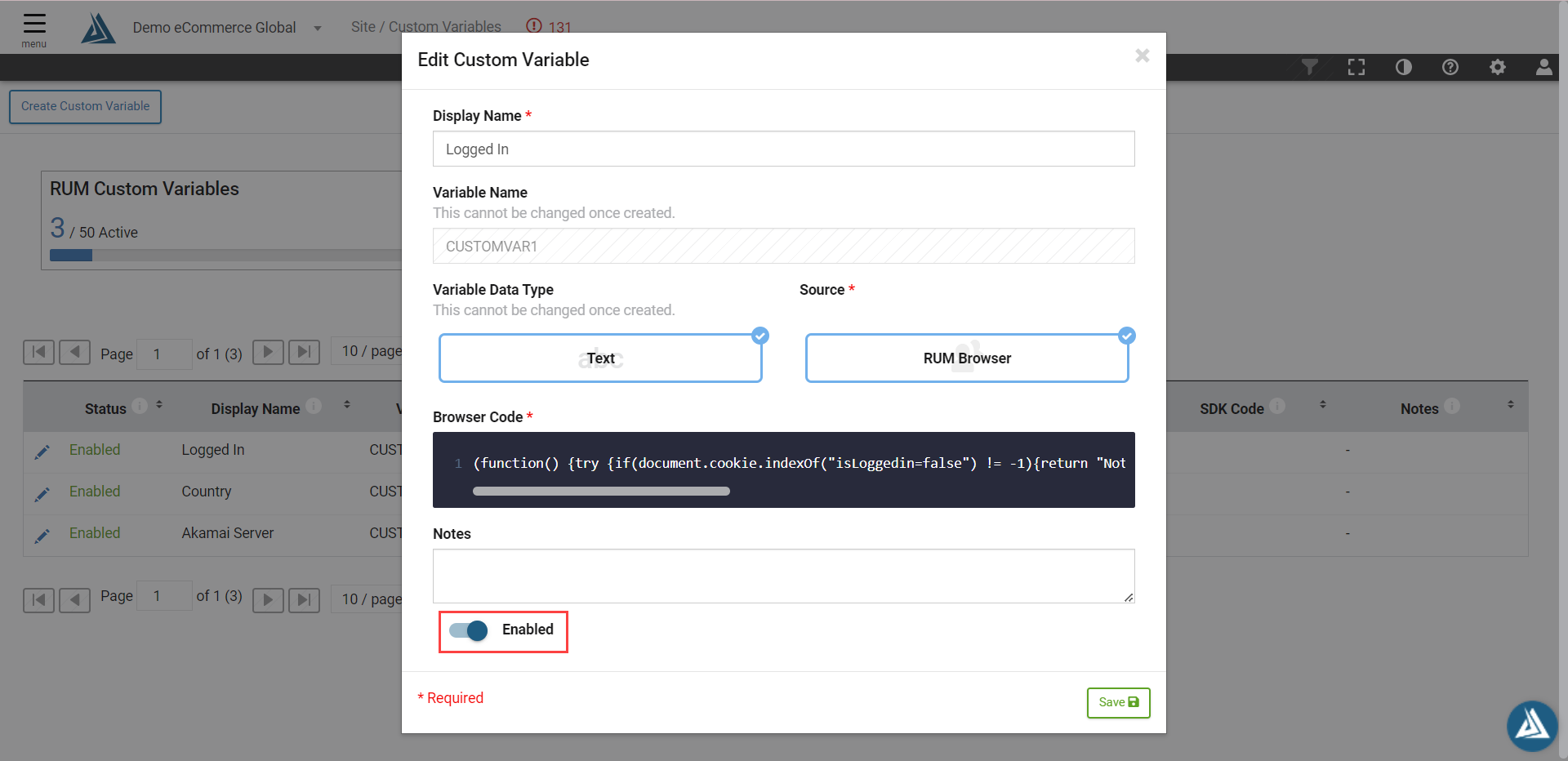
As noted above, the Custom Variable Name and Data Type cannot be edited after creation.
Use the switch at the bottom of the configuration window to Enable/Disable a Custom variable as desired.
Character Restrictions
Display Name Field Restrictions:
-
No open and close brackets for html (greater than/less than signs) “<” and “>” allowed in this field.
-
No double quotes (" ") allowed in this field
-
No single quotes/apostrophes (' ') allowed in this field
-
No backslashes (\) allowed in this field
-
No tick marks (` `) allowed in this field
-
There are certain reserved terms that are not allowed in this field. If you are having an issue with a specific term, reach out to your BT representative.
Variable Name Field Restrictions:
-
No spaces, no special characters except for underscore (letters, numbers, underscore [abcABC123_])
-
Case sensitive
-
Value must begin with a letter
-
Must be unique
-
There are certain reserved terms that are not allowed in this field. If you are having an issue with a specific term, reach out to your BT representative.
Notes Field Restrictions:
-
No open and close brackets for html (greater than/less than signs) “<” and “>”