

Overview
The Synthetic Monitors page houses all of a site's synthetic monitors, including Single Page, Multi-Step, API Checks, Multi Step API, and Network Health Check monitors.
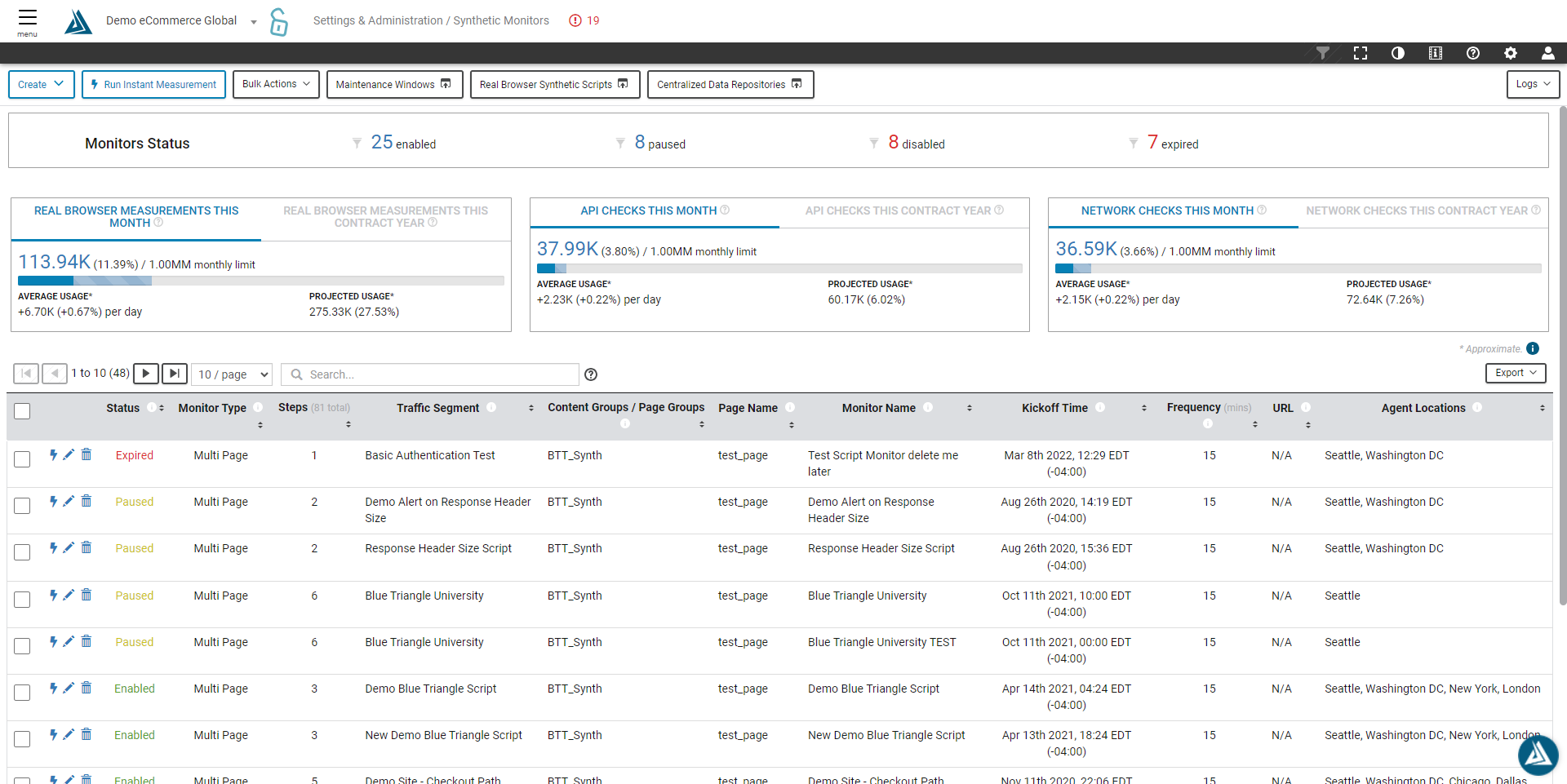
How to Find the Synthetic Monitors Page
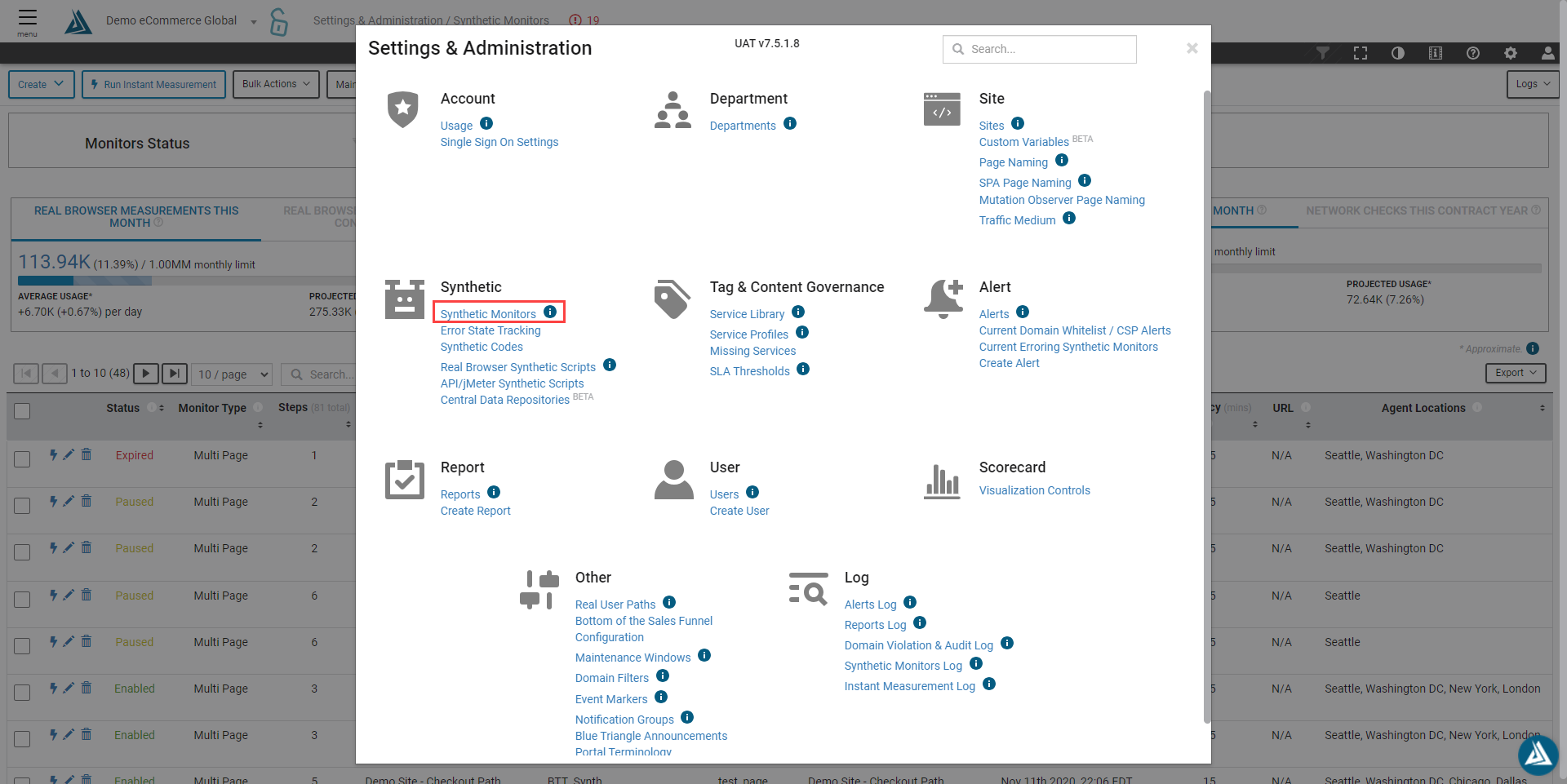
The Synthetic Monitors page can be found in the Settings & Administration menu under Synthetic, then Synthetic Monitors.
How to Navigate the Synthetic Monitors Page
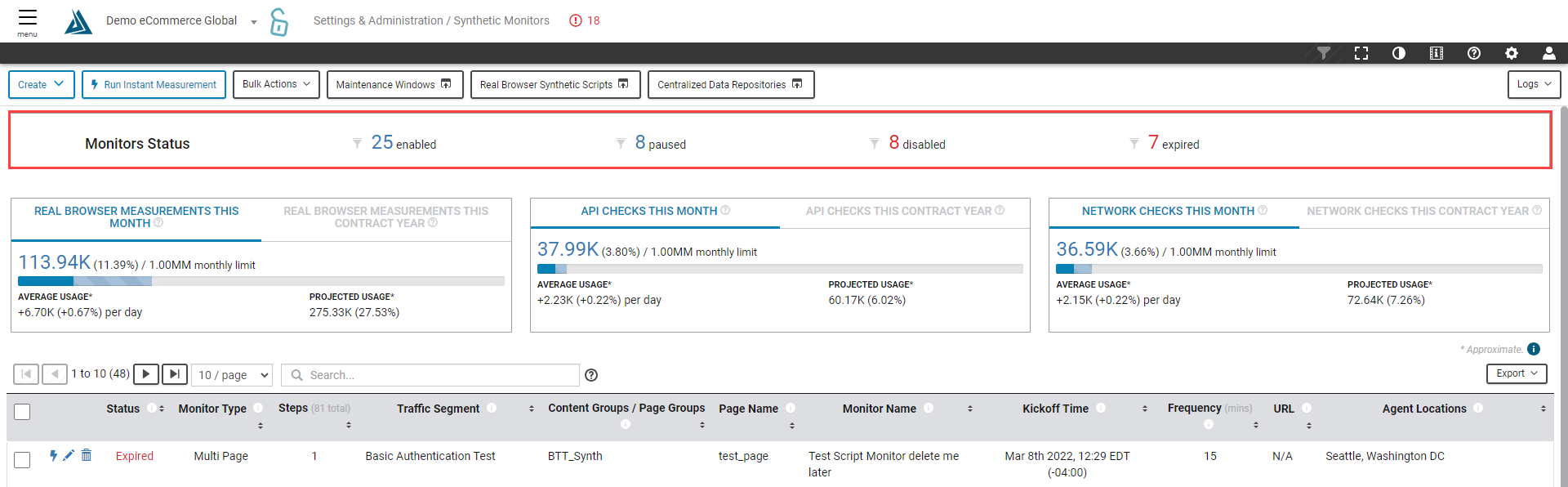
Monitor Status is displayed at the top of the page, identifying how many monitors are enabled, paused, disabled, or expired.
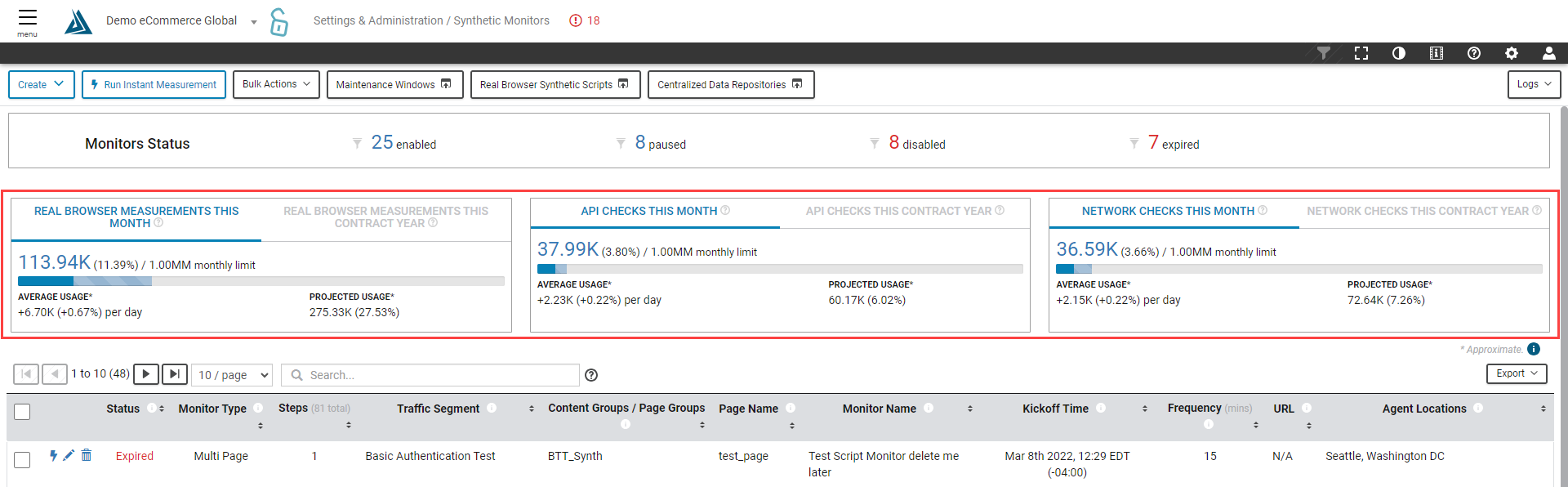
Next is monitor usage, showing how many measurements have been used versus the allotted amount per month and per year, by monitor type.
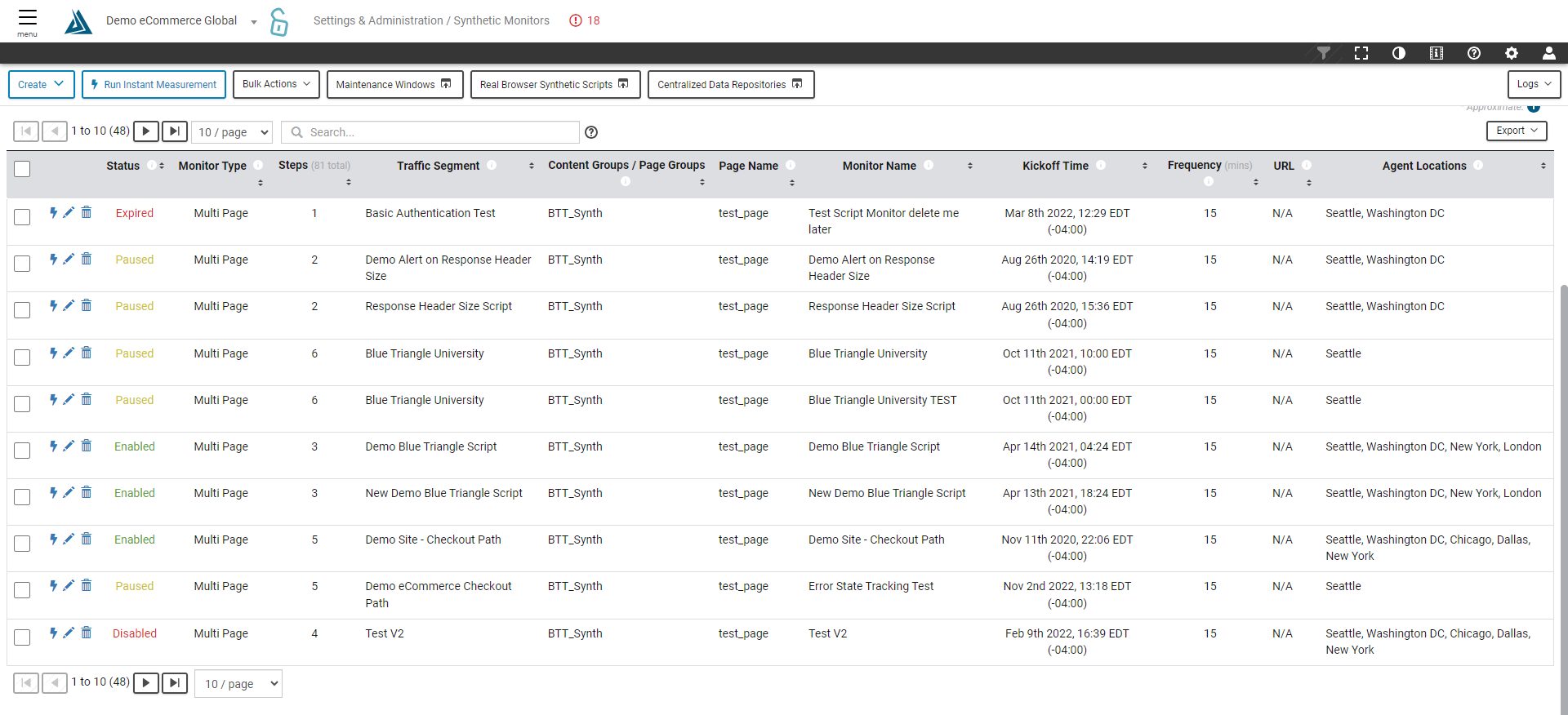
The table at the bottom of the page houses all of the sites synthetic monitors. To sort the table use the search bar at the top, or click on the table headings. Use the export button to the right of the table to export the data as a CSV, TSV, JSON, or Array file.
Create a New Synthetic Monitor
To create a new synthetic monitor, simply click the Create button at the top left of the page, and select from the monitor types: Single Page Real Browser Monitor, Multi-Step Real Browser Monitor, Multi-Step API Monitor, API Checks Monitors, or Network Health Checks Monitor.

Run an Instant Measurement
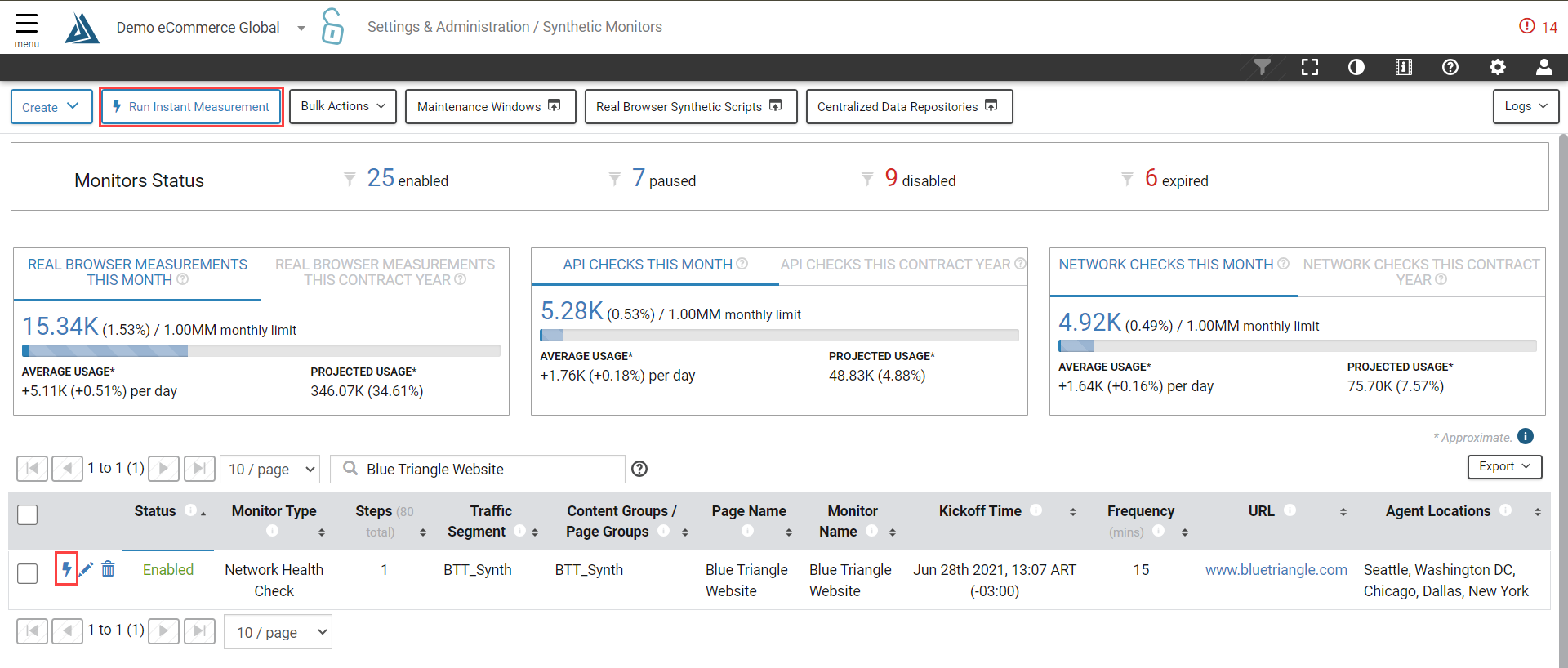
Click the Run Instant Measurement button at the top of the page, or the lightning bolt next to a monitor in the table, to run a one time synthetic measurement. For more information, see How to Run an Instant Measurement.
Bulk Actions
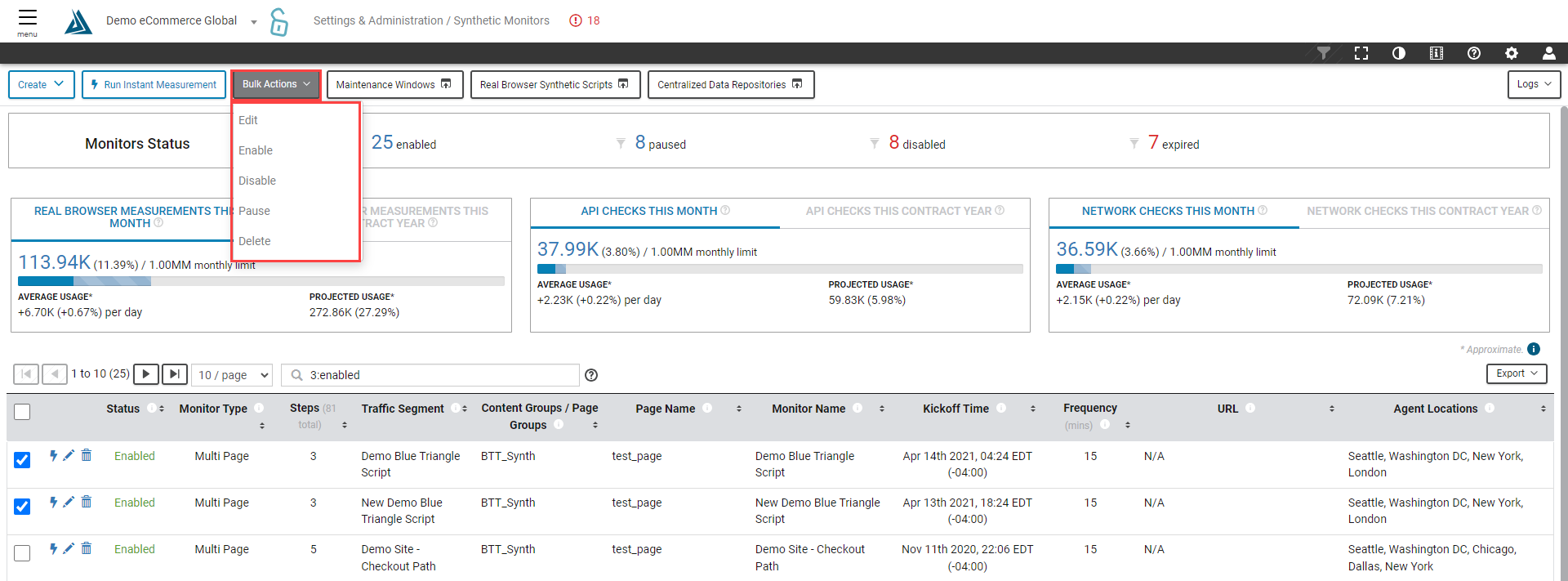
The Bulk Actions can be found at the top of the page. Select one or more monitors within the same page in the table and click Bulk Actions to Edit, Enable, Disable, Pause, or Delete the selected monitors.
Linked Pages
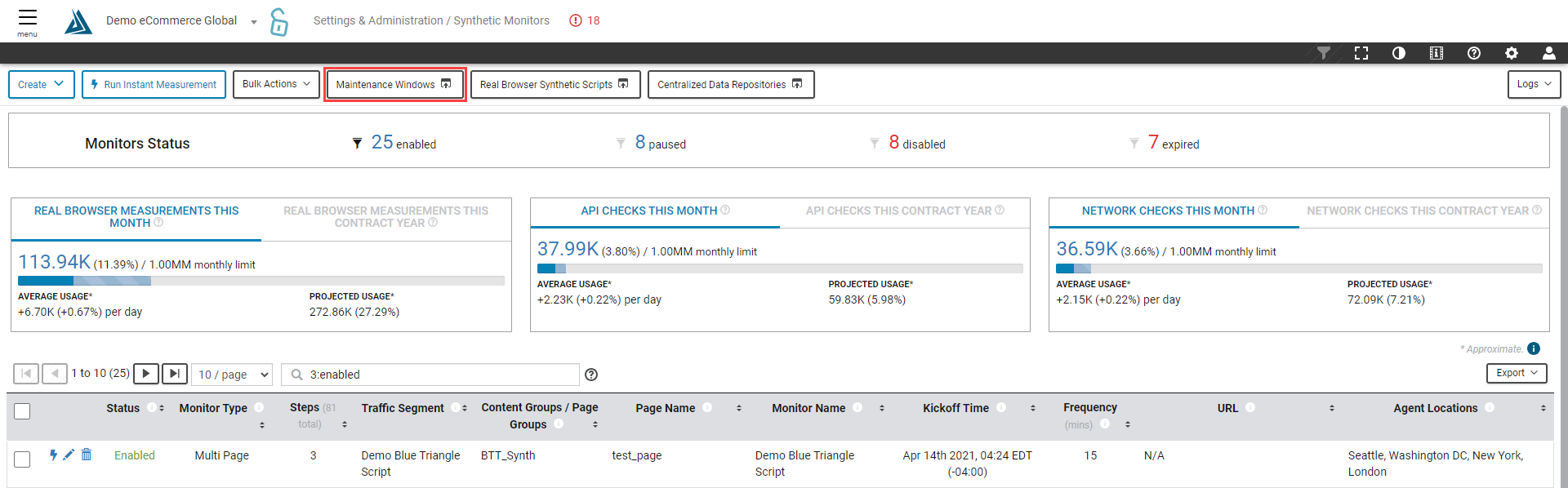
Along the top bar of the page are also three linked pages:
Maintenance Windows
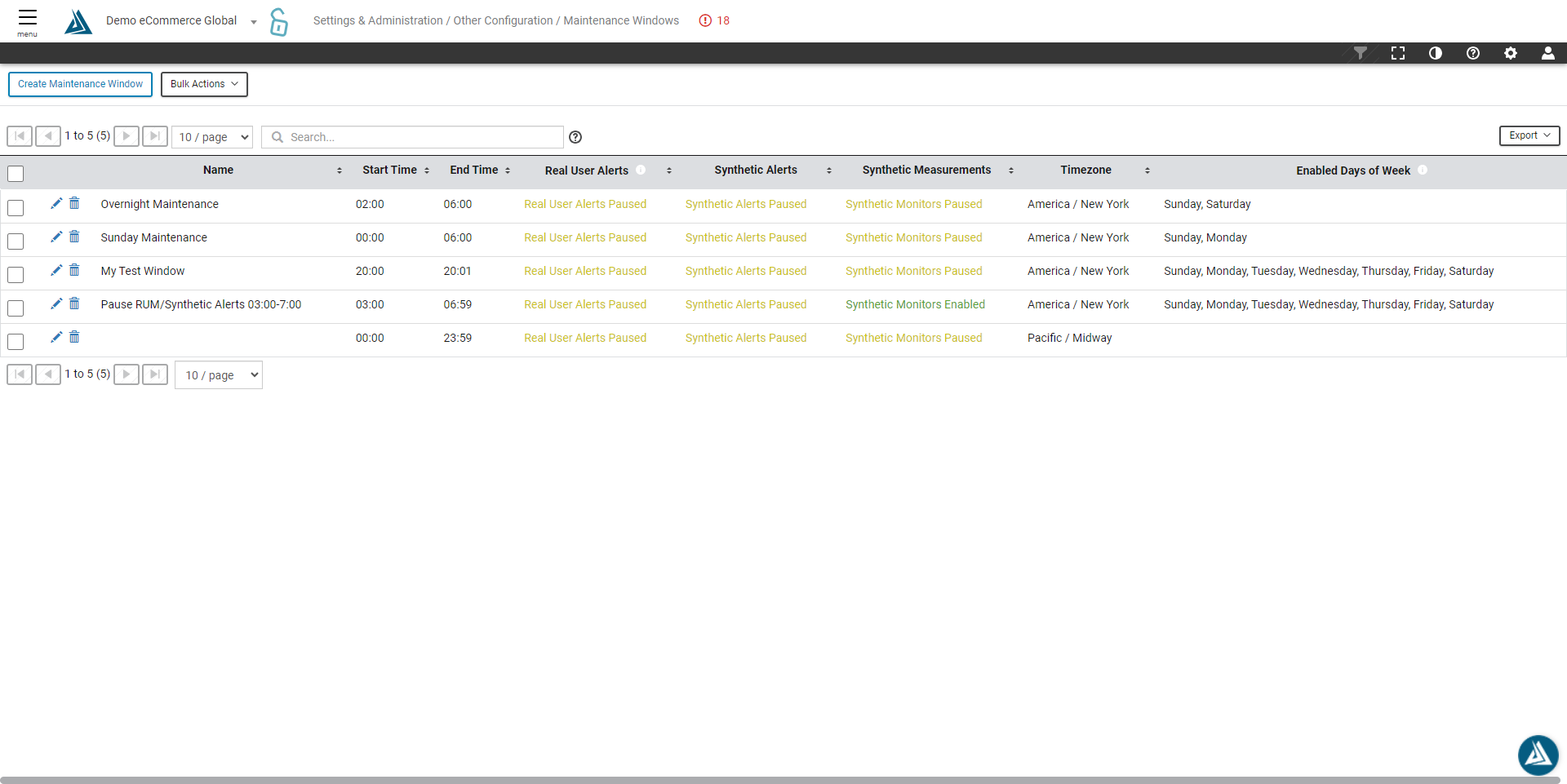
Maintenance Windows are defined periods of time where alerts are muted. For example this could include a range of time where your site is down for scheduled maintenance, or overnight when site traffic may be significantly lower. For more information on the Maintenance Windows page, visit this article.
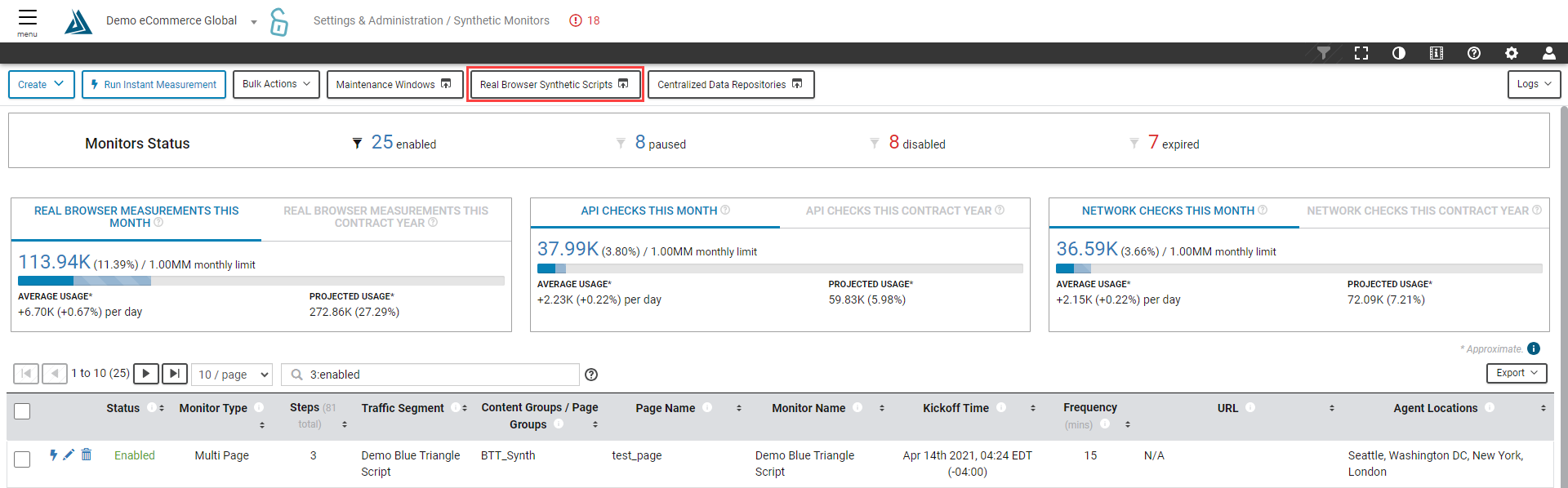
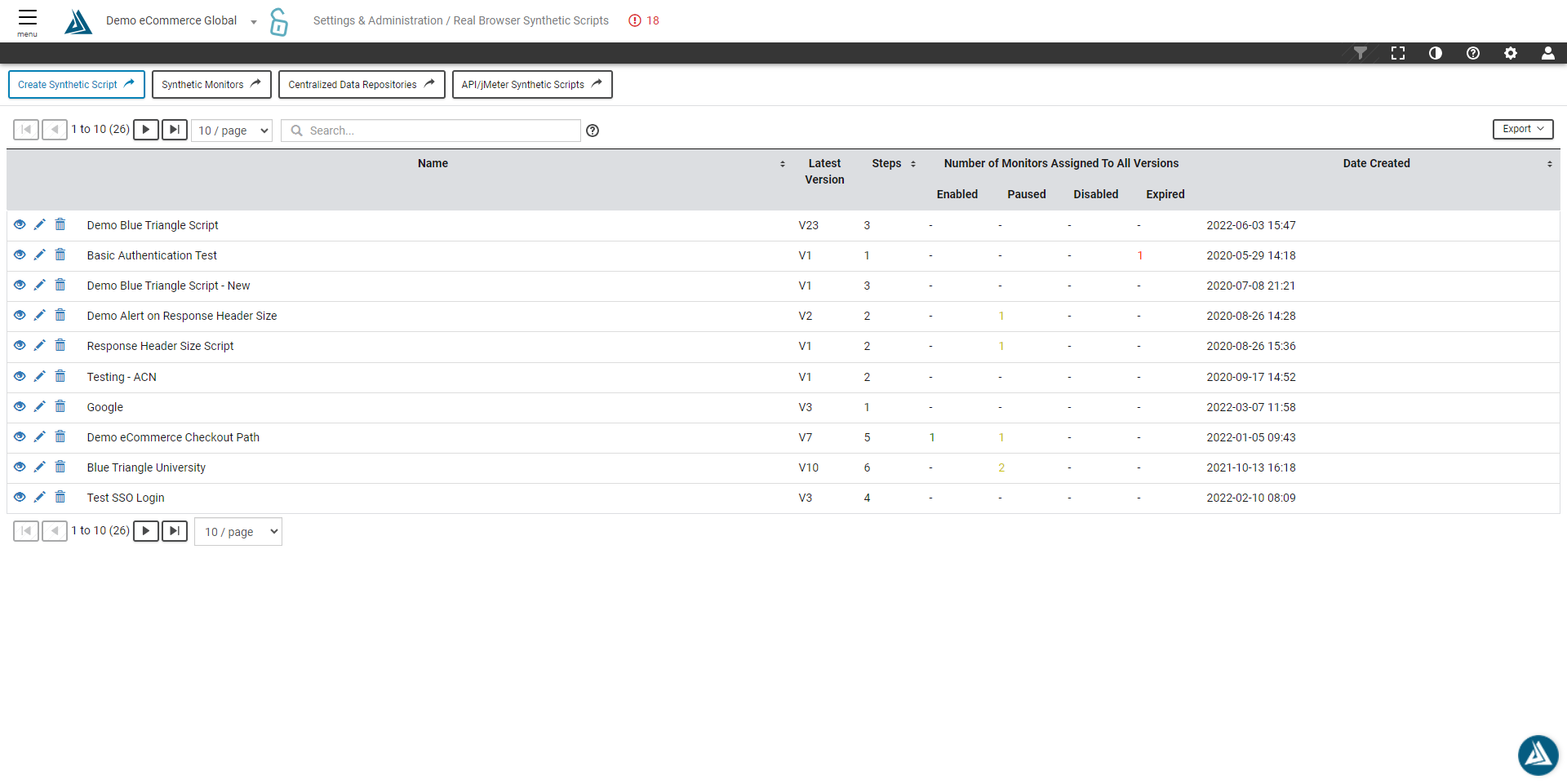
Real Browser Synthetic Scripts
The Synthetic Monitors page houses all of a site's synthetic monitors, including Single Page, Multi-Step, API Checks, Multi Step API, and Network Health Check monitors. For more information on Real Browser Synthetic Scripts, visit this article.
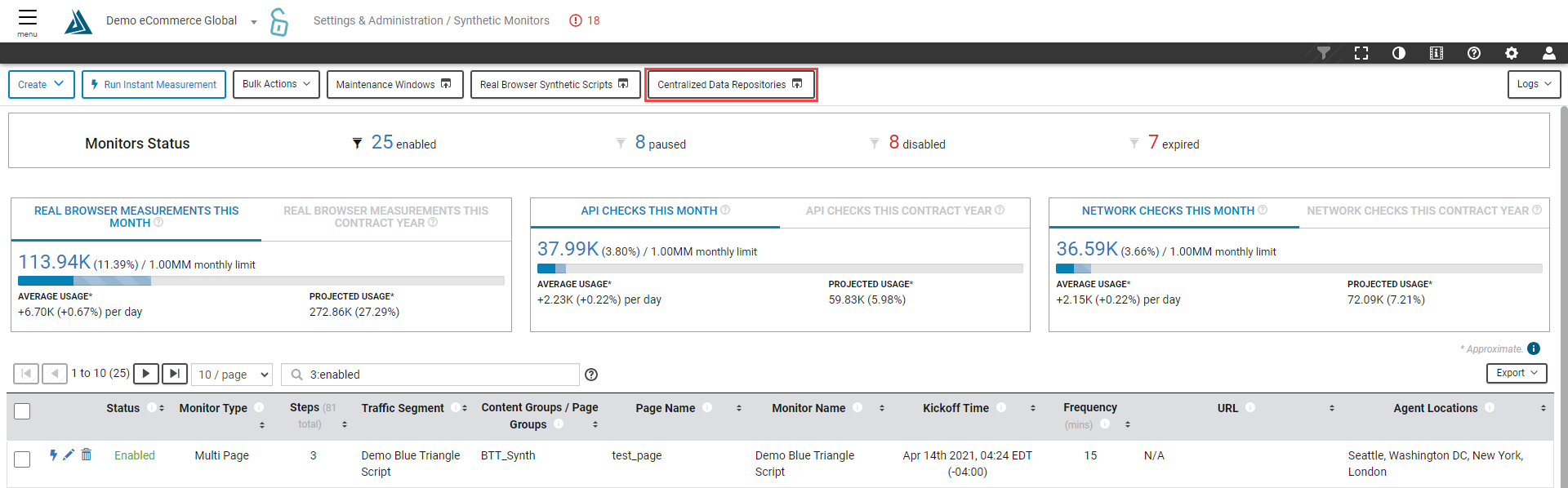
Centralized Data Repositories
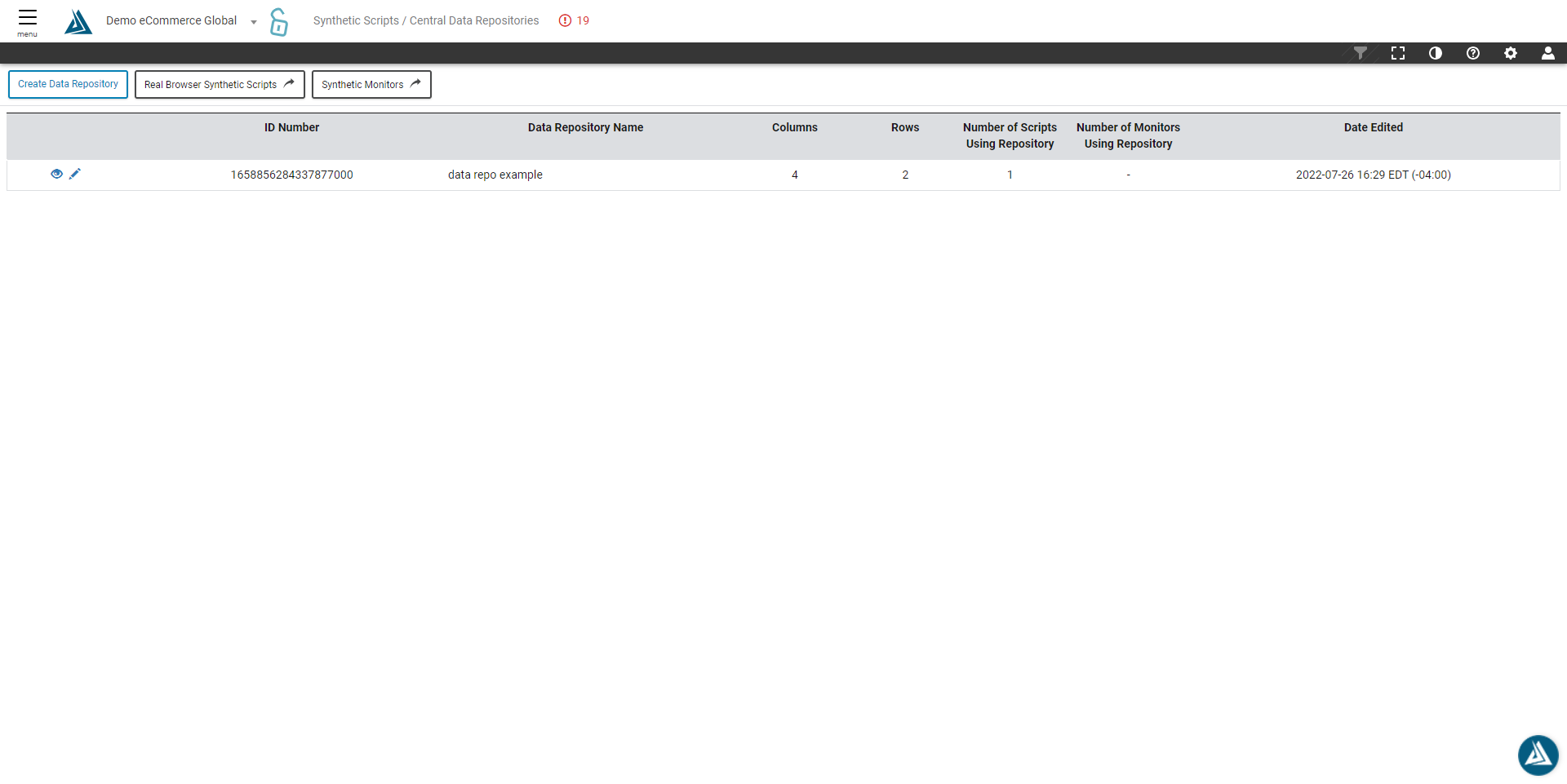
The Centralized Data Repositories page provides the ability to manage custom data fields including authentication field variables among multiple synthetic scripts. For more information on the Centralized Data Repositories page, visit this article.
Logs
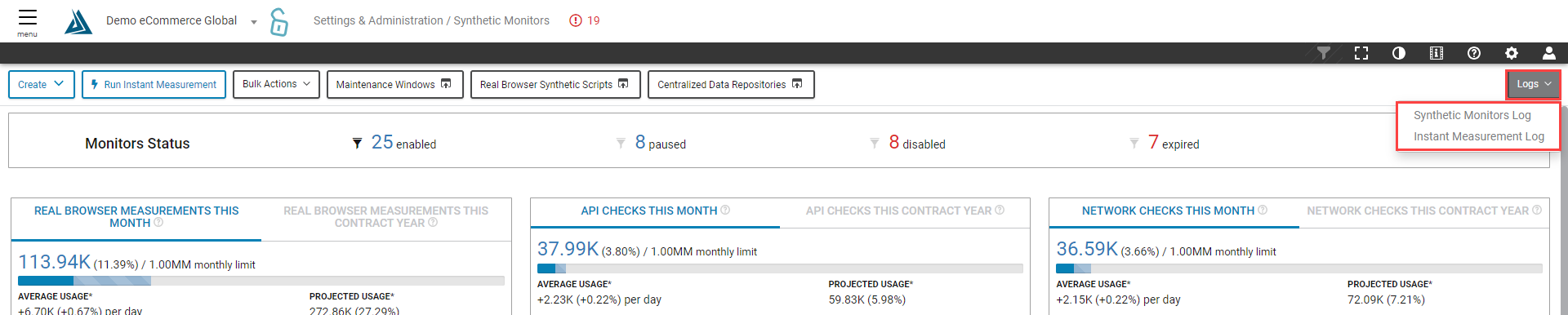
For quick access to the Synthetic Monitor Log or Instant Measurement Log, click the Logs button at the top right of the page.
For more information on the Synthetic Monitor log visit this article, and for the Instant Measurement Log, visit this article.