

Overview
Learn how to set up real user paths for the Performance Path dashboard widget to monitor key metrics from a user-defined path of real users and compare it to previous days to see how your site is stacking up against historical data.
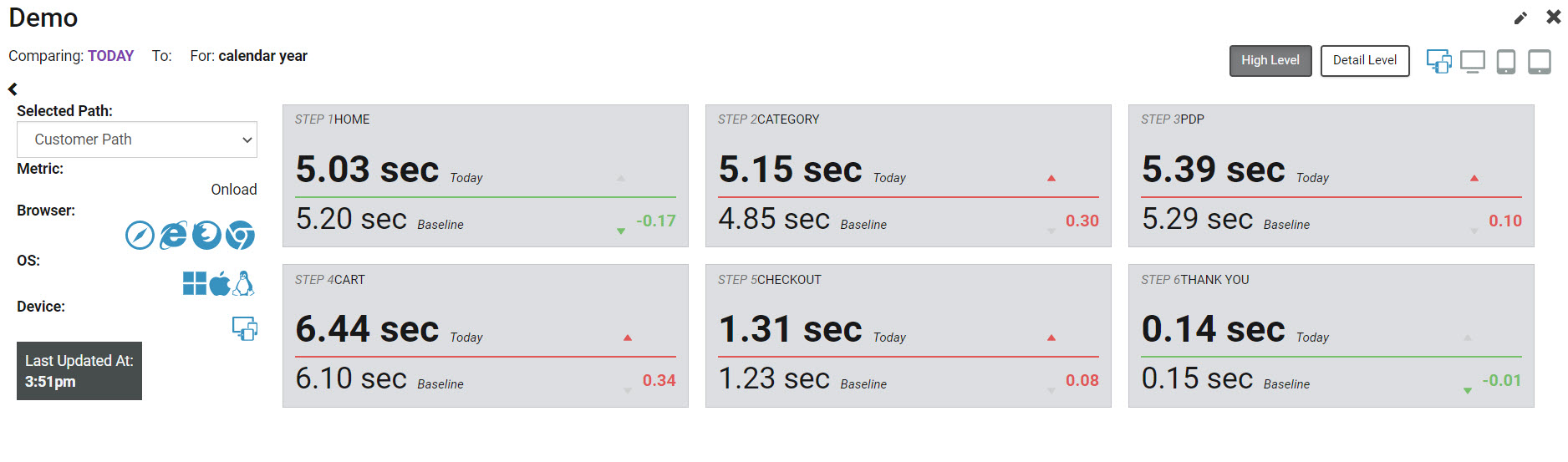
How to Create a Real User Path
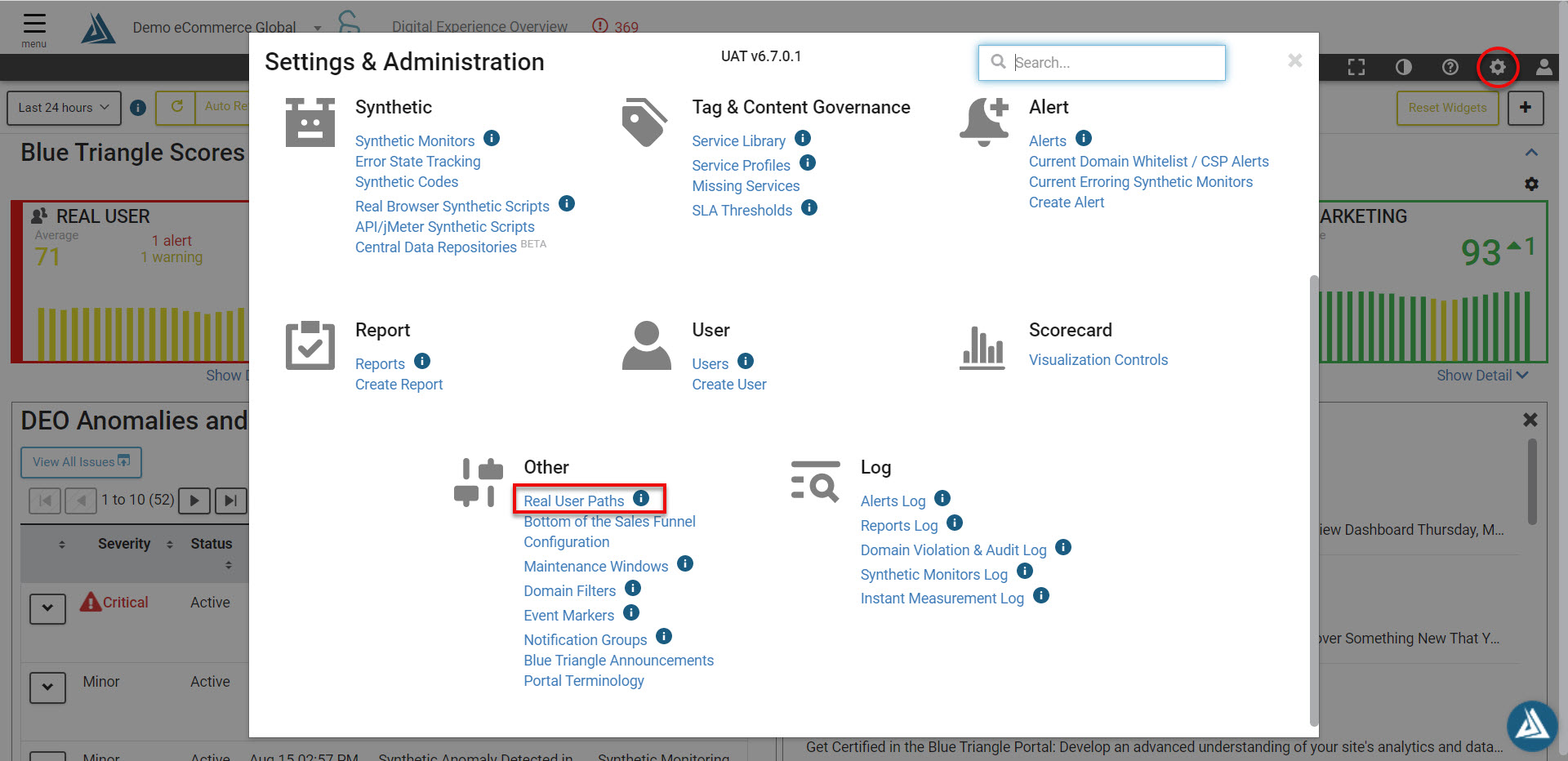
Go to the Settings gear icon on the toolbar at the top of the page.
Scroll down to Other Configurations, and click Real User Paths.
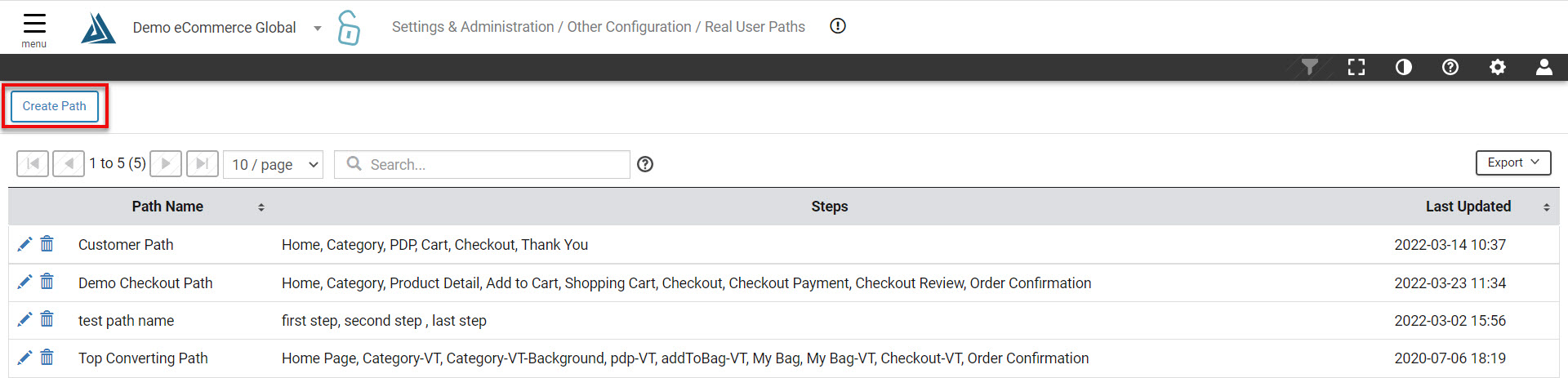
This will take you to the Real User Paths Page, where you click the Create Path button to get started
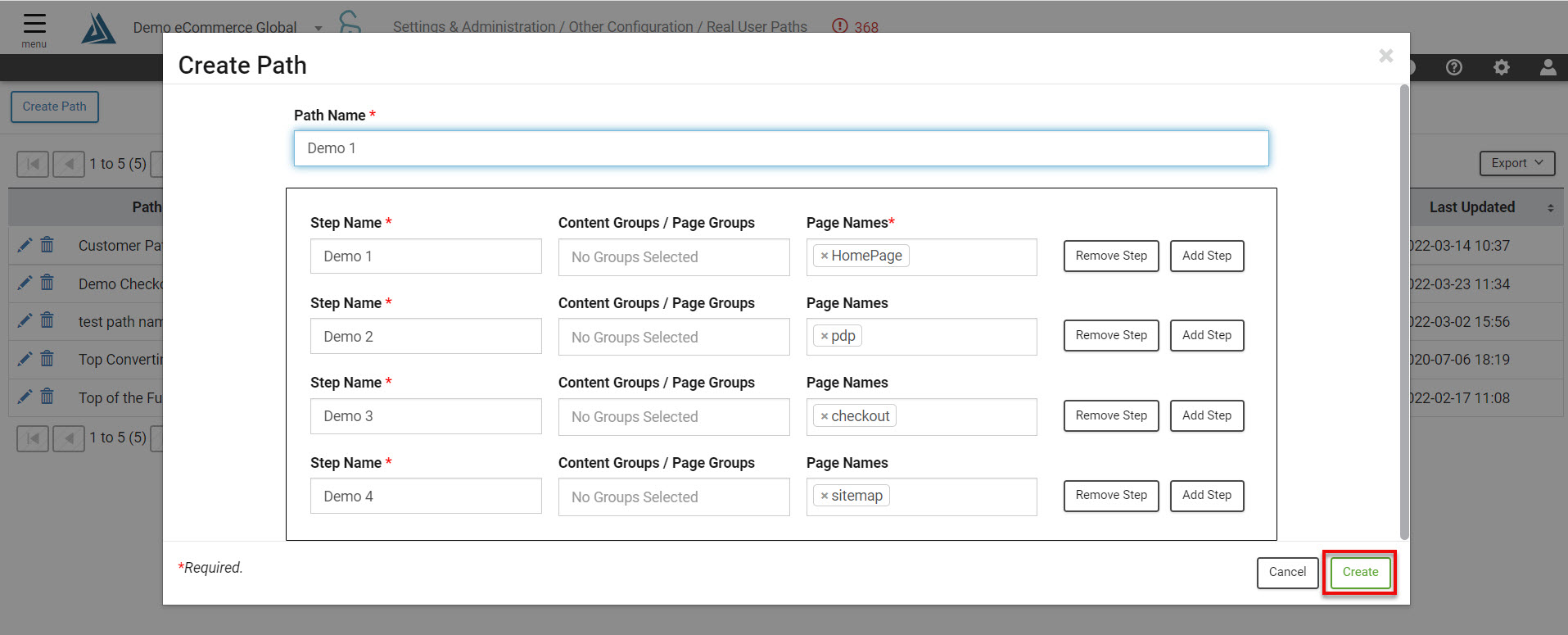
Name the path.
Name the first step, and assign page groups and/or page names, then click “Add Step” to add your first step
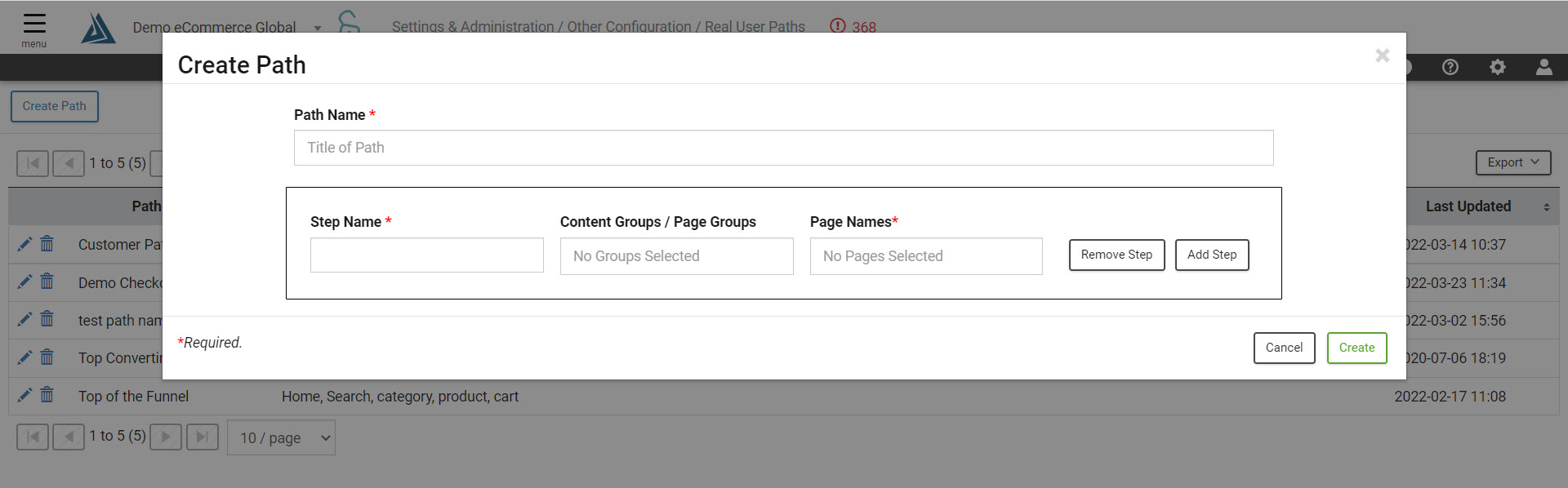
Repeat step 3 until you have finished defining your path, then click “Create” to create your path
How to Add the Performance Path Dashboard Widget
Alternatively, you could go to one of your custom dashboards and select +Widget.

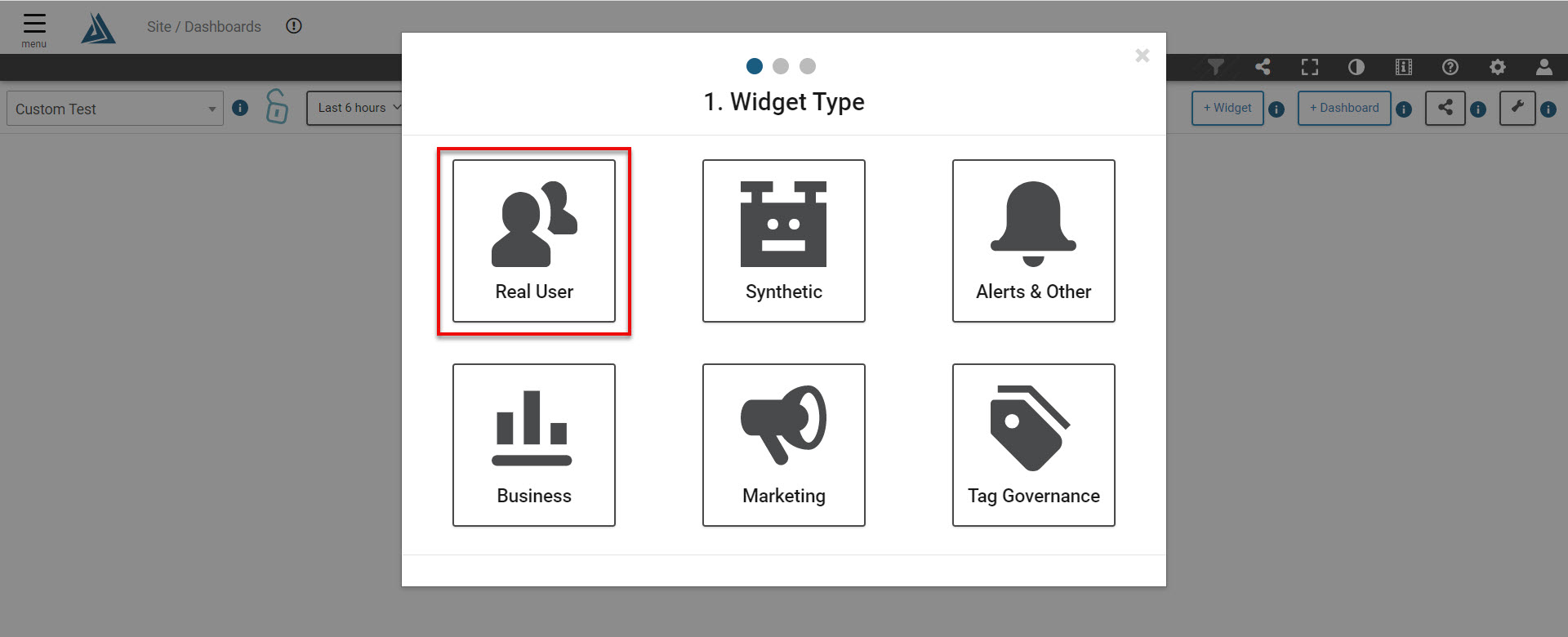
This will prompt you to choose the type of widget, select Real User.
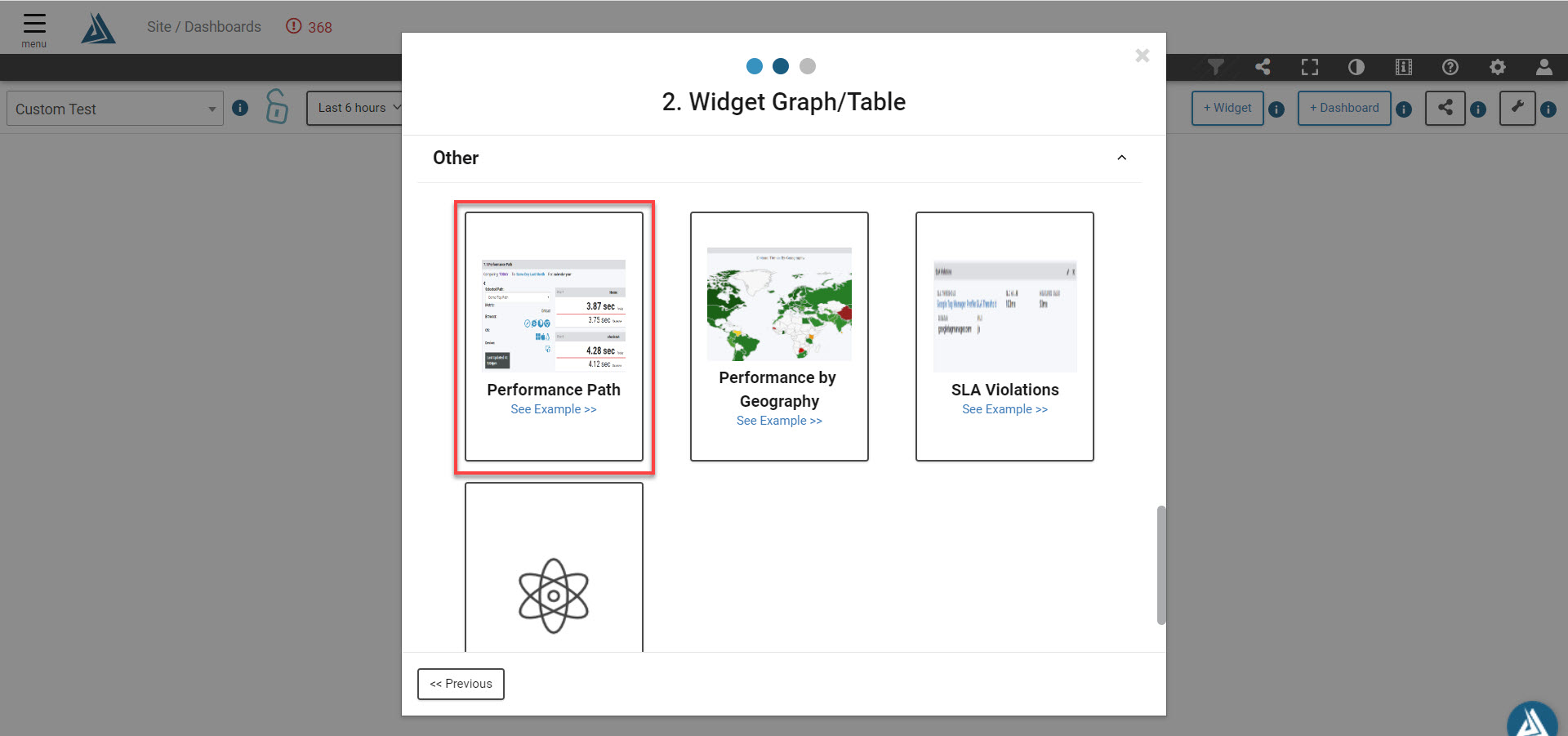
Scroll until you see Other, and select Performance Path.
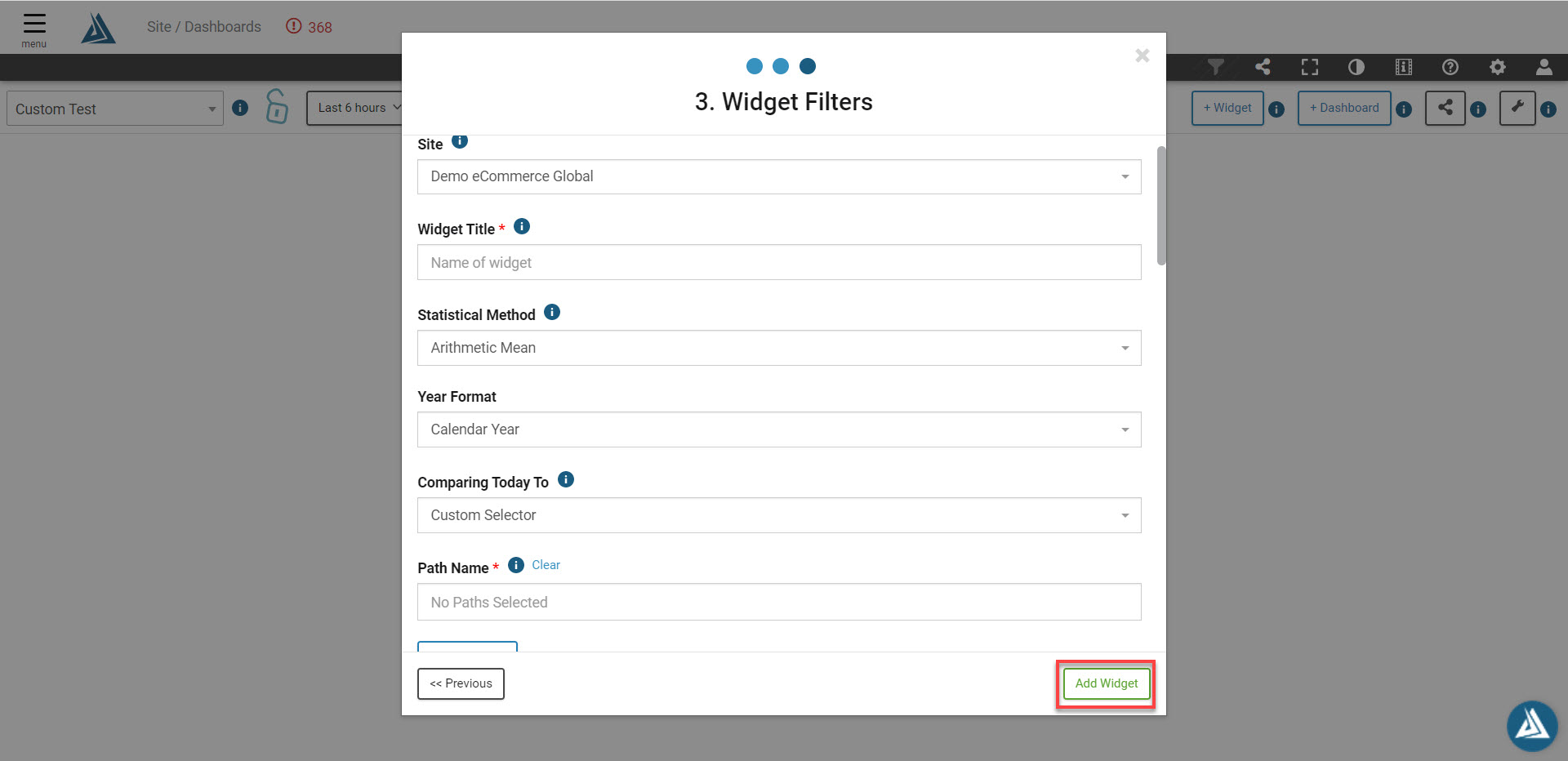
Click on the select your path name from the Path Name drop-down, then select which metrics to view on the panel, and click Add Widget.
The Widget will then load on your Dashboard.