Overview
The Missing Services page can be used to manage services and ensure they are firing on a site. Use this page to configure Blue Triangle to notify when services are no longer on a site, or when services are not appearing on a site as often as they should be.
Where to Find the Missing Services Page
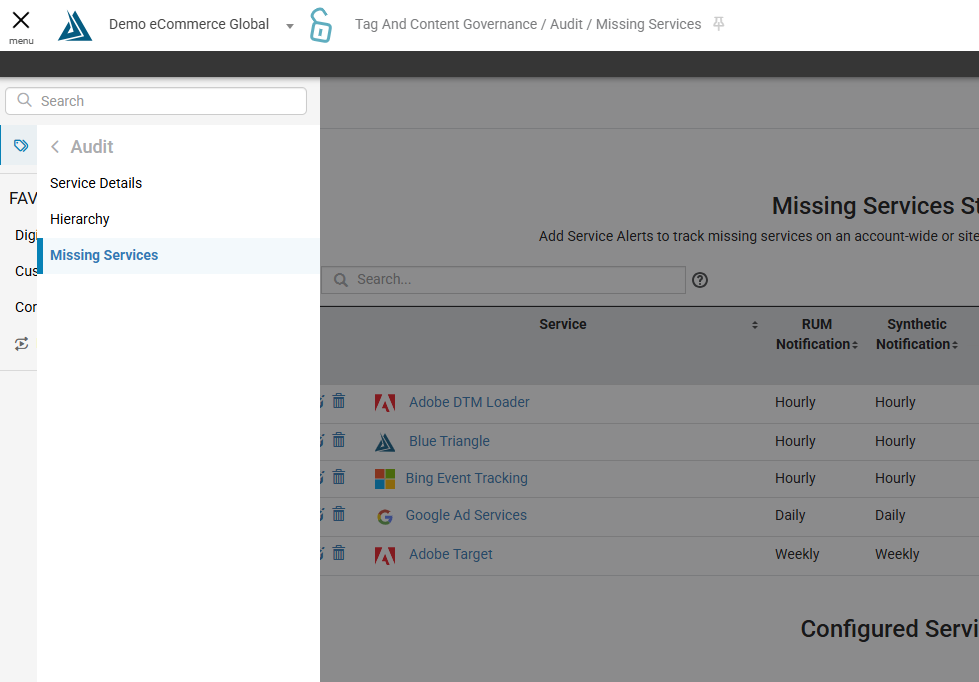
This page is accessible through the left side menu under CSP & Tag Governance → Audit → Missing Services.
Navigating the Missing Services Page
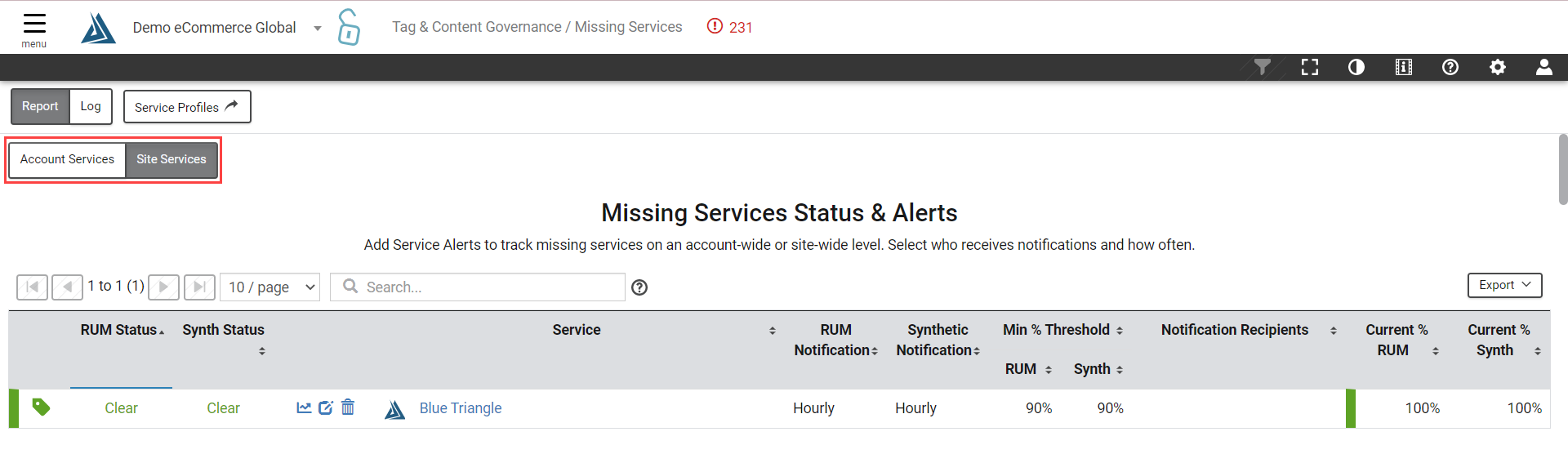
Toggle between Account Services and Site Services at the top of the page. You can also toggle between the report and log. The services in this report are based on the configured service profiles, navigate directly to this page via the button at the top. If you need more info on what a service profile is, check out this FAQ.
Status and Alerts
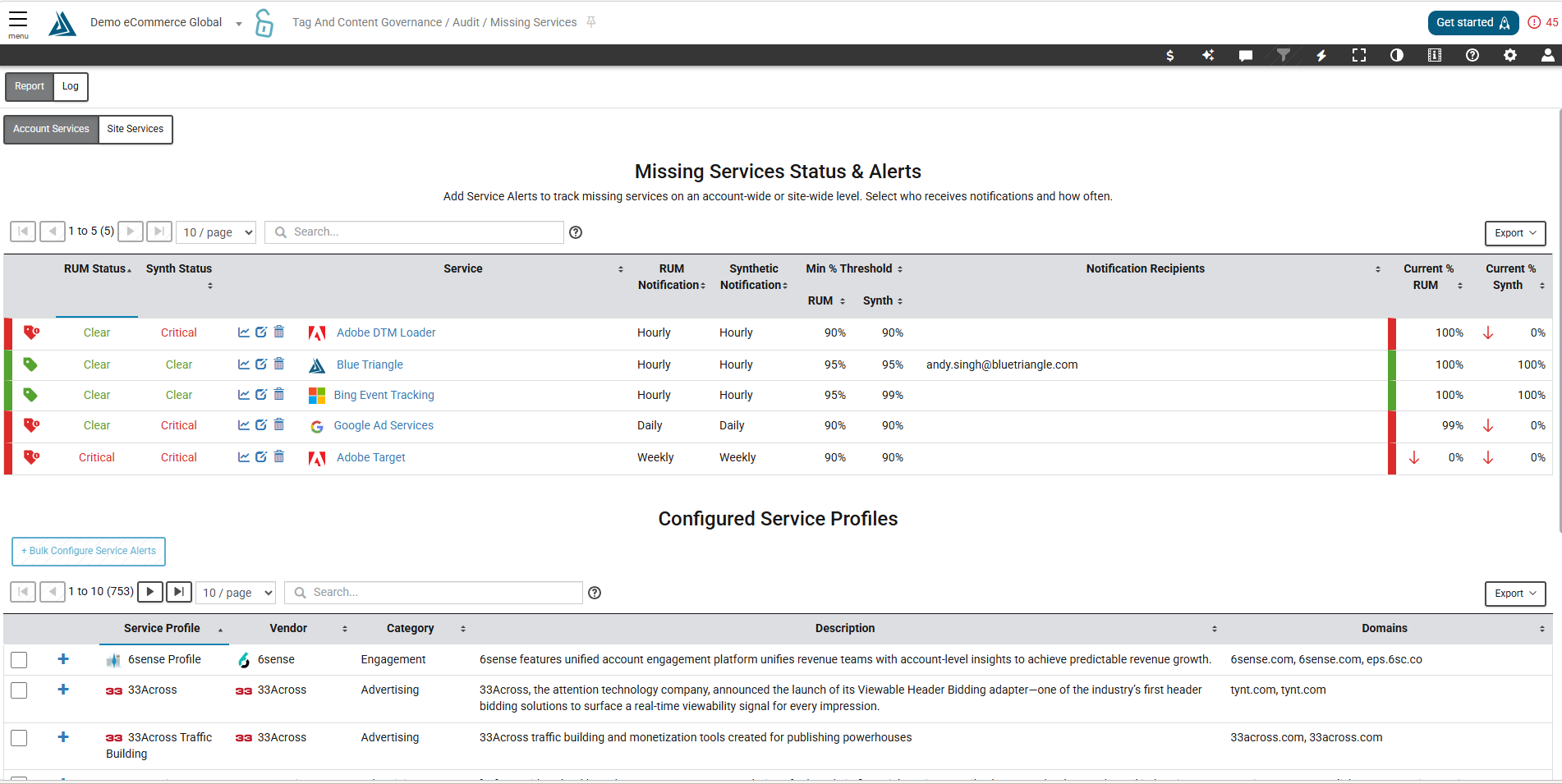
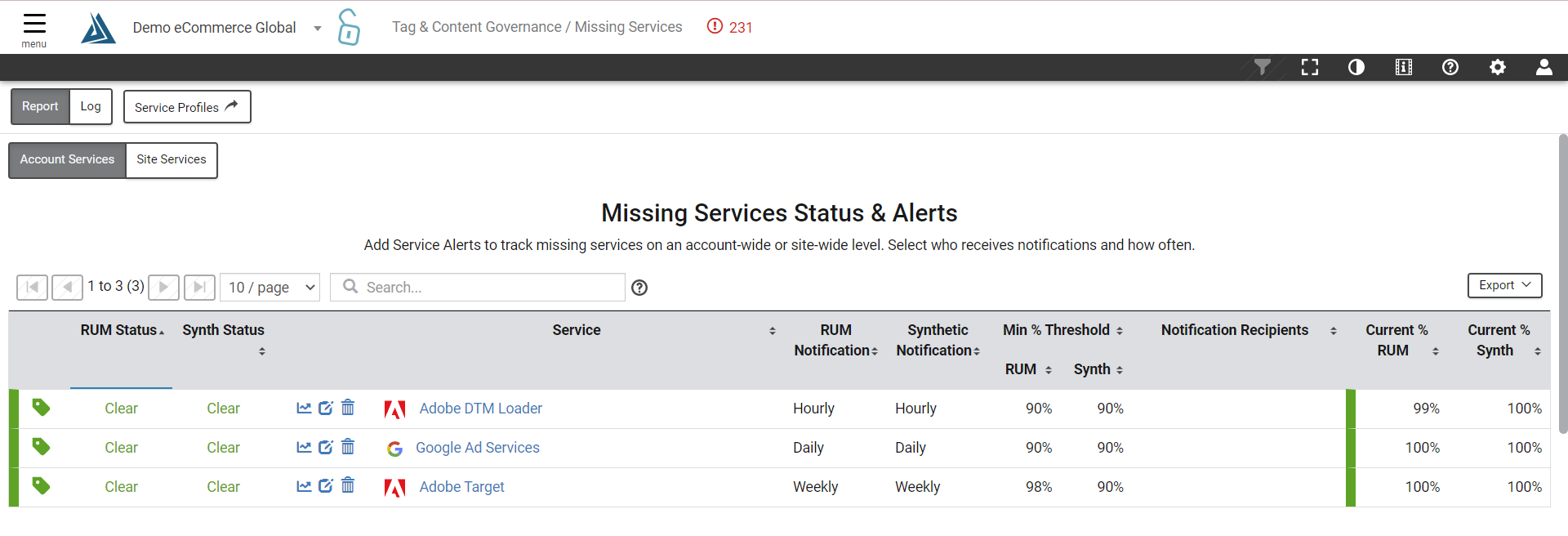
This table displays the configured Service Alerts including their current status in both RUM and Synthetic, configuration settings, and the current percentage in both datatypes. Learn how to configure a Service Alert below.
Configured Service Profiles
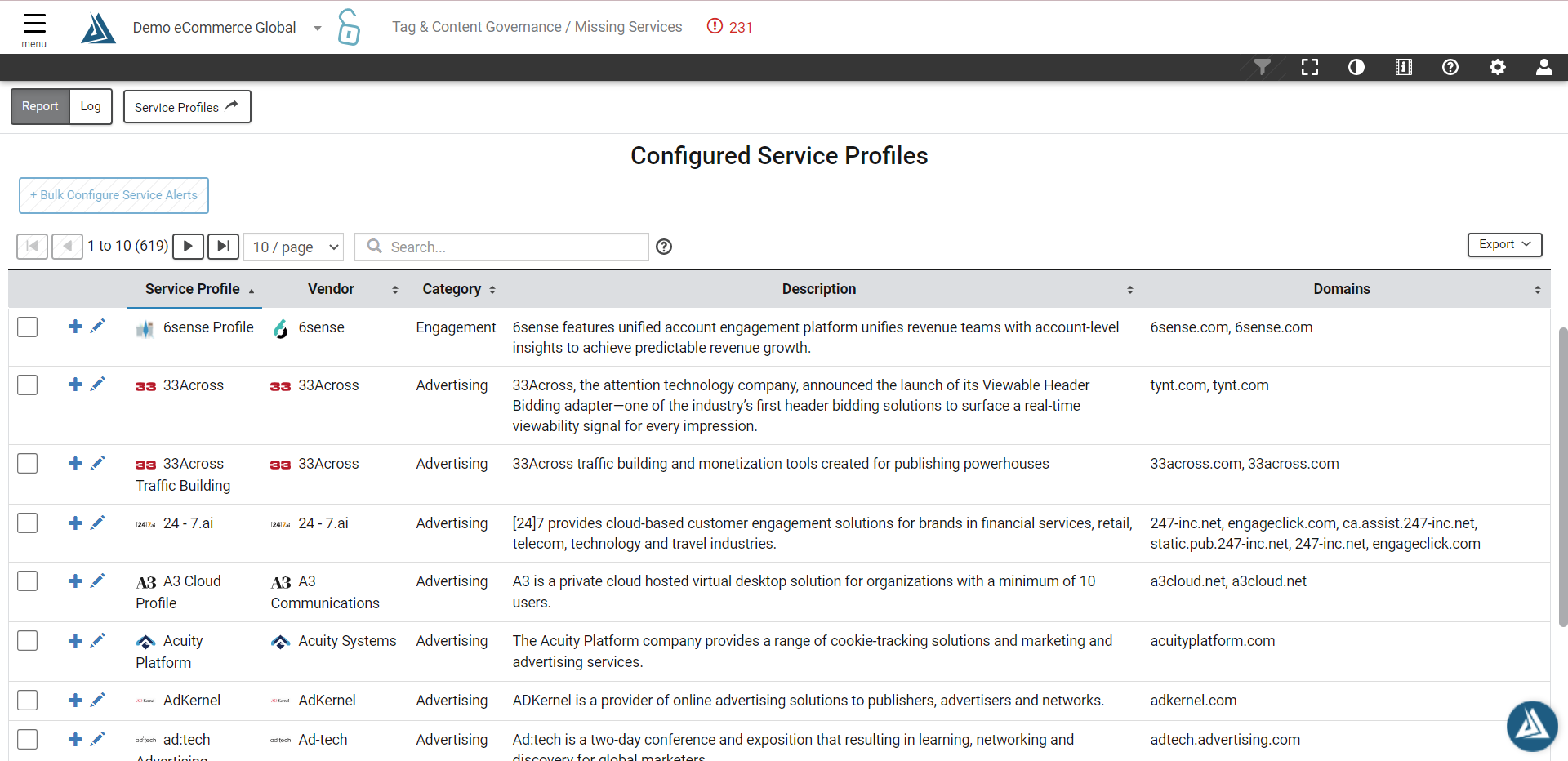
This table displays all configured service profiles for your site. For more information on how to configure a Service Profile, check out this article. Please reach out to your BT CS representative if you have any questions. Note that the displayed profiles may change depending on if you have selected Account Services or Site Services. If there are multiple sites tied to your account, all configured profiles will appear in the table. Switch to Site Services to view only the profiles for the site you are currently under.
Configure a Service Alert
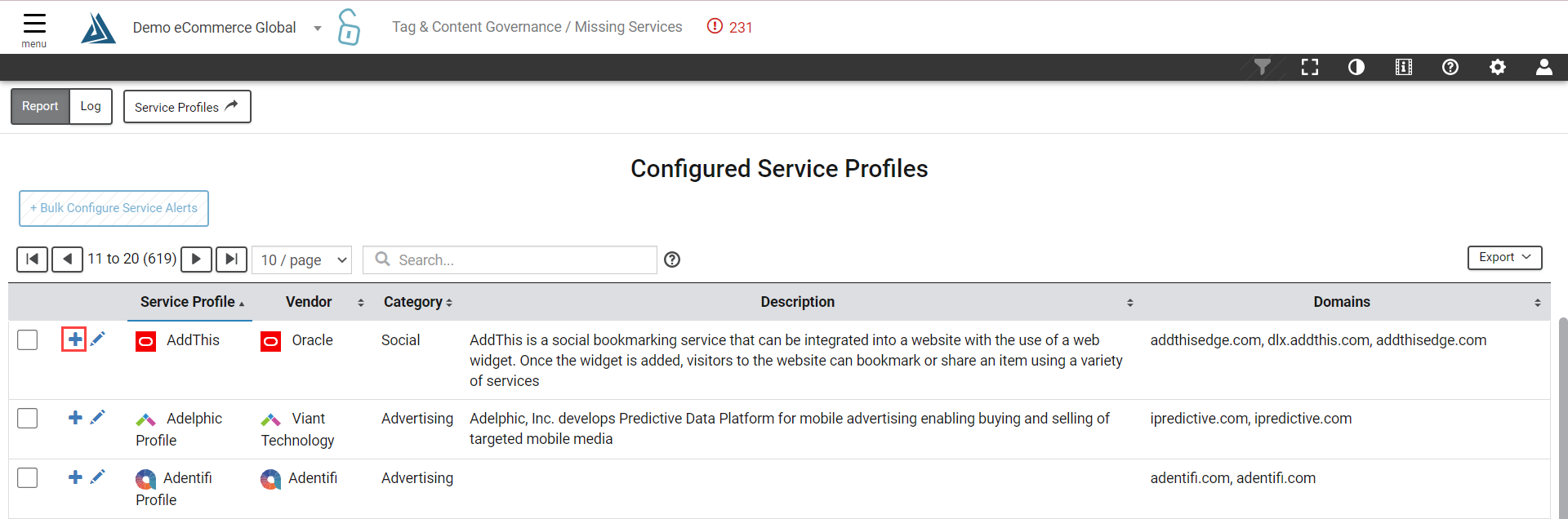
In the Configured Service Profiles table, create a Service Alert for tracking and notifications by selecting the plus icon to the left of a service profile name. If the service you are looking for is not in this table, a service profile needs to be created.
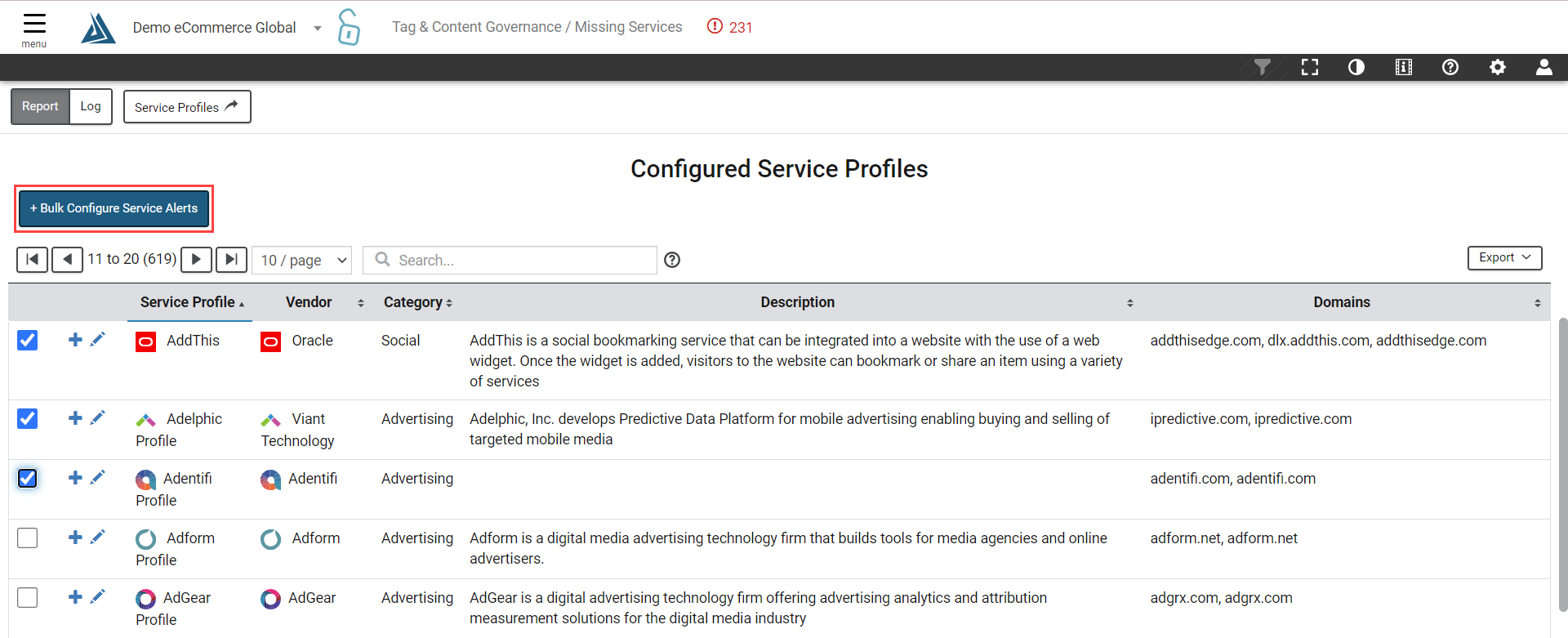
To configure a Service Alert for multiple services at the same time, check the boxes on the left of services profile column and then click 'Bulk Configure Service Alerts'.
In either case, a configuration window will pop up to set thresholds for the minimum percentage of the time that this service should appear on a site for both RUM and Synthetic data. Select the frequency for notifications; hourly, daily, weekly, or monthly. Then select the recipients for the notifications, either by choosing a notification group or by entering one or more email addresses.
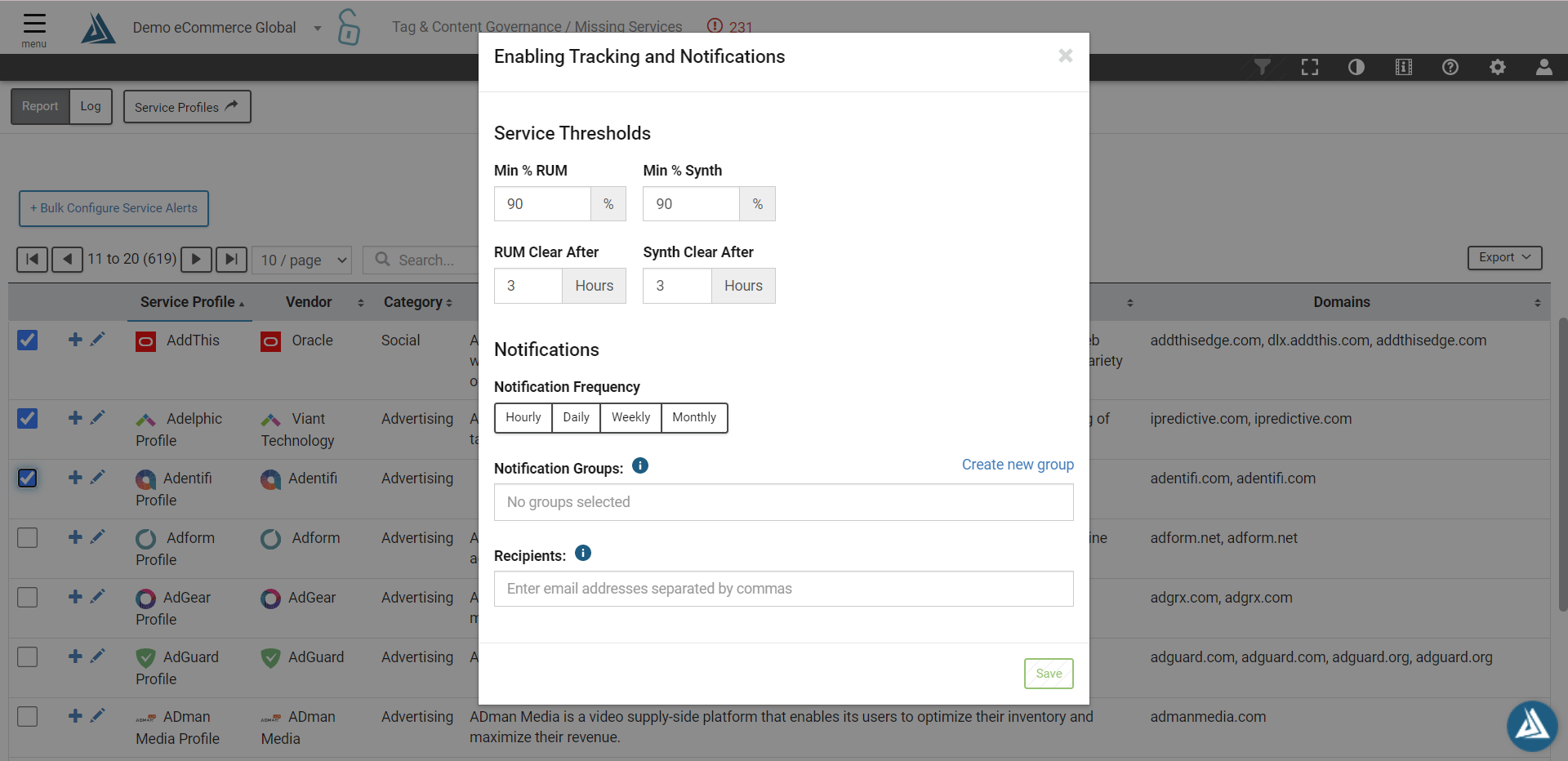
Click Save and the Service Alert will appear in the Status and Alerts table at the top of the page.
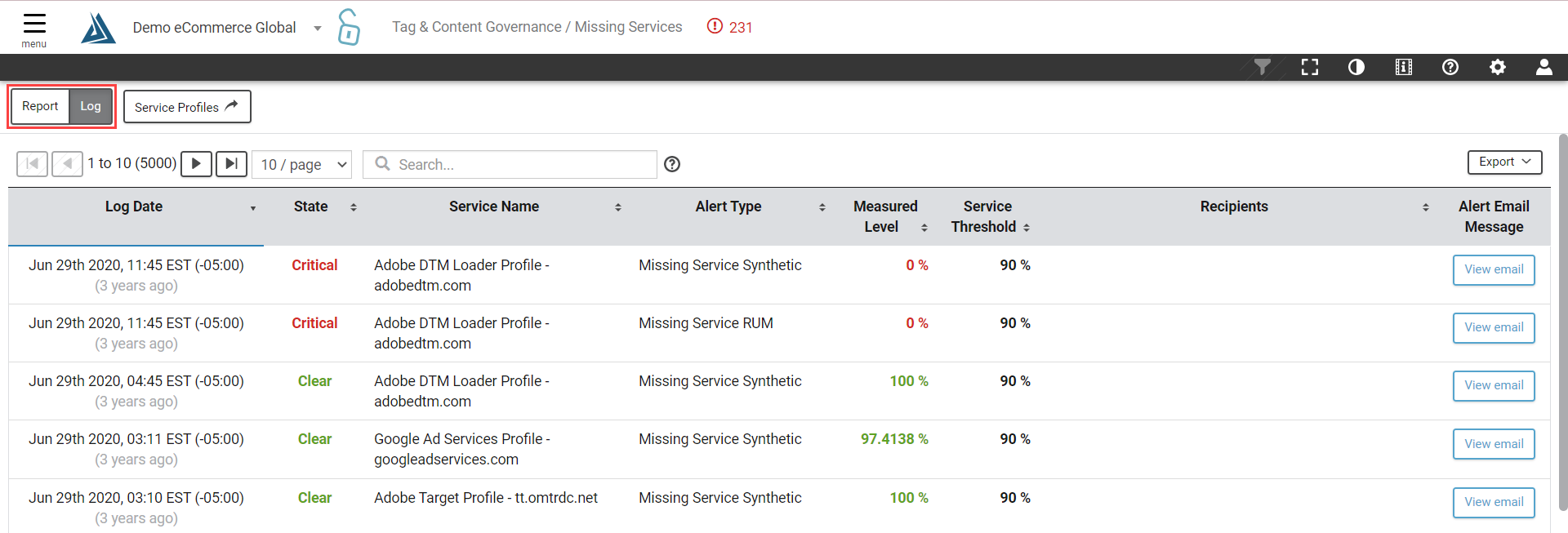
Log
Toggle between this screen and the notification log using the tab on the top left.