

Overview
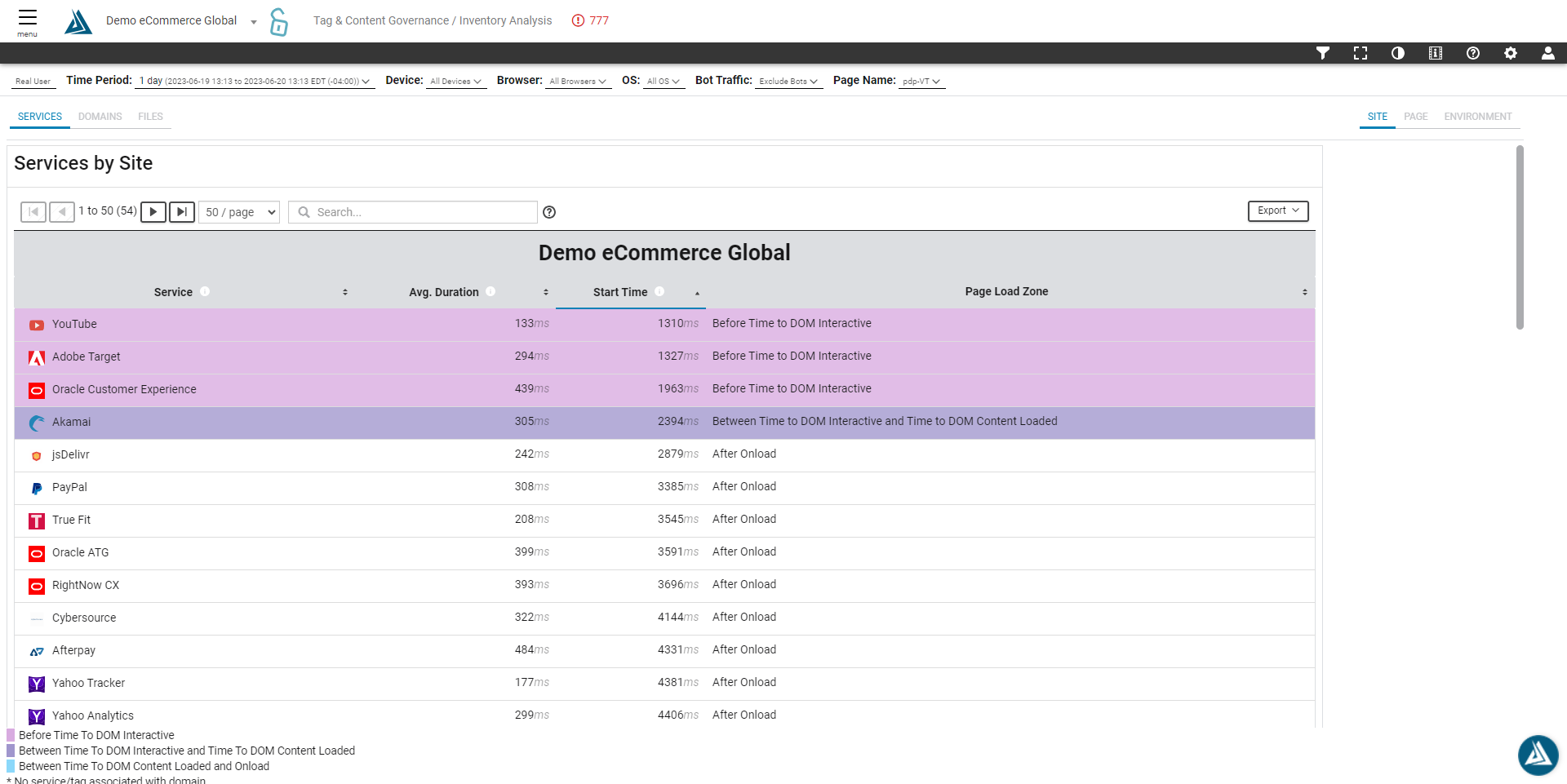
Blue Triangle's Tag & Content Governance module gives visibility into what tags and services are loading on a website, and how they are impacting performance and business KPIs. The Inventory Analysis Page helps to identify tags and services on a site, page by page.
How to Find the Inventory Analysis Page
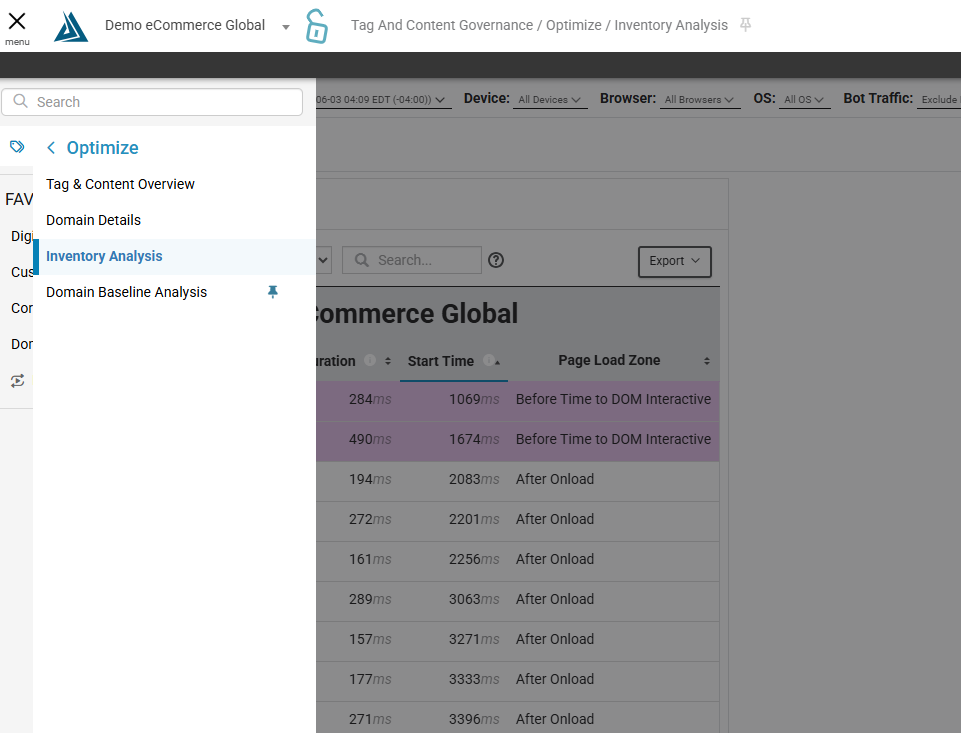
The Inventory Analysis page can be found in the the left-side portal menu under CSP & Tag Governance → Optimize -> Inventory Analysis.
How to Navigate the Inventory Analysis Page
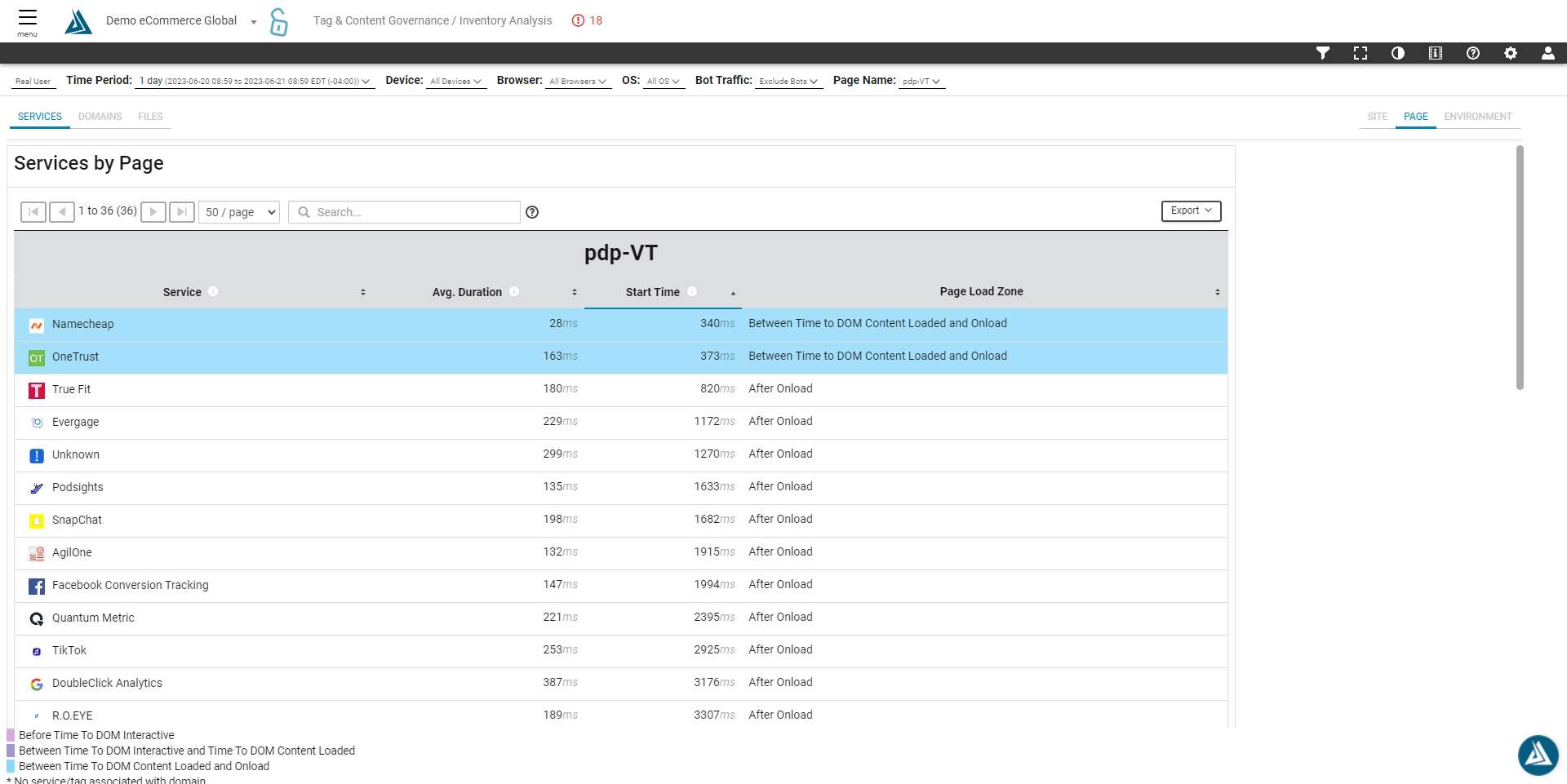
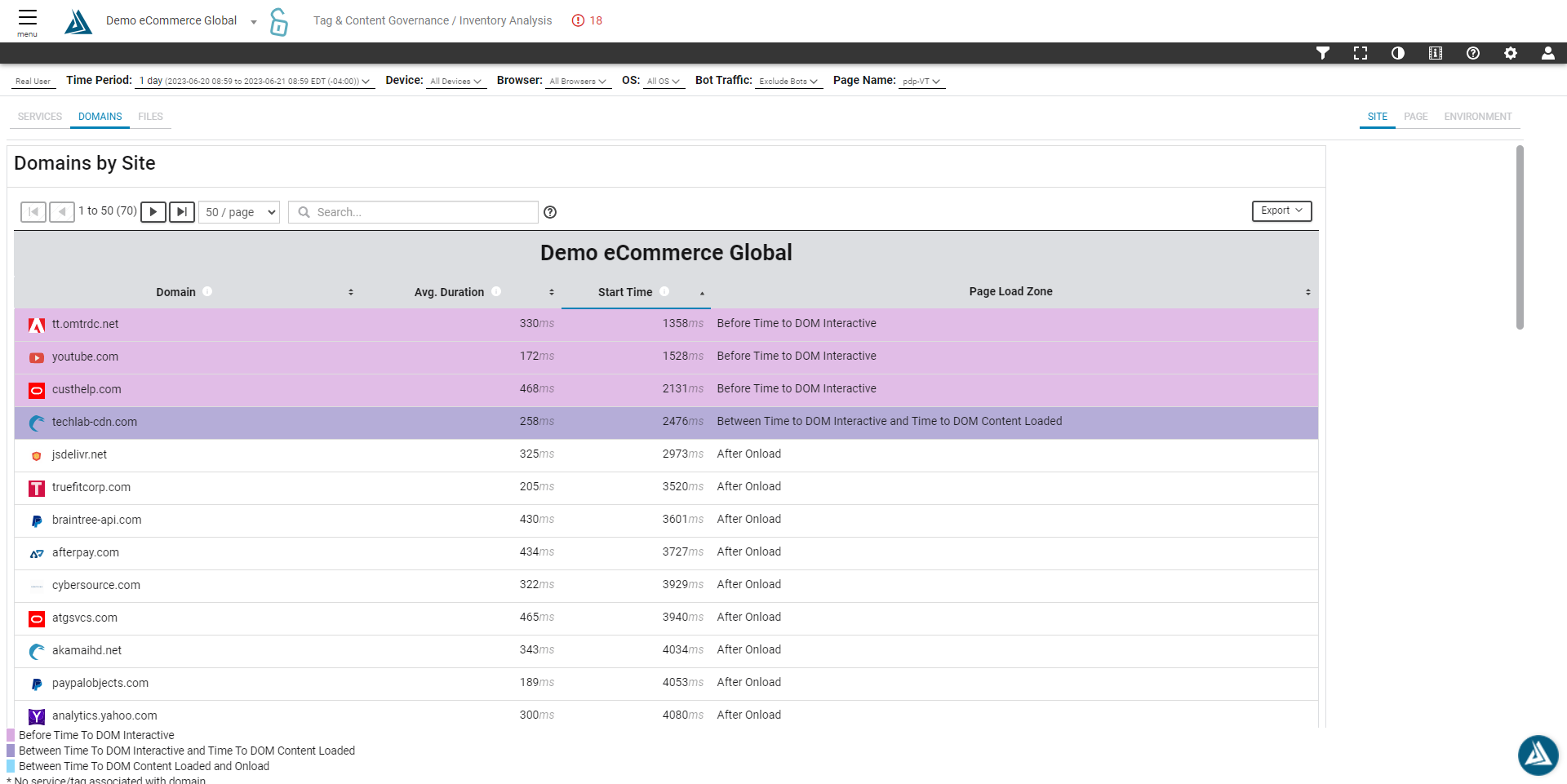
When a tag loads in a web page is critical to the overall digital experience. Some tags need to be loaded early on (before DOM Interactive), while others can be loaded after the page is fully loaded (after Onload). Blue Triangle's color-coding provides this data instantly.
PINK- Before Time to DOM Interactive
PURPLE- Between time to DOM Interactive and Time To DOM Content Loaded
BLUE - Between Time to DOM Content Loaded and Onload
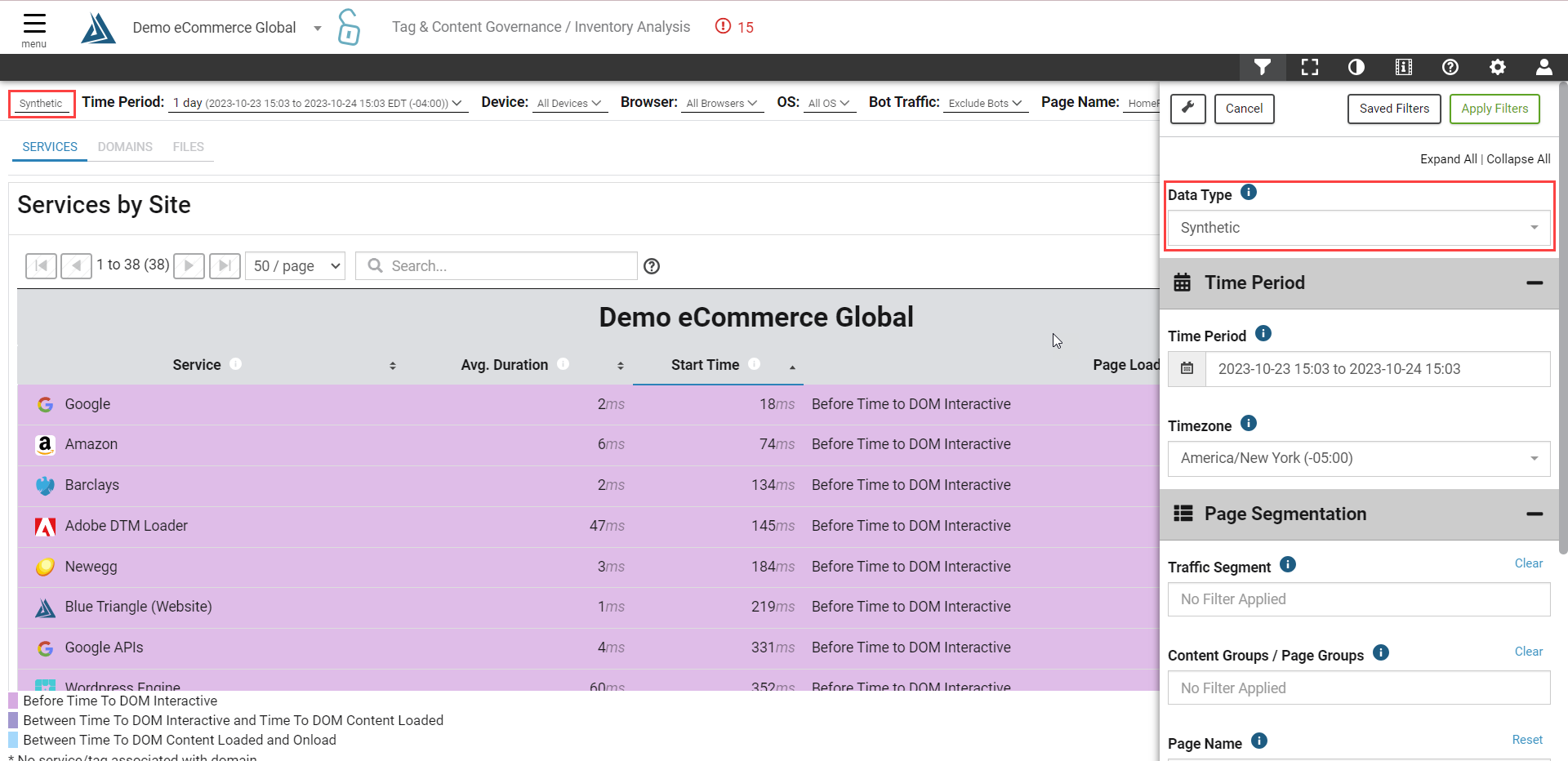
This page can be viewed for both RUM and Synthetic. Use the tab on the top left of the page, or the filters menu, to switch between RUM and Synthetic data.
Services
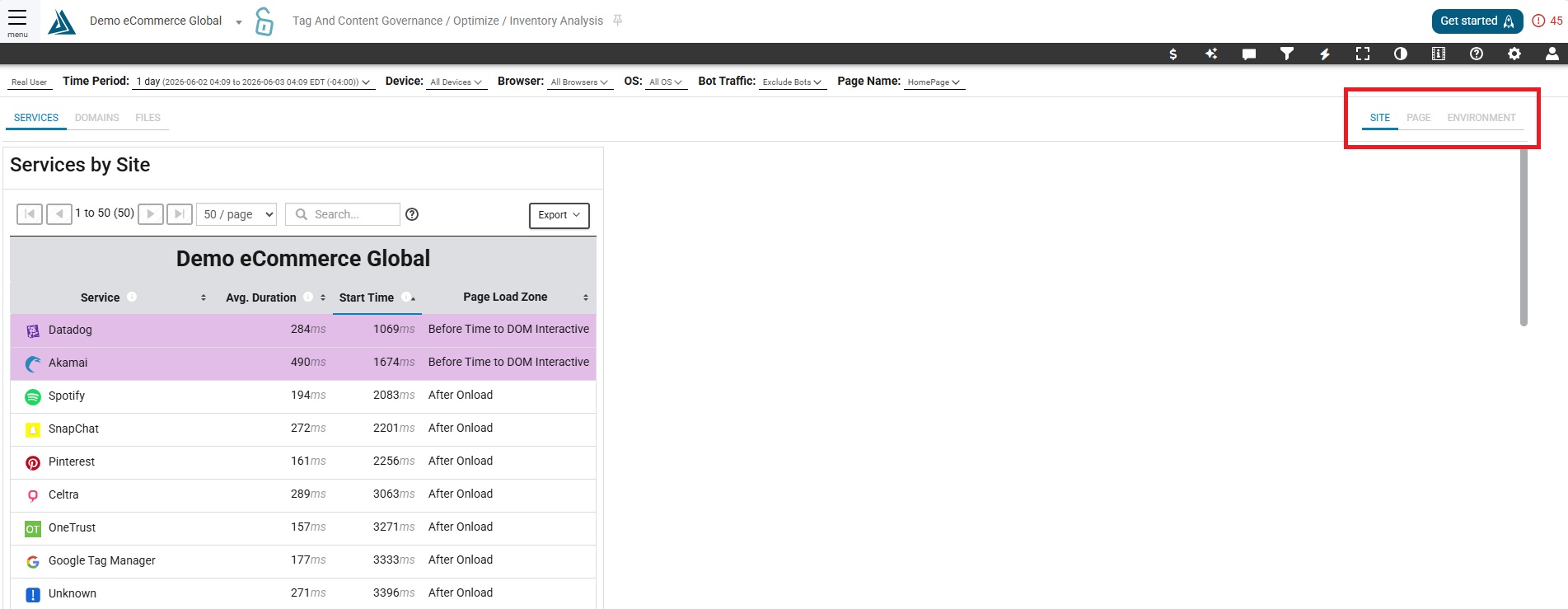
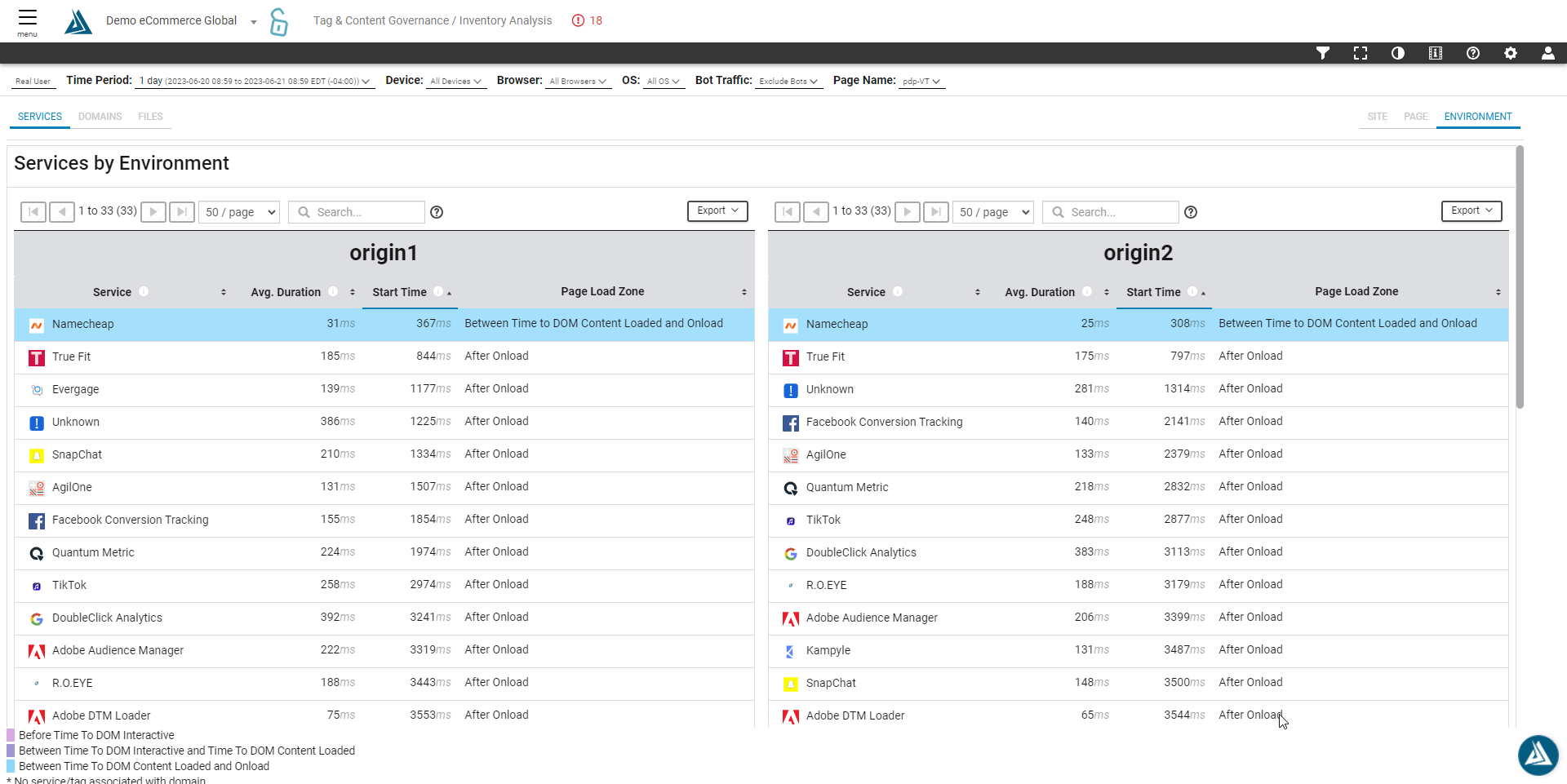
When this page is first loaded, there is a view of all the tags and services loading on the site, as well as their Avg. Duration (load time), Start Time (when they begin to load), and Page Load Zone.
Use the tabs on the right to switch between Page, Site, and Environment.
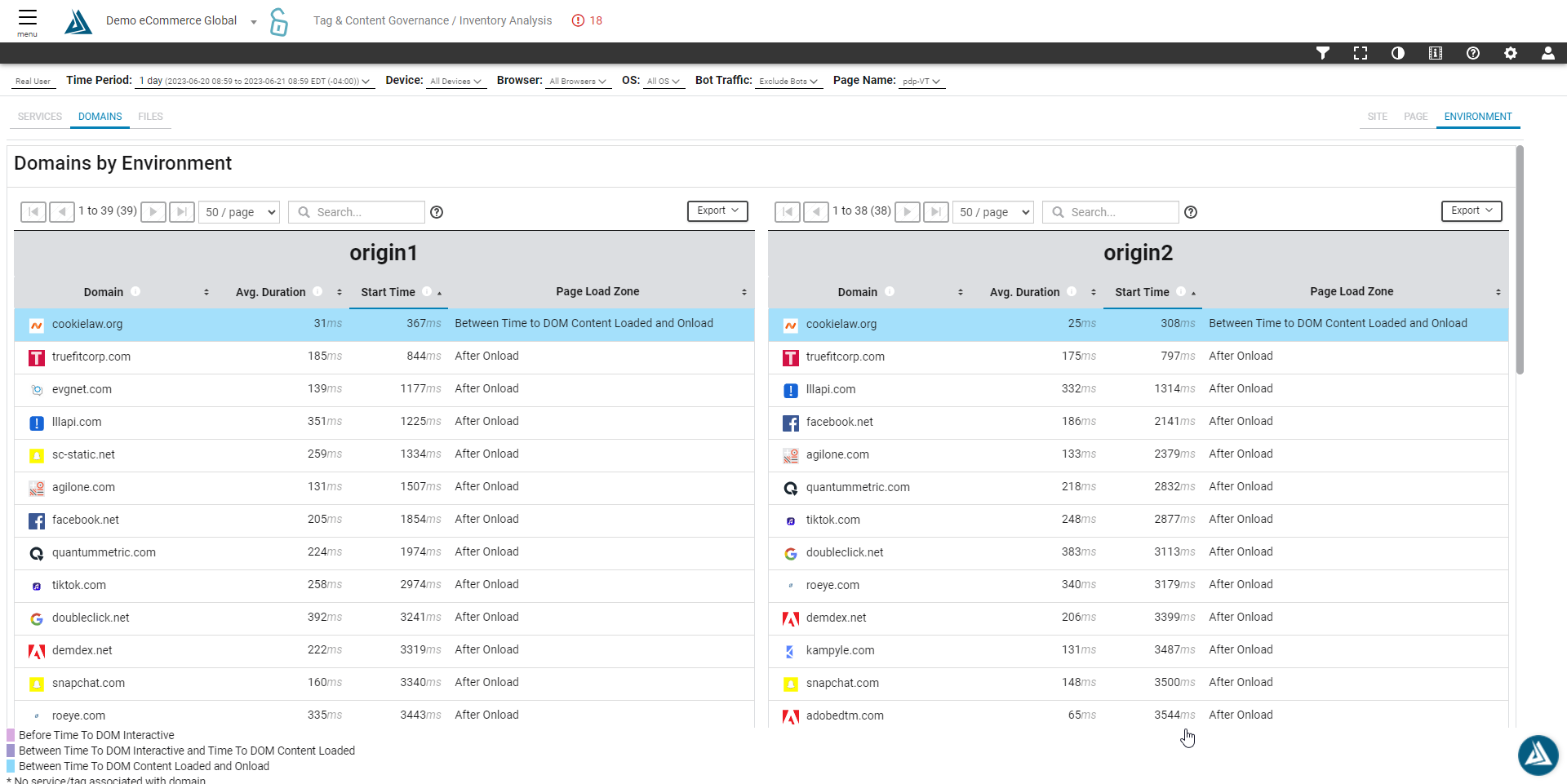
Domains
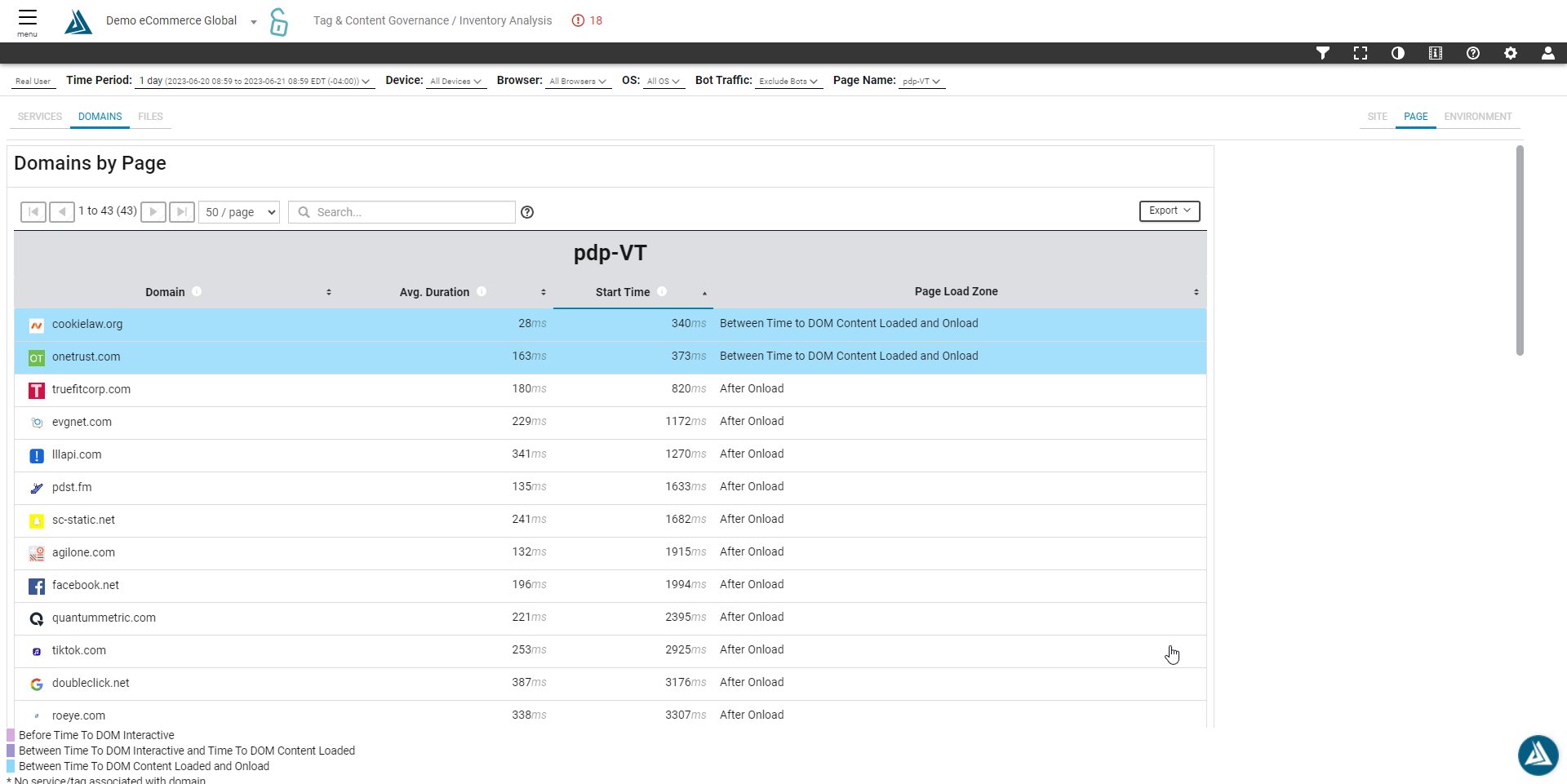
See each domain loading for a page by clicking the Domains tab on the left hand side of the page.
Use the tabs on the right to switch between Page, Site, and Environment.
Files
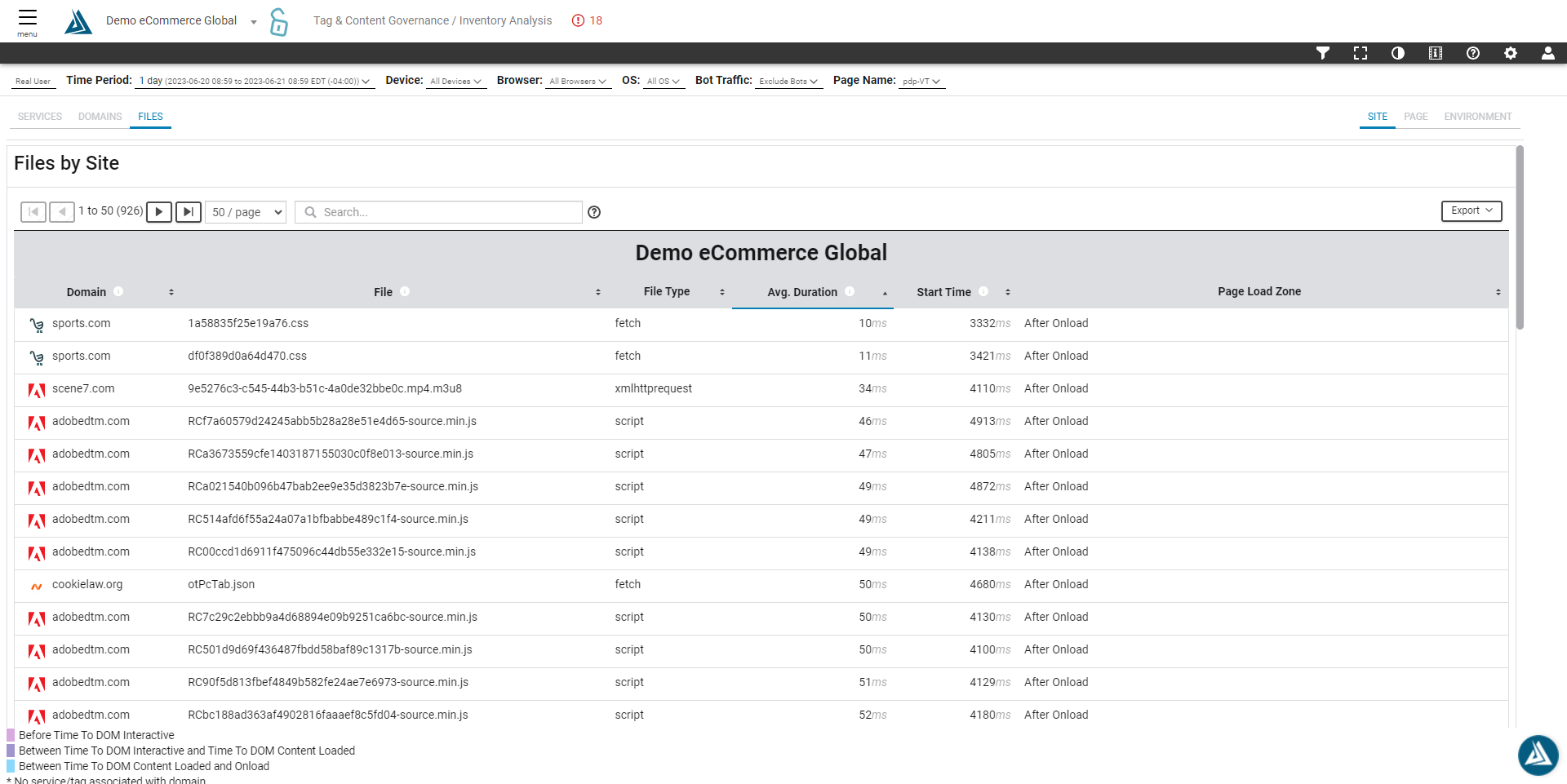
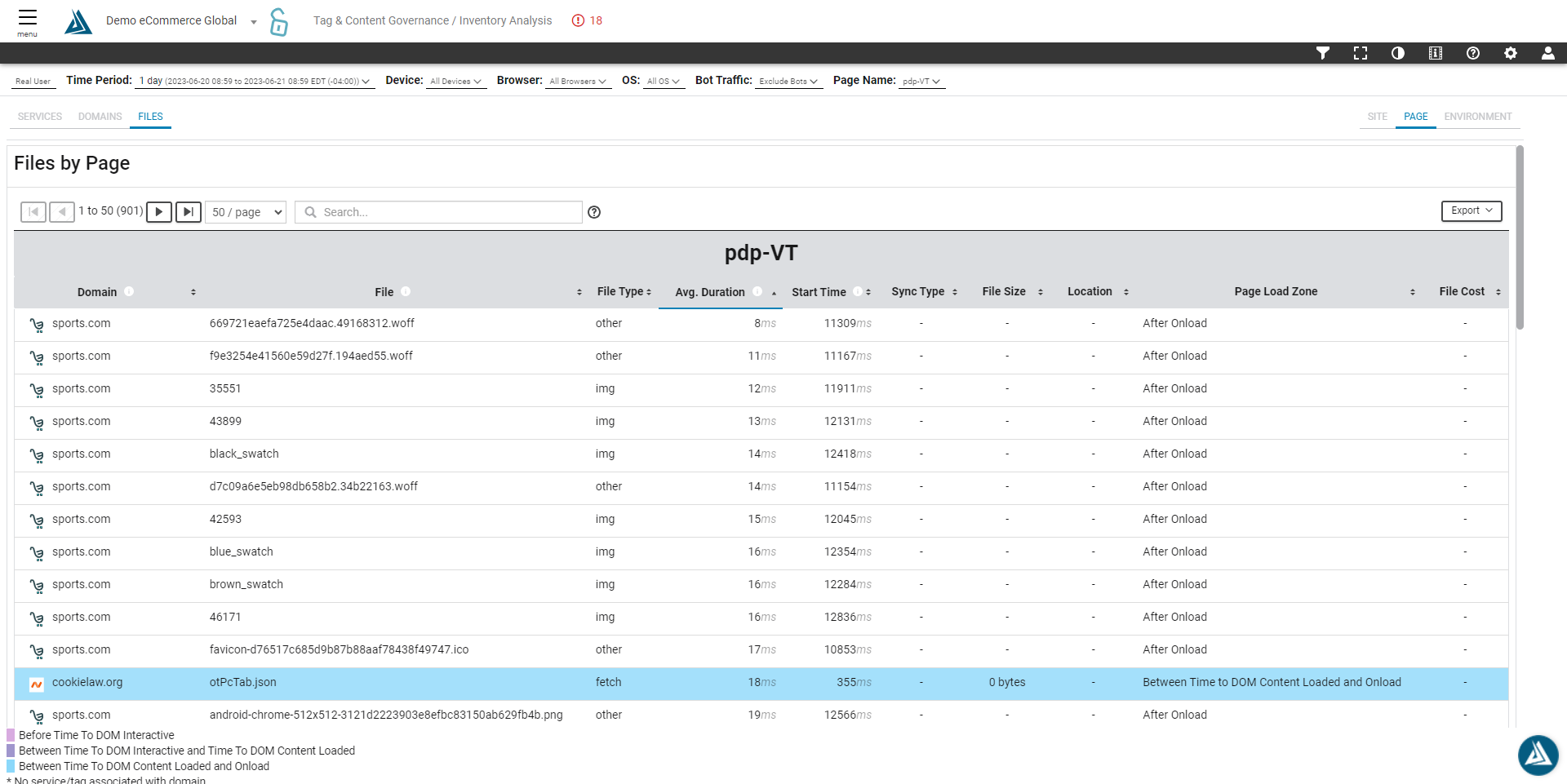
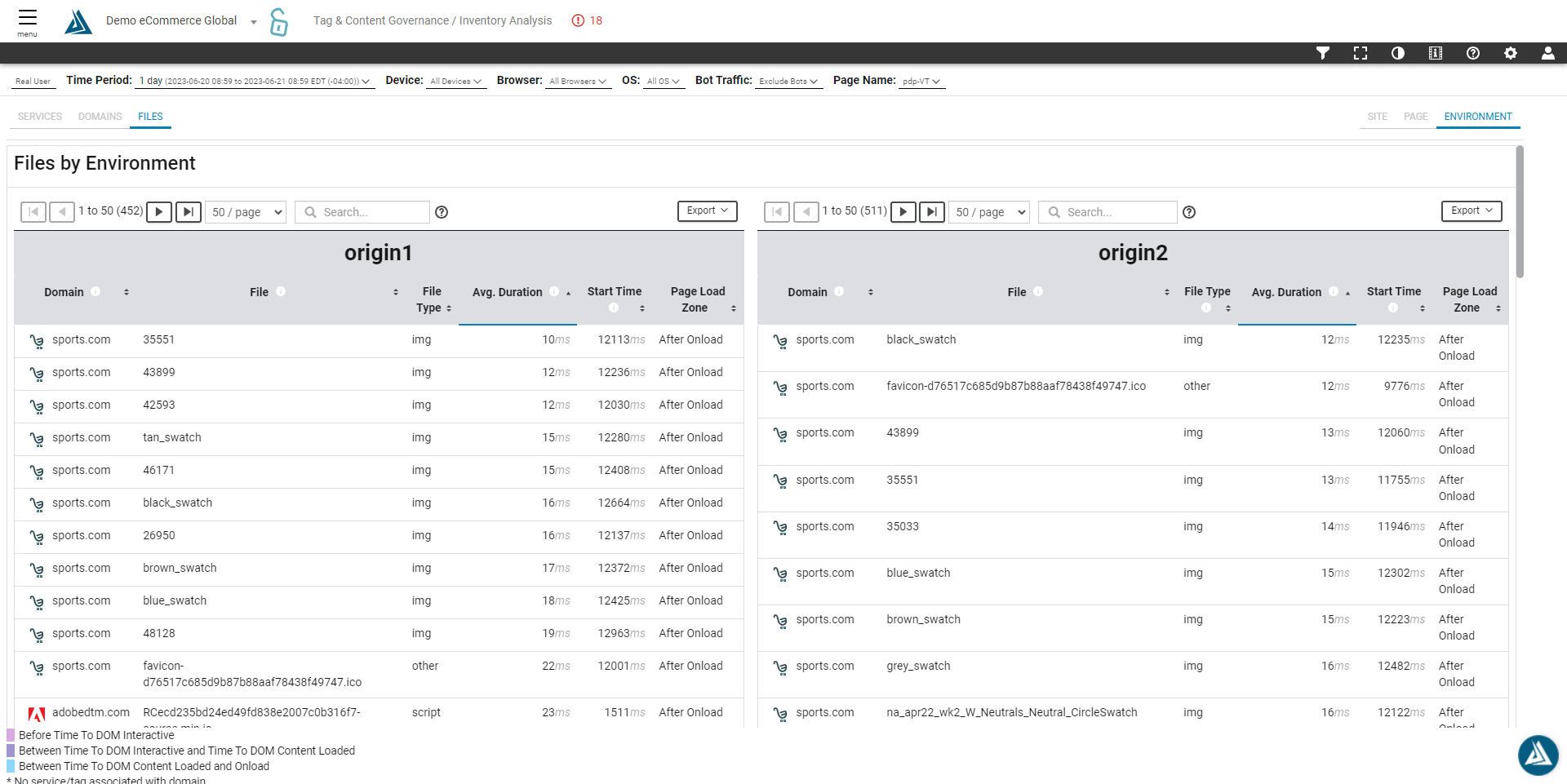
See what files are loading on a page by clicking the Files tab on the left side of the page.
Use the tabs on the right to switch between Page, Site, and Environment.
Filters
To add pages for analysis, go into the Filters. To access the Filters, click the icon at the top of the page.
Then add or remove pages for analysis in the Page Name filter.
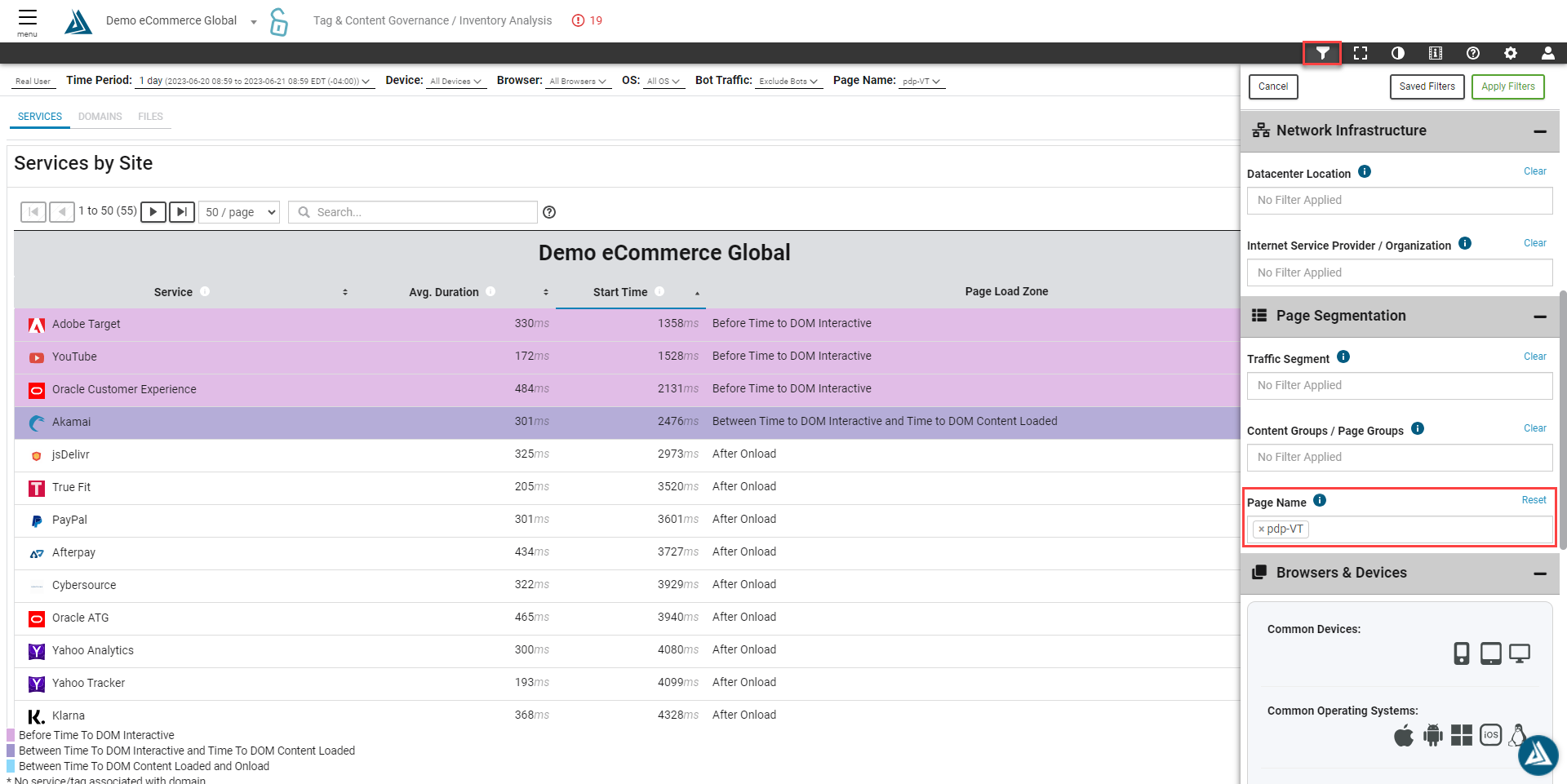
Select "Apply Filters"
Now the page will update to show the tags and services on the pages selected.