

Overview
The Domain Details page allows you to view information about any 1st or 3rd Party Domain on your site.
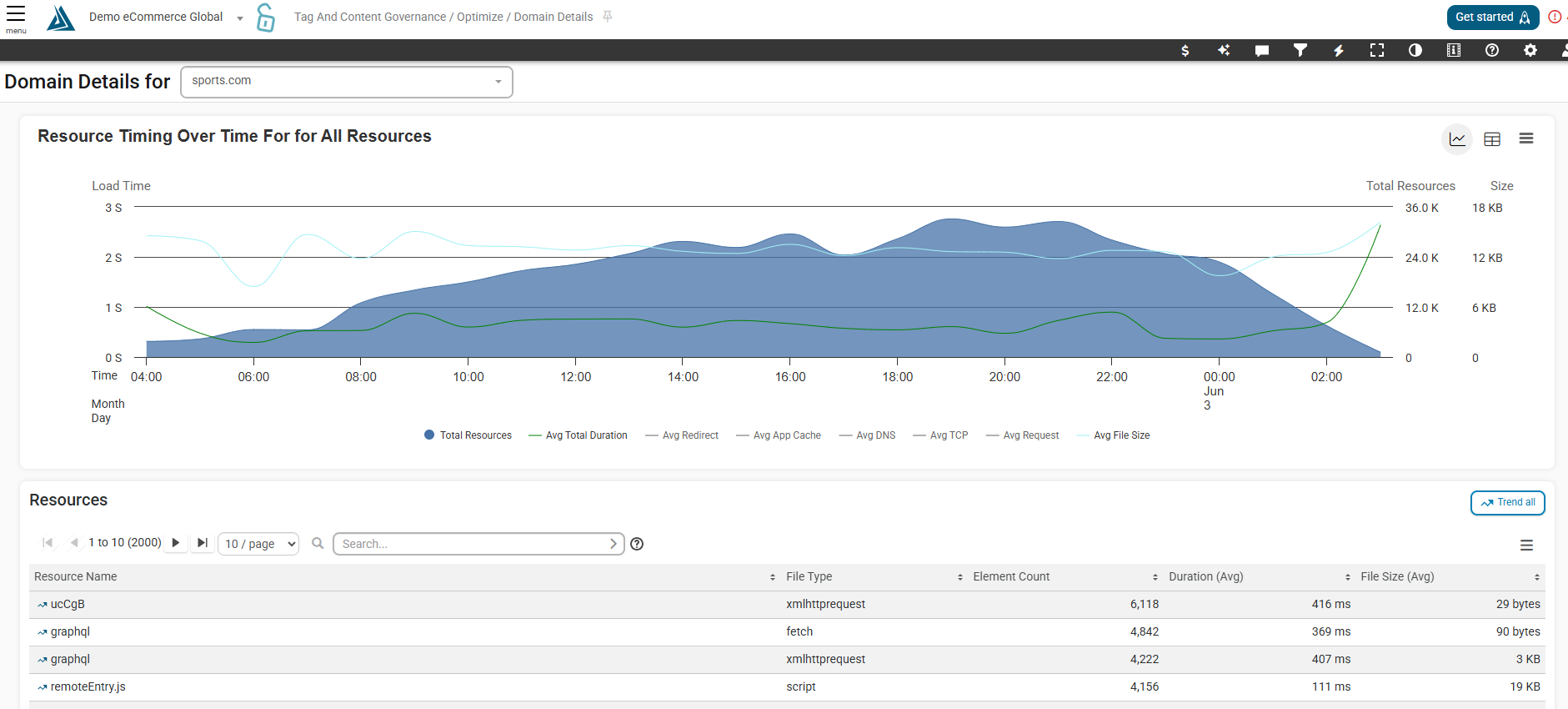
Where to Find the Domains Detail Page
This page can be found in left-side menu under CSP and Tag Governance → Optimize → Domain Details
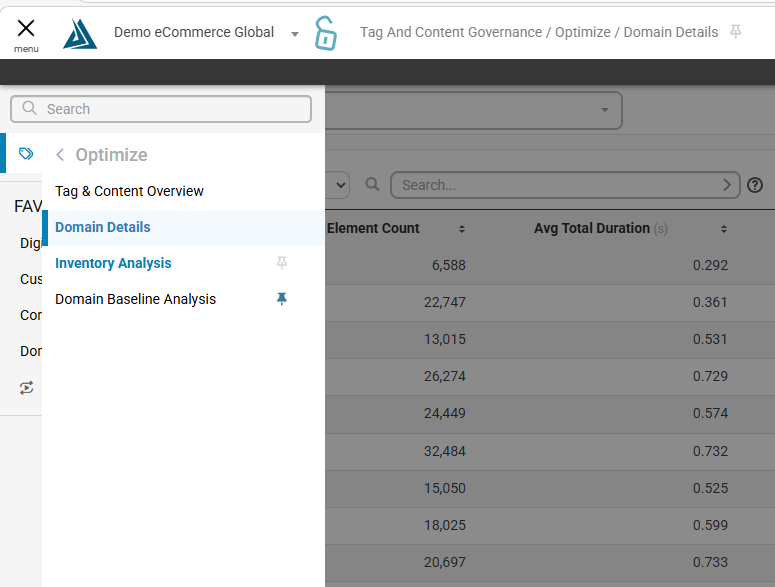
How to Navigate the Domain Details Page
At the top of the page is the Domain Selector. Use this to select the domain you wish to view

Resource Timing Graph
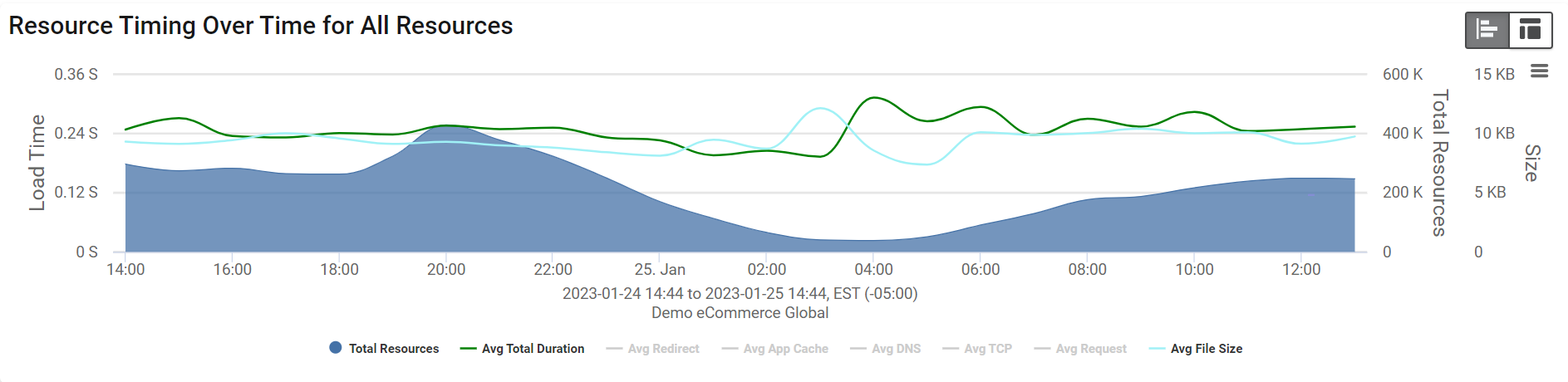
The graph at the top of the page shows a trend of this domain’s total duration. Click the legend items to hide and show other metrics in the graph.
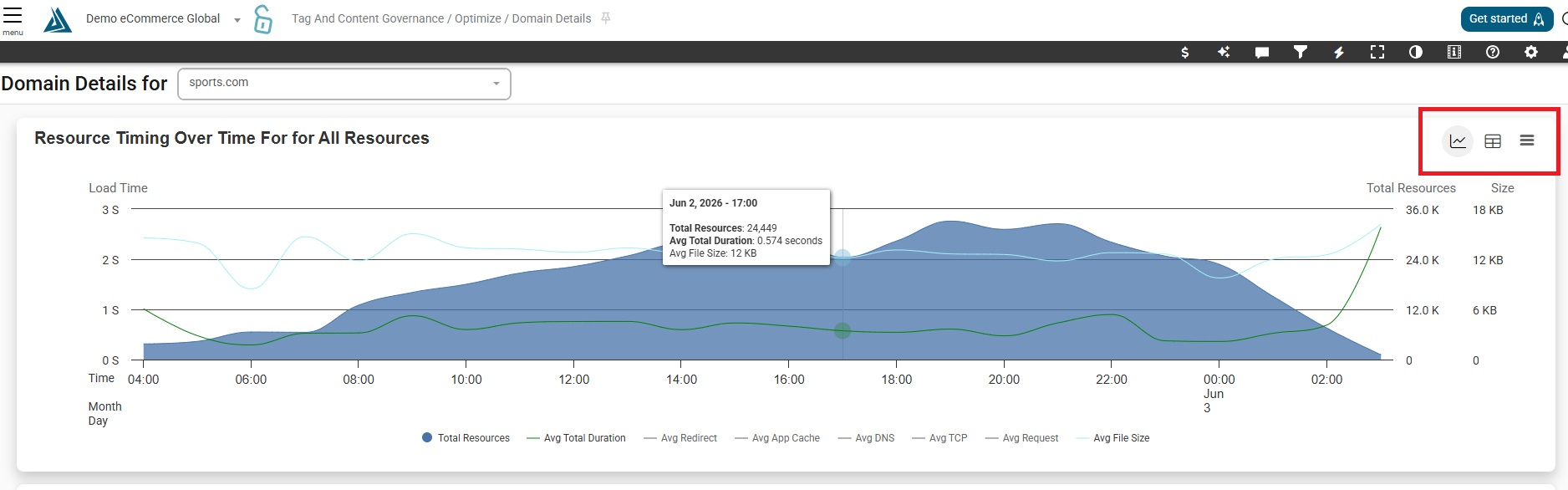
The tabs on the top right of the graph toggle between table view and graph view.
Pages Present
The two tables on the left list the pages the domain is on, and the pages it is not on. The export buttons are on the top right of each widget
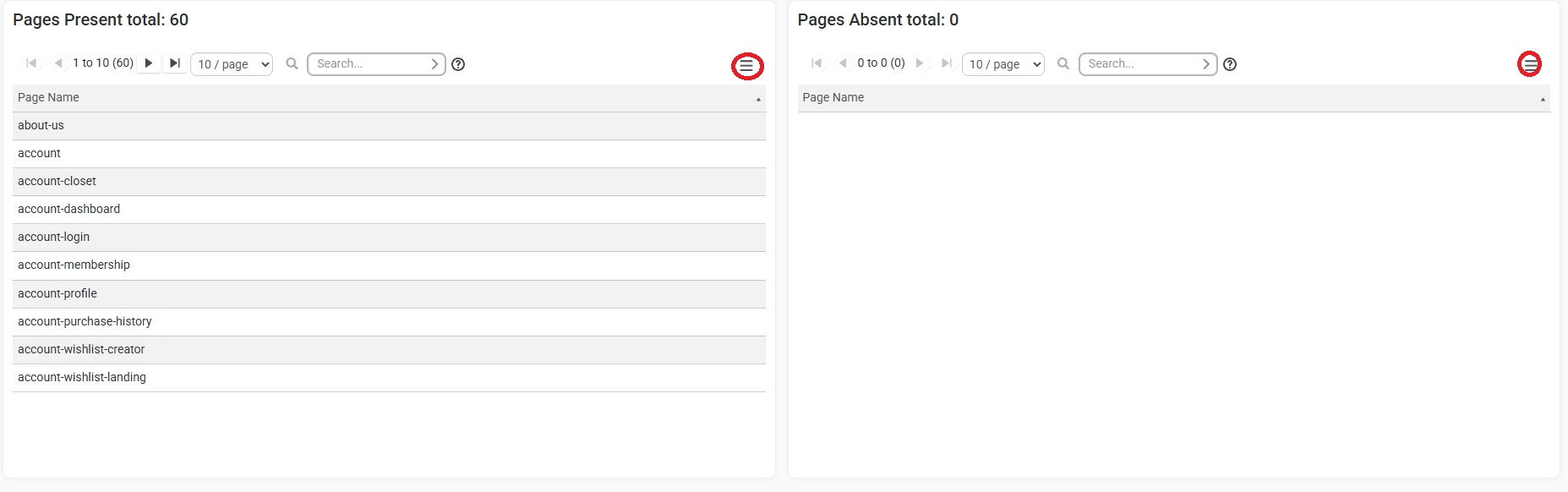
Use the search bar to look up specific pages, or click export to save this information. Click on a page to see the performance details for that page.
Resources
The table on the right displays the resources that have been observed coming from the domain.
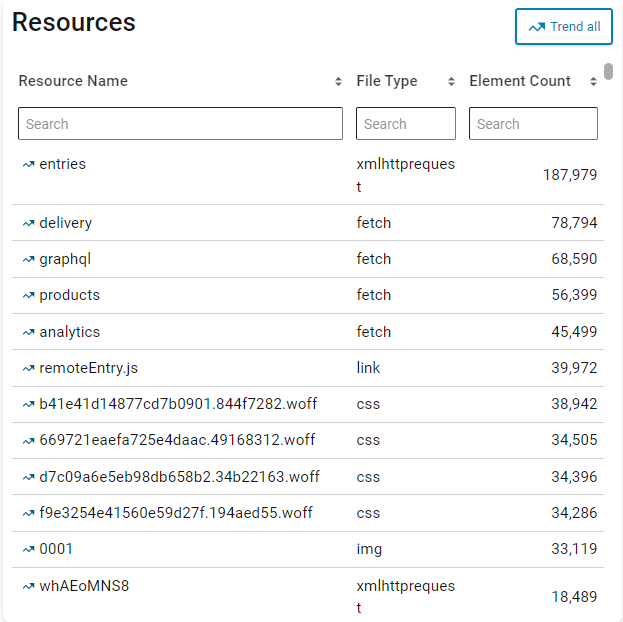
Click the arrow button next to each resource to bring up a trend of their performance, and click the X button to the right to trend all resources for this domain together.
Filters
The data type being displayed can be changed in the Filters menu. Click the filter icon in the toolbar at the top of the screen, and select the Data Type dropdown to switch between real user and synthetic data.
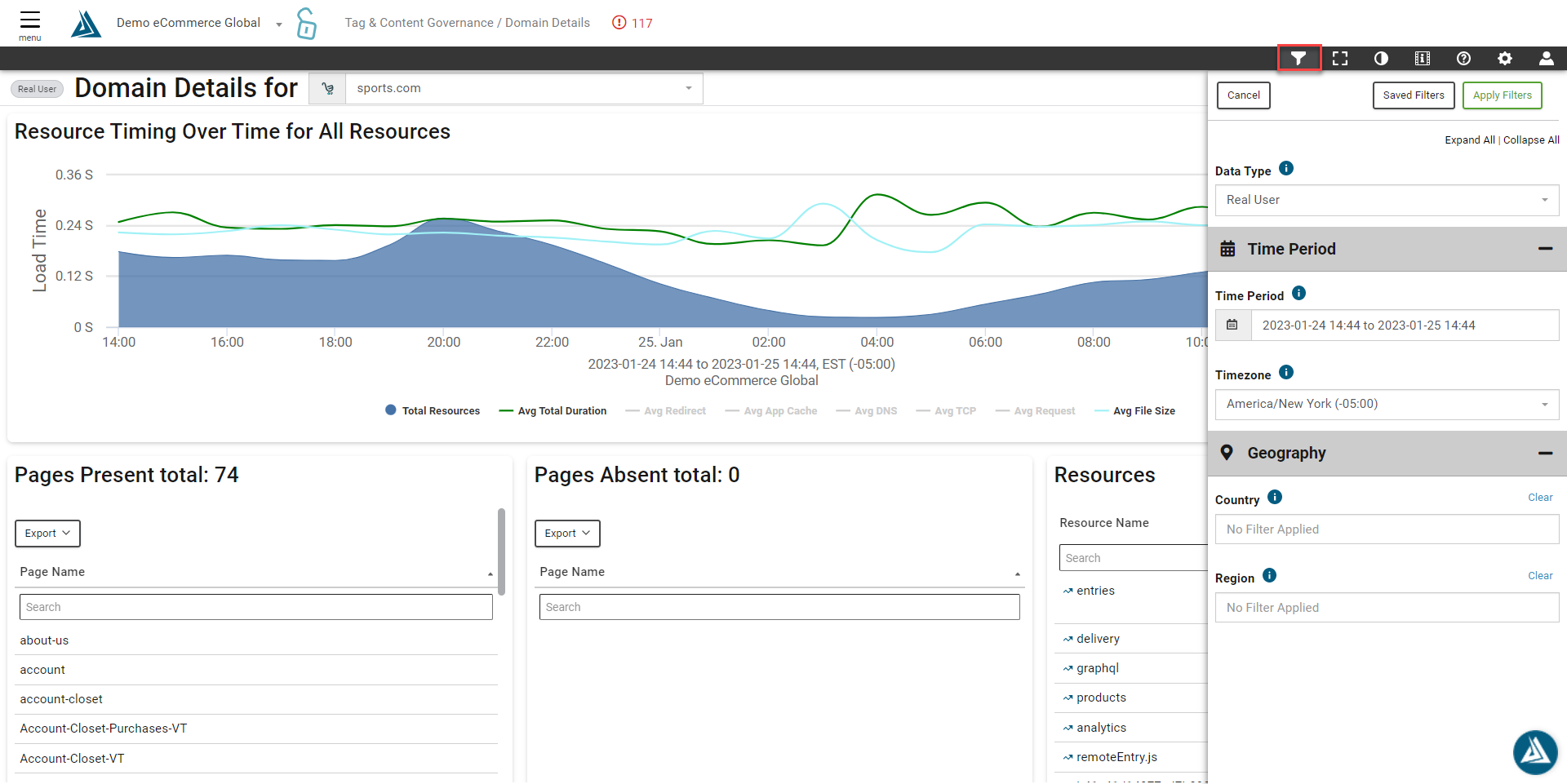
By default, data for the past 24 hours is displayed. The time period can also be changed in the filters menu.