

Overview
Ask questions about your website's performance in plain English and get back answers, charts, and shareable reports using our ADK. This guide covers Slack and Microsoft Teams.
What the assistant can do
The assistant is connected to your Blue Triangle account. It can look up and explain:
|
Topic |
Examples of what you can ask |
|---|---|
|
Page performance / Core Web Vitals |
LCP, CLS, INP, TTFB, onload time — by page, browser, device, country, or over time |
|
Trends and comparisons |
"How did this week compare to last week?" |
|
JavaScript errors and CSP violations |
Which errors are happening, where, and how often |
|
Resource and domain timing |
Which third-party domains, files, or hosts are slowing pages down |
|
Raw page views |
Individual page-view records when you need to drill all the way down |
|
Revenue and conversion |
Revenue, orders, conversion rate, bounce and exit rates — if your account includes revenue access |
It can also turn any of that into an interactive chart or a downloadable PDF report you can send to your team.
Getting started
Using Slack
Install Slack via Installation Link:
Open the Slack Installation Link and select the Slack Workspace where you want to install the bot. Review the permissions requested by the application and click Authorize.
Complete OAuth Authentication:
The installation uses Slack’s. You will be redirected through Slack’s authorization flow to securely authenticate and grant the required permissions. Once authorization is successful, the Slack bot will be installed in your selected workspace.
After installation, the bot will be available for users across the workspace according to the permissions and configuration provided during installation.
Note: The installation needs to be performed for each Slack workspace where the bot is required. The person performing the installation must have the necessary permissions in that workspace to install applications.
Invite the bot to a channel
Installing the app puts the bot in the workspace. It still needs to be a member of each channel where people will @mention it:
/invite @Blue Triangle
Direct messages need no invite — open a DM with Blue Triangle and type.
Connecting your account (once, by you)
The first time you ask a question, the bot replies "Your BlueTriangle account isn't connected yet.", and prompts you to Connect BlueTriangle.
Clicking the Connect BlueTriangle button opens Blue Triangle's login in your browser. Approve the connection and you're connected.
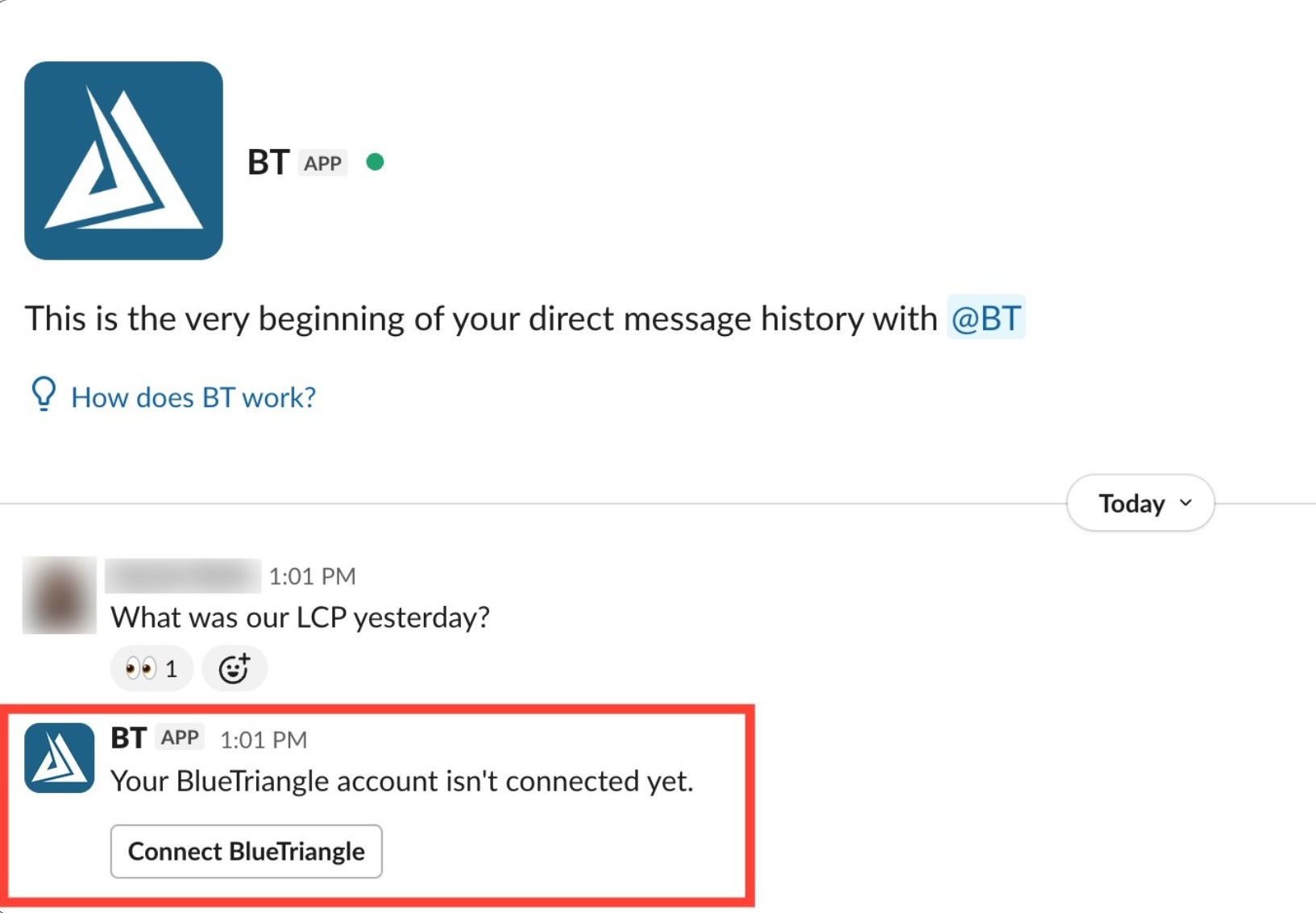
Your original question isn't lost. Whatever you asked before connecting is held and answered automatically once you finish. If you asked in several places before connecting, all of them will be answered.
You only login once. Use /re-login if your connection ever expires, or /disconnect to unlink your account.
Where you can use the agent
|
Where |
How |
|---|---|
|
Direct message
|
DM the bot. Just type your question — no @ needed. |
|
In a channel |
@Blue Triangle followed by your question. (e.g. "@Blue Triangle What was our LCP yesterday?") |
|
In a thread |
Once the bot has answered in a thread, you can keep replying without mentioning it again — no @ needed. |
Choosing where answers appear
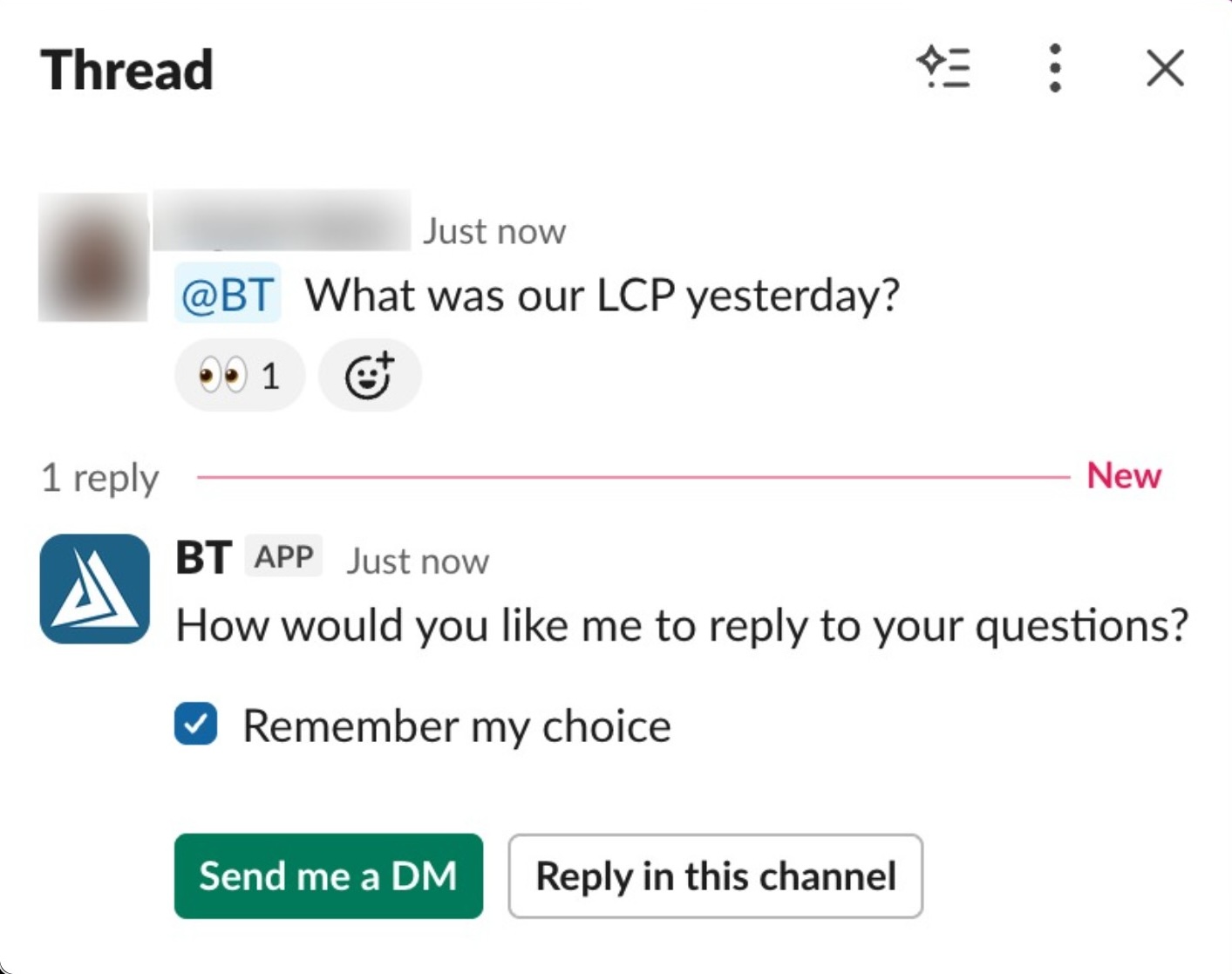
The first time you ask a question in a shared channel, the bot asks how you'd like it to reply:
-
Send me a DM — the full answer goes to your direct message, and only a short note is left in the channel: "@you Sent you the details in our chat."
Good for keeping busy channels clean, and for data you'd rather not post publicly. -
Reply in this channel — the full answer is posted where you asked.
-
Remember my choice (ticked by default) — apply it to this channel from now on. Untick it to decide again next time.
Your choice is remembered per channel, so answering "DM me" in one channel doesn't silently change how a different channel behaves. Send /reset to forget the preference and be asked again.
If the bot can't DM you, it says so in the channel and tells you to check that your Slack settings allow direct messages from apps.
Sharing a DM'd answer back to the channel
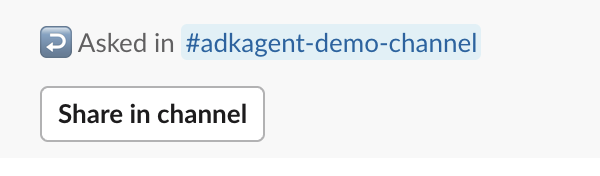
When an answer arrives by DM, it comes with a Share in channel button. Click it and the answer is posted back to the channel you originally asked in — useful when you've checked something privately and then decide the team should see it.
Charts and reports in Slack
Charts arrive as images in the message. Reports arrive as a link — click it to open or download the PDF. Anyone in the channel can open a report link, so share the way you would any document.
Slack examples
/help
/performance last 7 days
/compare this week vs last week
/report on this month's performance

@Blue Triangle why did checkout LCP spike on Tuesday?
Using Microsoft Teams
Microsoft Teams Installation Guide
Setting Up Teams:
In the Teams desktop app or web version, sign in using the Microsoft 365 account associated with the target tenant. Next, upload the Bot Package by going to Apps → Manage your apps → Upload an app. Select Upload a custom app, choose the provided ZIP package, and click Add.
-
The Bot Package / Repository can be found here.
Installation:
Next, select the installation destination and choose where you want to make the bot available:
-
Open — For personal use and one-on-one bot conversations.
-
Select a team or chat — To make the bot available within a shared team or chat.
Once the bot is installed, send it a message to confirm that it has been successfully installed and is responding as expected.
Connecting your account (once, by you)
Exactly as in Slack: the first question prompts a Connect BlueTriangle card, you approve in your browser, and your held question is answered automatically afterwards.
Where you can use the agent
|
Where |
How |
|---|---|
|
1:1 chat with the bot |
Type your question in the chat box. (e.g. "What's the LCP trend for the last 7 days?") |
|
In a channel |
@Blue Triangle followed by your question. (e.g. "@Blue Triangle What was our LCP yesterday?") |
Commands in Teams
Teams doesn't have Slack's built-in slash-command menu, so type the command as an ordinary message:
/performance last 7 days
It works identically — just typed rather than picked from a menu.
Everything else
Answers arrive as cards. The same DM-versus-channel choice, the same Remember my choice option, the same /reset, and the same Share in channel button on a private answer all work as described in section 11. A shared answer includes a link back to the channel it came from.
Using the Agent
Asking good questions
You don't need special syntax. A few habits get you better answers faster.
Say the time range
The assistant understands ordinary phrasing:
-
"last 7 days"
-
"yesterday"
-
"this month"
-
"August"
-
"last quarter"
-
"this week vs last week"
-
"June 1 to June 14"
If you don't say a range, it will pick a sensible default or ask.
Say what to break it down by
-
"…by page"
-
"…by browser"
-
"…by country"
-
"…by device"
-
"…by day"
-
"…by hour"
Ask follow-up questions
The assistant remembers the conversation. After an answer you can just say:
-
"Now show that as a chart"
-
"Add mobile as well"
-
"Break that down by country"
-
"Why do you think that happened?"
If you follow up on a chart with "add onload too" or "include mobile as well", it updates the chart, not just the table.
Ask for the format you want
|
If you want… |
Say something like… |
|---|---|
|
A quick answer |
"What's our current LCP?" |
|
A table |
"Show daily onload times for the last 7 days" |
|
A chart |
"Show me a chart of LCP over the last 30 days" |
|
Separate charts per metric |
"Show LCP, CLS and INP each as its own trendline" |
|
A shareable document |
"Give me a report I can send to my team" |
The words report, audit, summary I can share, and send to my team are what trigger a PDF. Ordinary questions get ordinary answers.
Start a new chat for a new topic
A conversation carries its context — including which site you're looking at. When you move to an unrelated question, click New chat so old context doesn't influence the answer.
Reading an answer
Every answer that contains real data opens with one line telling you exactly what you're looking at:
Site: Acme Shop | Range: Aug 11–18, 2026
For a comparison, both periods are shown:
Site: Acme Shop | Range: Period A: Jun 1–7, 2026 | Period B: May 25–31, 2026
Always check this line. It's how you know the answer covers the site and dates you meant. If it doesn't, say so — "no, I meant last month" — and the assistant will redo it.
After the header you'll get the numbers (as text or a table), then a short interpretation: what stands out, what's unusual, what it might mean. The interpretation is added on top of the data, never instead of it — you always get the real figures.
Where a metric is a Core Web Vital, values are colour-coded against Google's good / needs-improvement / poor thresholds.
Charts
When an answer includes a chart, a View chart button appears under the message. Click it and the chart opens in the right-hand panel.
In the chart panel you can:
|
Control |
What it does |
|---|---|
|
Hover a point |
See the exact value and date |
|
Download icon |
Save the chart as a PNG image |
|
Expand icon |
View it full screen
|
|
× |
Close the panel |
Charts are interactive, not pictures — the values you hover are the real ones returned by your Blue Triangle account.
The assistant picks the chart shape that fits your question: trend lines, bar and grouped-bar comparisons, pie and donut breakdowns, scatter plots for correlations, histograms for distributions, and change bars that colour each category by whether it improved or got worse.
Two useful touches you'll see automatically:
-
Core Web Vitals threshold bands shaded behind the line, so "is this good?"
is answerable at a glance. -
Unusual points highlighted on the chart when the assistant spots a spike
or outlier, rather than only mentioning it in the text.
PDF reports
Ask for a report and you get a proper document: a title, a key-findings callout, the write-up, data tables with readable column headings, and the charts rendered inside it.
A View document button appears under the message. Click it, then:
-
Download PDF — saves the file.
-
Expand — previews the document in the panel.
Sharing a report
Report links work for anyone you send them to, including people who are not signed in to the assistant. That's deliberate — it's how a report posted into Slack or Teams stays openable by your colleagues.
Treat a report link like a document link, not a password-protected page. Anyone with the link can open it. Share it the way you'd share any file containing your site's data.
Reports are also what you want when someone asks for "the numbers for the quarterly review" — you get one file instead of a screenshot of a chat.
Saving and printing a conversation
Above the conversation there's a Print button. It opens your browser's print dialog with the whole conversation laid out cleanly — every message plus every chart and document, shown inline rather than hidden behind buttons.
From that dialog you can print on paper or choose Save as PDF to keep a copy of the whole exchange.
Use Print for a record of the conversation. Use a report (section 6) for a document you're sending to someone else.
Managing your conversations
|
Action |
How |
|---|---|
|
Start a new conversation |
Click New chat in the sidebar |
|
Go back to an earlier one |
Click it under Recent — the full history reloads |
|
Find the one you're in |
The active conversation is highlighted |
|
Switch light/dark |
The toggle at the top of the sidebar; your choice is remembered |
|
Sign out |
Log out at the bottom of the sidebar |
Conversations are named after your first message, so ask your real question first and the sidebar labels itself.
Slack and Teams conversations stay in Slack and Teams.
Choosing which site you're asking about
If your Blue Triangle account has access to more than one site, the assistant needs to know which one you mean.
-
The first time it needs to know, it asks and lists the sites you can
access. -
After that it remembers — per channel
or DM in Slack and Teams. -
To change it, just say so: "switch to Acme Shop", or use /sites in
Slack or Teams. -
To see your options, ask "which sites do I have access to?" or send
/sites with nothing after it.
Because the site is remembered per conversation and per channel, two different Slack channels can be looking at two different sites at the same time without interfering with each other. The Site: line at the top of every answer always tells you which one you're getting.
Command reference
Commands are a shortcut for common questions in Slack and Teams. They do exactly what typing the question would do — they're just faster.
Every command must start with / (or !). Anything after it is treated as your time range or focus.
Data commands
|
Command |
Shortcut |
What it shows |
|---|---|---|
|
/performance |
/perf |
Core Web Vitals and page performance summary |
|
/compare |
|
Compare two time periods |
|
/errors |
/error |
JavaScript errors and CSP violations |
|
/revenue |
/rev |
Revenue, orders, conversion rate, bounce rate |
|
/resource |
/resources |
Domain, file and host load timing |
|
/hits |
/raw |
Raw individual page-view drilldown |
|
/chart |
|
Produce a chart |
|
/report |
|
Produce a shareable PDF report |
|
/sites |
/site |
List your sites, or switch the active one |
Account and settings commands
|
Command |
What it does |
|---|---|
|
/login |
Connect your Blue Triangle account |
|
/relogin |
Reconnect or refresh your connection |
|
/disconnect |
Disconnect your account |
|
/reset |
Forget your remembered DM/channel reply preference |
|
/help |
List every available command |
Examples
/performance last 7 days
/compare this week vs last week
/errors yesterday
/revenue last month
/resource last 7 days
/hits for the homepage yesterday
/chart of LCP over the last 30 days
/report on this month's performance
/sites Acme Shop
With no arguments, most data commands default to the last 7 days; /report defaults to this month's performance, and /compare defaults to this week versus last week.
Mistyped a command? The assistant will suggest the closest match.
FAQs
Who can see your data
-
You sign in as yourself. The assistant sees exactly the sites and data your own Blue Triangle account can see.
-
Connections are per person, not per channel. If a colleague asks a question in the same Slack channel, it's answered against their account, not yours. Nobody borrows anyone else's access.
-
Answers posted in a channel are visible to that channel. If a question touches sensitive numbers, choose Send me a DM.
-
Report links are shareable by design. Anyone with the link can open the PDF, including people not signed in. Share them accordingly.
-
Revenue data requires entitlement. If your account doesn't include revenue access, the assistant will tell you plainly rather than guessing or showing partial figures.
Limits and things it won't do
|
Limit |
What you'll notice |
|---|---|
|
It only reads |
It cannot change your site, your Blue Triangle settings, or your data |
|
Rate limit |
About 20 messages a minute per person. Past that you'll be asked to slow down for a moment |
|
Very large result sets are trimmed |
On a huge drilldown it tells you it truncated rather than silently dropping rows. Narrow the range or the page filter to see everything |
|
Complex questions have a work budget |
A very broad request may answer from what it gathered rather than continuing indefinitely. Splitting it into two questions gives a fuller answer |
|
It won't invent numbers |
If a figure isn't in your data, it says so instead of estimating. Charts only ever plot values a lookup actually returned |
|
Revenue is gated |
Without revenue entitlement on your account, revenue, order, conversion, bounce and exit-rate questions are declined |
Troubleshooting
|
What you see |
What it means |
What to do |
|---|---|---|
|
"Your BlueTriangle account isn't connected yet" |
First time using it here |
Click Connect BlueTriangle |
|
"Session expired" / "Reconnect" |
Your connection needs renewing |
Click Reconnect, or send /relogin in Slack/Teams |
|
"Sign-in was cancelled" |
Access wasn't approved on the Blue Triangle login page |
Sign in again and approve |
|
"This sign-in link has expired or was already used" |
The link was reused or left too long |
Start again from the sign-in screen |
|
"We're experiencing high demand right now" |
Busy period |
Wait a moment and ask again |
|
"Our AI provider is temporarily unavailable" |
A transient issue upstream, not with your question |
Try again shortly |
|
"That request took longer than expected" |
The question was too broad |
Narrow the time range or the scope |
|
"Rate limit exceeded, please slow down" |
More than ~20 messages in a minute |
Pause briefly |
|
The answer is for the wrong site |
The conversation or channel is set to a different site |
Check the Site: line, then say "switch to \<site name\>" or use /sites |
|
The answer is for the wrong dates |
The range was interpreted differently than you meant |
Check the Range: line and restate the dates explicitly |
|
The bot didn't reply in a channel |
It only responds to a DM, an @ mention, or a reply in a thread it's already in |
Mention it directly |
|
"I wasn't able to send you a direct message" |
Slack is blocking DMs from apps for you |
Allow DMs from apps in your Slack settings, then ask again |
|
Revenue questions are declined |
Your account doesn't have revenue access |
Contact your Blue Triangle administrator |
|
Nothing happens after asking |
Longer answers take time, especially with charts or reports |
Wait for the typing dots to finish before resending |
If something looks wrong rather than just slow, note roughly when it happened and what you asked — that's enough for whoever supports the assistant to trace the exact request.
Question library
Copy, adapt, and go.
Daily check
How did the site perform yesterday?
Any new JavaScript errors in the last 24 hours?
Show me LCP by page for yesterday, worst first
Which pages got slower compared to last week?
Investigating a slowdown
Why did checkout LCP spike on Tuesday?
Show LCP by hour for Tuesday
Break down Tuesday's LCP by browser and device
Which third-party domains were slowest on Tuesday?
Show me the raw page hits for the checkout page on Tuesday
Weekly or monthly review
Compare this week's performance to last week
Show LCP, CLS and INP each as its own trendline for the last 30 days
Which countries have the worst INP this month?
Give me a report on this month's performance I can send to my team
Errors
What were the top JS errors yesterday?
Which pages are producing the most errors this week?
Are there any CSP violations in the last 7 days?
Has the error rate changed since last month?
Third parties and resources
Show resource and domain timing for the last 7 days
Which hosts add the most load time on the product page?
Compare third-party timing this week to last week
Revenue (requires revenue access on your account)
Show revenue for last week
What's our conversion rate by device this month?
Did the slowdown on Tuesday affect conversions?
Compare revenue and bounce rate this month to last month
Producing something to share
Give me an audit of the checkout page I can send to my team
Build a report on this quarter's Core Web Vitals
Chart LCP over the last 90 days
Summarise this month's performance for a non-technical audience