Example Report
The Executive Availability V2 Report uses synthetics to track system availability and reliability of a site by calculating the percentage of availability of a monitor over a period of time.
Configuration
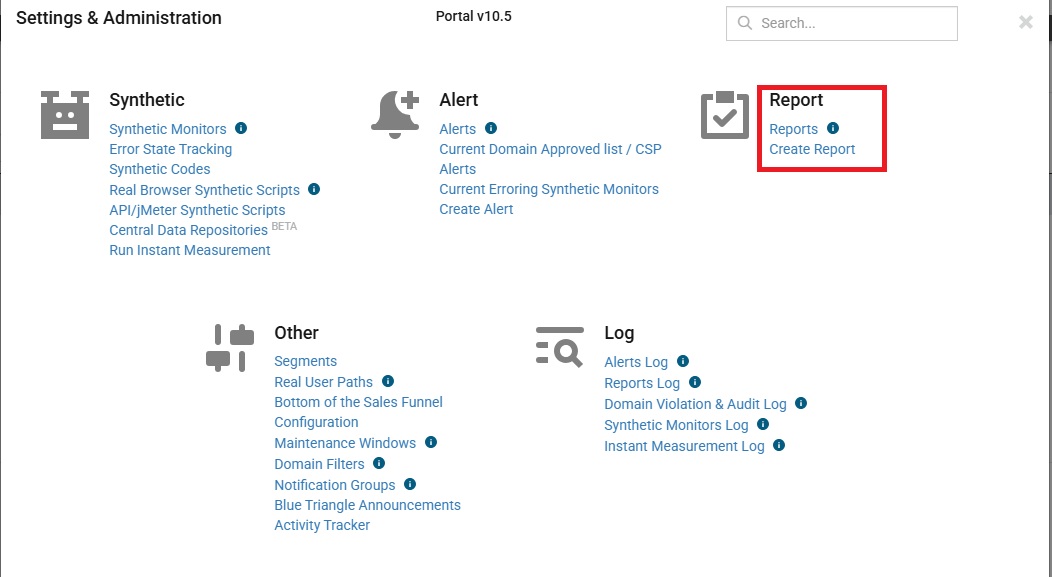
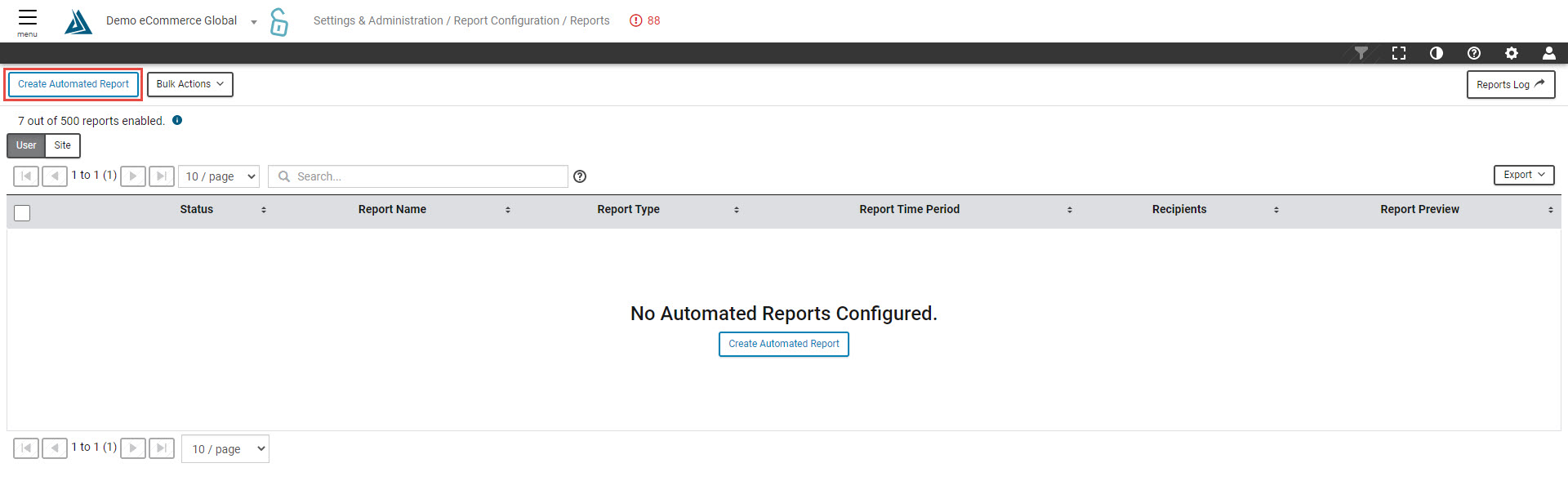
Create a new The Executive Availability V2 Report by going to Create Report found under the Settings and Administration menu. To view an existing report configuration, select Reports. There is a 'Create Automated Report' button on this page as well.
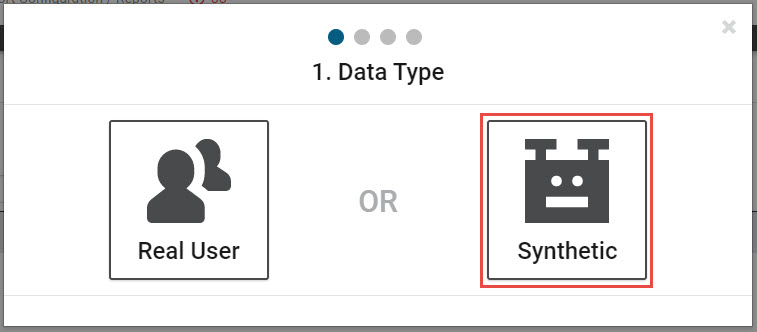
This report can only be set up for Synthetic.
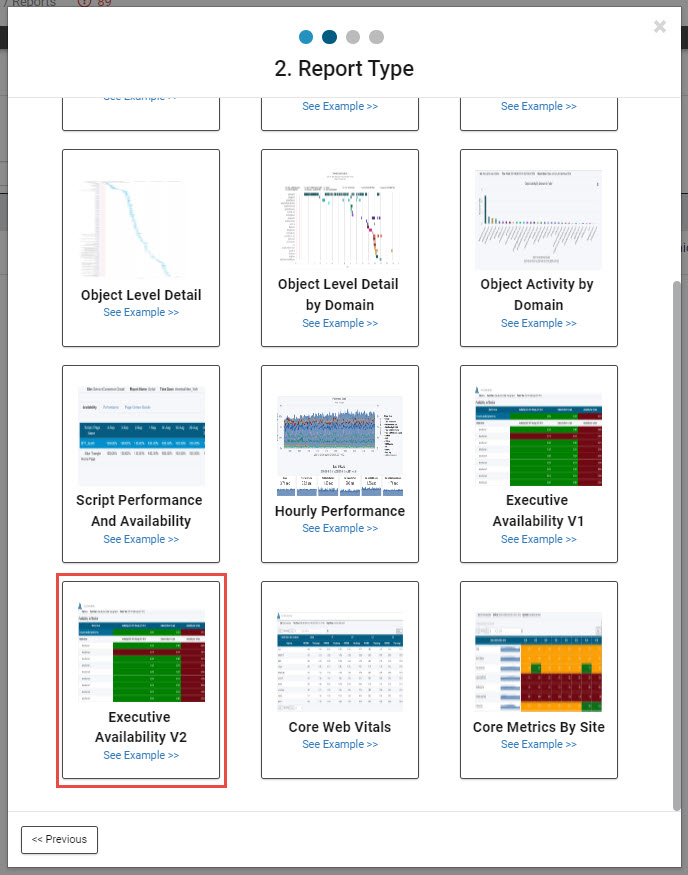
Scroll down to find the The Executive Availability V2 Report.
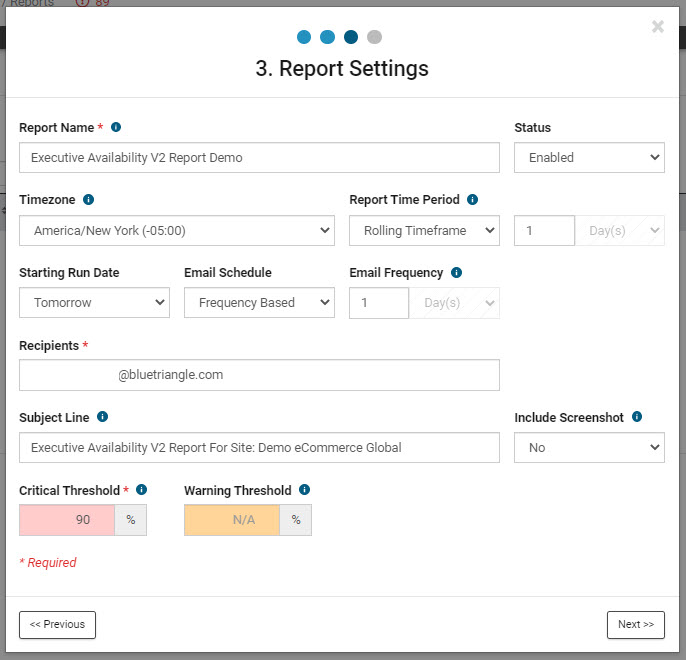
To configure this report:
-
Input a Report Name.
-
Select a Timezone and Report Time Period. The default is for the report to run on a daily rolling time frame.
-
Input the email for the Recipient/s. The email Subject Line is editable, as well as the Email Frequency.
-
Choose wether or not to Include Screenshot.
-
The report will automatically kick off the next day.
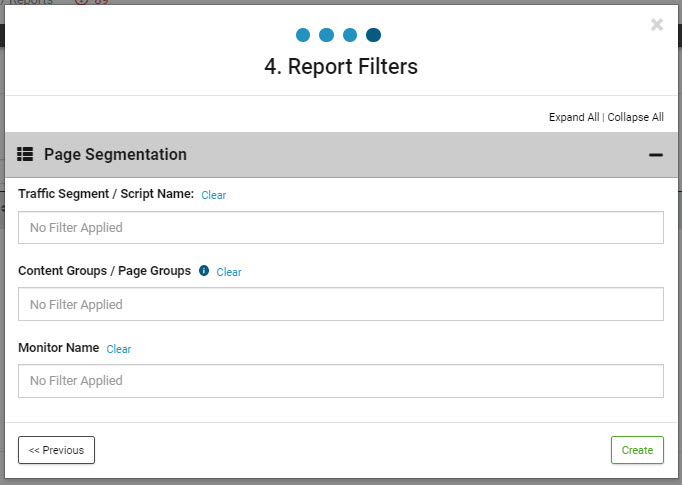
Select any Page Segmentation filters if needed.
Report Details
To generate a report for immediate analysis, click the Generate Report button.

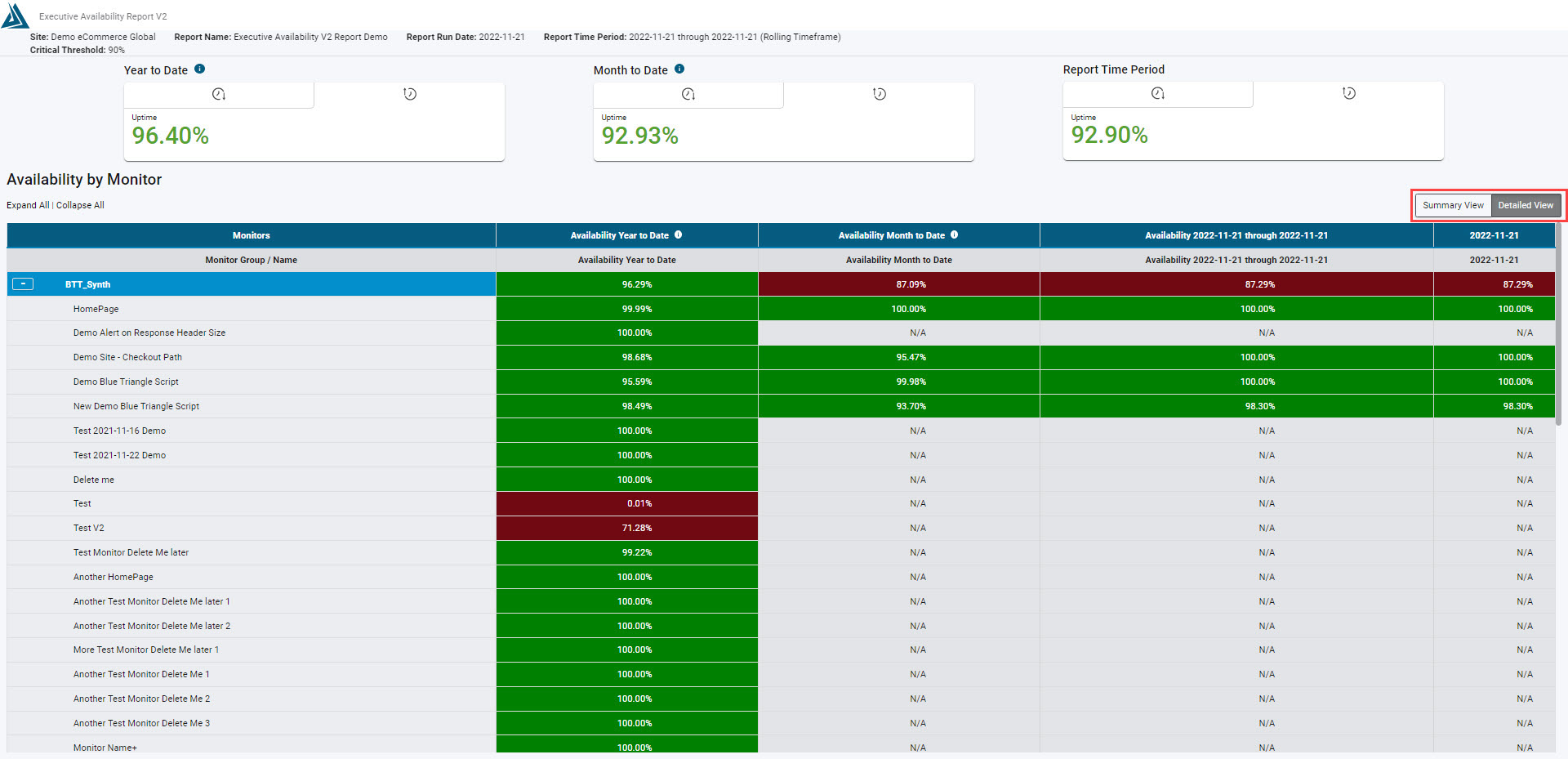
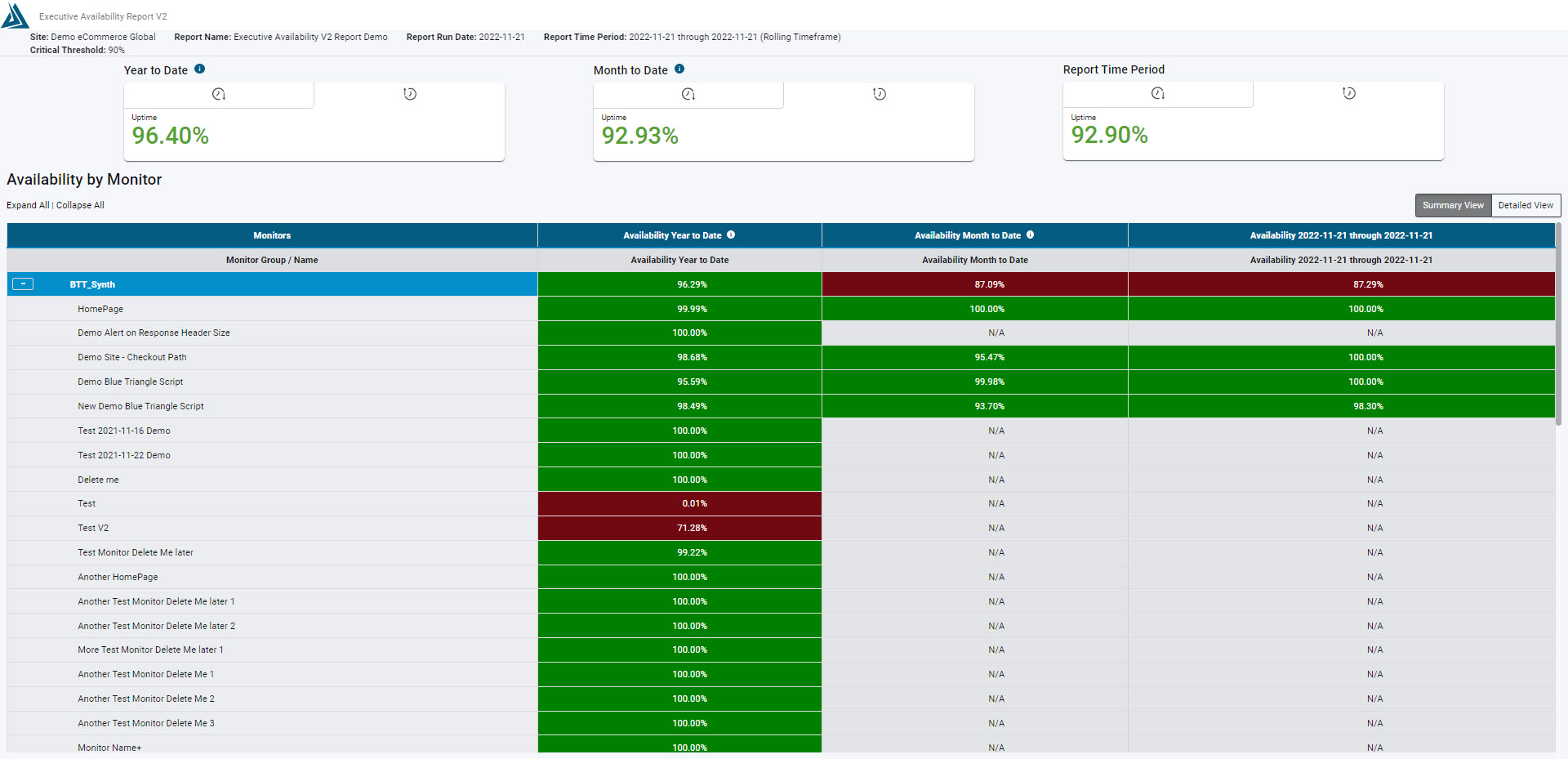
This report is broken down into four main columns: Monitors, Availability Year to Date, Availability Month to Date, and Availability for the configured time period.
Please see our help center article here for information on how Availability is calculated in Blue Triangle.
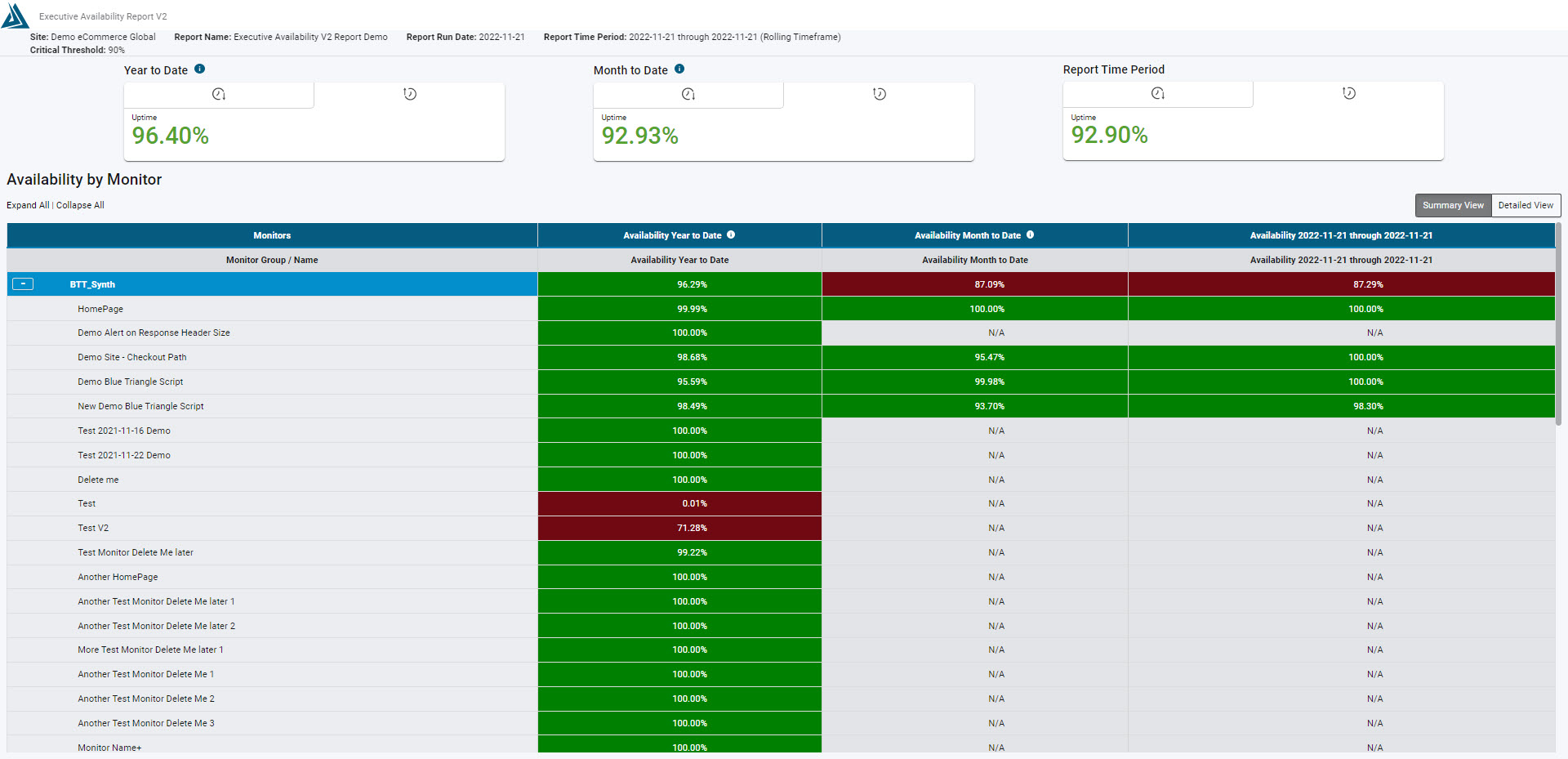
Switch between the higher-level Summary View and the Detailed View by clicking the tabs on the right of the report.