Video / Walkthrough
Example Reports
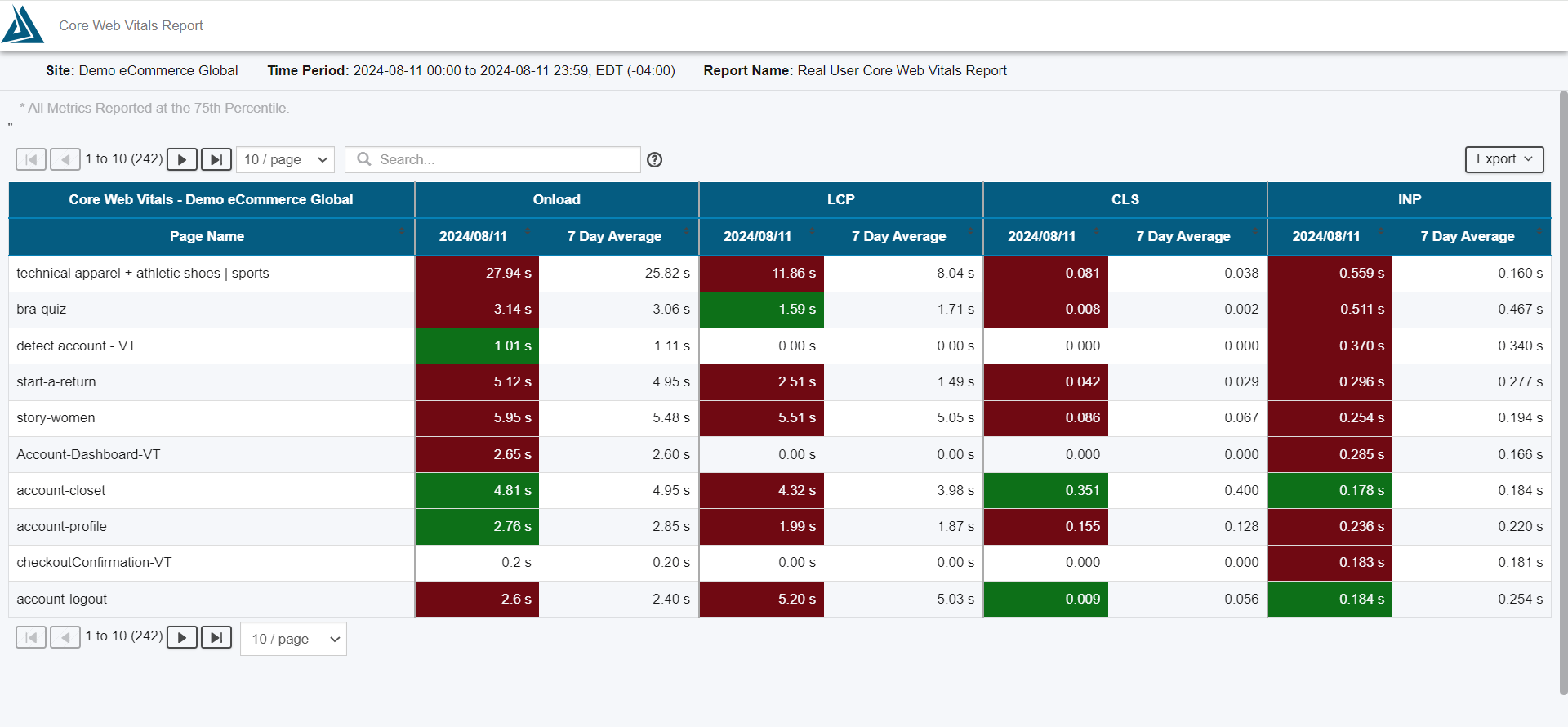
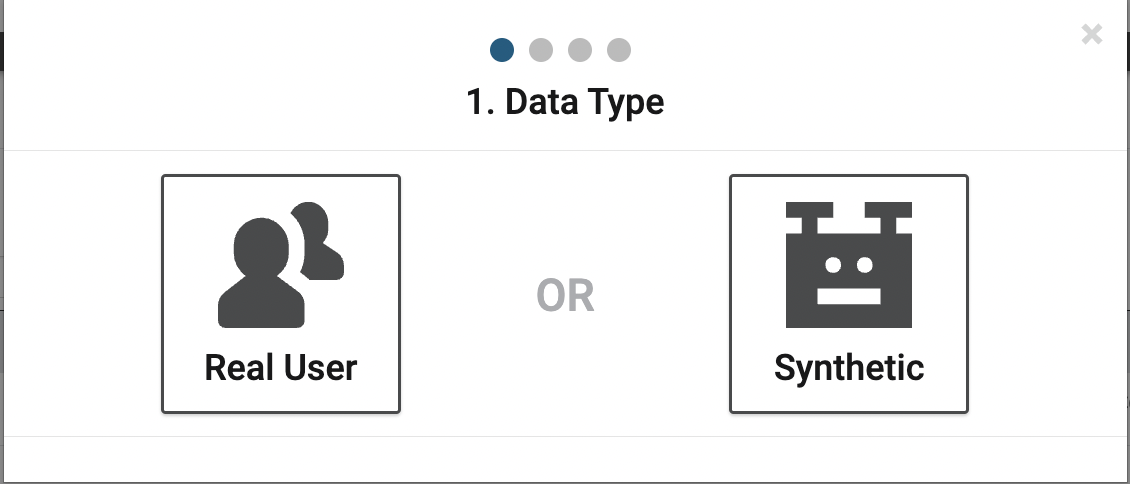
Real User
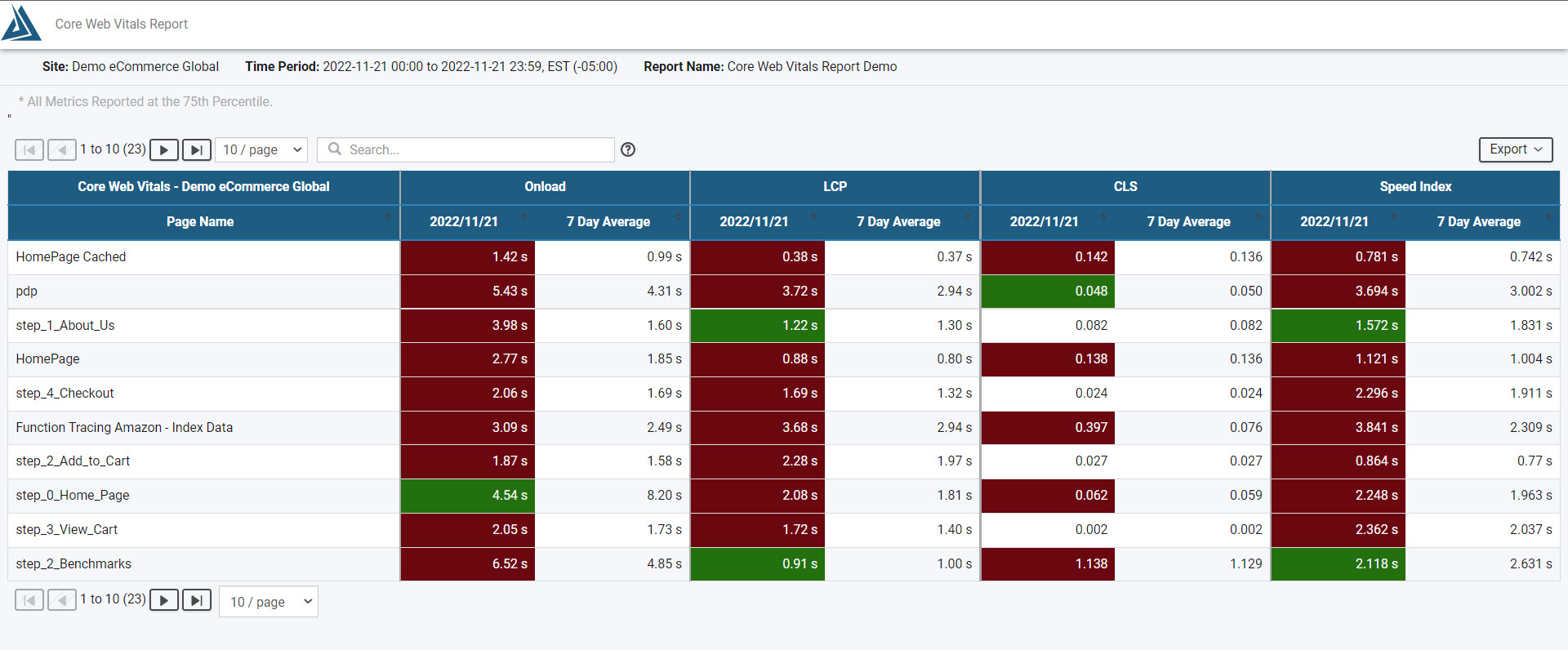
Synthetic
Configuration
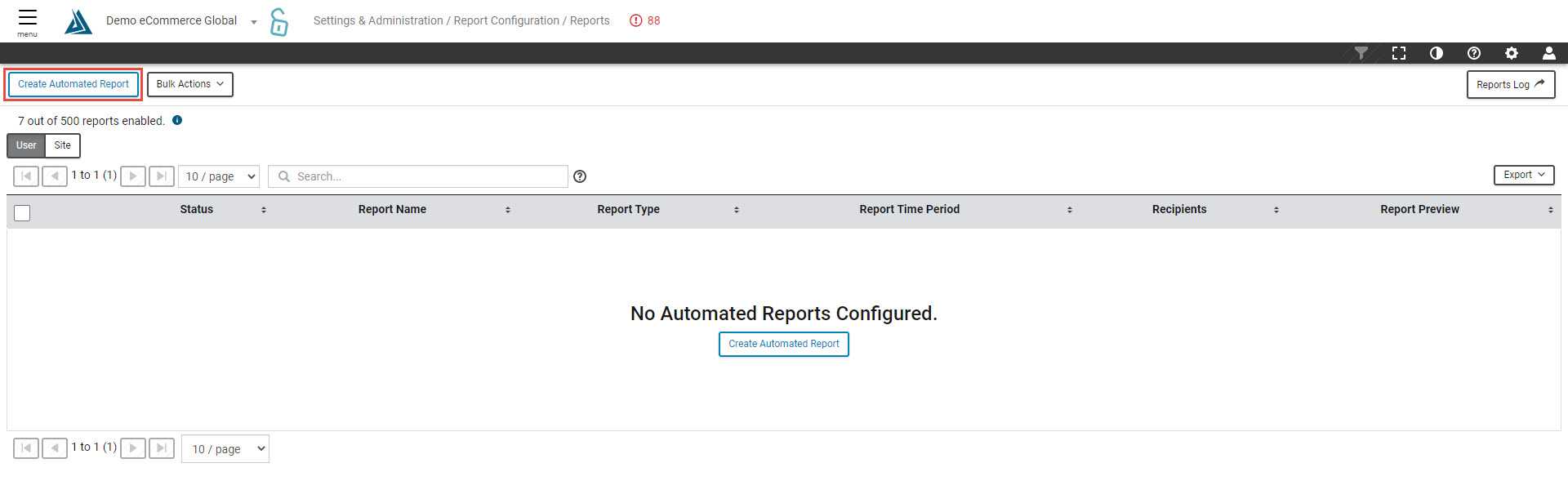
Create a new Core Web Vitals Report by going to Create Report found under the Settings and Administration menu. To view an existing report configuration, select Reports. There is a 'Create Automated Report' button on this page as well.
This report can be set up for both RUM and Synthetic.
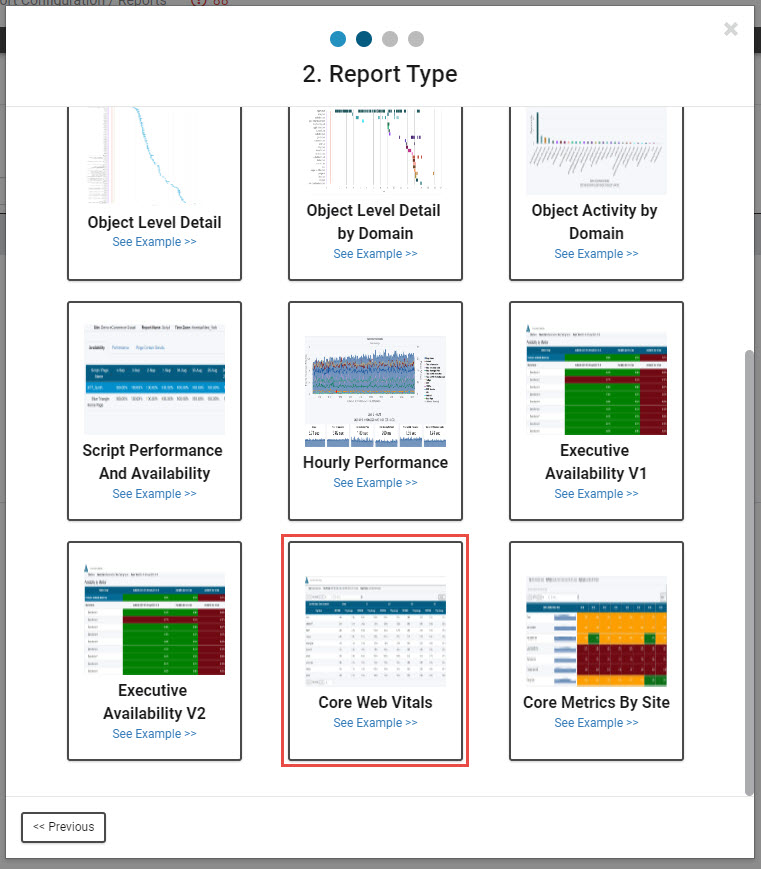
Scroll down to find the Core Web Vitals Report.
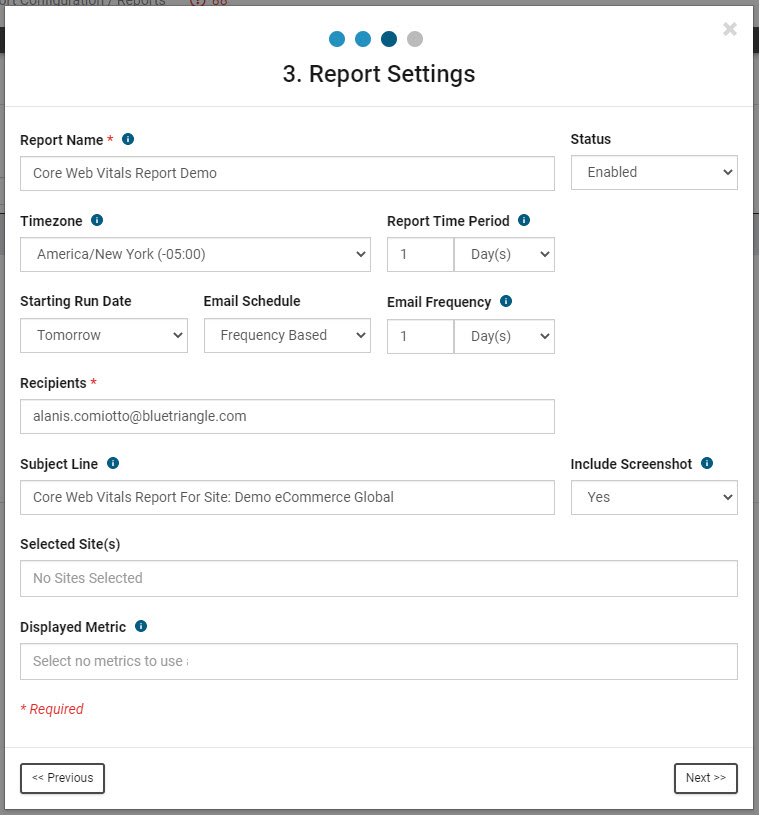
Input any desired settings, Report Name and Recipient are the only mandatory settings. You are able to select your Starting Run Date and the Report Time Period at this point. You have the opportunity to select multiple sites for this report. By leaving the Selected Site(s) field blank, it will default to the site you are currently under.
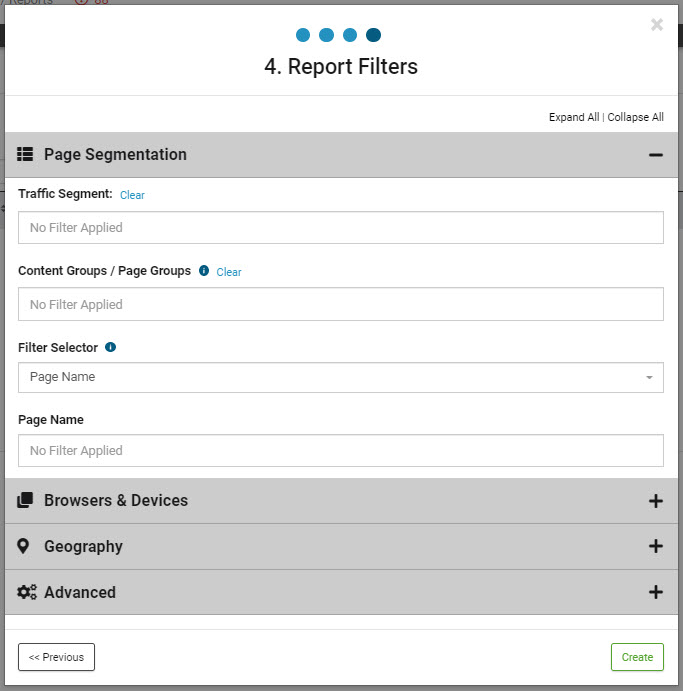
There is also the option to apply any desired Page Segmentation, Browser & Devices, Geography, or Advanced filters.
Report Details
The report will run automatically based on the time frame selected and is sent directly to the email of those specified under Recipients. You can run a report on the spot by clicking the 'Generate Report' button. Recipients do not need a BT portal login to view this report.

The report provides details on the Core Web Vitals: LCP, CLS, and INP (RUM only) or Speed Index (Synthetic only) plus Onload for all pages under the selected site, unless otherwise specified in the report settings upon creation. For more information on the Core Web Vitals, check out this article.
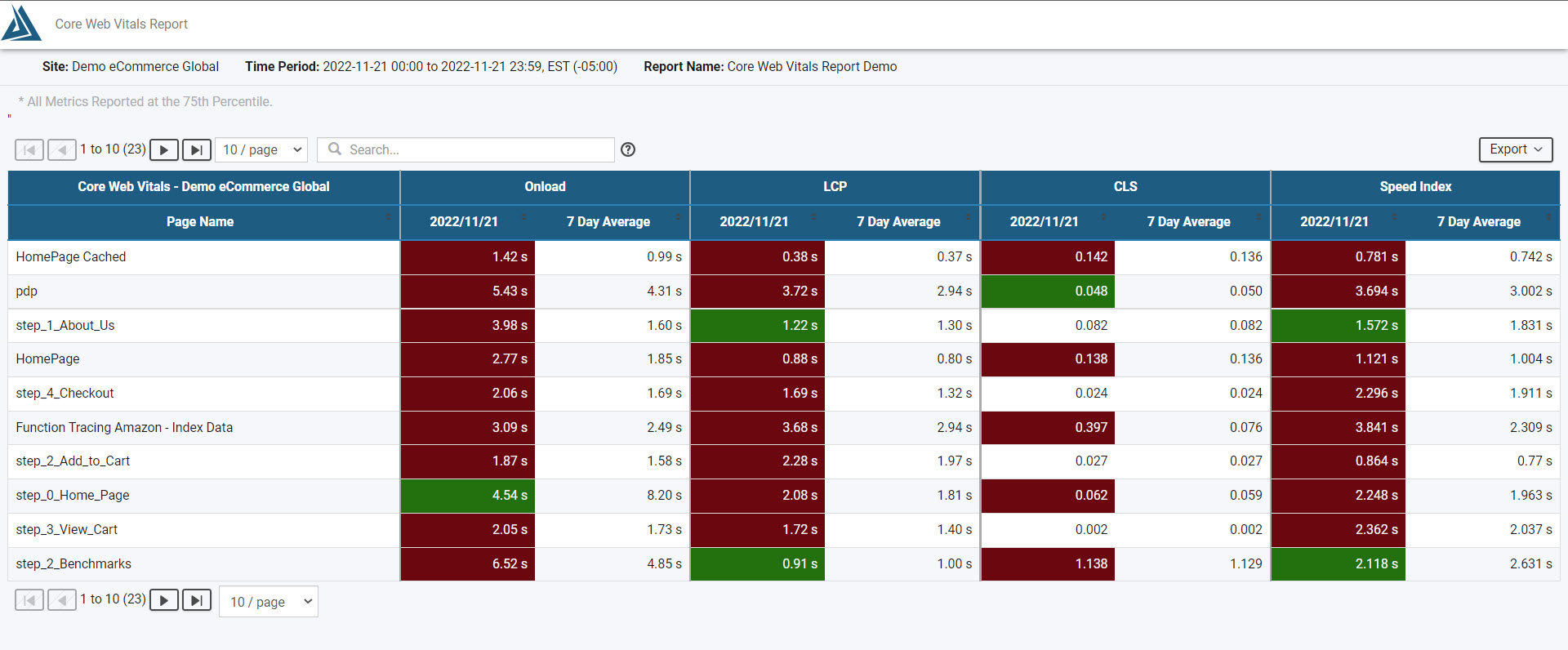
Export
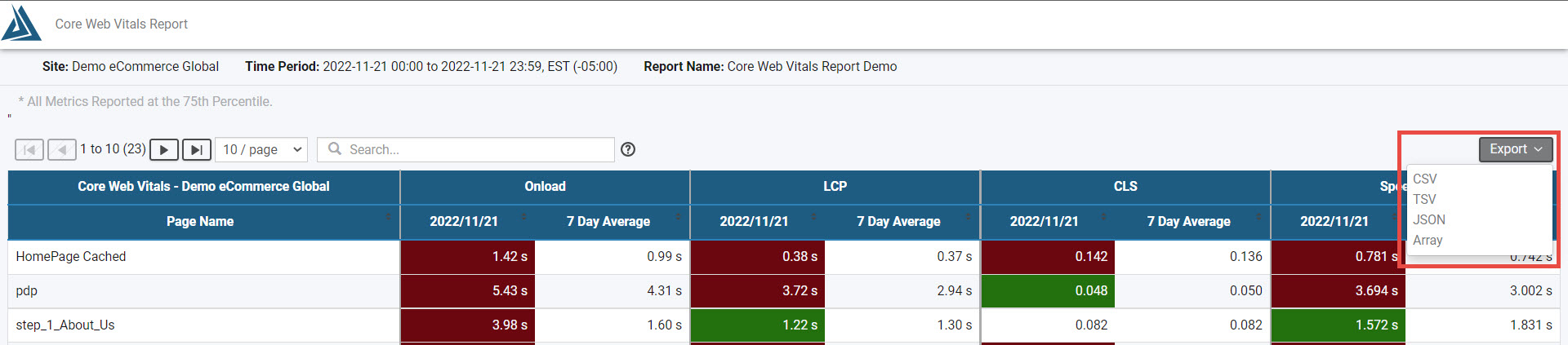
Clicking the Export button at the top right of the report allows for exporting the report as a CSV, TSV, JSON, or array.