

Overview
Notification Groups allow you to categorize groups of email addresses into logical groups (Marketing, Sales, Development, etc.). These groups can then be used to easily send reports and alerts to multiple addresses.
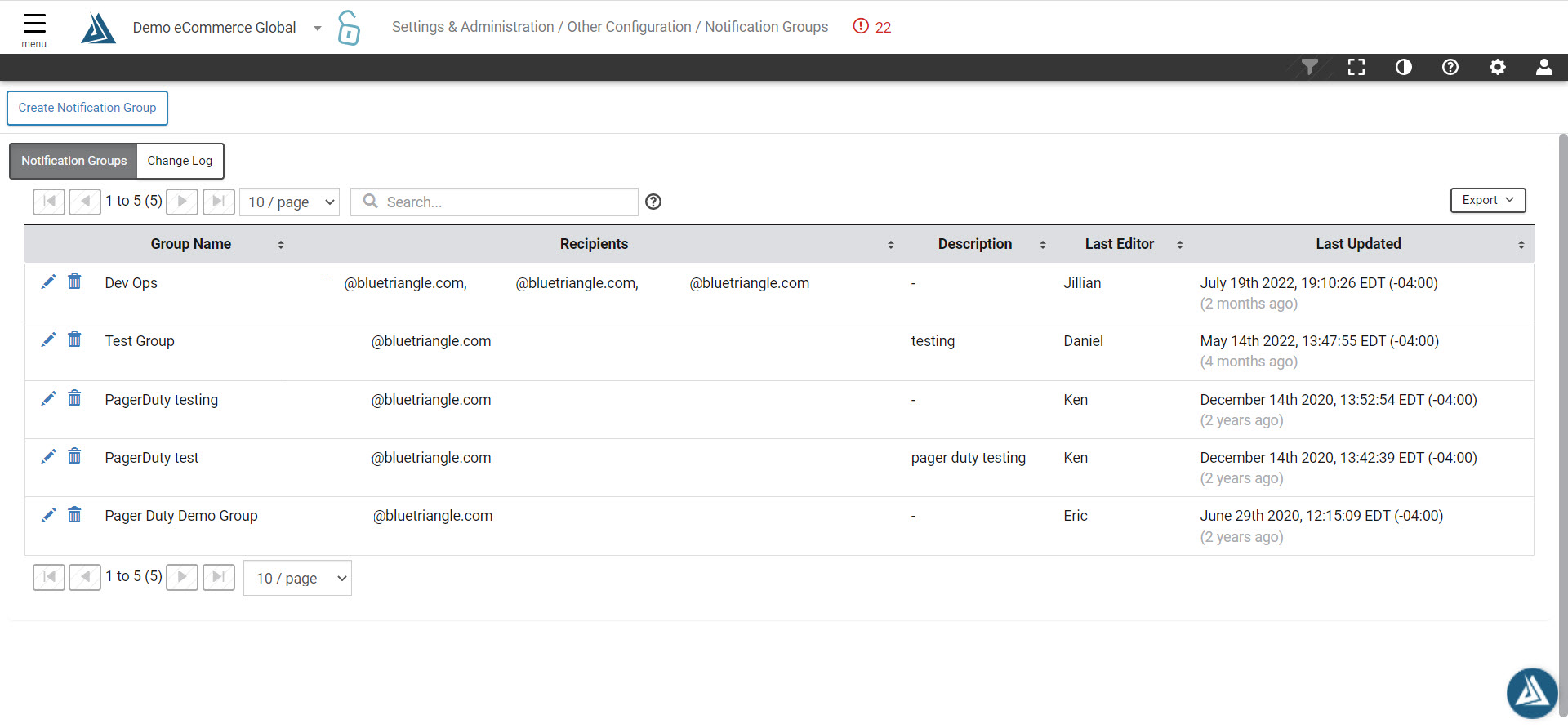
How to Navigate to the Notification Group Configuration Page
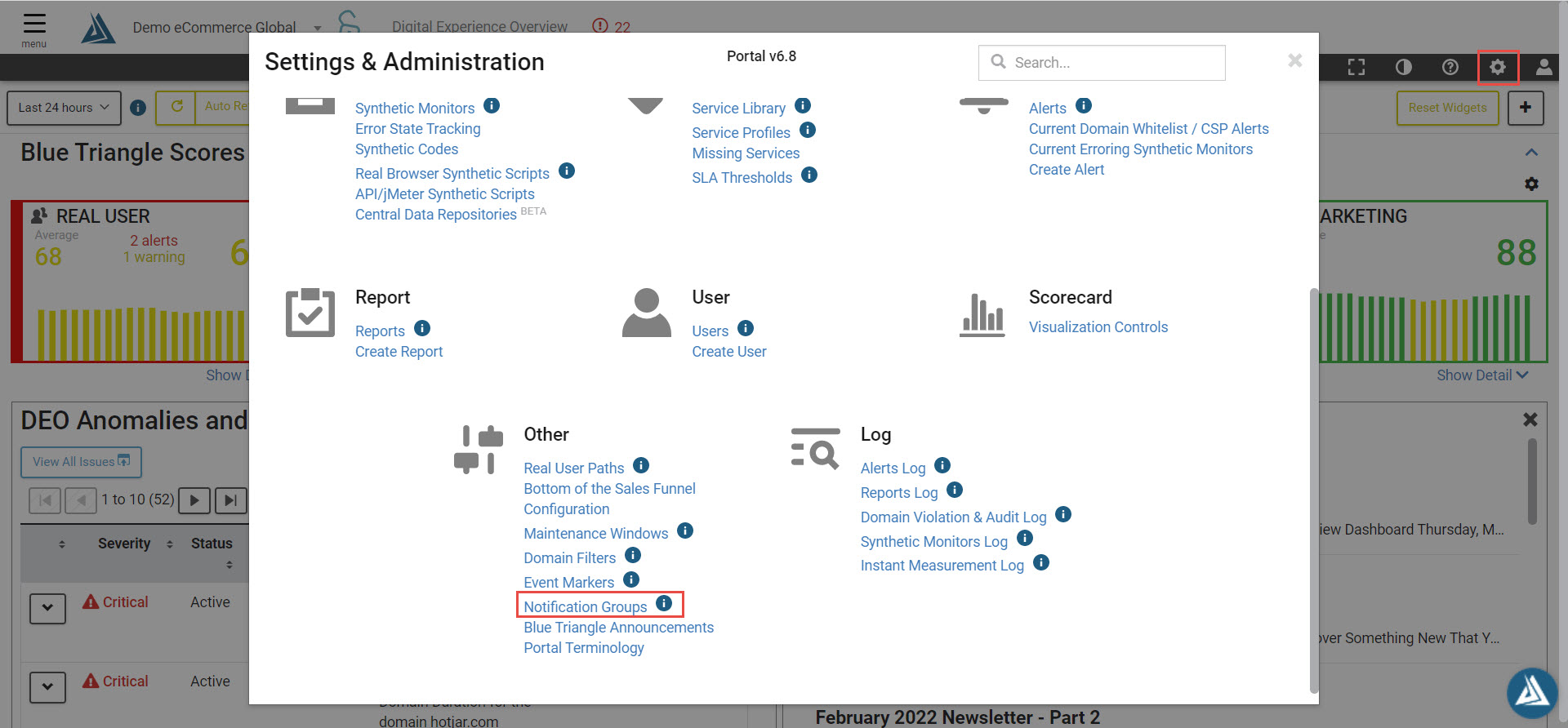
Click the Settings icon shaped like a gear in the toolbar at the top of the page, then click Notification Groups under the Other Configurations.
How to Set Up a New Notification Group
Click the Create Notification Group button towards the top left of the screen and a modal should appear in the center of the screen.
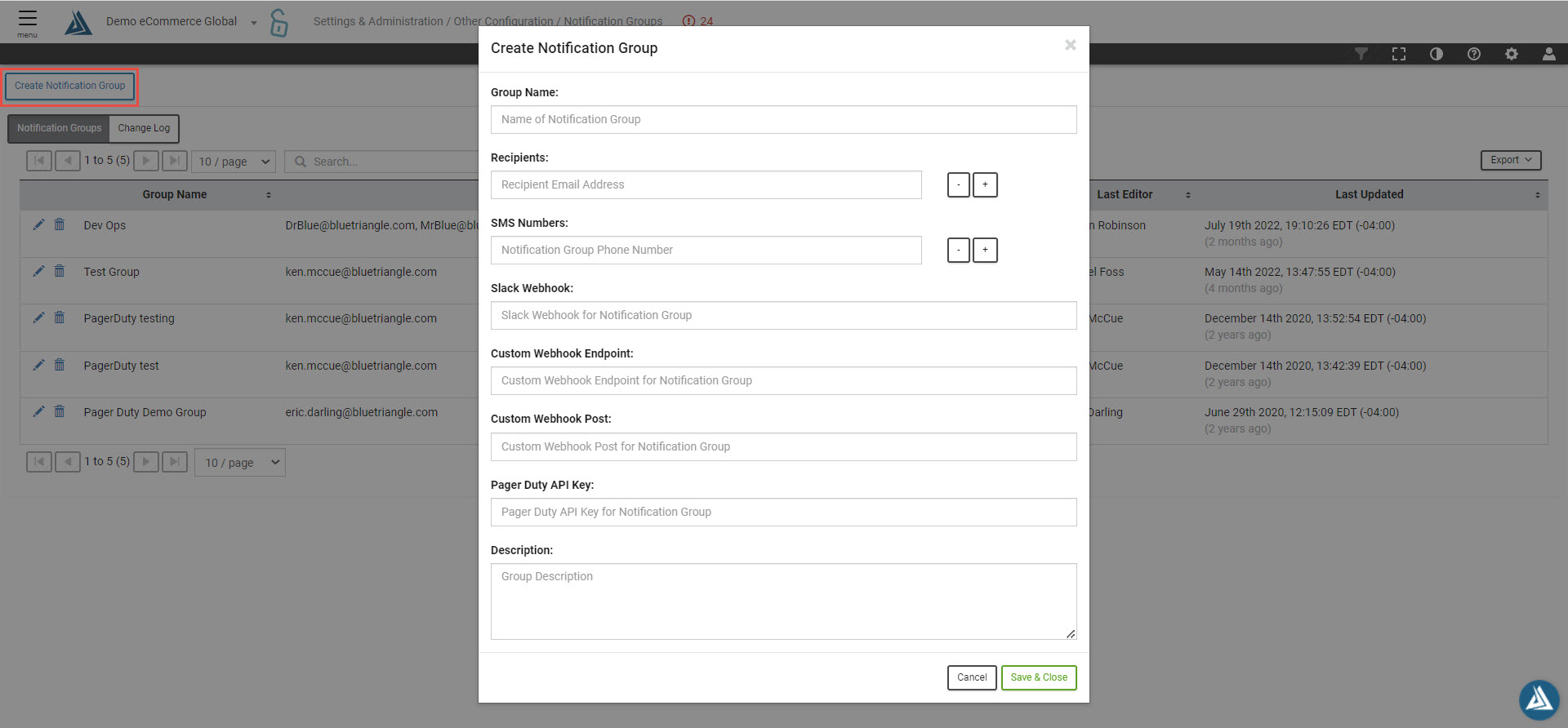
Enter in a group name, recipients email addresses, and a description for the group. You can also include SMS numbers, Slack Webhooks, Custom Webhook Endpoints and Post, and a Pager Duty API Key.
Note: Duplicate email address are not allowed to be entered for the same group.
Click Save & Close to save newly created Notification Group.
Frequently Asked Questions
What is the limit for the number of emails in a notification group?
-
512 emails
What is the limit for the number of notification groups or emails allowed on an alert or on an error state tracking notification?
-
512 notification groups/emails