Overview
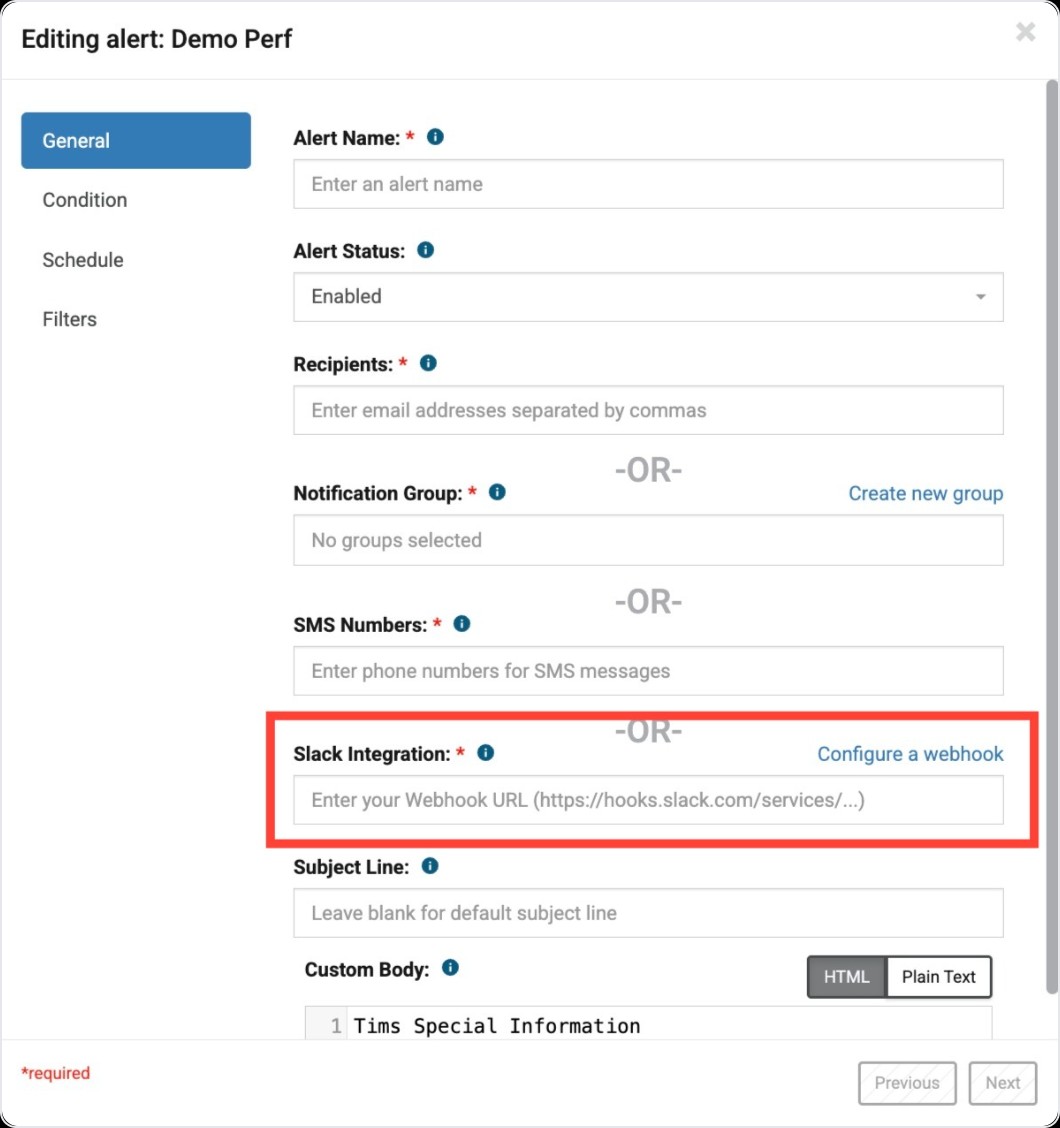
Using a webhook, users can send Alert notifications from Blue Triangle to Slack. To set this up, you will need Admin level Slack access. Blue Triangle access is not required for initial set up, but Alert Create/Edit permissions will be needed for configuring the desired alerts.
Interactive Demo
How to Create an App in Slack
1. Using this url: Slack API: Applications | Slack log in to slack and select 'Create New App'. Here is the link to the Slack documentation on this process.
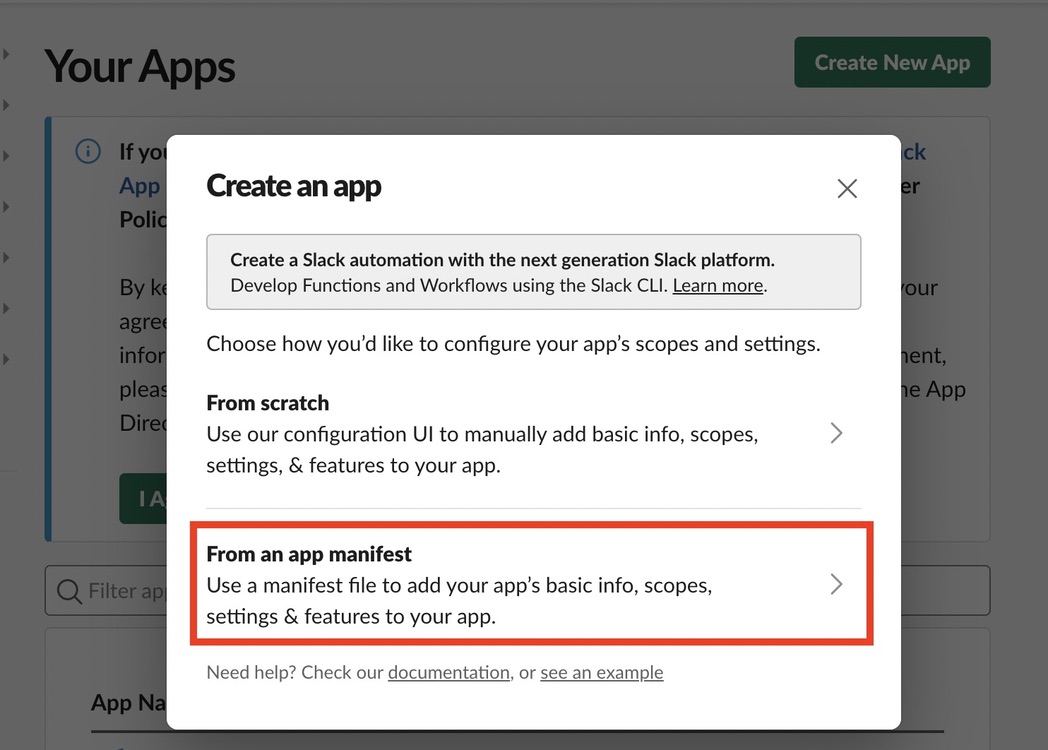
2. Select the "From an App Manifest" option
3. Select your workspace
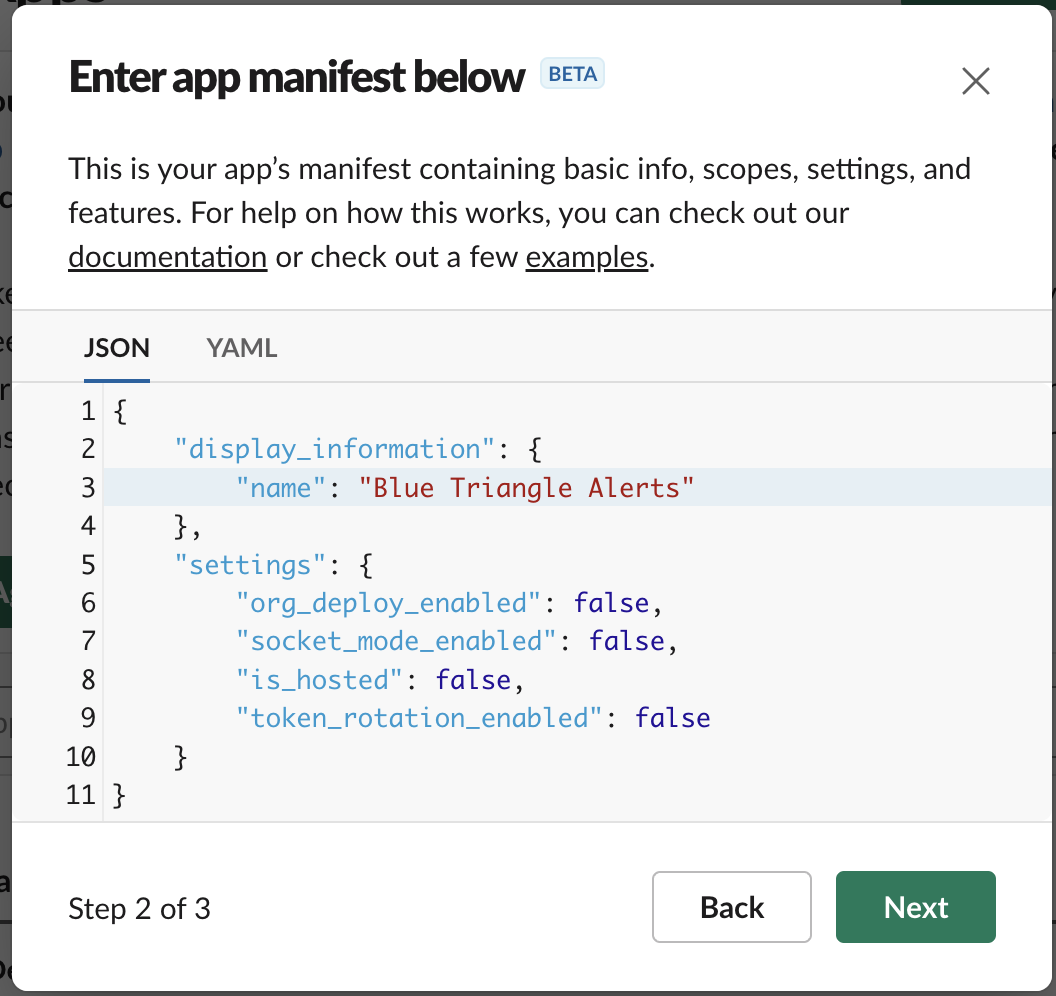
4. Next will be a modal where you can enter your app manifest. We can skip this step by clicking 'Next'. You are able to set the "Display Name" of your app at this time by replacing "Demo App" with your app name in the code block provided. We recommend naming your app "Blue Triangle Alerts".
5. Finally, on the "Review summary & create your app" configuration page, select "Create".
How to create a new webhook to link to your Slack Channel
1. On the main page for your new app, select "Incoming Webhooks"
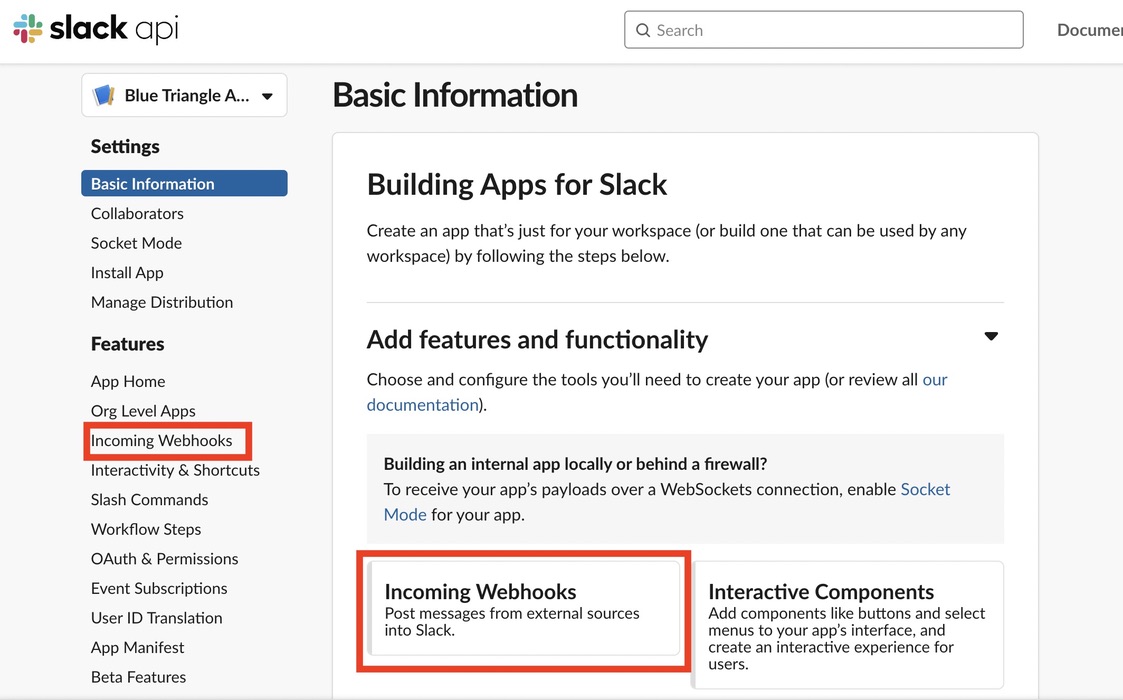
2. You will need to first activate webhooks.
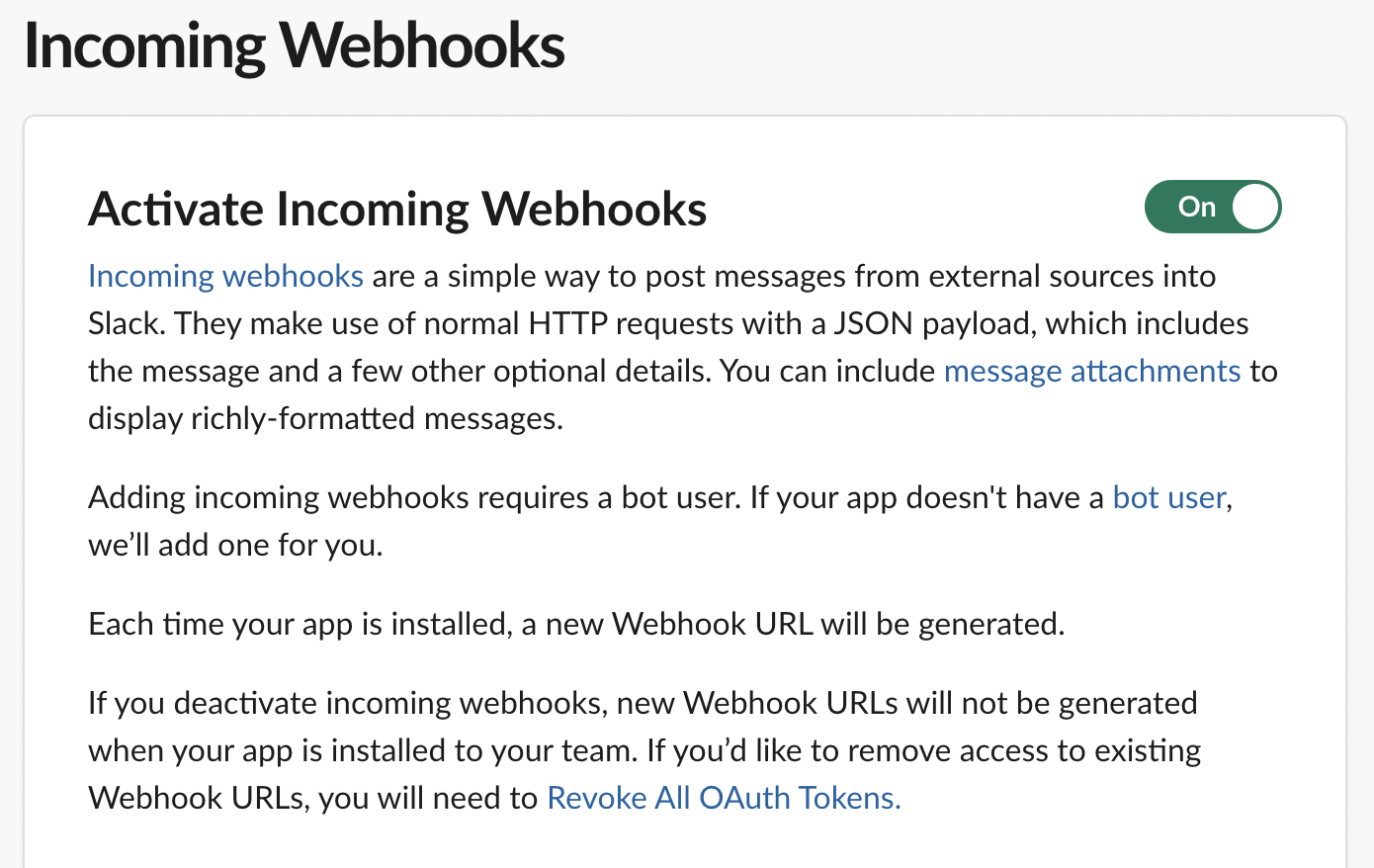
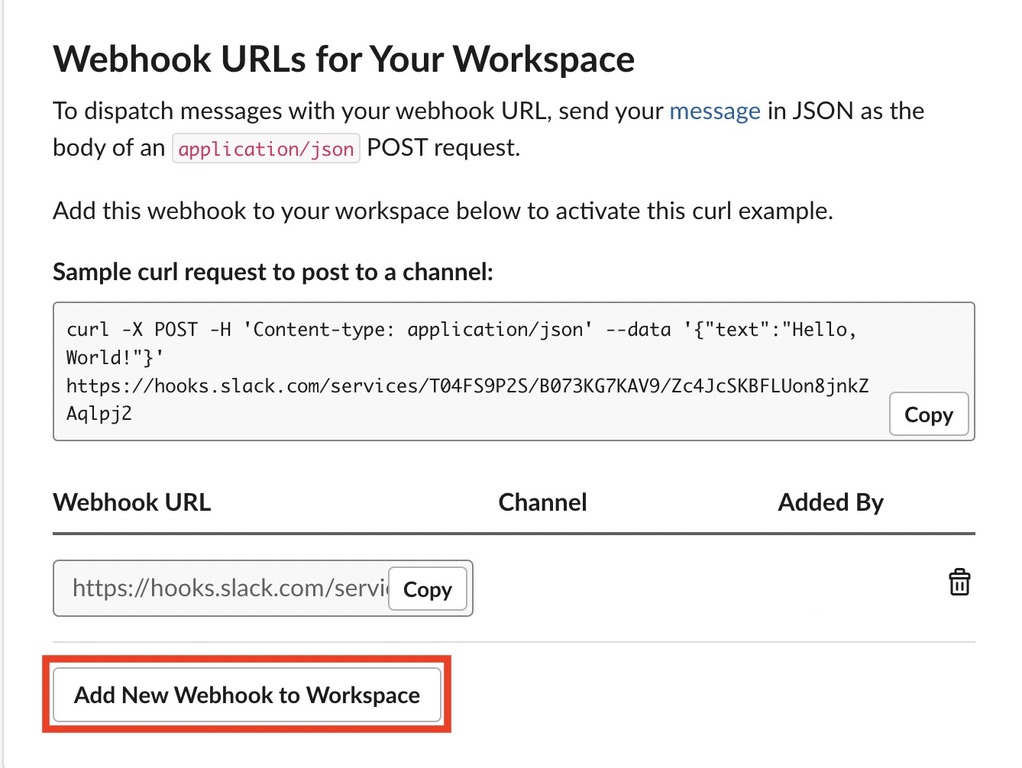
3. As a Slack Admin, scroll down on the "Activate Incoming Webhooks" and select "Add New Webhook to Workspace".
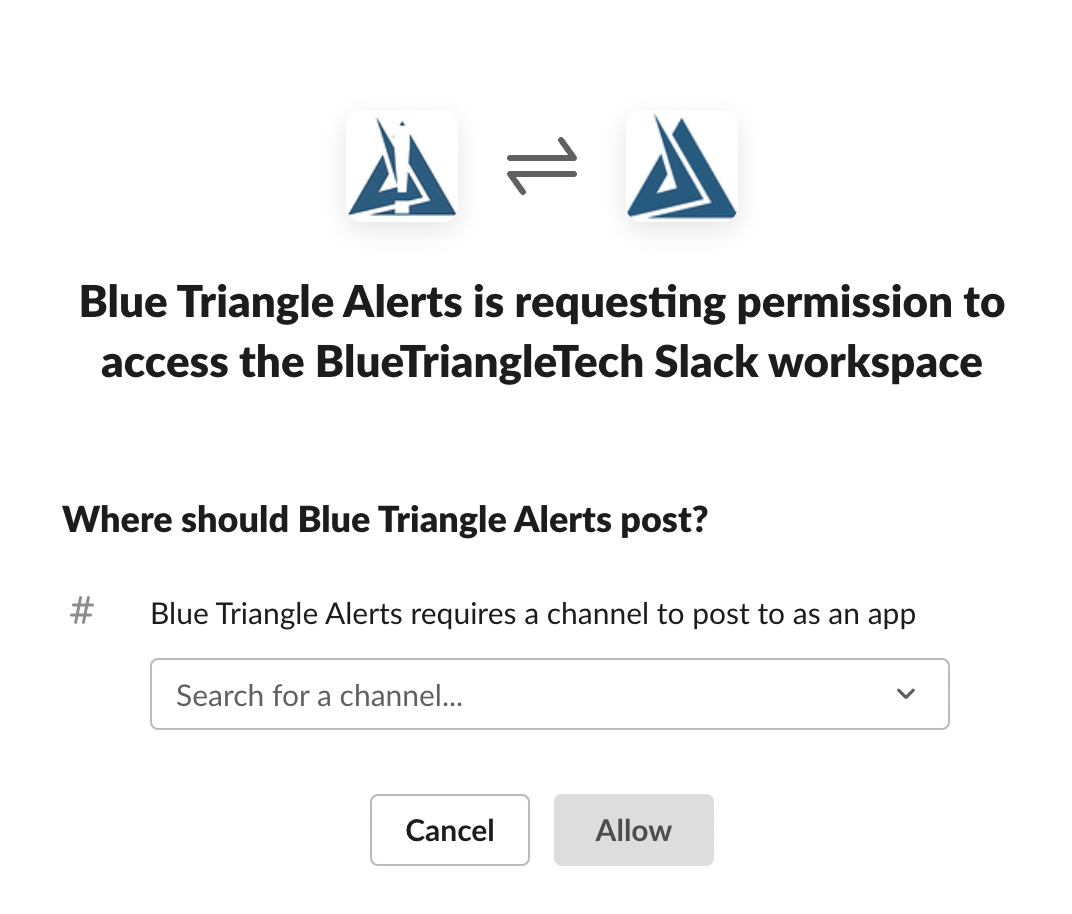
4. Select where you want the Alerts to be sent in Slack.
How to add a webhook to an Alert
1. On the Alerts page Advanced Reporting & Alerting → Alerting → Alerts
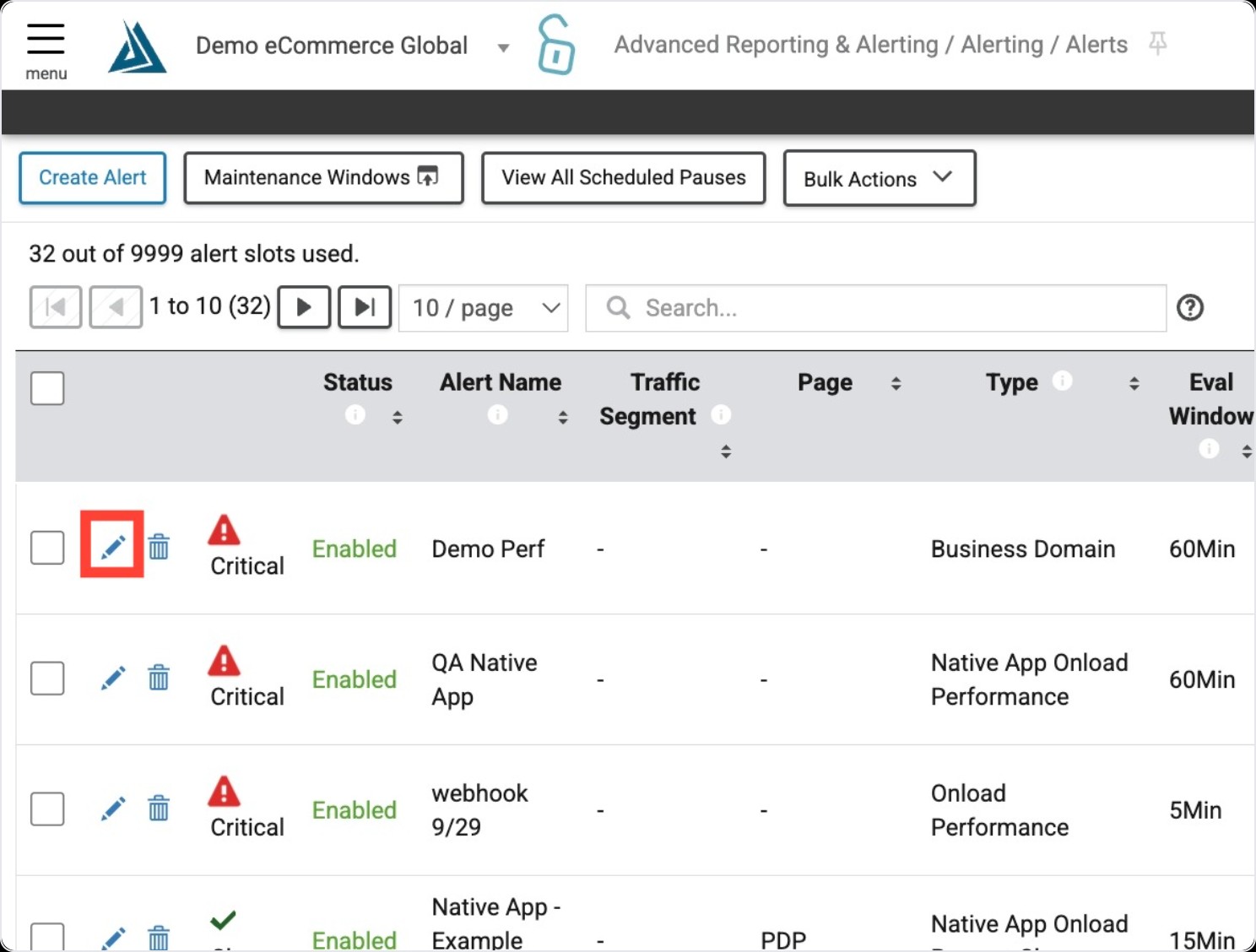
2. Add the Webhook URL into the ‘Slack Integration’ text box and save the alert.