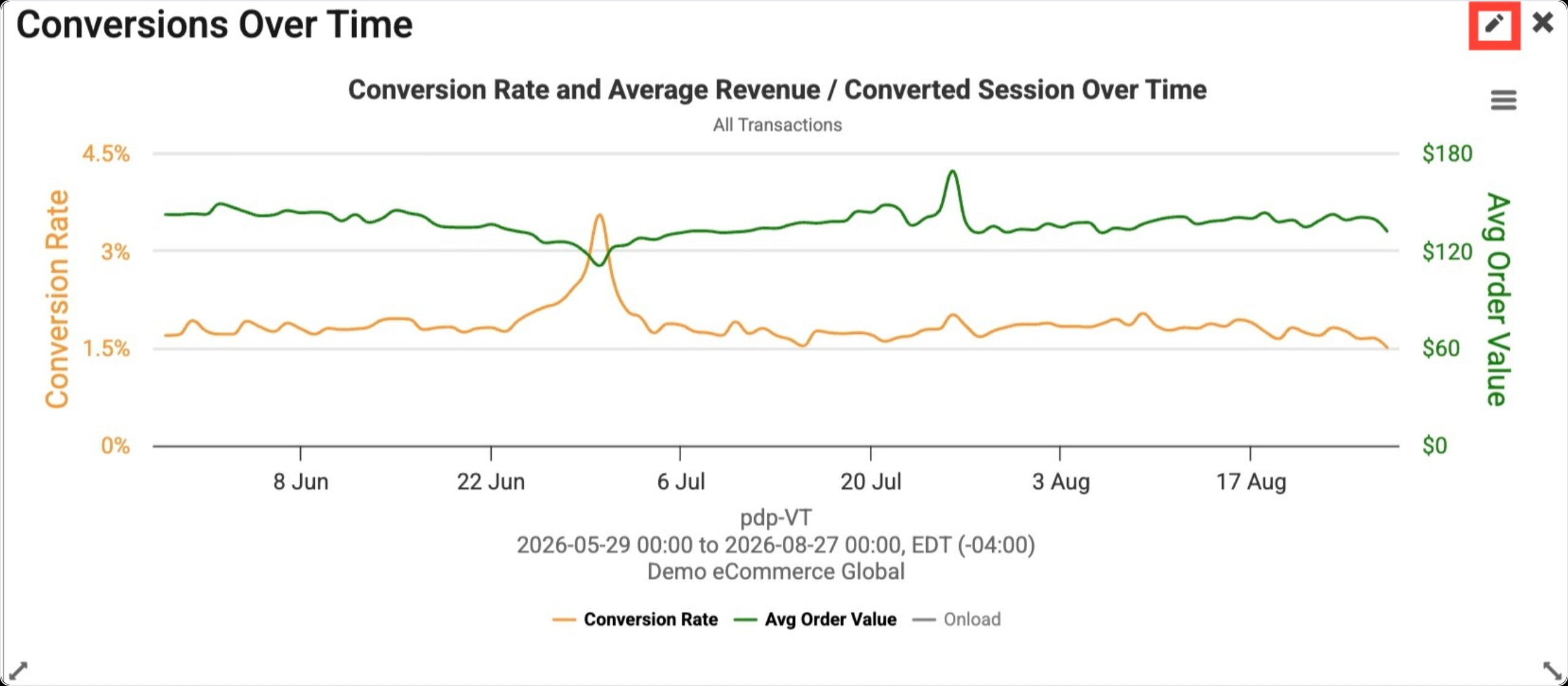
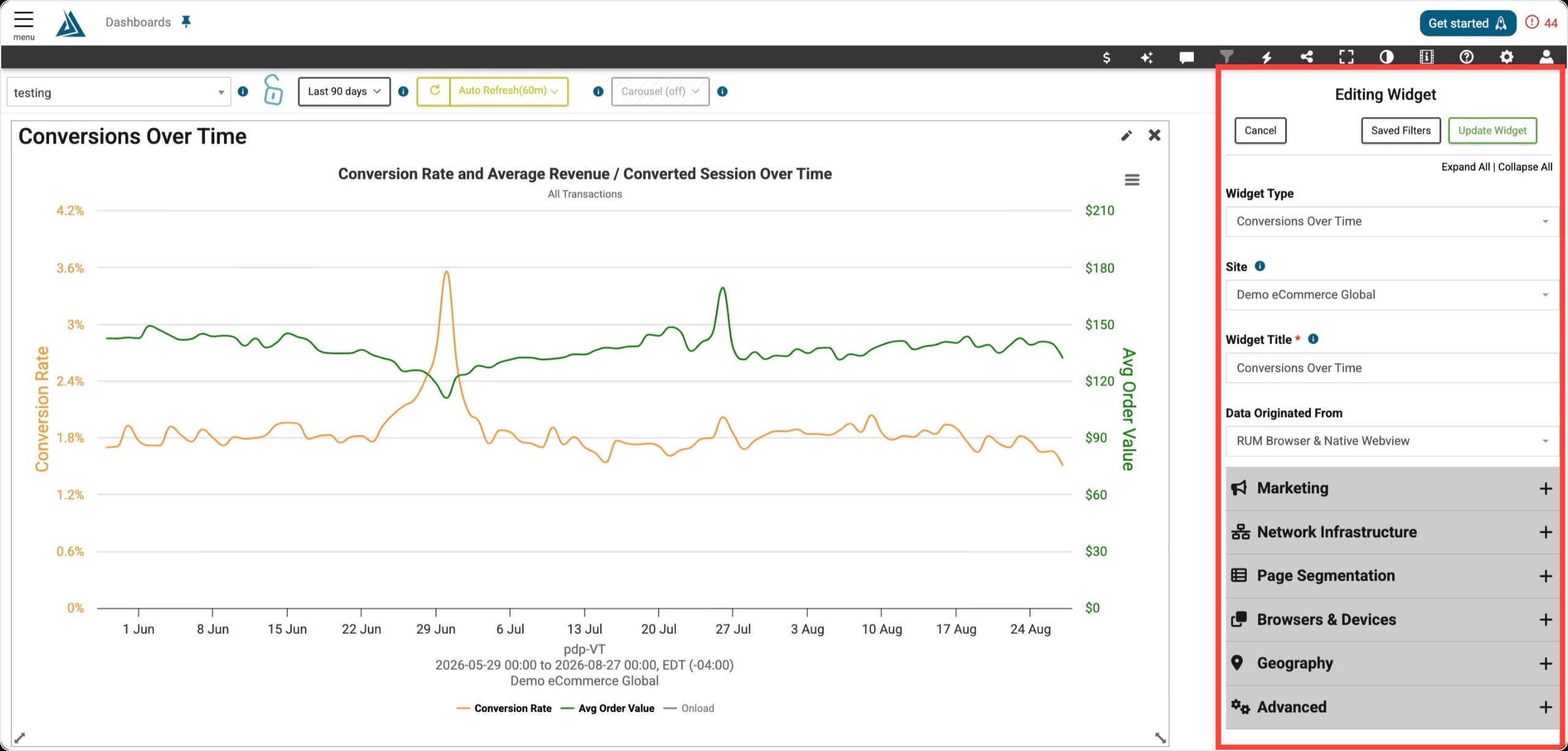
Overview
Custom Dashboards allow you to create different views of your data using any of our customizable widgets. You are able to share these views multiple ways with those with portal access and those without, through our shareable link option.
Where to Find Custom Dashboard Configuration
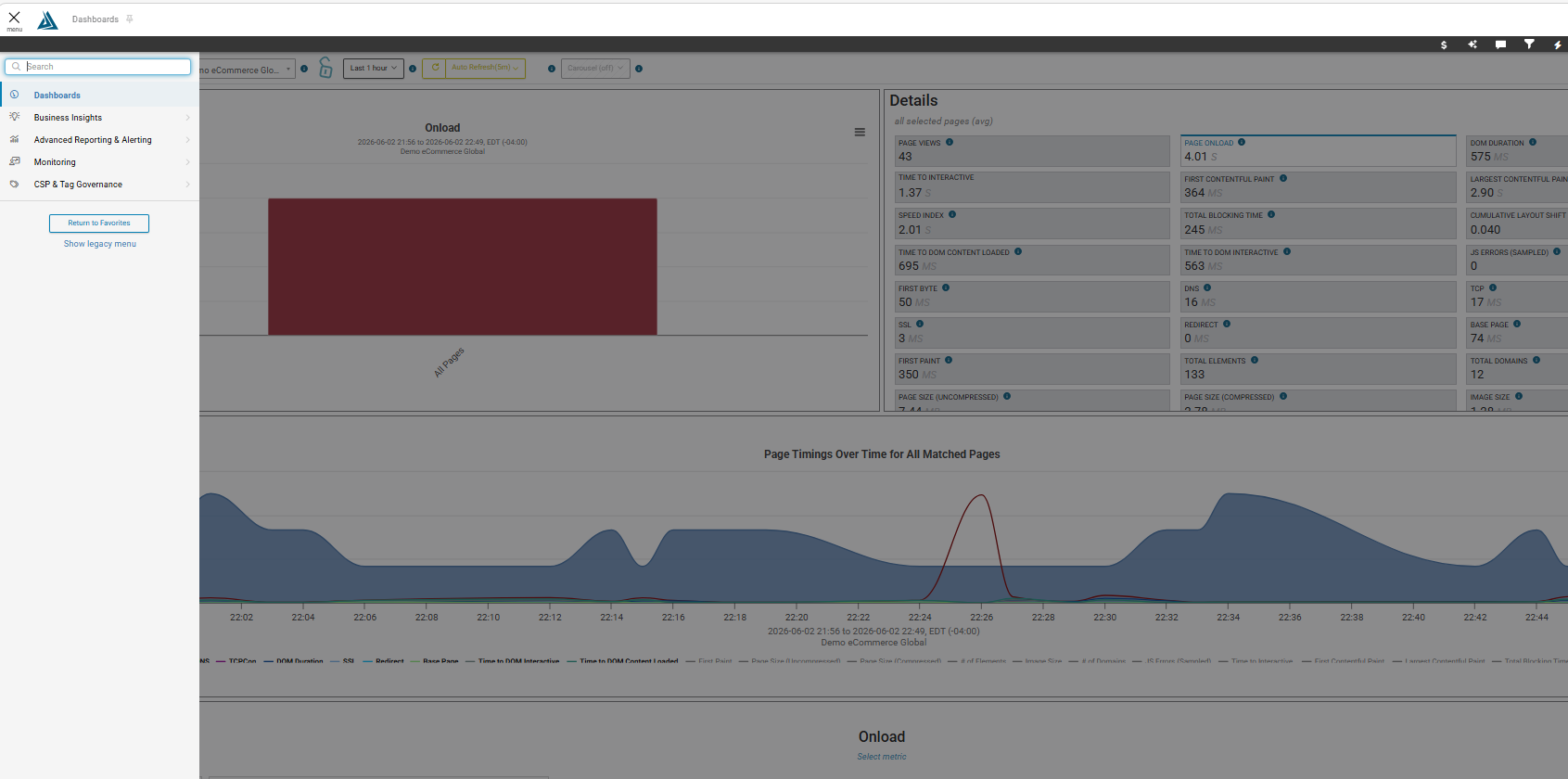
Dashboards are found through the left-side hamburger menu under 'Dashboards'.
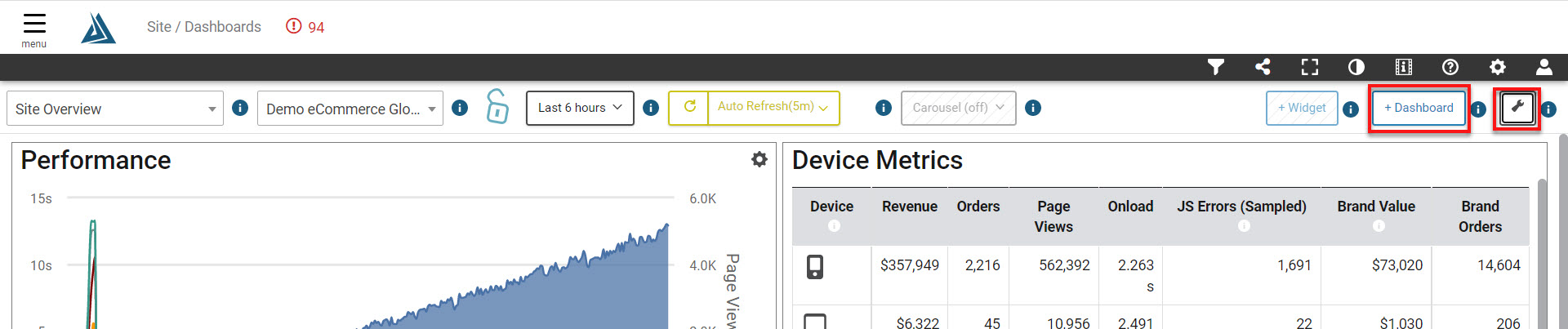
This will lead you to your Dashboard home page, where you can then click on the +Dashboard button to be prompted to create a new dashboard in the Dashboard Manager. Alternatively, clicking on the Gear icon at the top right hand of the page will open the Dashboard Manager, where you can then click Add New Dashboard.
A new blank entry will appear at the bottom of list. Enter title and then click Save New Dashboard in the bottom right of the Dashboard Manager.
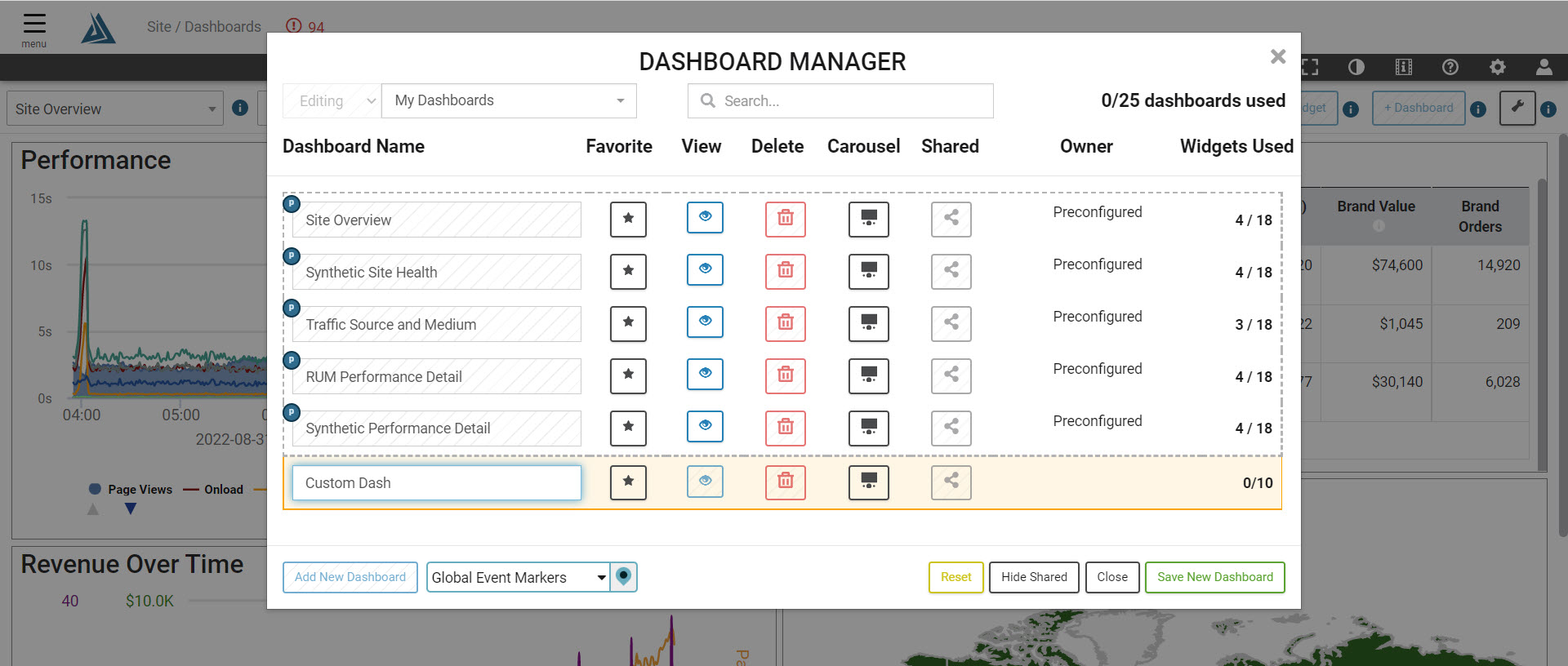
At this point, your new custom dashboard has been created and is ready for you to start adding widgets. Click the eye icon to the right of the new dashboard to view it and begin creating widgets, or click Close to hide the Dashboard Manager and go back to your current dashboard.
How to Build Your Dashboard
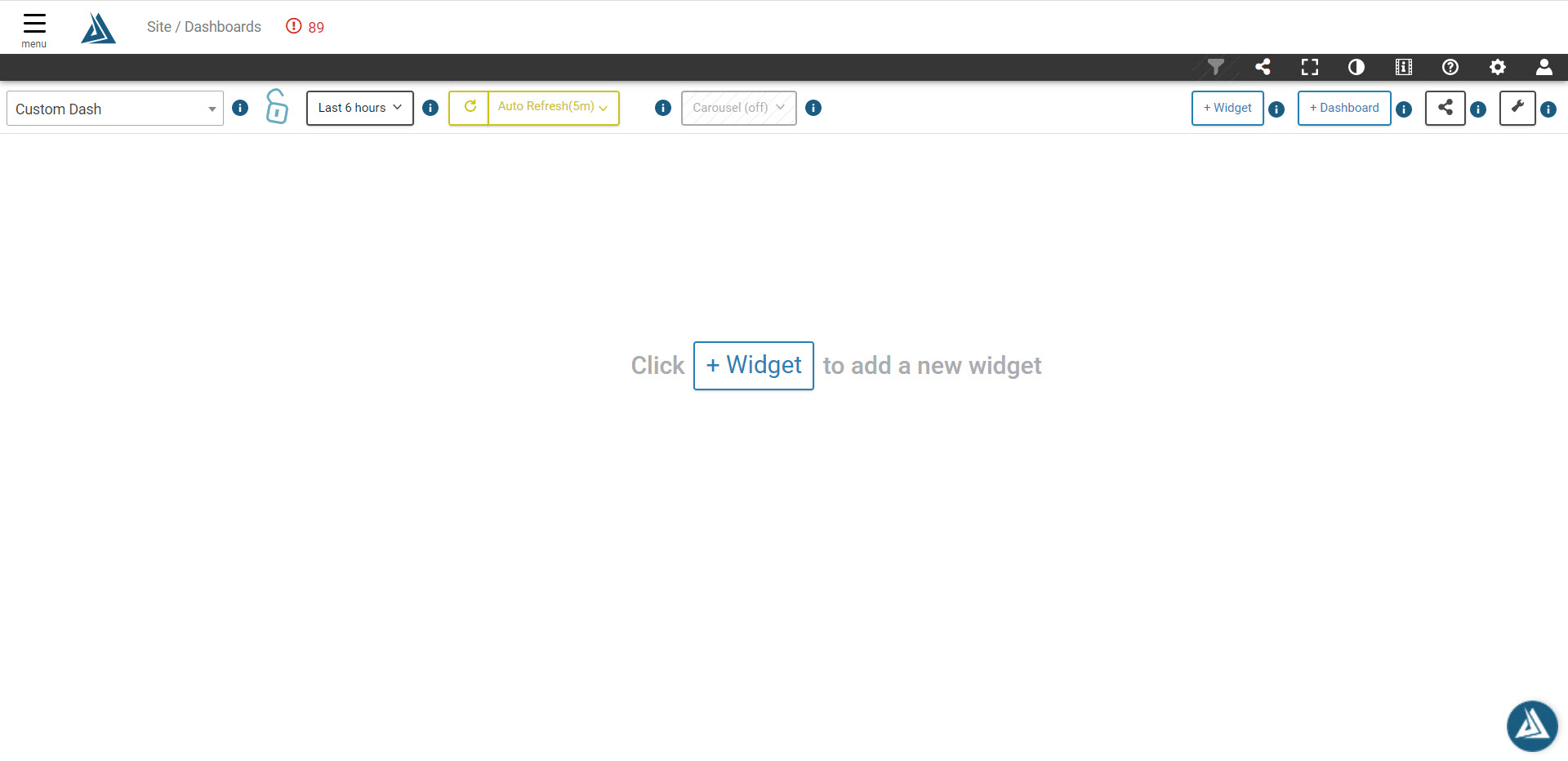
When you open your new dashboard you will see a blank page that will prompt you to add widgets.
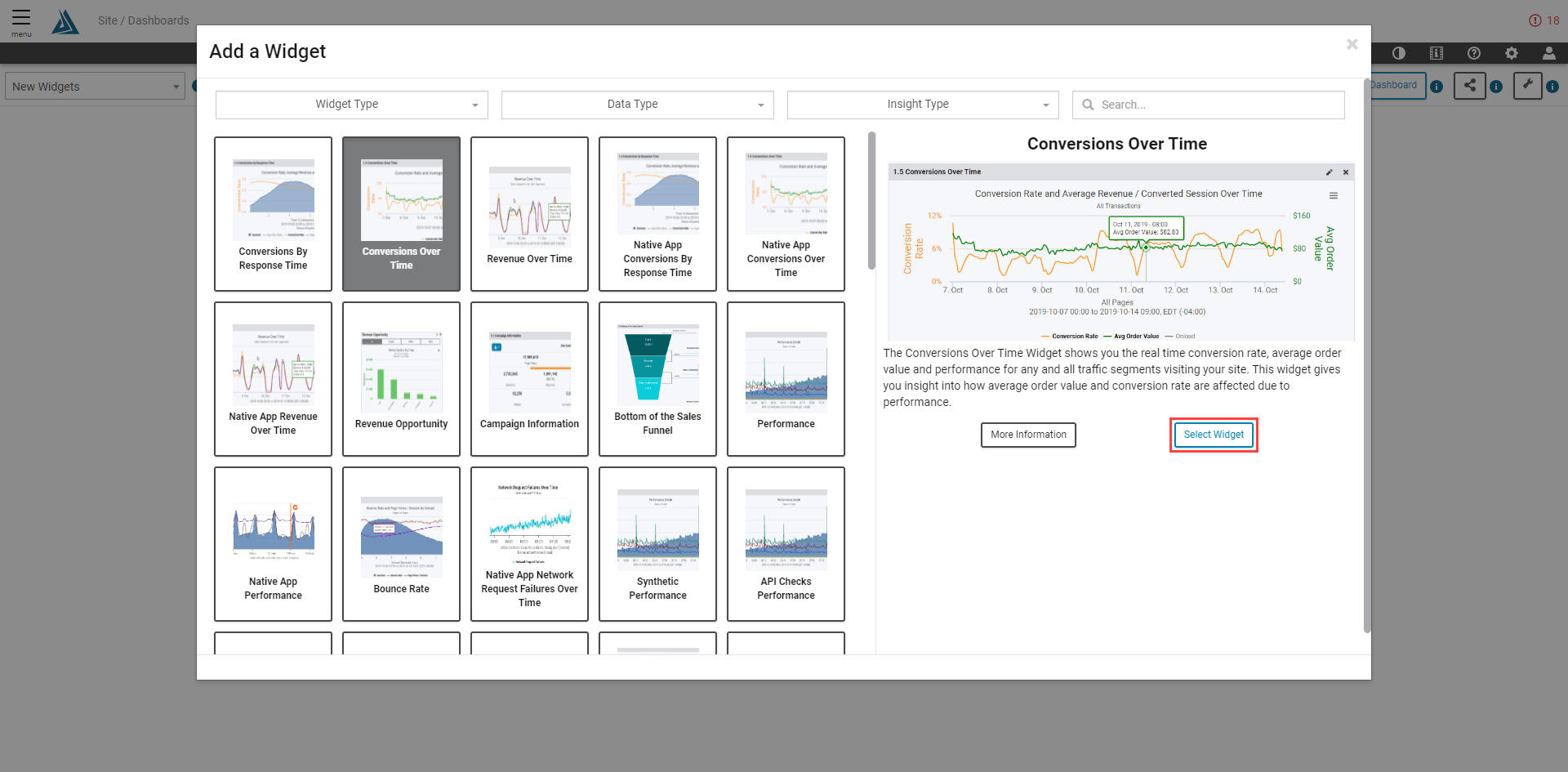
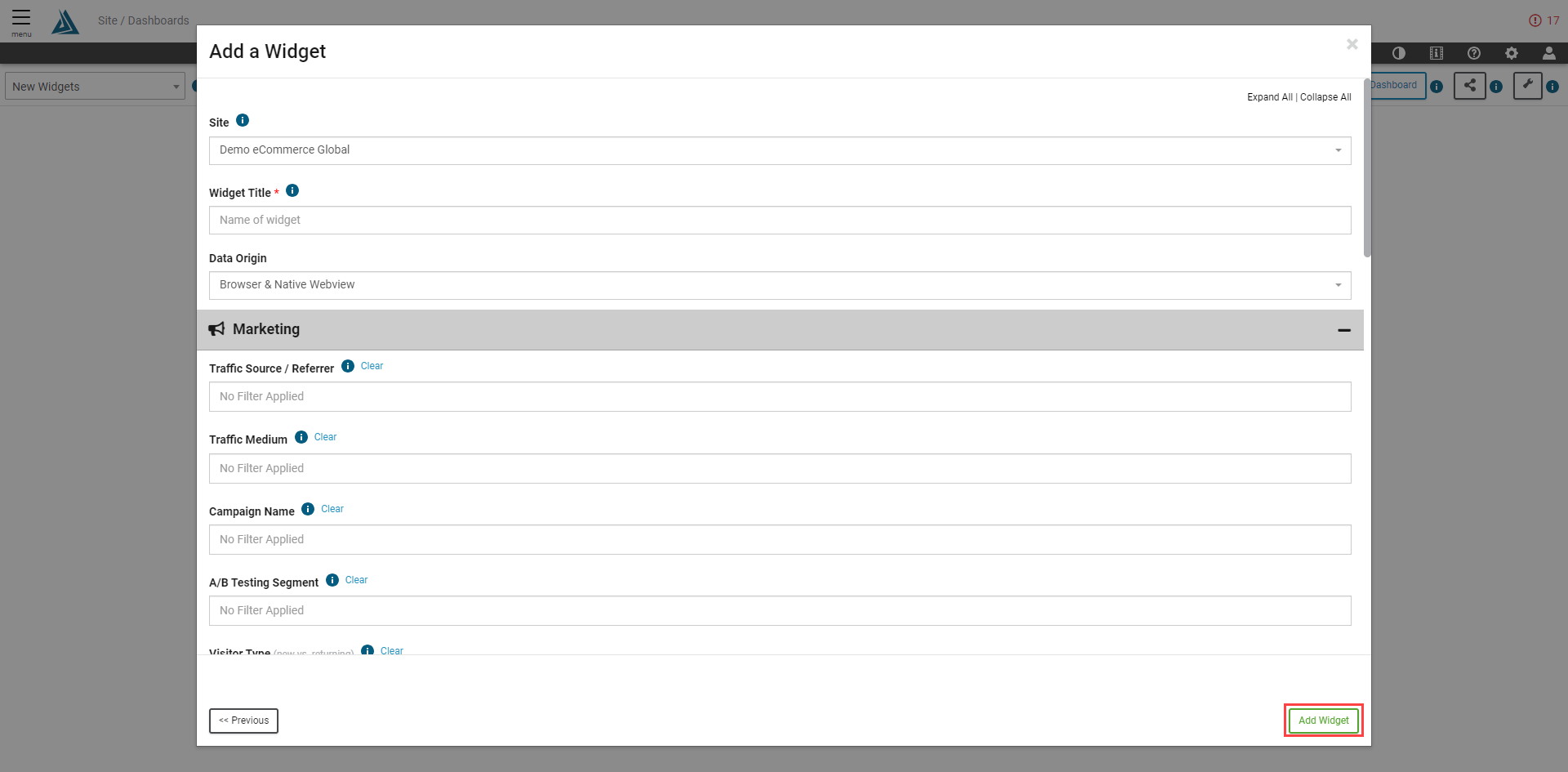
Click on the +Widget button either in the middle of page or on the top right filtering menu. This will open a menu of available widgets can be searched and sorted by Widget Type, Data Type, and Insight Type. For more information on available custom dashboard widgets please visit this article. After selecting a widget, you'll be prompted name the widget and apply any required filters. Click Add Widget at the bottom right of the screen when finished.
Editing an Existing Widget