

Overview
To implement SSO with Blue Triangle, users will first need to be created within Blue Triangle’s system. Users must have identical email addresses between Blue Triangle’s system and the SSO Service. The email address is a required attribute that will need to be sent to Blue Triangle in the SAML Assertion.
To configure SSO for your account, go to Settings > Account > Single Sign On Settings.
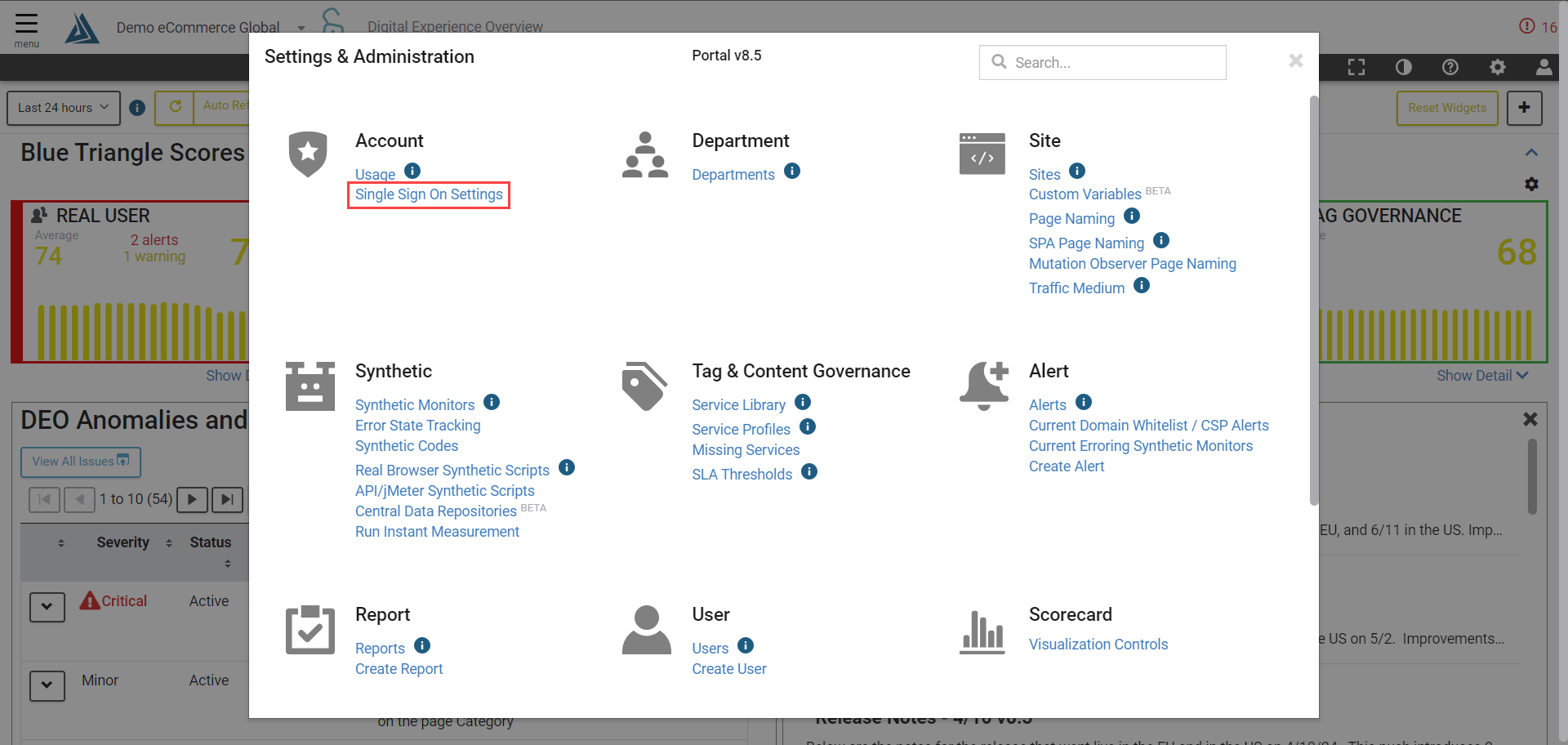
Click Create Configuration and you will see the following. Note: You must be an Account Admin in order to access the SSO configuration.
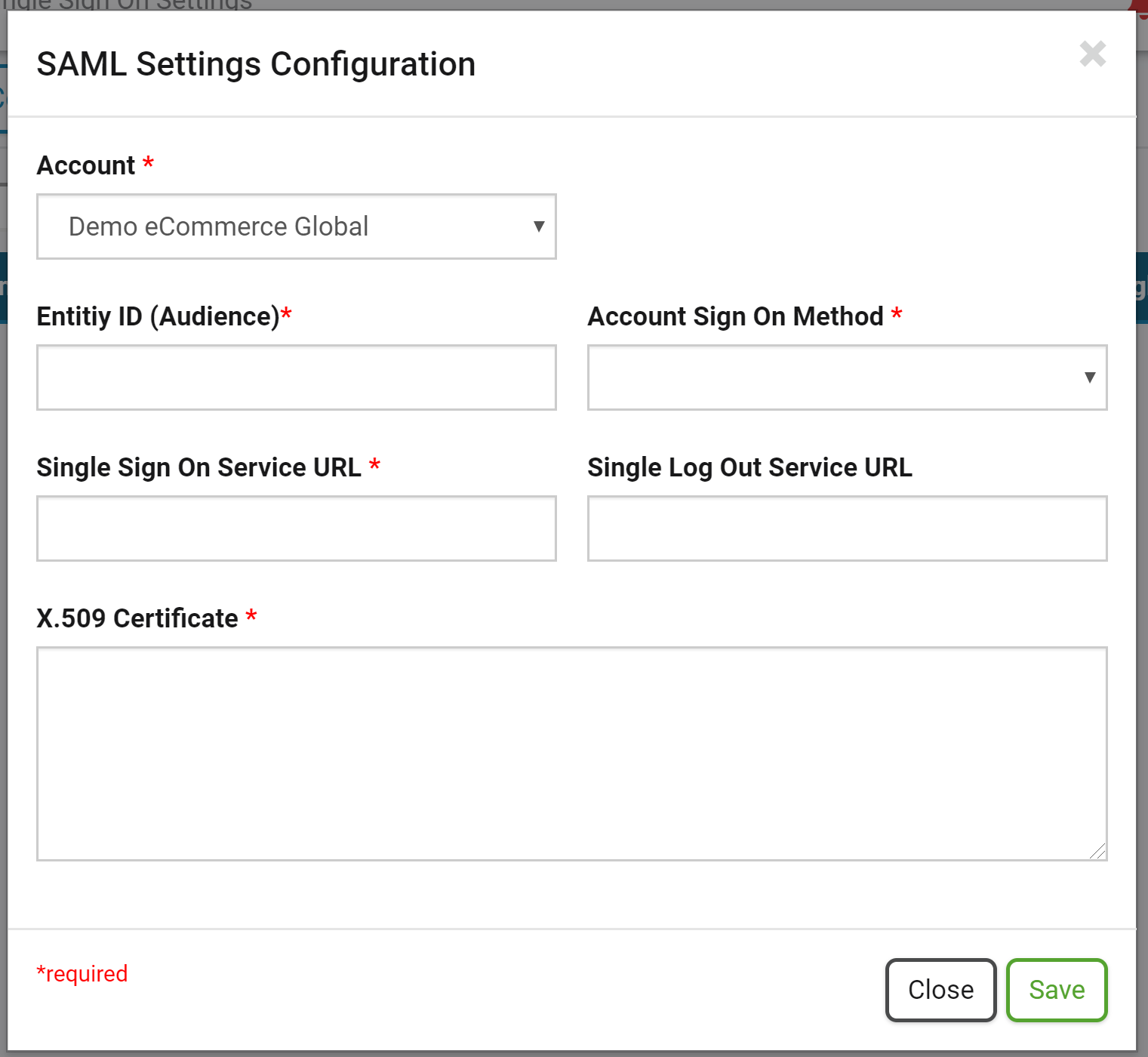
Note: Users must have identical email addresses between Blue Triangle’s system and the IDP (Identity Provider).
What Blue Triangle Will Need From You
In the Blue Triangle configuration, there are 4 required fields:
-
Entity ID (Audience) - Also known as Issuer URL
-
Account Sign On Method - Choose between Direct, Single Sign On, or both. Single Sign On restricts authentication to Blue Triangle through SSO only. Direct restricts authentication to Blue Triangle through Blue Triangle only. Both gives the end-user the ability to choose either method.
-
Single Sign On Service URL - This is the SAML 2.0 Endpoint
-
Single Log Out Service URL - optional
-
X.509 Certificate - Must be X.509 PEM
What Your SSO Provider Will Need
-
Entity ID (Audience)
https://portal.bluetriangle.com/btportal/web/index.php?r=site/metadata
-
Single Sign on URL (also known as ACS Consumer URL or Recipient)
https://portal.bluetriangle.com/btportal/web/index.php?r=site/acs
-
Relay State
https://portal.bluetriangle.com/btportal/web/index.php?r=site/dashboard
-
Single Log Out Url
https://portal.bluetriangle.com/btportal/web/index.php?r=site/sls
Google Sign-in
In Blue Triangle you can sign in with Google given the following pre-requisites:
-
You have a G Suite login
-
The email address you're using is associated with an existing user in Blue Triangle
Additional Information
-
BT SSO does not currently provision users. The users will need to be created in both the portal and the customer’s IDP first.
-
If you need to be able to use UAT or both portal.bluetriangle.com and portal.bluetriangletech.com, those must be specified in the IDP SAML config for the BT application as additional ACS URLs. For instance to properly SSO to all of those portal URLs, they’ll need to specify each of the following ACS URLs:
-
https://portal.bluetriangle.com/btportal/web/index.php?r=site/acs
-
https://portal.bluetriangletech.com/btportal/web/index.php?r=site/acs
-
https://portaluat.bluetriangle.com/btportal/web/index.php?r=site/acs
-
https://portaluat.bluetriangletech.com/btportal/web/index.php?r=site/acs
-
-
BT SSO supports both Identity Provider (IDP)-initiated and Service Provider (SP)-initiated SSO. This means users can both
-
Click a button in the Identity Provider (IDP) that opens up the BT Portal and auto logs them in
-
Navigate to the BT Portal (Service Provider) and initiate the SSO from the BT Portal login page
-
-
The unique identifier is required to be an email address. Users must have identical email addresses between Blue Triangle’s system and the IDP (Identity Provider).
Holiday Portal
For access to bug fixes during code freeze, also add the holiday portal url to your SSO configuration.
-
https://holidayportal.bluetriangletech.com/btportal/web/index.php?r=site/acs