

Overview
The My Campaigns page is a dashboard specifically designed for monitoring your marketing campaigns.
To Find the My Campaigns Page
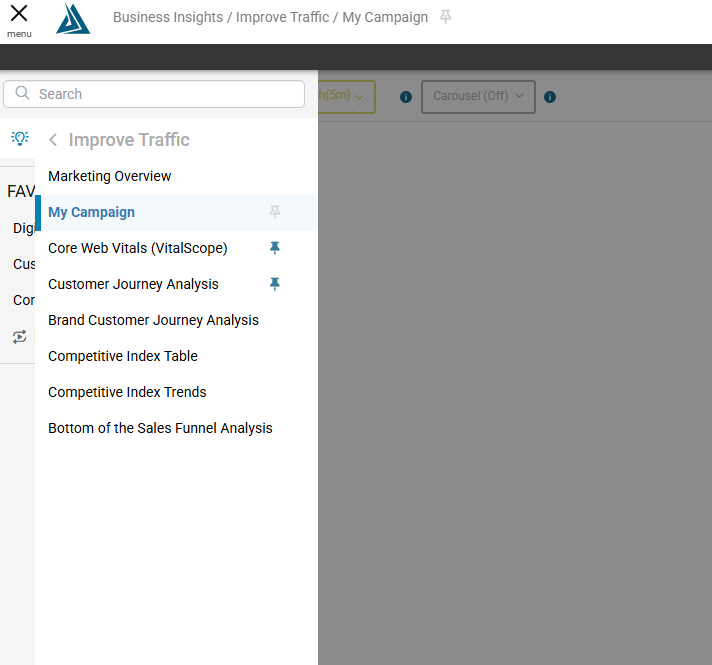
To find this page, click on the menu at the top left of the BT Portal, go to Business insights → Improve Traffic → My Campaign
Create Campaign Dashboards
When you first get to the page you will be prompted to create a campaign dashboard.
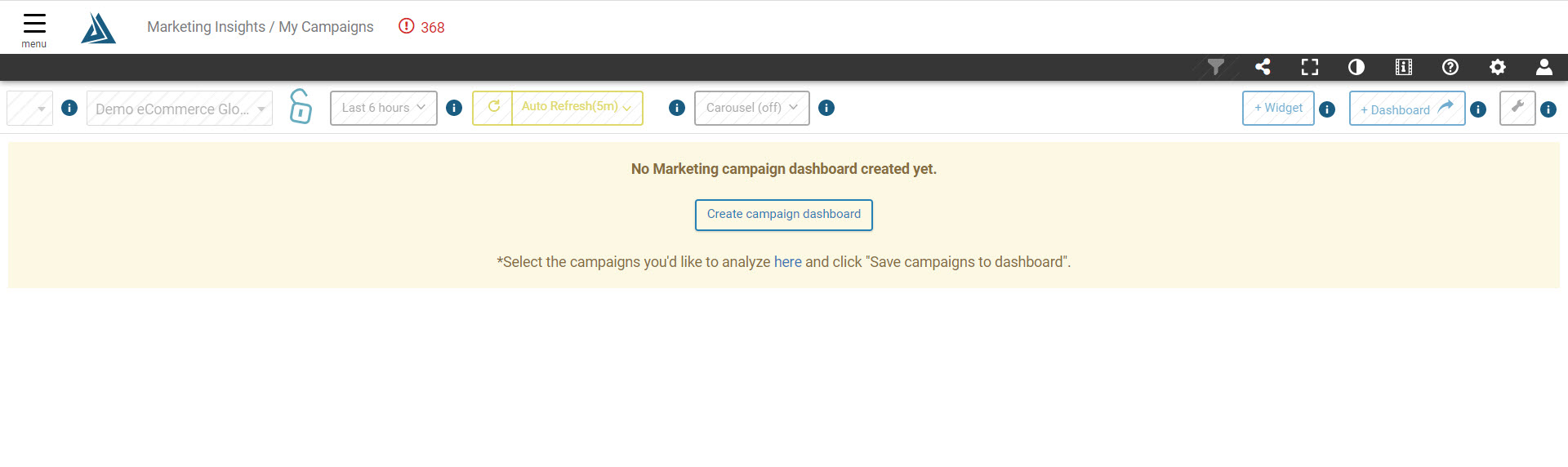
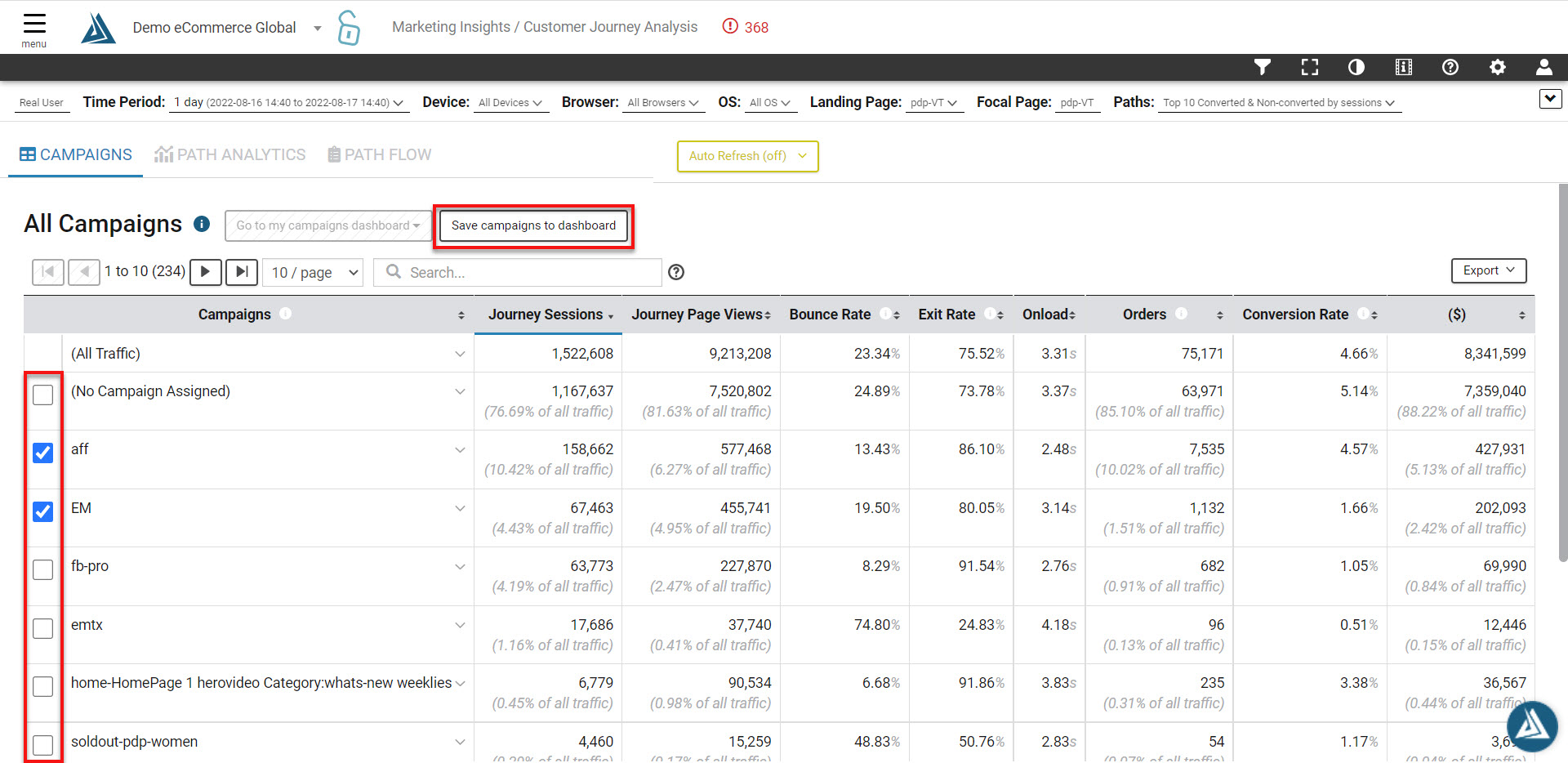
Click the Create Campaign Dashboard button to be redirected to the customer journey analysis page, where you can choose which campaigns to add to your dashboard.
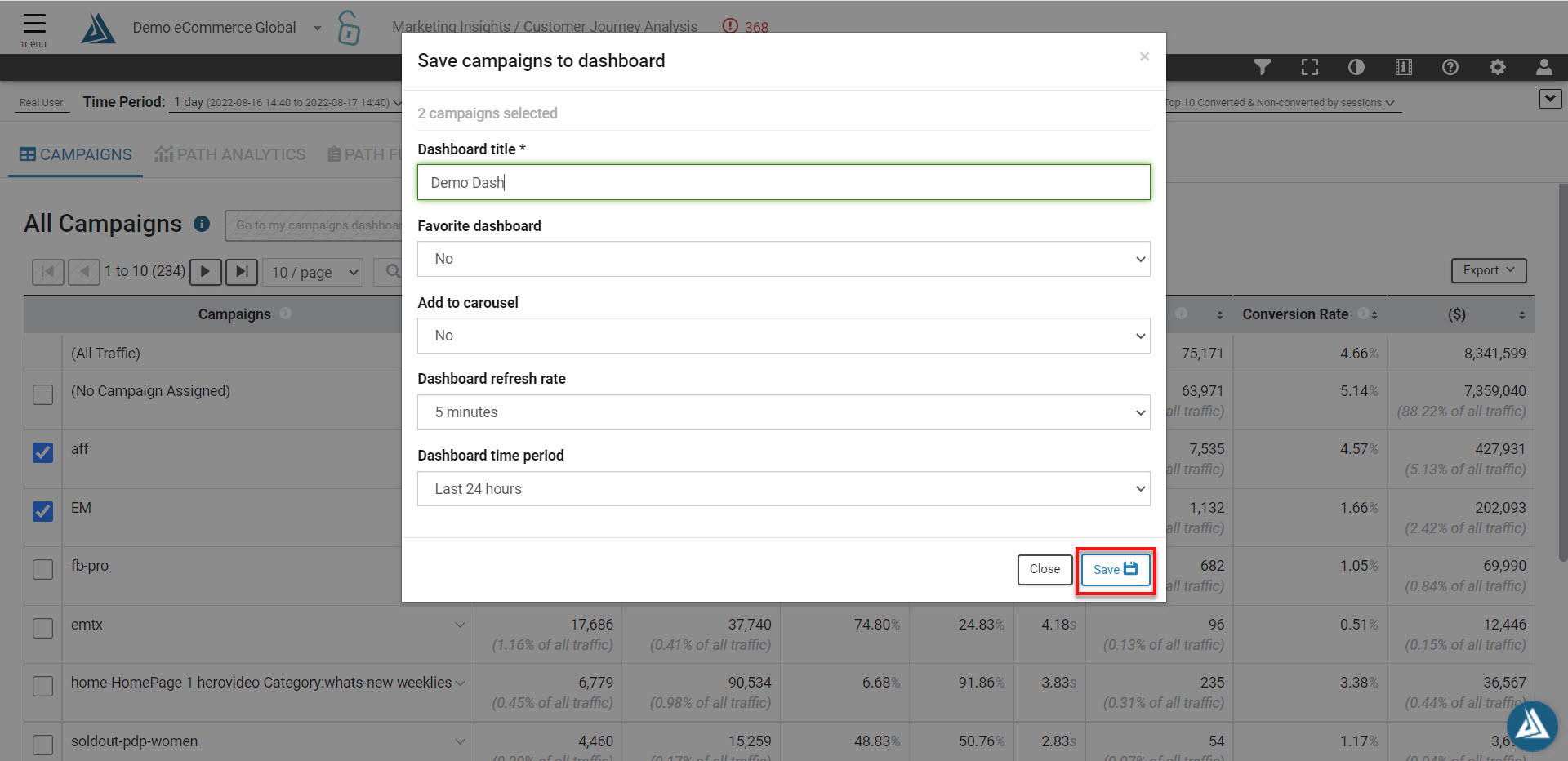
Each campaign you select will be added as a widget to the dashboard. Check the box next to the campaign you want to add, the click save campaigns to dashboard.
Give the dashboard a name and modify any dashboard configurations you would like. Now click save.
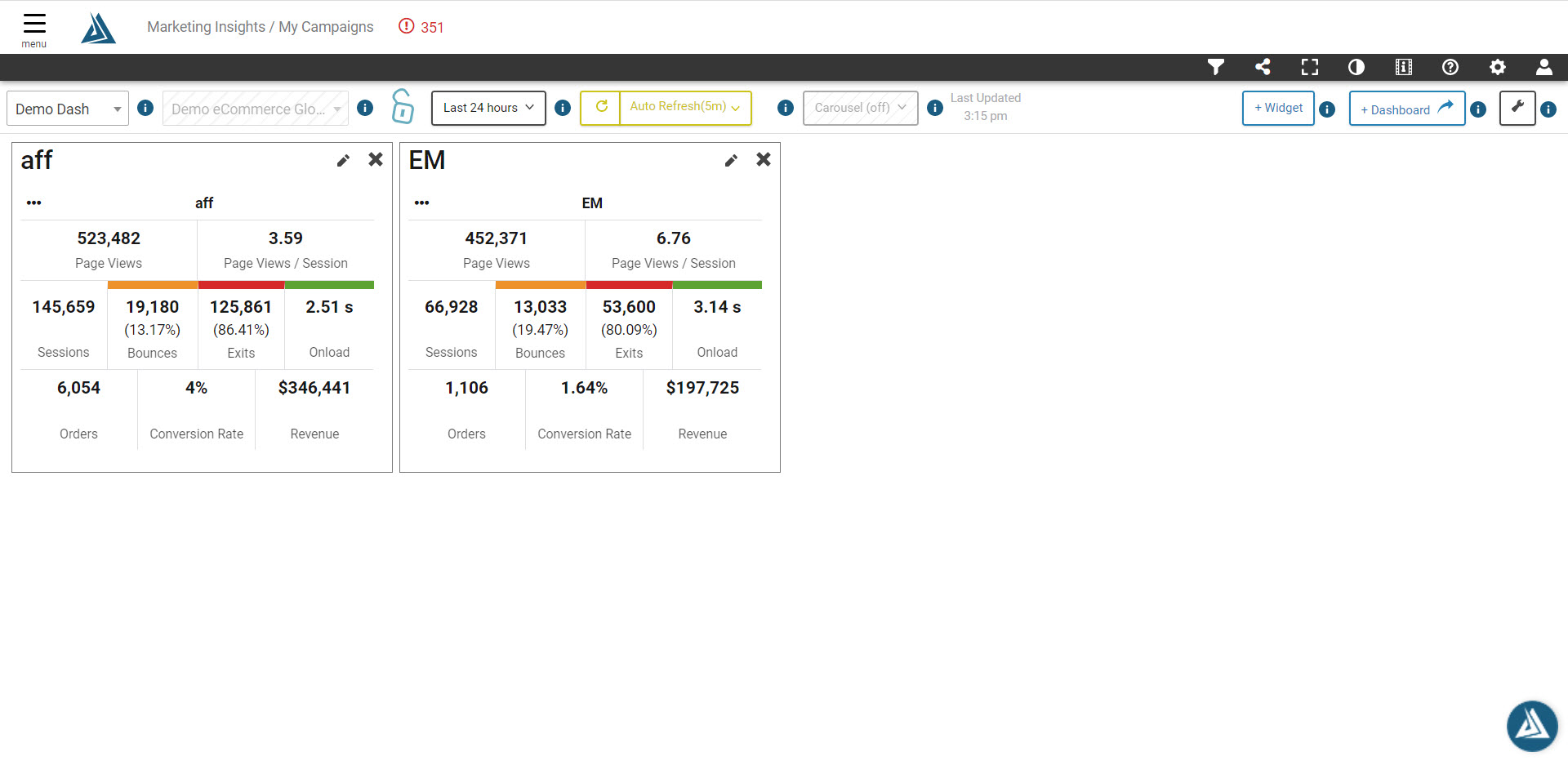
To view this new dashboard, go to the My Campaigns dashboard, then click the dashboard name you just entered.

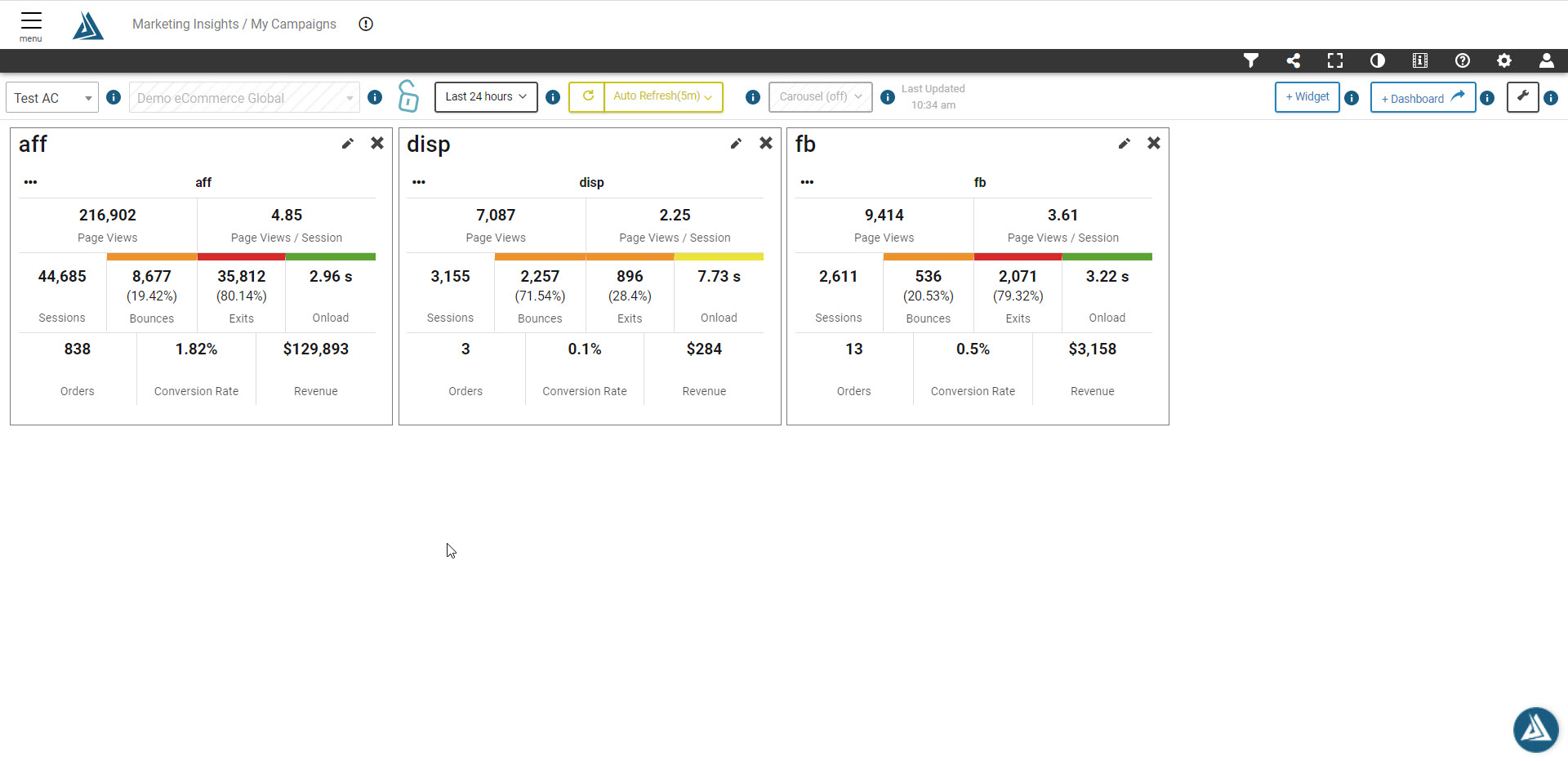
Your dashboard will look something like this.
To add a new dashboard, simply repeat these steps by clicking the +Dashboard button at the top right of the page
Add Widgets to an Existing Dashboard
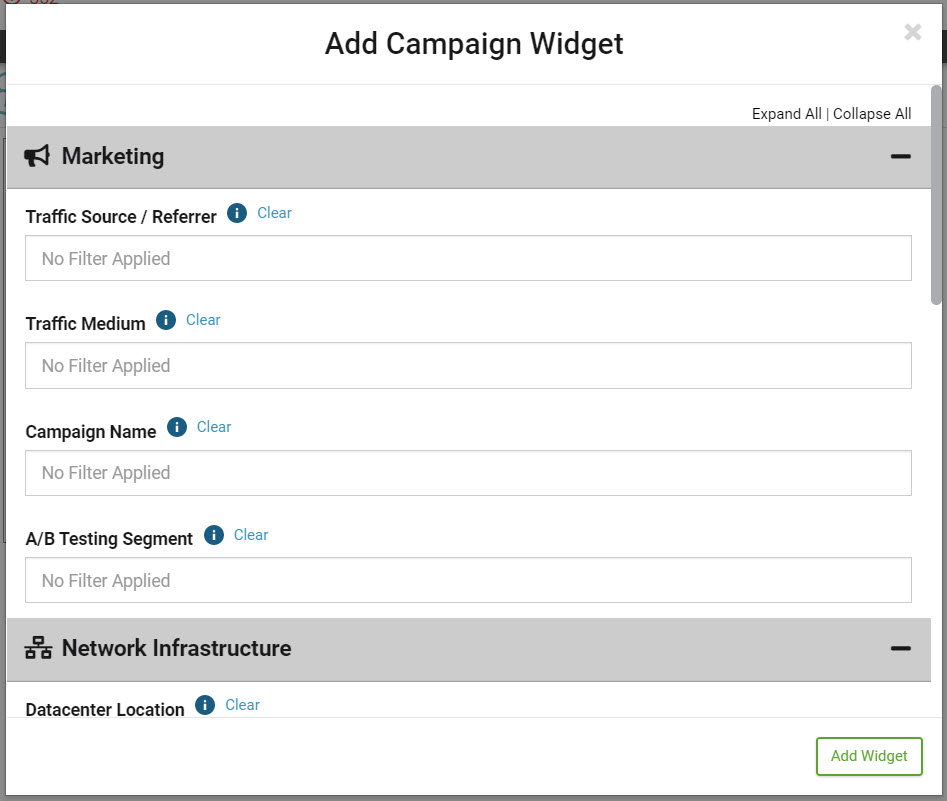
To add more widgets to your current dashboard, click the button to add a widget in the top right.

Make sure you select the campaign for this widget, then click Add Widget.
Manage Campaign Dashboards
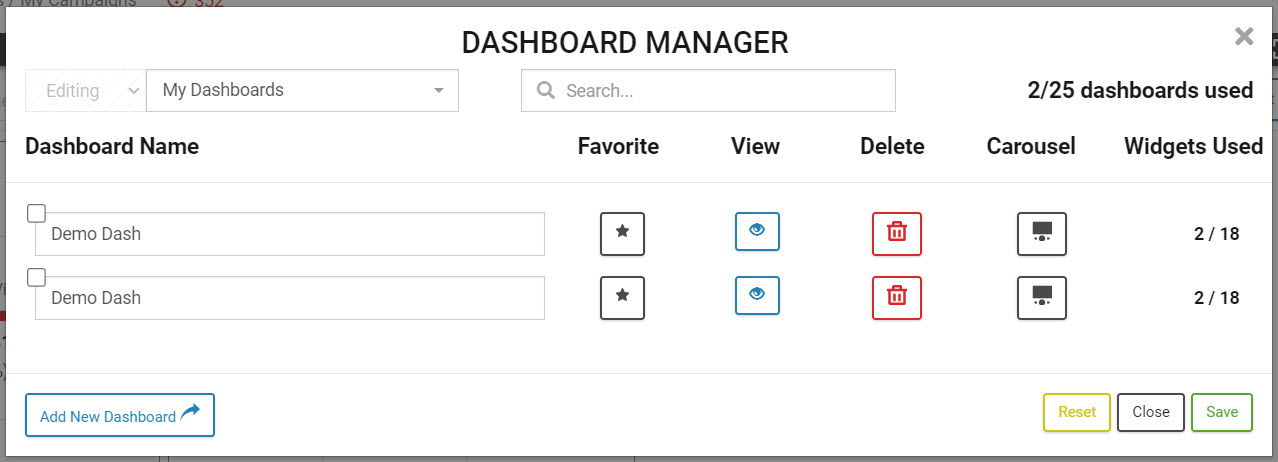
To manage your campaign dashboards, click the wrench icon in the top right to open the dashboard manager.

This shows all of your marketing campaign dashboards. Here you can favorite, view, and delete dashboards, or add them to the carousel.
You can also select from your list of dashboards in the drop down in the top left of the screen. As always, you can change the time period for the dashboard in the selector at the top next to your site name.