Overview
The CSP Manager page is the solution for handling Content Security Policies.
How to Find the CSP Manager
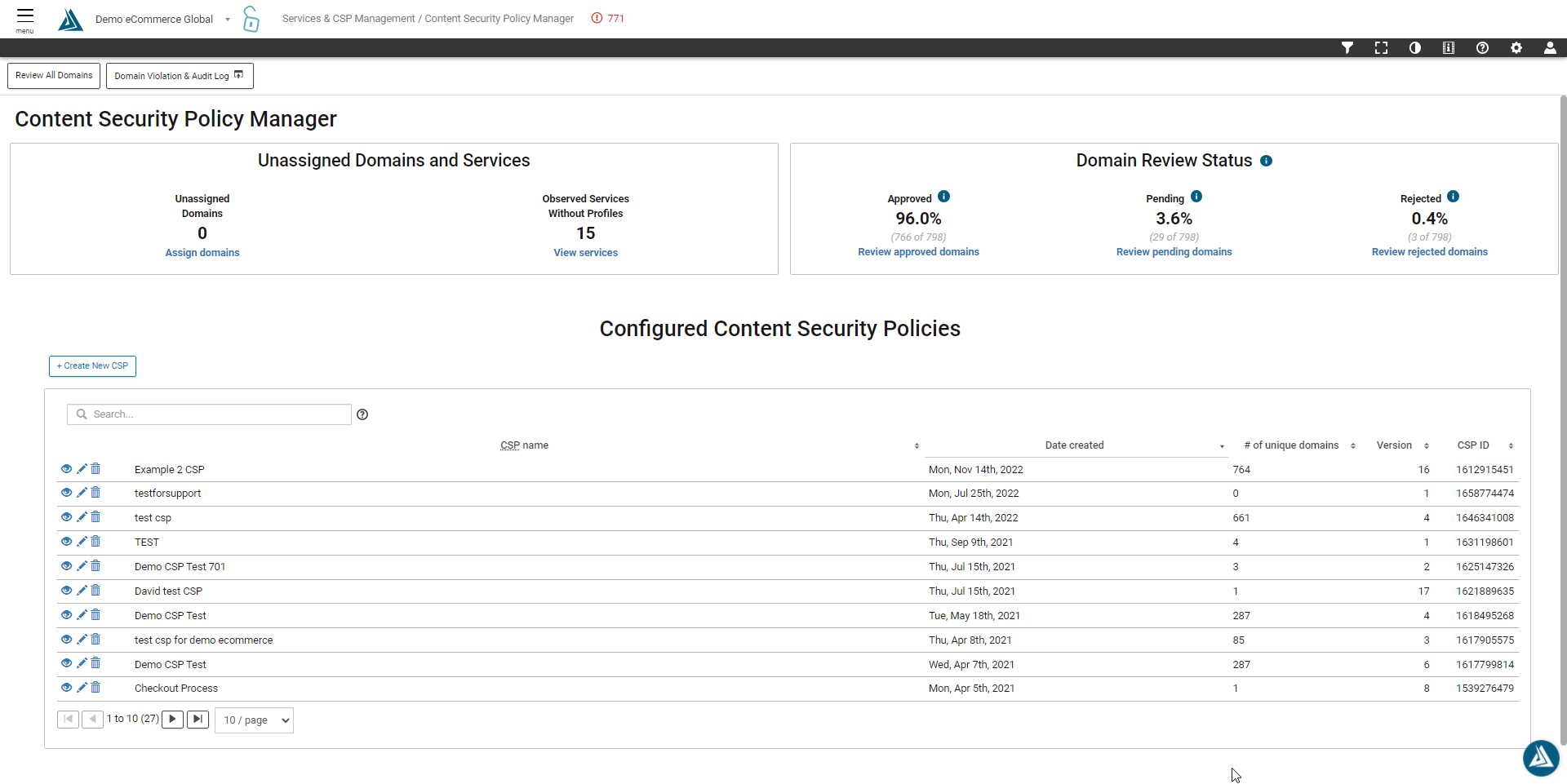
The CSP Manager can be found in the the left-side portal menu under CSP & Tag Governance → Protect → CSP Manager
How to Navigate the CSP Manager
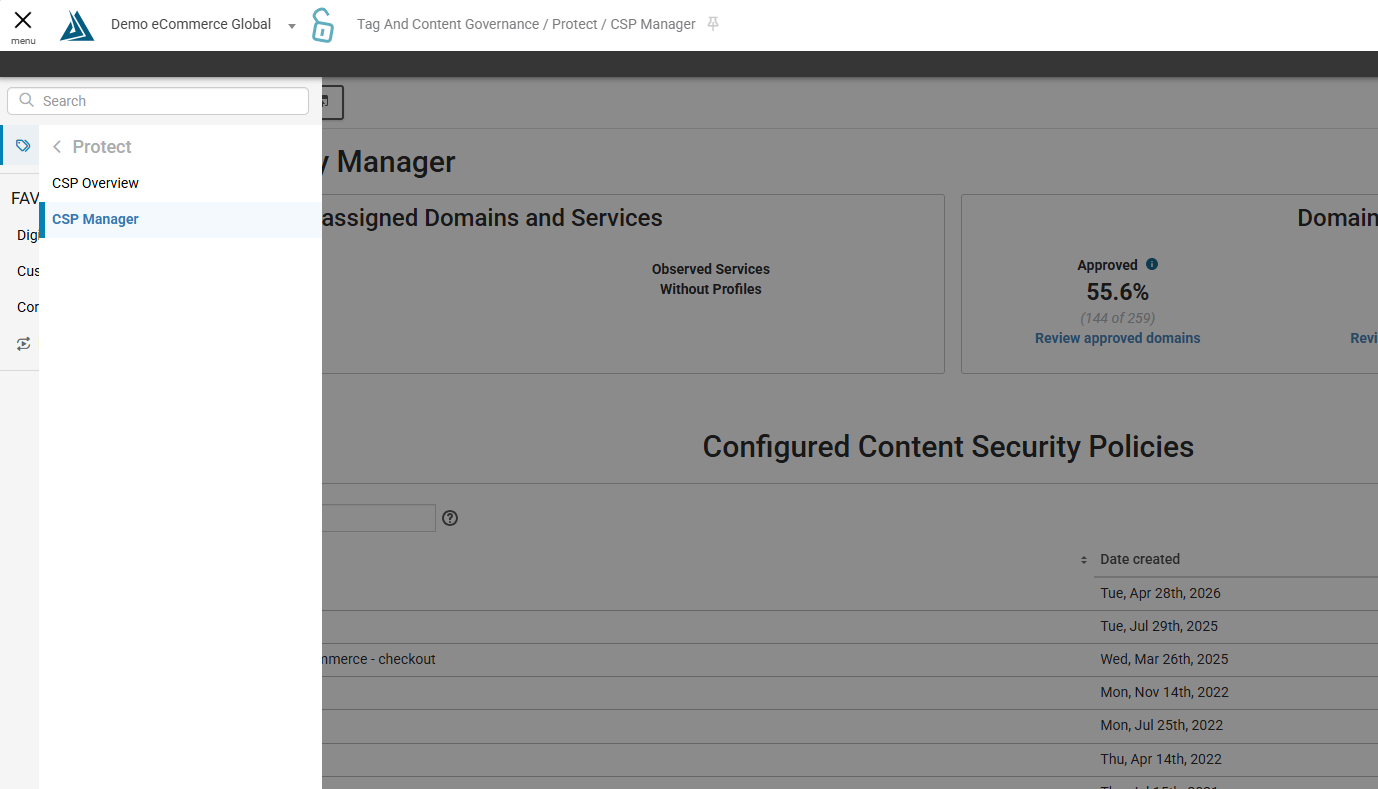
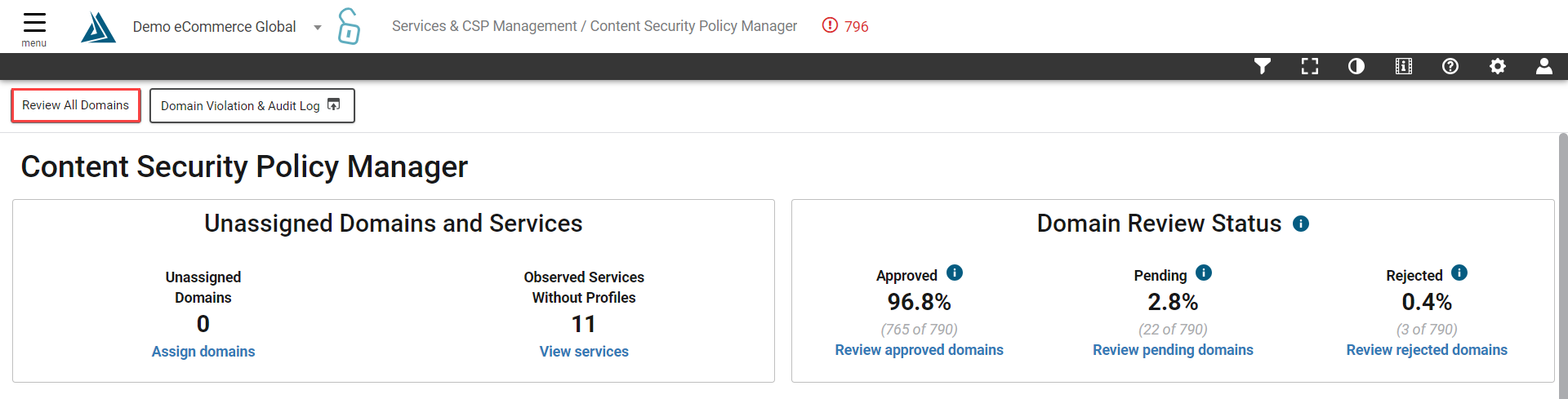
There are three parts to the CSP Manager: Unassigned Domains and Services, Domain Review Status. and Configured Content Security Policies.
Before crating a CSP it is recommend to review all of the site's domains. Once the domains have been reviewed, then the content security policy can be enabled in monitoring mode for initial testing purposes. Instead of blocking domains this will report violations while still allowing the domain through to the site. It is also recommended to leverage the Domain Whitelist Violation and CSP Violation notifications in order to thoroughly test the CSP before setting it to blocking mode.
Unassigned Domains and Services
To review any unassigned domains, click the Assign Domains button to be redirected to the Service Library. Likewise, click the View Services button to view any services needing a service profile and be redirected to the Vendor Service Profiles page.
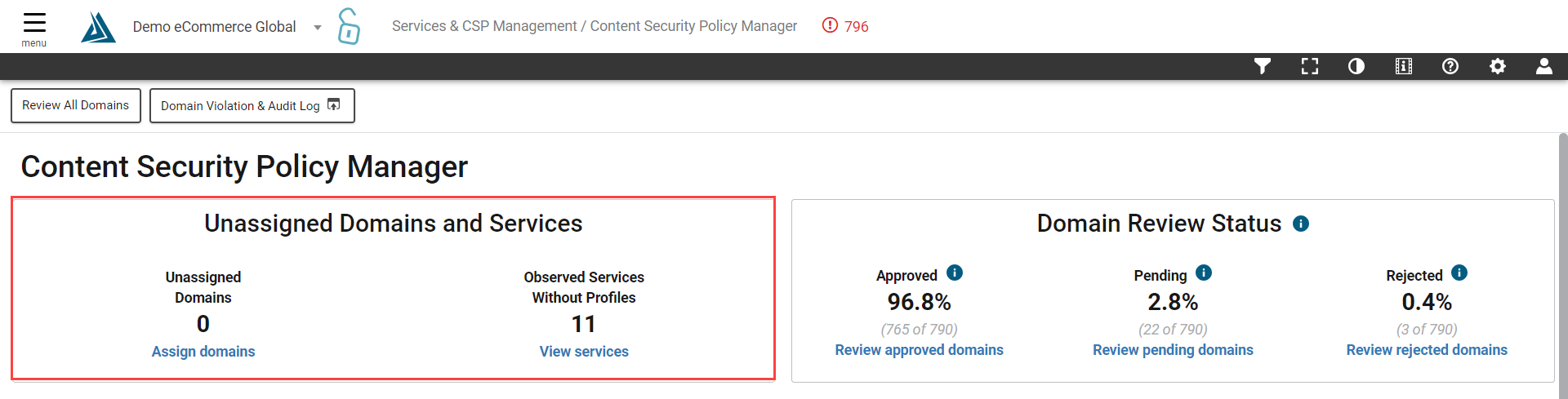
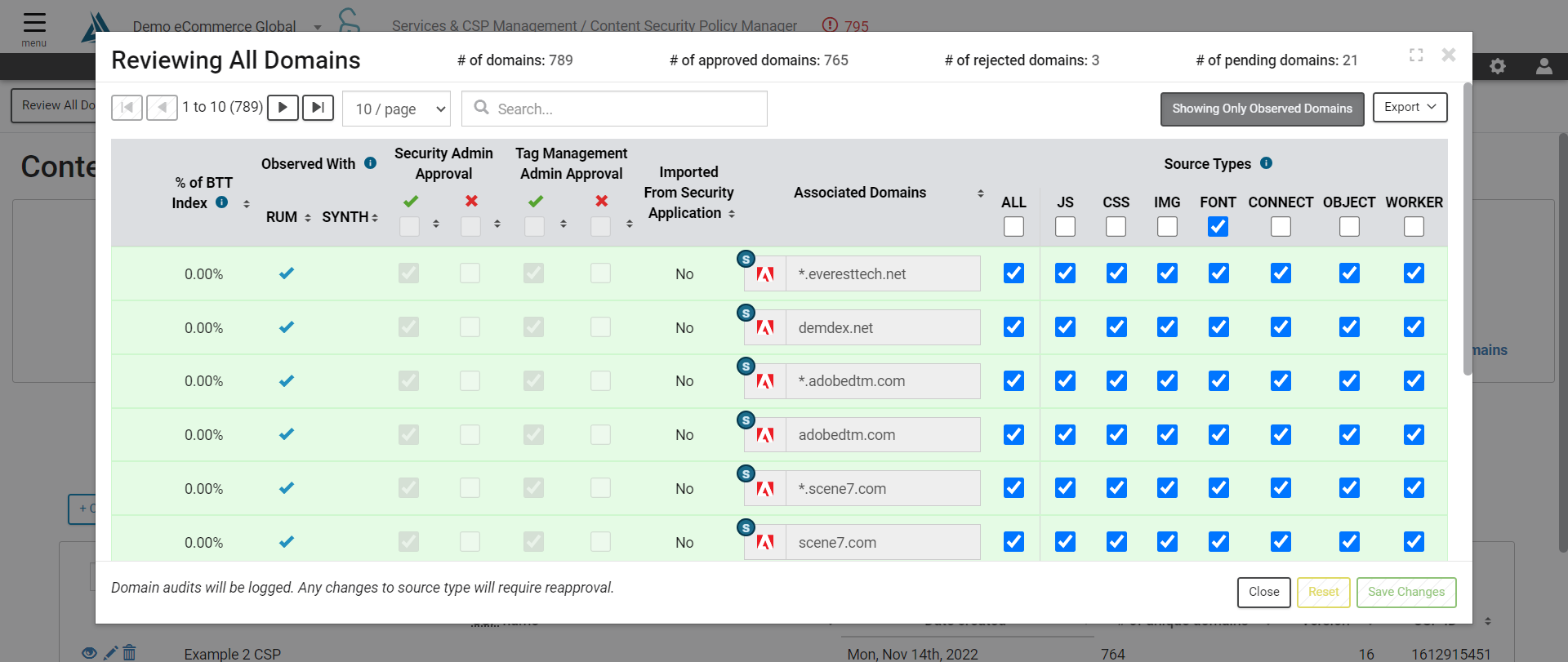
To view all domains, both unassigned and assigned, click the Review All Domains button.
This will open a window listing all domains.
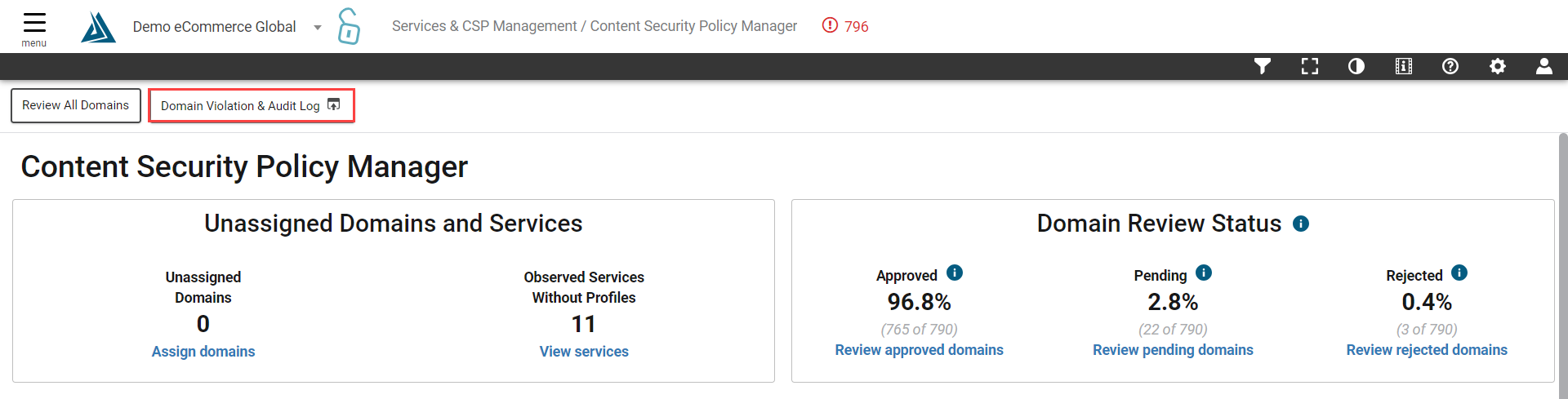
Domain Violation & Audit Log
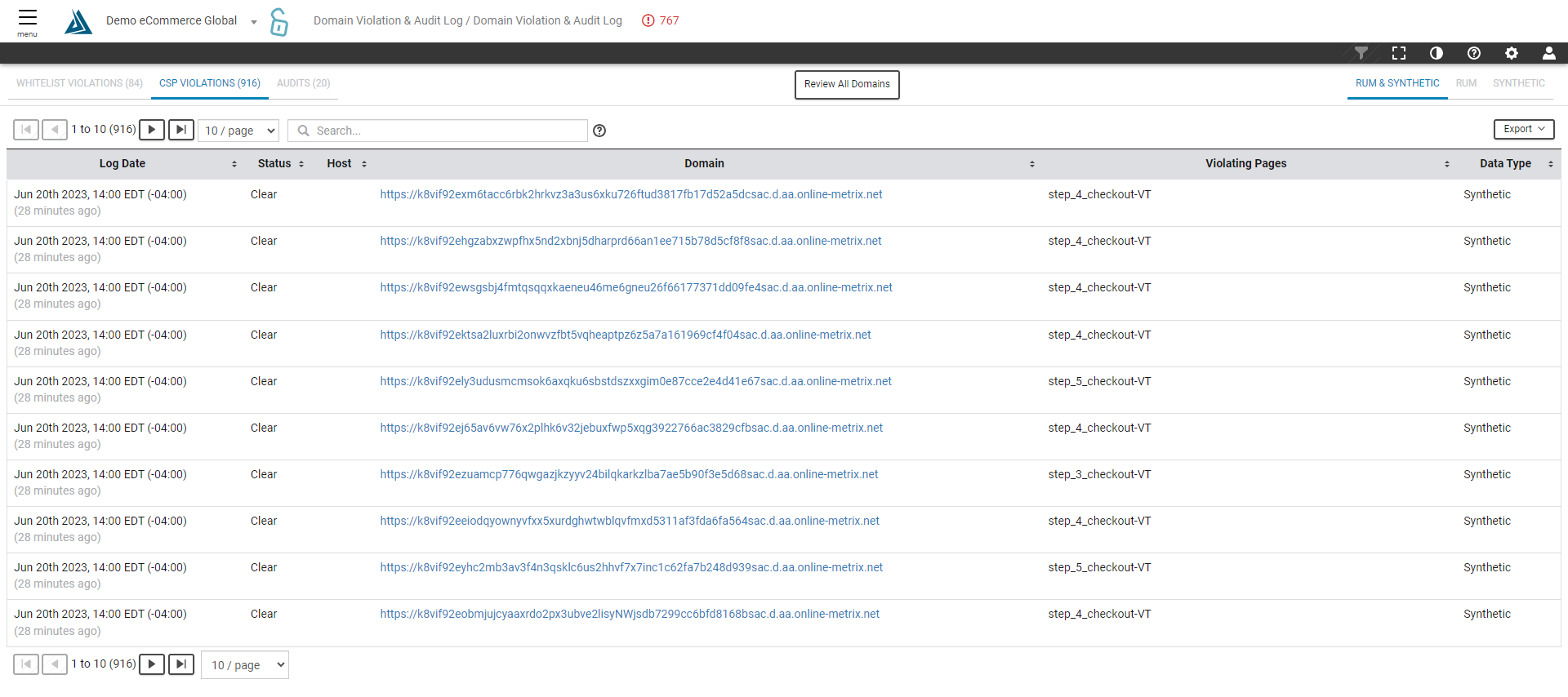
Click the button at the top of the page to be redirected to the Domain Violation & Audit Log.
Whitelist Violations, CSP Violations, and Audits can be seen here on this page.
Domain Review Status
Next is the Domain Review Status information on the top right. Displayed here is the percentage of how many domains are approved, pending, or rejected. View approved, pending, and rejected domains by clicking the corresponding button under each percentage.
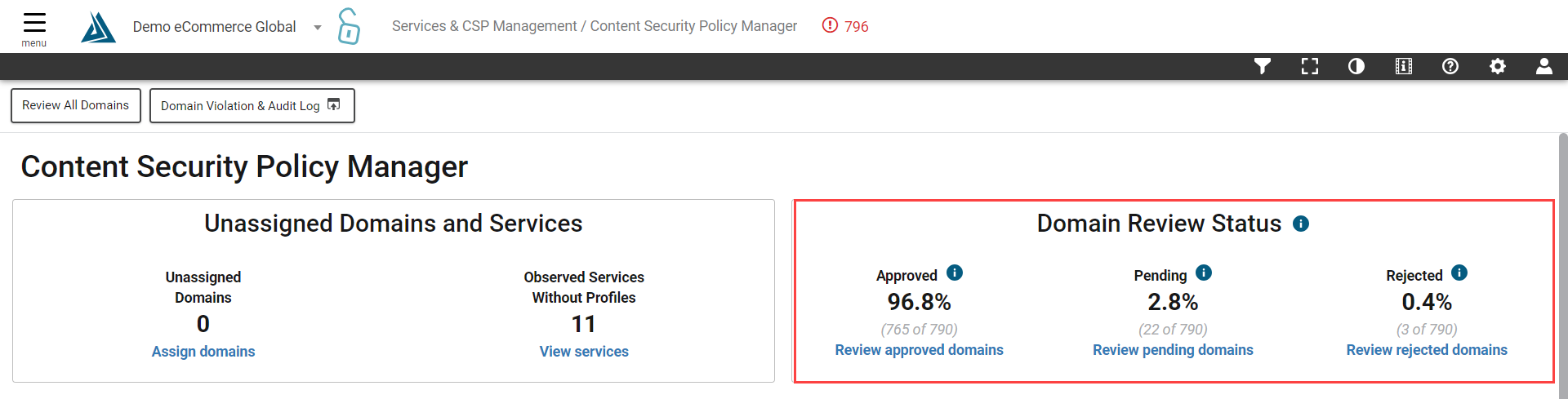
Tag Management Admins and Security Admins can approve and reject domains directly from this page by clicking the Review Pending Domains button, located beneath the Pending percentage.
Configured Content Security Policies
The table at the bottom of the page displays Configured Content Security Policies.
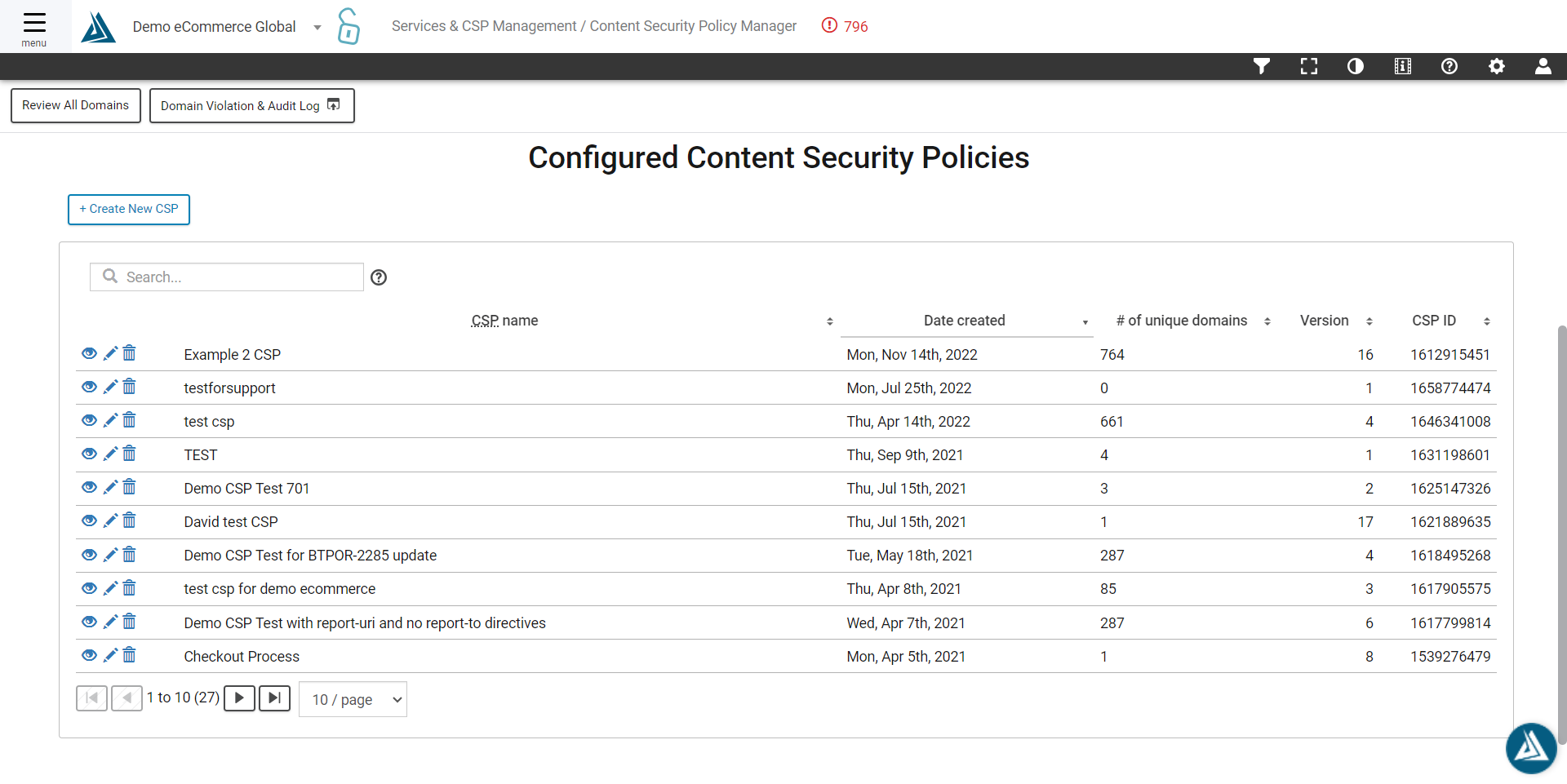
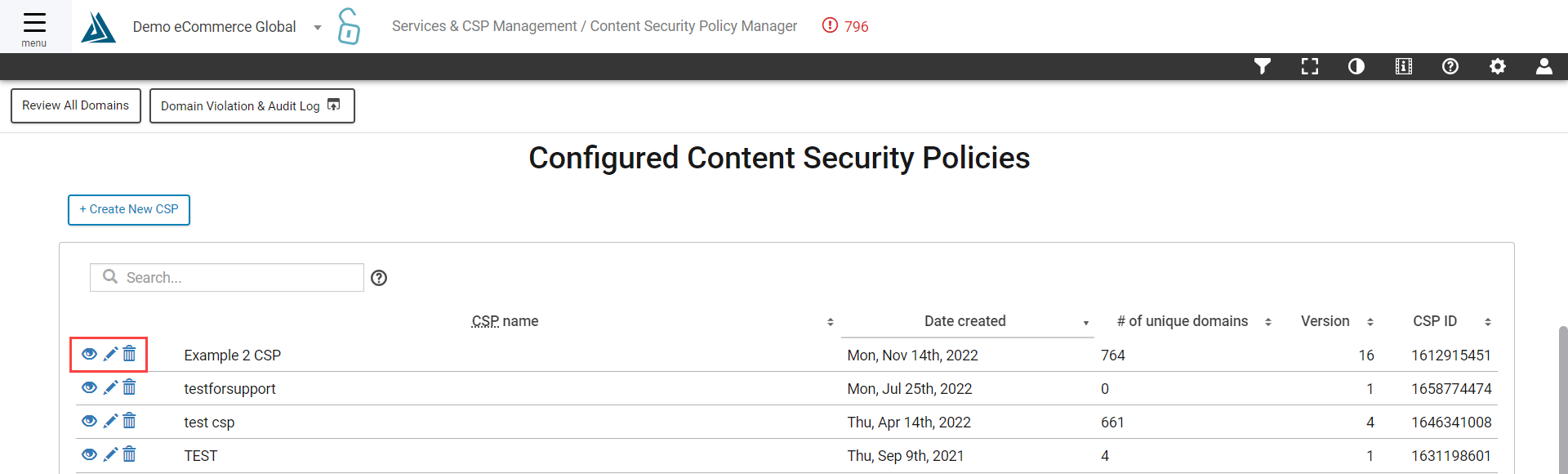
To view, edit, or delete an existing CSP click the buttons to the left of the CSP in the table,
How to Create New CSPs
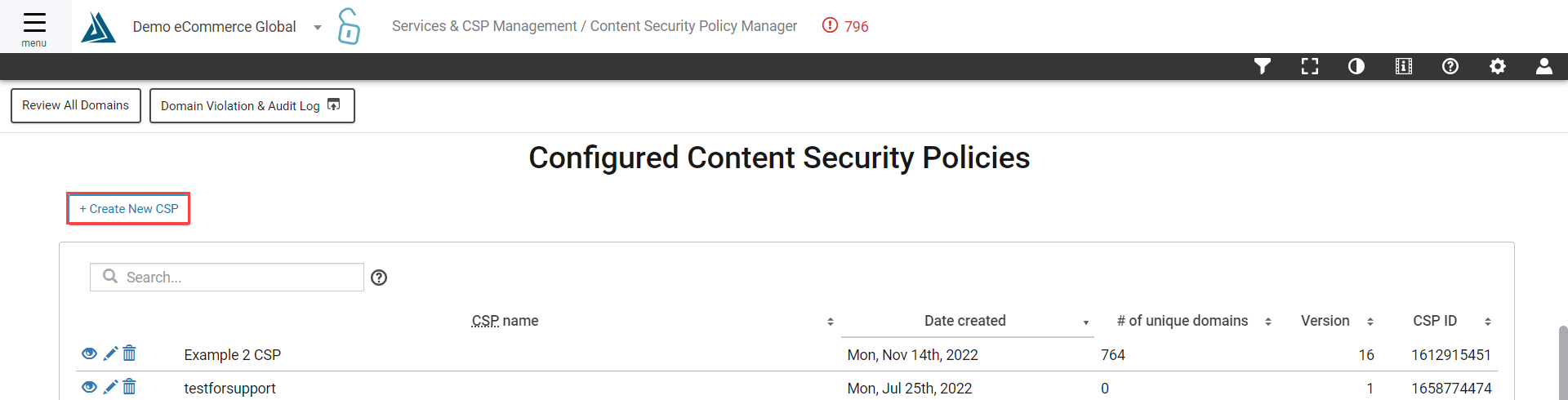
To create a new CSP click the + Create New CSP above the Configured CSP table.
First, name the new CSP. Then find the Approved Domains and Not Approved Domains table. Domains must be approved in order to add them to the CSP. To add domains to the new CSP, click and drag them from the right to the left in the Approved Domains area.
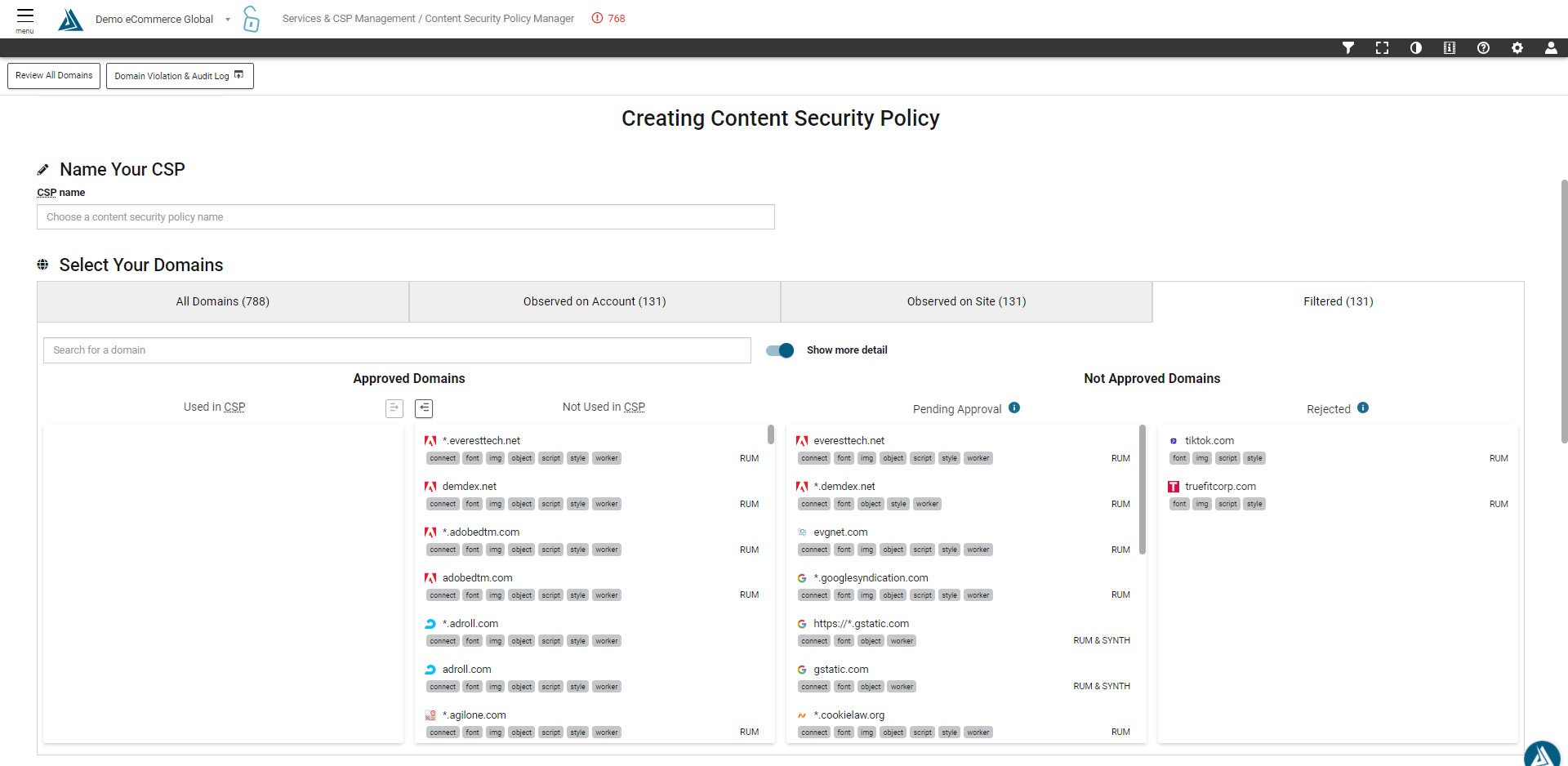
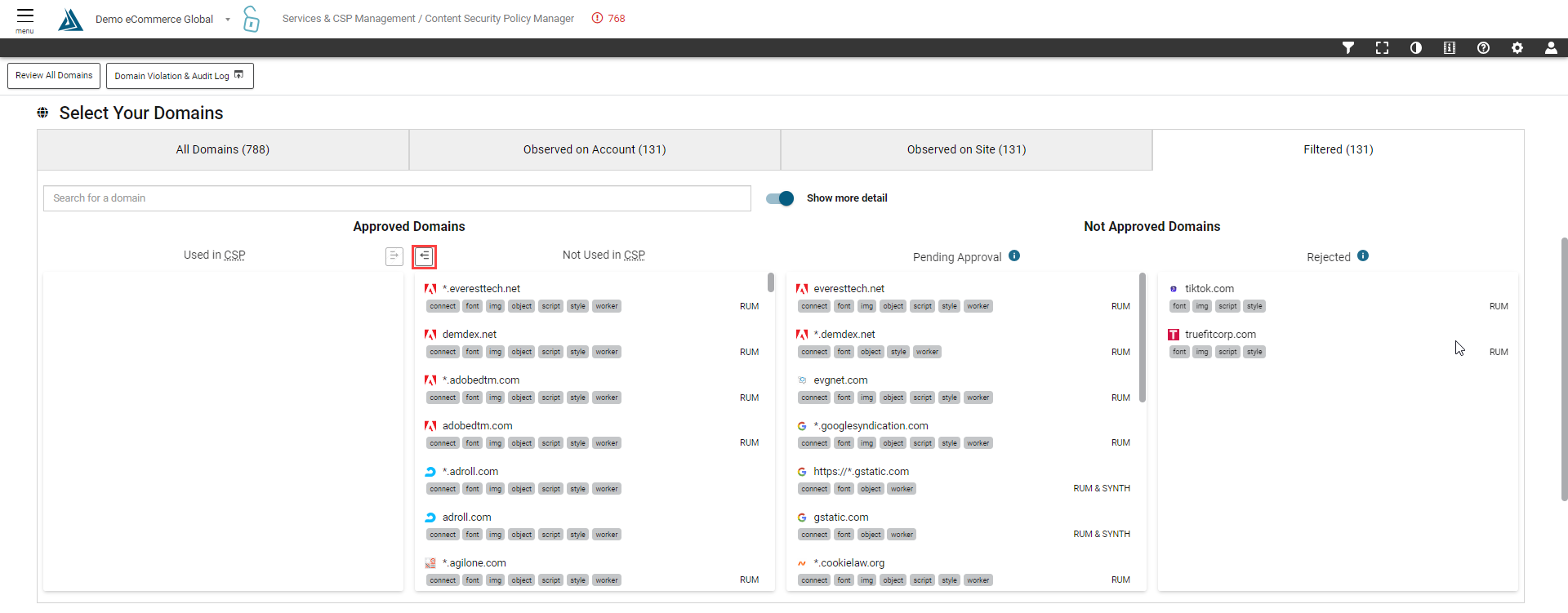
Click this button to add all approved domains.
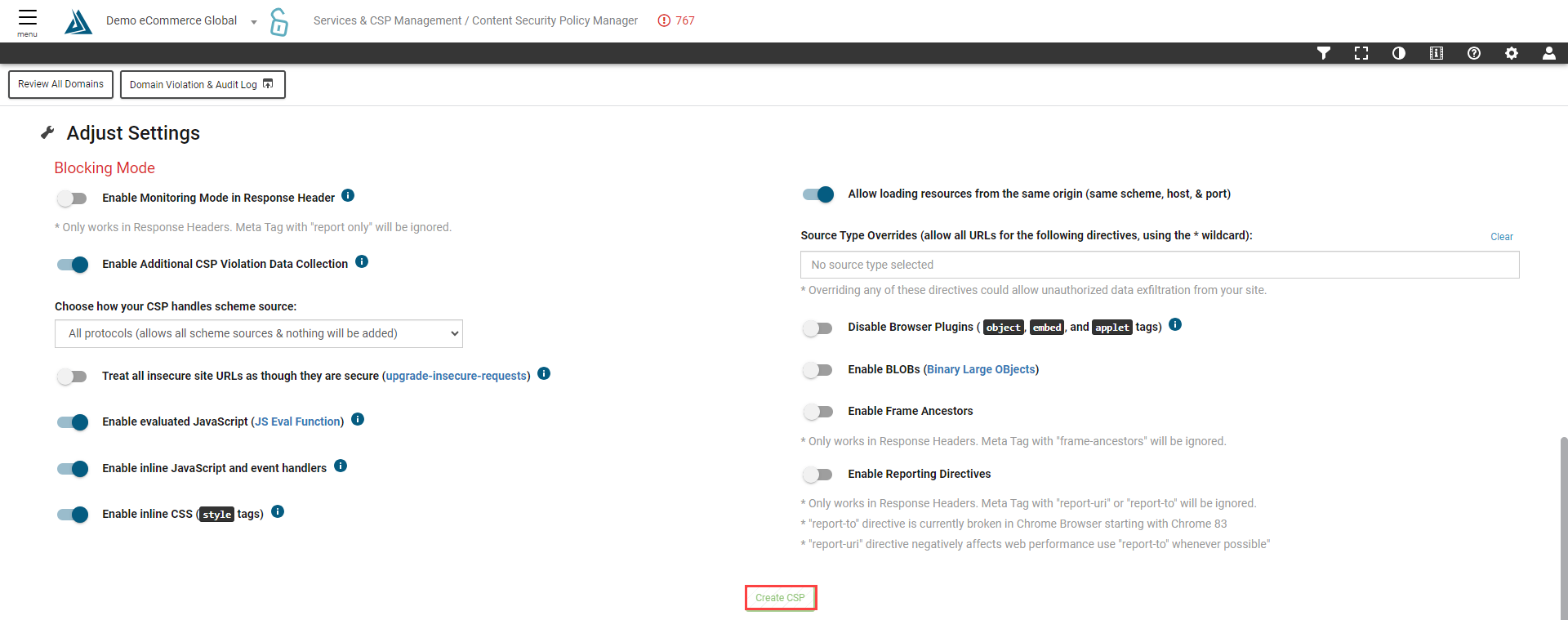
Now scroll down the screen to view the CSP Settings. Settings can be toggled on and off here. Click Create CSP once configuration has been completed.
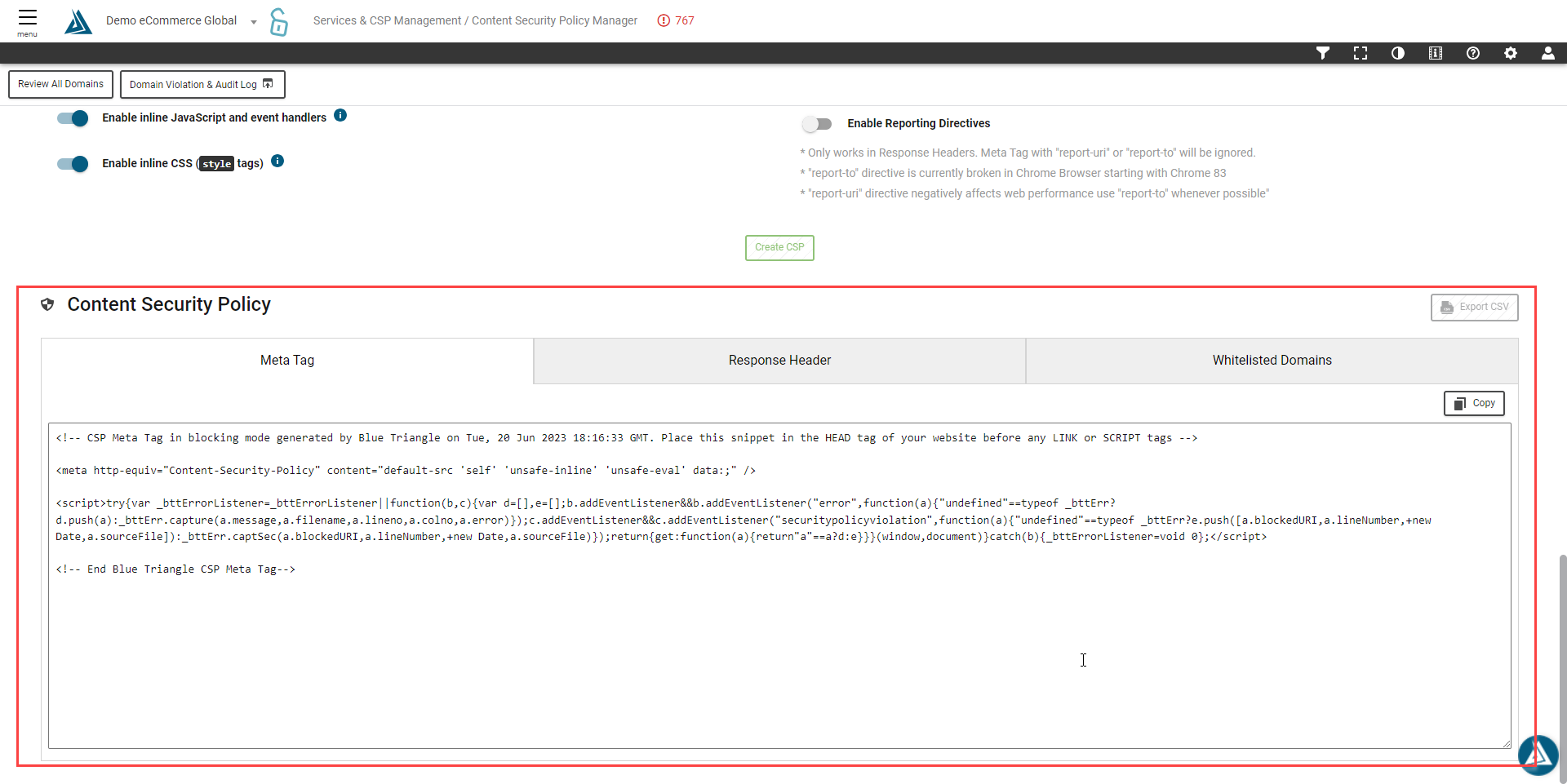
At the bottom of the page is the Meta Tag, Response Header, and Domain Whitelist. These can be added to the clipboard once the CSP has been created. Notice the Meta tag includes some JavaScript at the top. The JavaScript is here in order for Blue Triangle to collect all errors and CSP violations that may occur before our main JavaScript tag loads on the page.