

There are a few reasons why your view in the dashboards might not be updating with the auto-refresh. In most cases this can be solved by clicking the play button (an orange triangle shape) next to the auto-refresh dropdown.
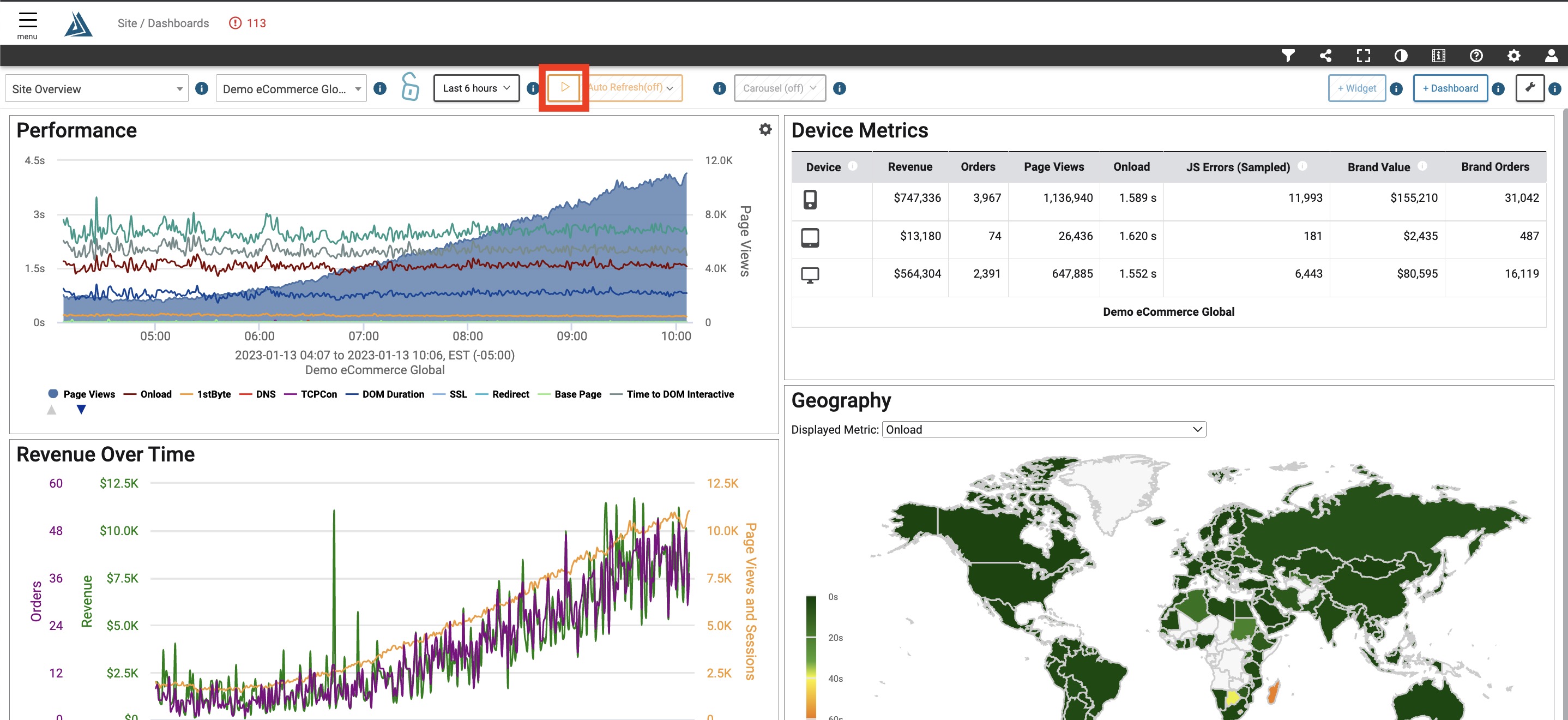
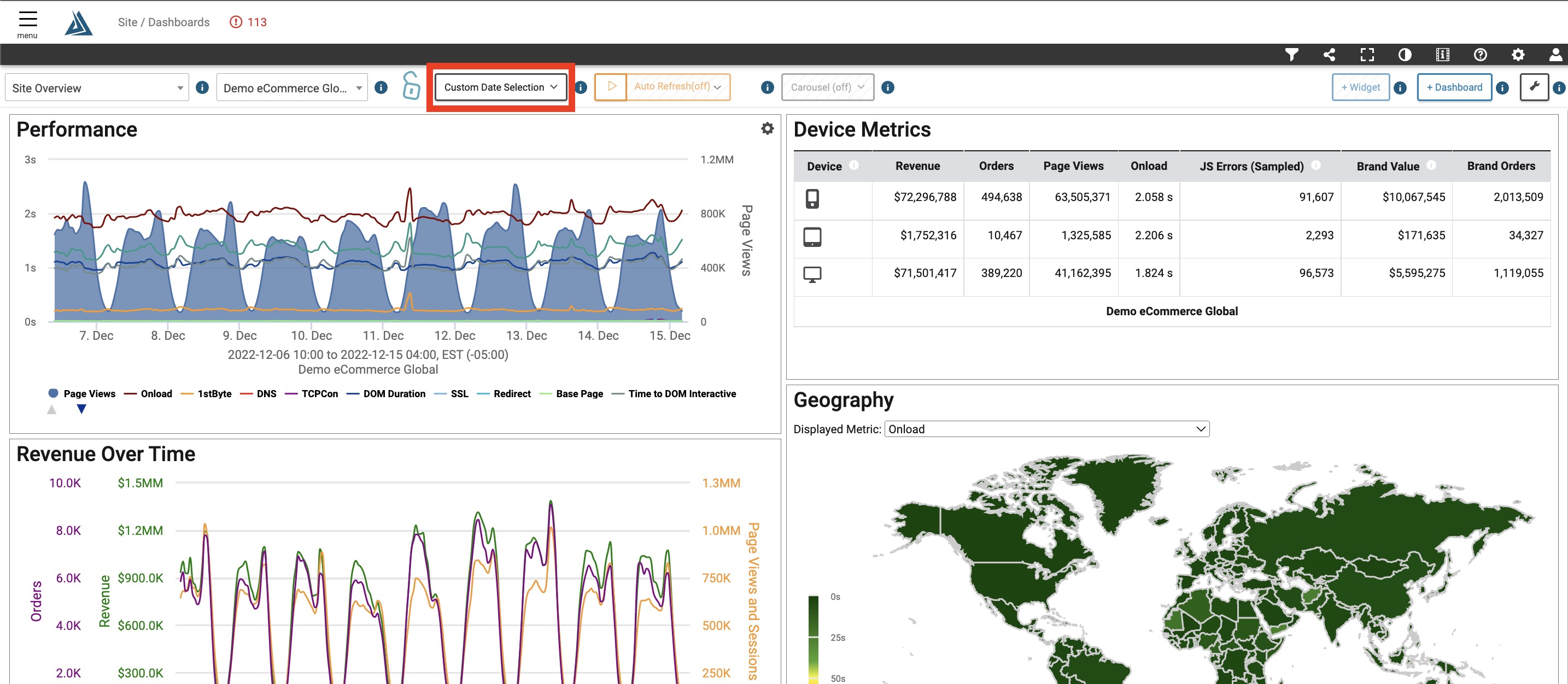
One likely reason that auto-refresh is not working is a "Custom Date Selection" for your time window. Selecting this option automatically turns off the auto-refresh functionality on the page. To re-enable auto-refresh functionality, press the play button next to the auto-refresh dropdown or select a different time window that is not date-specific.
Another likely possibility that auto-refresh is not working is that you have drilled down into the data in one of the preconfigured dashboards. For example, selecting a point in the scatterplot in the "Synthetic Site Health" preconfigured dashboard will pause the auto-refresh in order to give you a chance to view the waterfall graph and other data associated with that measurement point. This is indicated by the orange outlines throughout the dashboard. To re-enable auto-refresh, press the play button next to the auto-refresh dropdown.