

-
Login to https://portal.bluetriangletech.com
-
Click on "Settings" icon
-
Open the Sites page under the Settings Modal. (Logged in user needs to have access to Sites page)

4. Get the value for Site ID from the "Tag Prefix" column for the desired "Site Name"
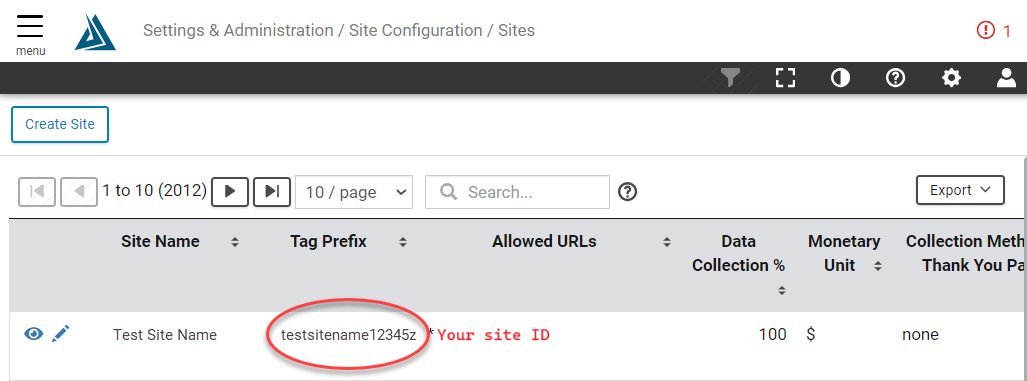
Examples for using your Site ID in the SDK configuration below
React Native
const bttOptions = new BTTOptions()
BTTConfiguration.configure("testsite12345z", bttOptions)
Swift
BlueTriangle.configure { config in
    config.siteID = "testsite12345z"
}
Android Manifest
<manifest xmlns:android="http://schemas.android.com/apk/res/android">
    <application>
        <meta-data android:name="com.blue-triangle.site-id" android:value="testsite12345z"/>
    </application>
</manifest>