

Get Answers From Your Site Data Just by Asking
The Blue Triangle MCP can now connect Copilot directly to your performance and revenue data. No dashboards to learn, no filters to configure. Just ask.
For additional information on the MCP, including what other tools are currently supported, check out this article.
What It Does
Once connected, Copilot can pull real-time performance summaries, error data, resource timing, or revenue metrics straight from Blue Triangle and explain what they mean, in plain language.
You don't need to know query syntax, time zones, or which report holds which metric. You just describe what you want to know, and Copilot handles the rest.
Three Steps, That's It
-
Connect once. Turn on the Blue Triangle connector in your tools settings. No API keys to manage, it stays connected for every future conversation.
-
Ask in plain English. Tell Copilot what you want to know - a time range, a site, a metric. Copilot figures out which report to pull and runs it for you.
-
Get an answer, not a raw report. Copilot summarizes the data, flags what matters, and can compare periods or dig deeper if you ask a follow-up.
Examples of Things You Can Ask
-
Performance: "How did page load times look last week compared to the week before?"
-
Revenue: "What did slow pages cost us in conversions yesterday?"
-
Errors: "Are there any new JavaScript errors on checkout today?"
-
Multi-site: "Switch to our mobile site and show me this month's performance summary."
Why It's This Easy
The connector already knows how to translate everyday phrases like "last week" or "since the launch" into the exact time ranges Blue Triangle needs. It knows which report answers which question. You never have to touch a settings panel or memorize a metric name — you just have a conversation.
How to Connect
An Admin will need to do the initial set up. Once that is complete, all other users that have been granted access via Microsoft Teams. The Blue Triangle MCP will then be available in Teams and Copilot.
Admin
-
Start in Copilot Studio (copilotstudio.microsoft.com)
-
From the landing page, select Agent
-
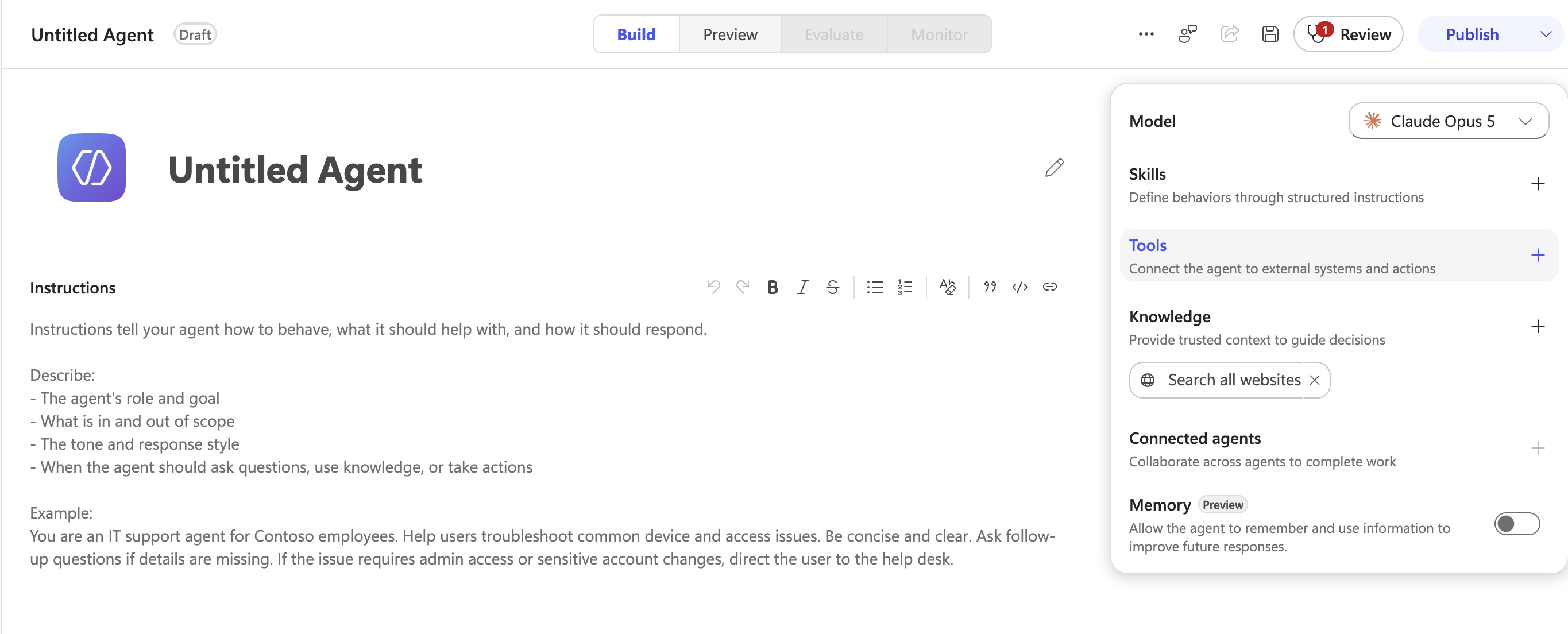
In the right side modal, select Tools
-
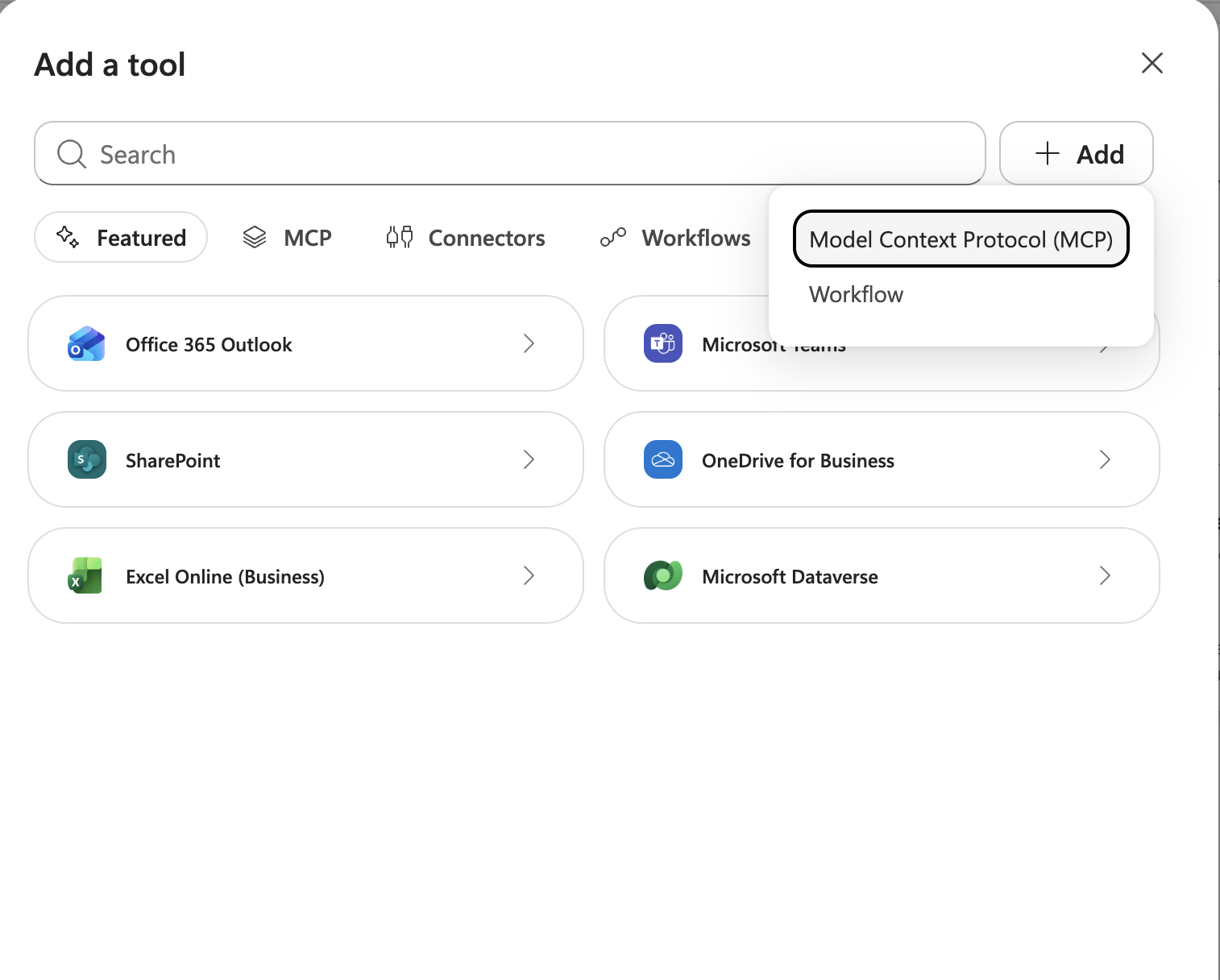
To complete initial set up, click Add from the Tool menu and select MCP.
-
Fill out the MCP configuration.
-
Name: Blue Triangle MCP
-
url:
https://mcp.bluetriangle.com/mcp -
OAuth 2.0 - Dynamic (with Discovery)
-
-
From here, connect to the tool.
-
A login portal will open. Log in with your Blue Triangle account.
-
On the authorization screen, click Authorize.
-
Once complete, you will be redirected back to Copilot.
-
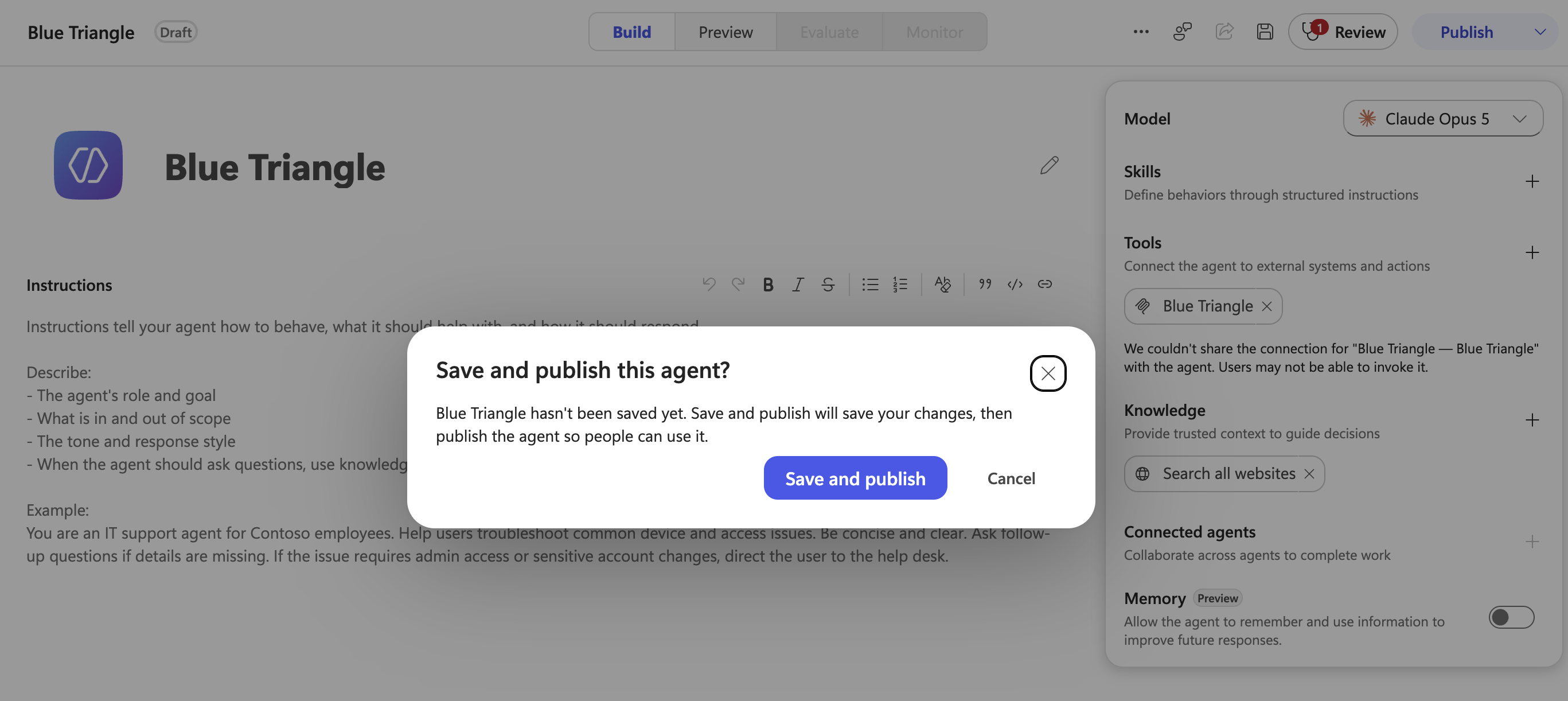
Finalize the Agent configuration. Name it Blue Triangle and add additional detail as preferred.
-
Save and publish.
-
Once published, go to Availability Options and share the agent with either a person, group, or the organization. You are also able to request a link to allow users to manually connect.
Non-Admin Users
-
Login to Microsoft Teams
-
In the left tool bar, select the …
-
Under more apps, search for Blue Triangle MCP. Naming is dependent on initial configuration, reach out to your Admin if you cannot find it.
Results
Once connected, Blue Triangle is an available agent in Copilot and Teams.