
|
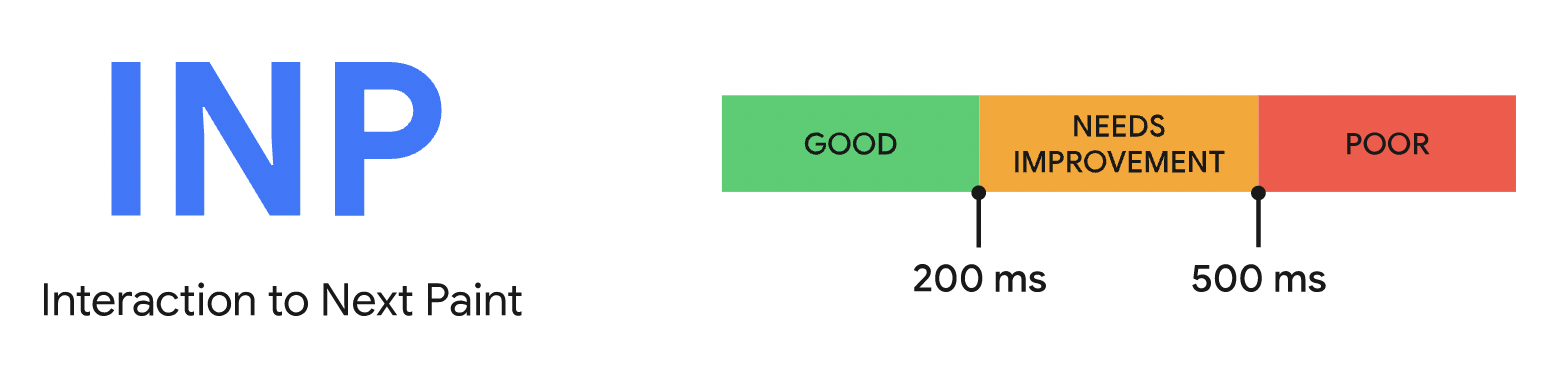
Good INP values are 200 ms or less, poor values are greater than 500 ms, and anything in between needs improvement |
What is INP?
Interaction to Next Paint (INP) assesses overall page responsiveness throughout the page life cycle by measuring the latency between a user interaction, like a tap, click, or keyboard input, and the visual response from the page. The final INP value is the longest interaction observed, ignoring outliers.
The goal of INP is to make sure that the time between when a user interacts with the page and the visual response from the page is as short as possible. A low INP score means a page was able to respond quickly to almost all user interactions.
Visual feedback from a page following an interaction reassures the user that the page is able to process the request made. For example, you are shopping online and add an item to your cart. You immediately see a bubble pop up confirming that the item is indeed in the cart, and asking if you would like to checkout. This would be great user experience. Poor experience arises when the site becomes unresponsive following a user interaction like this one. You add an item to the cart but there is no visual confirmation from the site, so you continue to click add to cart. Eventually the site responds and you see that you've added eight items, not just one, to the cart and you've suddenly unintentionally clicked go to checkout. This can be a very frustrating experience.
How is INP Calculated?
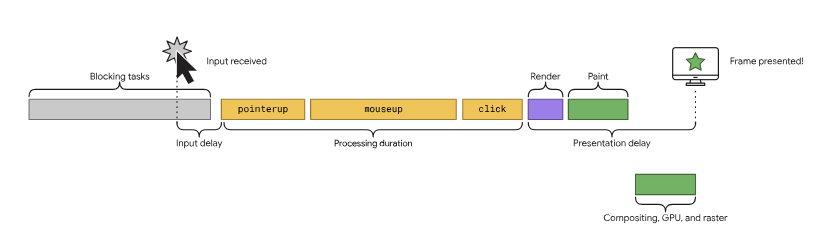
To calculate INP, the browser uses the Event Timing API to note every time a user interacts with the page via a tap, click, or key press. Once user input is received, the browser measures the amount of time between the interaction and the next time the browser is able to paint the page and show the results of the interaction to the user. The INP value is the longest delay between a user interaction and the next resulting paint. For pages with a high number of interactions, the one highest interaction for every 50 interactions is ignored. After this, the 75th percentile of all page views is reported as usual, further removing outliers to give a value that the vast majority of users experience or better.
What Constitutes an Interaction?
|
A diagram depicting an interaction on the main thread. The user makes an input while blocking tasks run. |
Only these three types of interactions are considered when measuring INP:
-
Clicking with a mouse
-
Tapping on a device with a touch screen
-
Pressing a key on a keyboard (physical or digital)
JavaScript is usually the primary driver of interactivity, but objects like checkboxes and radio buttons that are powered by CSS can also be interactive.
These interactions may also have multiple parts, like pointerup and pointerdown events for tap interactions, and in this case the part with the longest duration is used as the latency value for the interaction.
When is no INP Value Reported?
Given the design of the metric, there are cases where it is possible to return no value for INP. This is true for both Google and other analytics providers like Blue Triangle. Here's a list of those situations:
-
The page was loaded, but the user never clicked, tapped, or pressed on key on their keyboard.
-
The page loaded, but the user interacted with it using gestures that are not measured (for example, scrolling or hovering over elements)
-
The page is being accessed by a bot or headless browser that has not been scripted to interact with the page.
For more information on how to optimize your sites INP, check out this article from web.dev.
How is INP Different from FID?
First Input Delay (FID) only accounts for the first interaction a user has on a site, while INP accounts for all interactions a user has throughout the entire time they are on a site. FID is also a load responsiveness metric, while INP focuses on what happens after the page is loaded. Overall, INP is a more comprehensive metric than FID, as it measures beyond the first impression a user might have on a site.
INP will be replacing FID as a Core Web Vital in 2024. For more information on how INP differs from FID, visit this article.
How Blue Triangle Captures INP
The Blue Triangle tag will fire and capture INP under the following conditions, only once per page:
-
Navigating to a new page
-
Opening/navigating to a new tab
-
Closing a tab
-
Minimizing the browser window
-
Closing the browser window
-
Once five minutes have gone by in a session and no other interactions are made
Leveraging Blue Triangle to Investigate INP
In this section we will be reviewing a workflow we recommend for digging into INP.
Using the Performance Overview
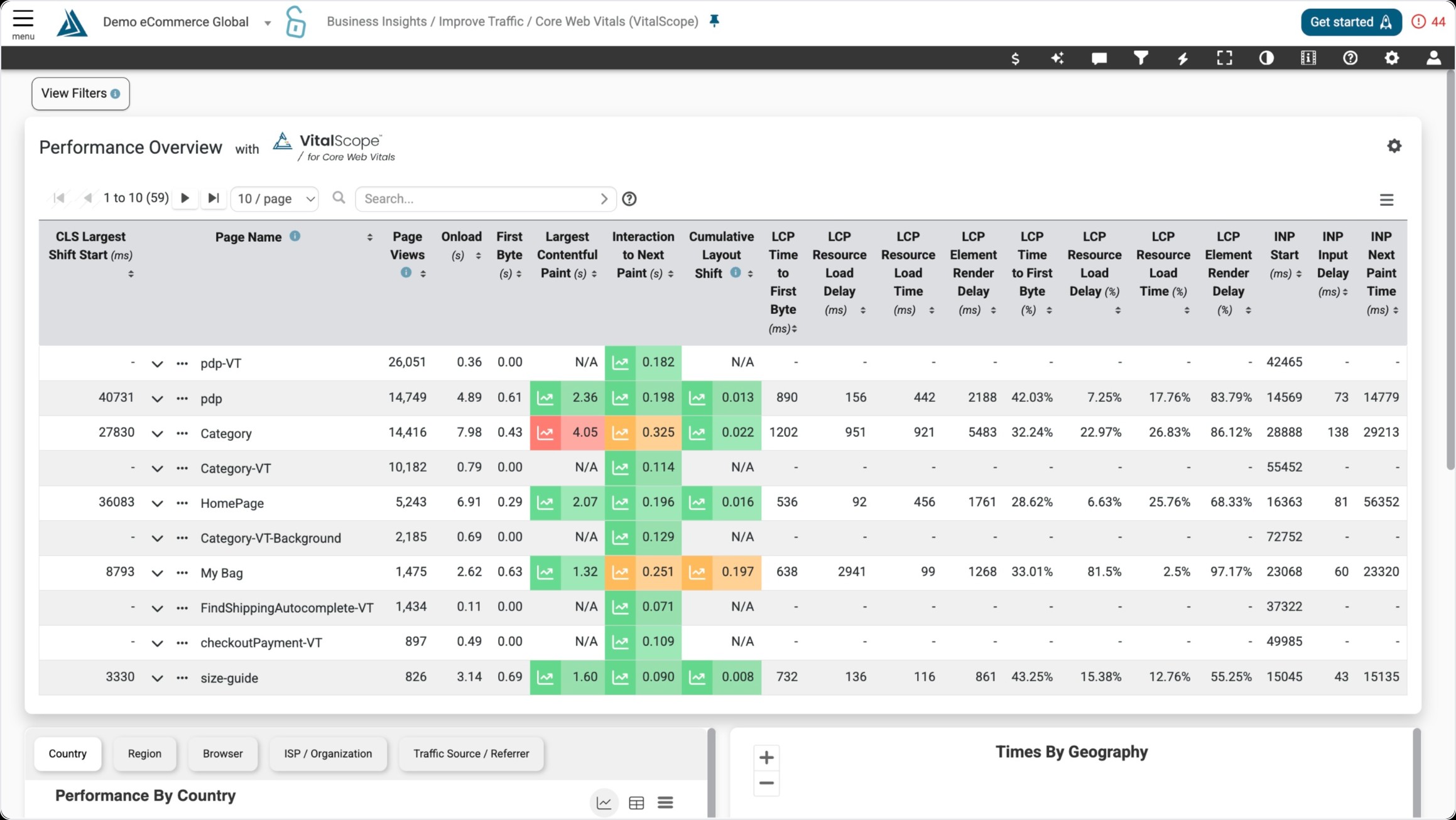
First, to observe the high level numbers, go to the RUM or Synthetic Performance Overview. From here, you can gain an understanding of what pages are experiencing high INP.
Using the Performance Details
To drill down to this information further, switch to the Performance Details. For my example I will be using RUM.
|
Please Note: INP is only collected in RUM in the Chrome Browser. To see more INP hits, filter the page for Chrome via the right-side filter menu. |
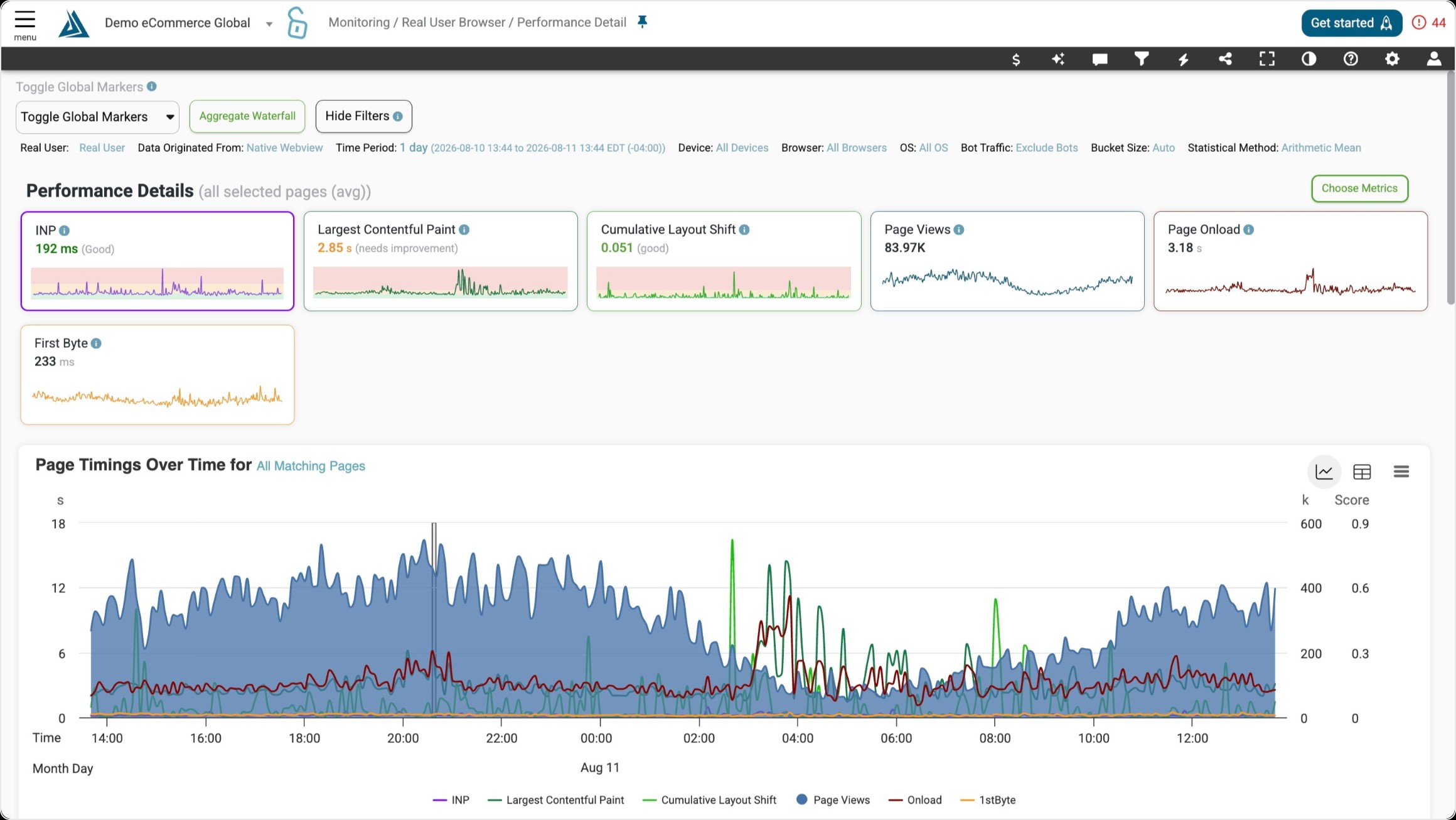
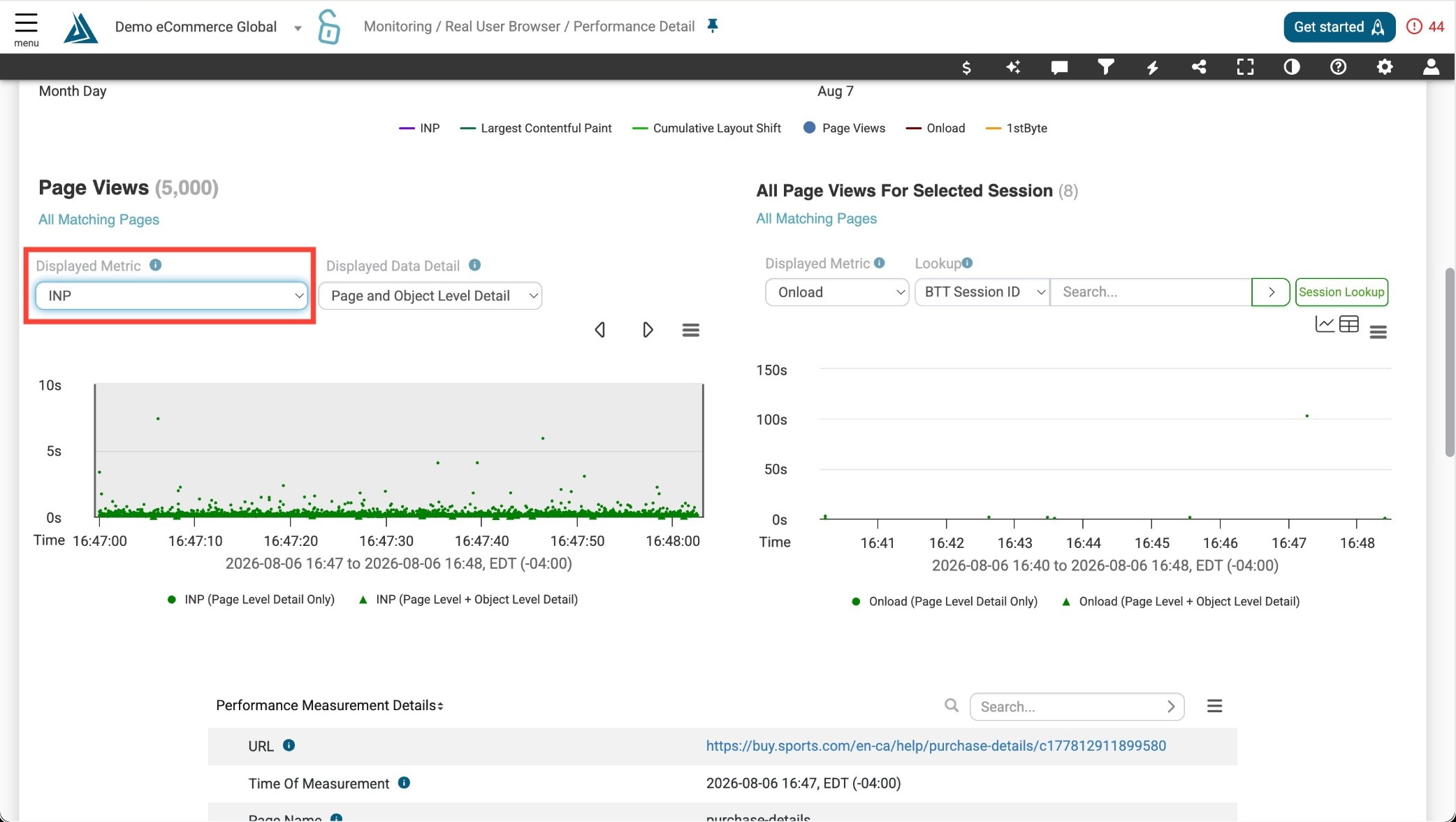
In the Performance Detail, drill down into individual sessions or monitor runs using the scatterplots. In the dropdown, select Interaction to Next Paint as your display metric. Select a point in the scatterplot to view the performance details for that session.
Using Data Science
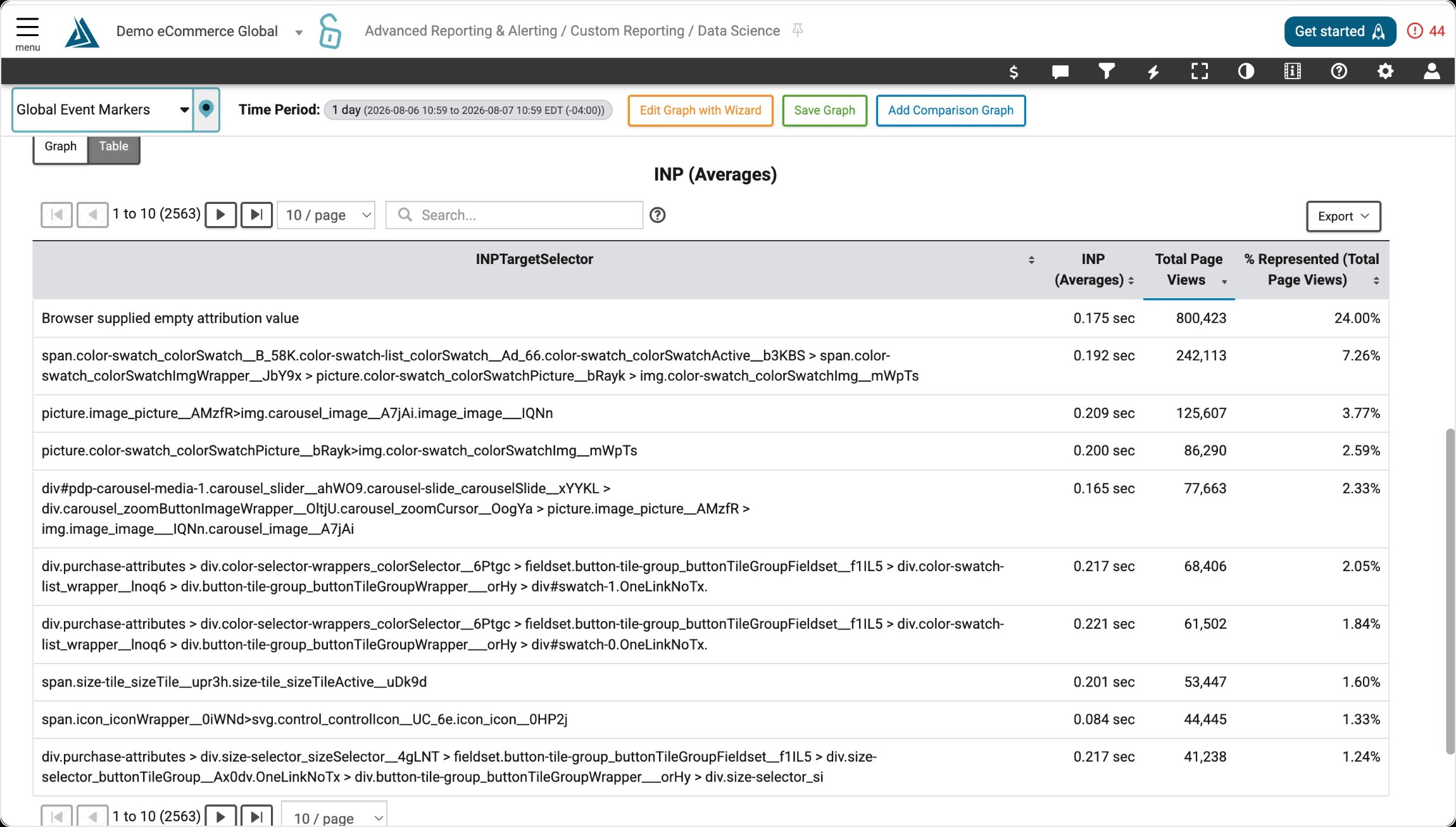
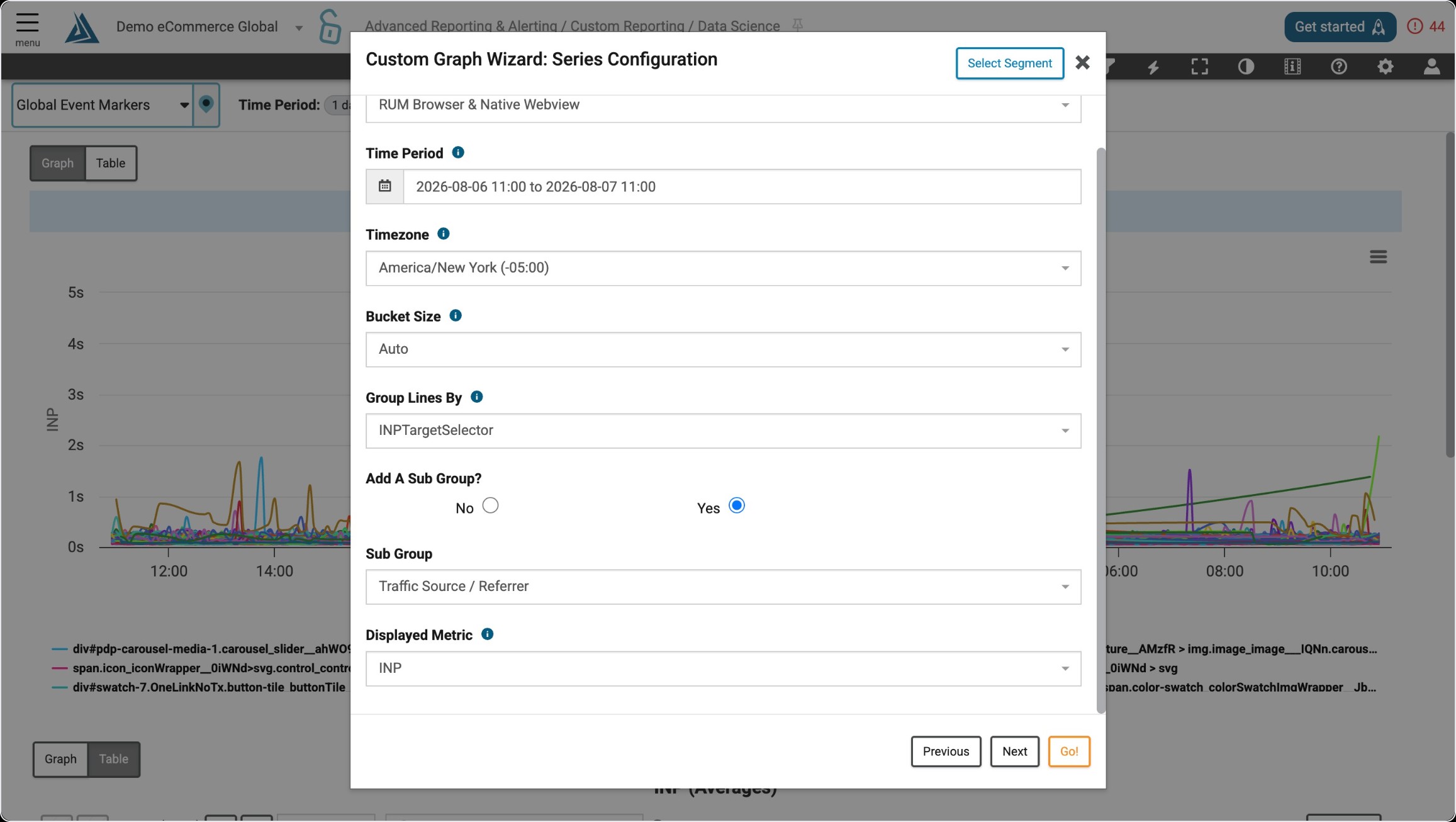
Finally, we are going to use Data Science to identify what elements were impacted by high INP. Add a New Custom Graph. Select RUM (this variable is only available in Real User data at this time). Next select your graph type, for this example we will be using a Line Graph. Group By INPTargetSelector. Then select INP as the display metric.
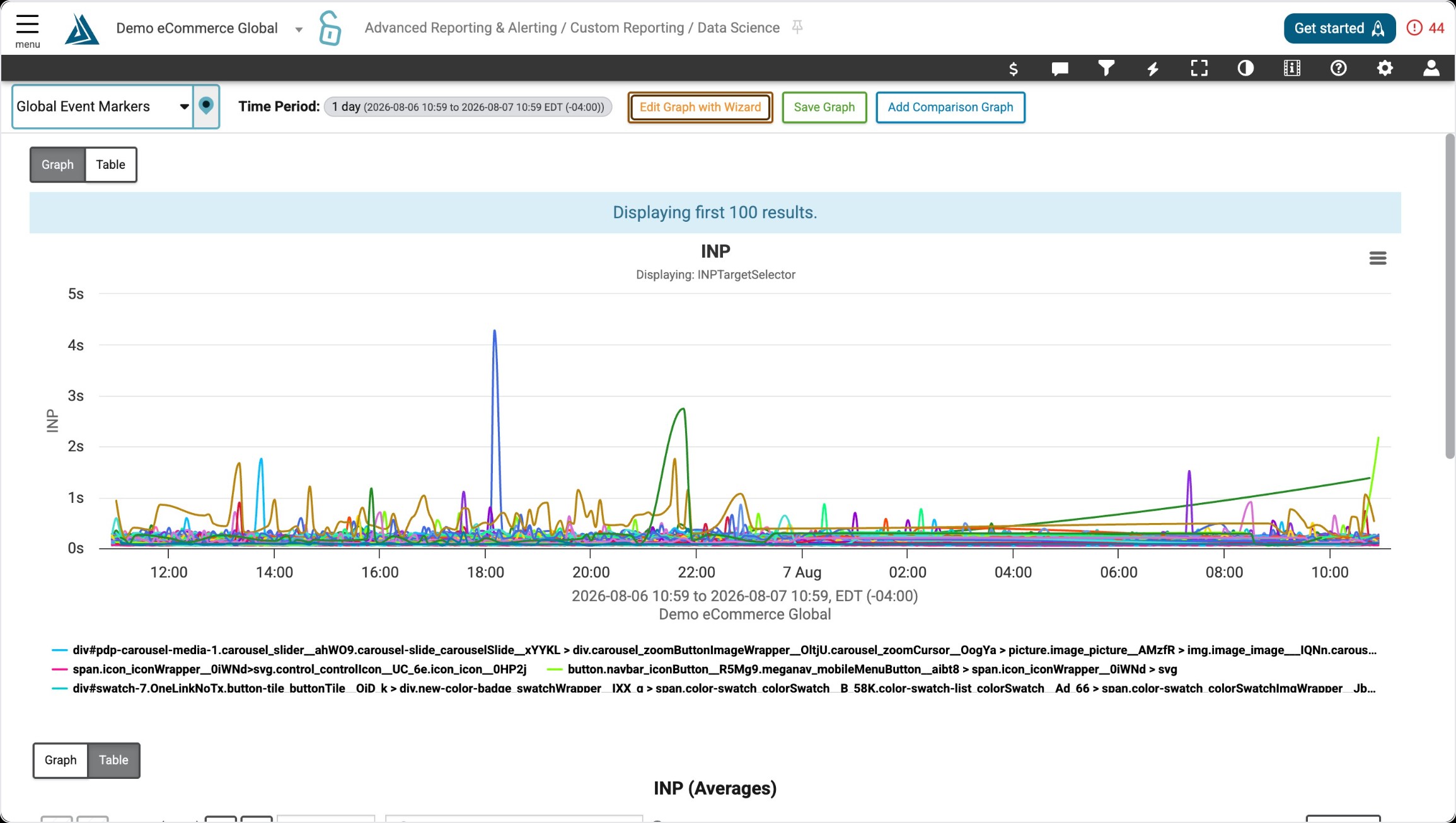
Now, filter by the pages with high INP scores from the Performance Overview or Details pages. From here we are able to determine what element is most impacting the INP for the page.